Dec 22, 2025

Getting Started with Precision Farming Software: A Step-by-Step Guide to FieldView

Learn how to use FieldView’s precision farming software and digital farming tools to map fields, analyze data, and boost yield and profitability.

Yellow graphic with the title “FIELDVIEW 101” and subtitle “CREATING AN ACCOUNT” over a subtle dotted pattern background.

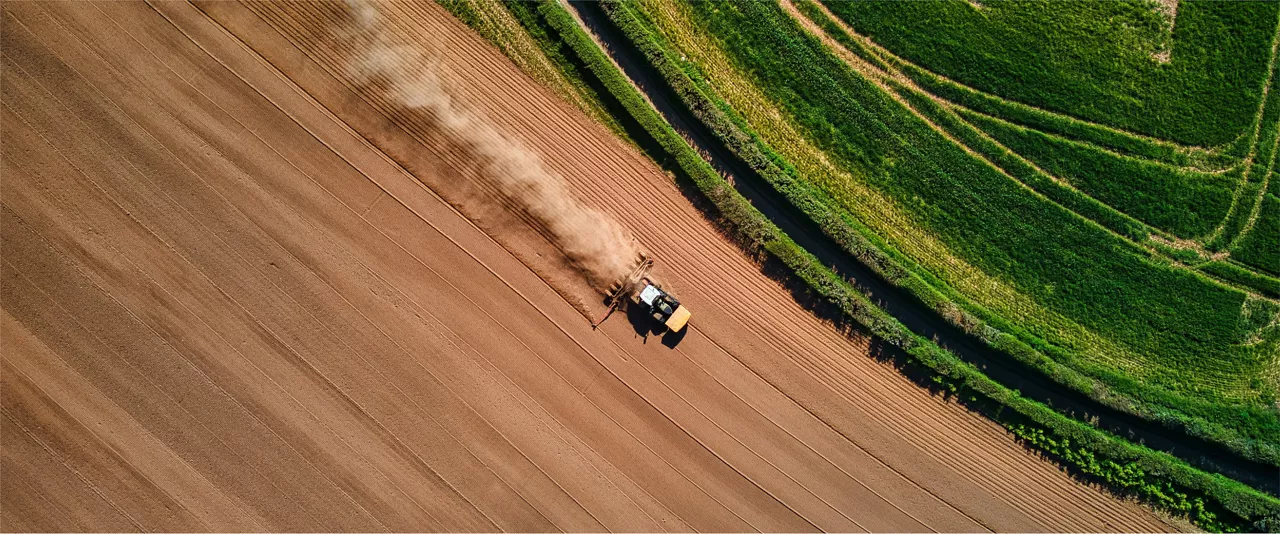
There’s no doubt that the availability of real-time analytics has changed crop production. With modern, digital-enabled farm equipment, in-season data capture has made it possible to grow crops with greater precision than ever. Farmers across the Prairies are discovering how they can harness that data to boost their bottom line with precision farming software like FieldView™, Bayer’s Digital Ag Software Solution and leading digital farming tools.


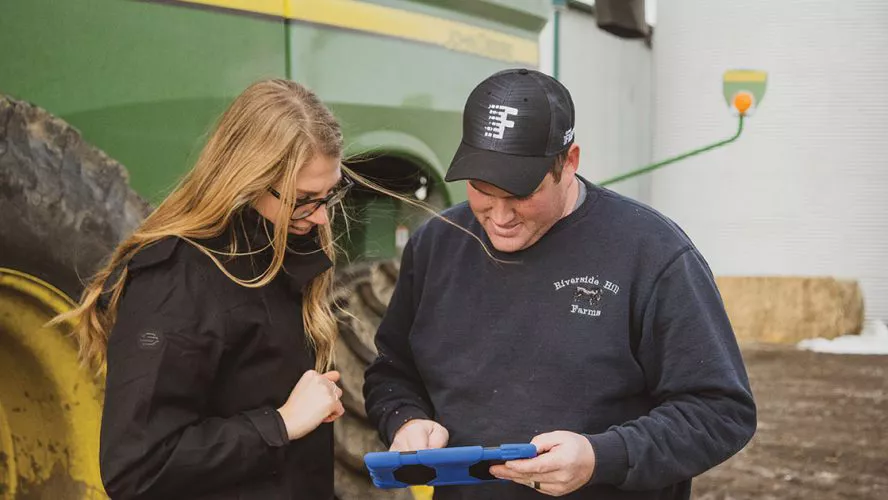
Ashton, MB farmer Dave Hewlett admits he got off to a slow start with FieldView. Although he’s comfortable with computers, Hewlett didn’t get started on FieldView as soon as he bought his subscription. “Looking back, I would have jumped in harder, sooner.” 


If you already have a FieldView subscription but haven’t gotten rolling yet, you’ll find that getting started is easy. Let’s assume you have a smartphone and a tablet. FieldView works equally well with Apple or Android operating system products.
Step 1: Set up Your Account

Here’s a video link to help you walk through setting up your account.

https://climate.com/en-ca/resources/getting-started/fieldview-101-overview/set-up-your-account.html


Step 2: Map Your Fields

FieldView’s field map software is the ultimate tool for assessing what’s happened – and what’s happening – on your acres. Once you’ve done that, you’ll be on the path to better decisions and more efficient farming. To map your fields, login to your account and:


  • Click “Add a Field” on the bottom of the Fields List pane on the left.


  • Search your field by address, zip code or latitude/longitude or by CLUs (common land units) that will appear as outlined grids of land.


  • Provide a Field Name, Client Name, Farm Name and Approximate Area of the field to keep your field information organized in your account.


  • Select your field, adjust boundaries as necessary, select ‘Save’. 

Step 3: Upload Historical Data

Once your fields are mapped, you’re only one step away from being able to assess your crops’ performance. You’ll need to enter your cropping data from previous years such as crops grown, crop protection applications, yield etc. To do that:


  • Make sure your historical field files are in a .zip format


  • Click the “Import” tab in the top navigation bar on FieldView


  • Select your file to upload


Uploading historical data ensures your precision farming software can provide accurate insights and comparisons from season to season.

Step 4: Download FieldView Apps

Once your data is uploaded, you’ll want to download two essential digital farming tools: the FieldView app and the FieldView Cab app from Apple’s App Store or Android’s Play Store. 


Here’s more information about those two essential apps.

FieldView App

The FieldView app provides access to insights, analysis, and weather information. From your phone or tablet, download the FieldView app and login with the climate.com username and password you created when you set up your account.

FieldView Cab App

The FieldView Cab app is a great tool to use while you’re in the cab to provide visualization for every pass in your field. See your planting, harvest, spraying and application maps in real time to monitor your progress and spot potential issues. To download the FieldView Cab app, search ‘FieldView Cab’ from your preferred app site. Once the app has downloaded, login with your climate.com username and password to get started.

Step 5: Linking your Farm Equipment to FieldView

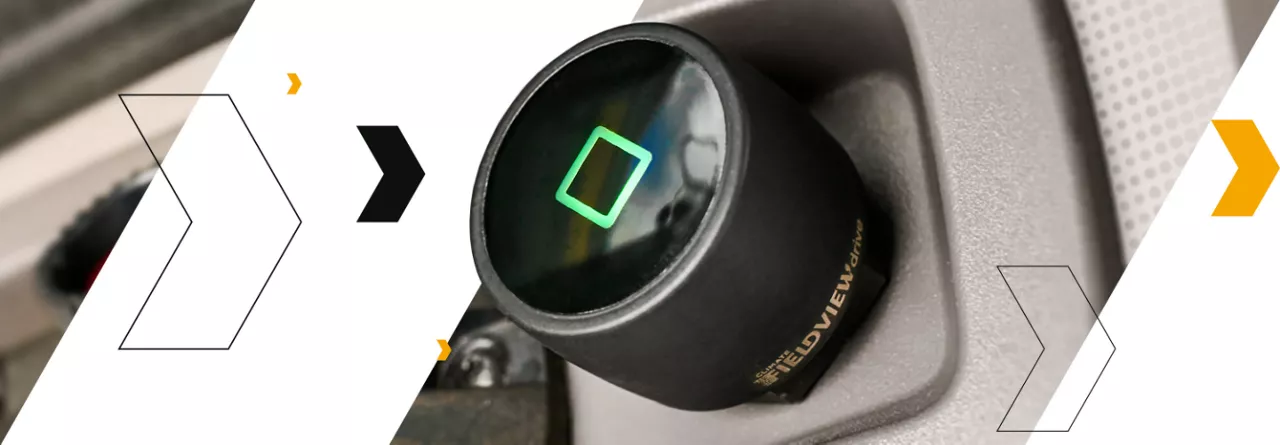
From the FieldView Cab app, you’re now ready to collect your data from the tractors, combines, sprayers, and seeders you use. FieldView’s data collection software is compatible with most modern farm equipment with digital capability. You can also drop “pins” or digital markers to mark problem areas such as rocks, stubborn weed infestations, gopher holes or weak crop spots for further investigation. Once you mark those pins, anyone logged into your FieldView account can see the exact location of those pins from any farm equipment linked to your FieldView account.

Here are some video links to walk you through setting up each type of equipment: 


Now’s the Time to Get Started

According to Manitoba’s Dave Hewlett, the most important step with FieldView is to get started. “The usefulness of the data may not occur to you right away but it will come,” he believes. And as we all know, every journey begins with the first step.


Finding it a challenge to get started? Learn how FieldView’s digital farming tools can help you get started today. Check out our FieldView resource centre or call 888-924-7475.

Related Stories

Discover more ways to boost your farm's productivity by exploring related articles.

Explore All Articles