Jan 27, 2026

Troubleshooting FieldView Connection Issues

Having trouble connecting Climate FieldView? Learn simple troubleshooting steps, resets, and support tips to get your FieldView system running smoothly.

By now, we’ve all become accustomed to the digital equipment that pervades our lives. Smart TVs, streaming apps, smartphones, tablets, and computers can all require a reset from time to time.


Of course, the stakes are low when you’re just trying to stream your latest binge watch on TV. FieldView™ is all about improving your farm business, however, and if connection issues arise, you need to know what to do.

Identify The Problem

Internet connectivity can sometimes be a challenge, especially in rural areas of Western Canada. Check your Wi-Fi to make sure you’ve got a consistent signal. Check your tablet and phone to make sure you’re using the most up-to-date operating system.


If those steps check out positively, restart your devices and the FieldView app.

BASIC RESET
 

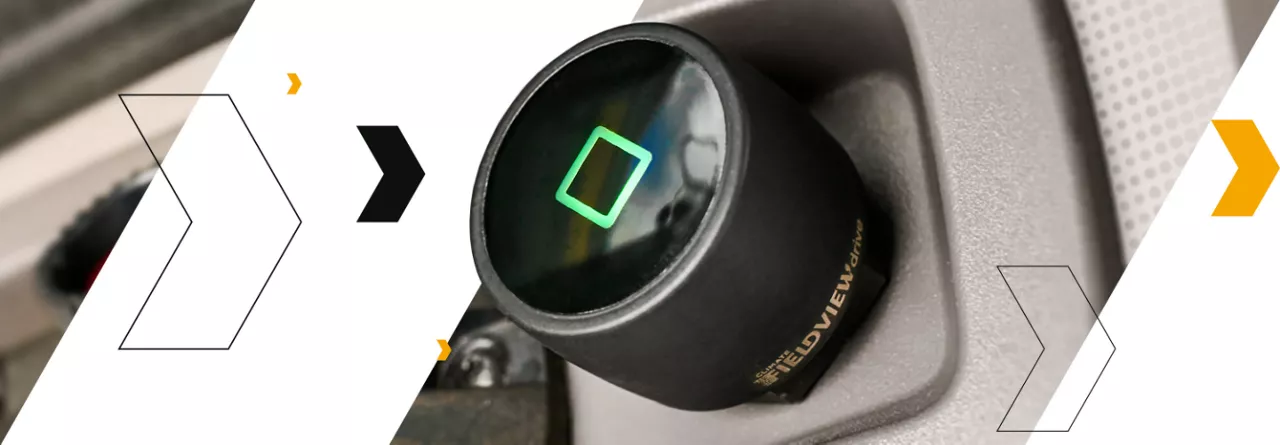
  1. Unplug the FieldView Drive from the machine.

  2. Perform a hard reboot of the iPad by pressing and holding the home and power buttons simultaneously until the Apple logo appears.

  3. Reconnect the Drive to the iPad and reconnect it in the FieldView Cab app's settings.

BLUETOOTH RESET  
Go to the iPad's Settings and tap Bluetooth.
 

  1. Find the FieldView Drive in the list of devices and tap the information icon next to it.

  2. Tap Forget This Device.

  3. Turn off Bluetooth on the iPad for at least 2 seconds, then turn it back on.

  4. Reconnect the FieldView Drive and re-pair it from the iPad's Bluetooth settings.

  5. Go back to the FieldView Cab app, navigate to Settings > Devices, and reconnect the Drive

ADVANCED TROUBLESHOOTING


  • Reset network settings: If the issue persists, you can try resetting the iPad's network settings. This will reset all network settings, including Wi-Fi passwords, and restart the iPad. After it restarts, you will need to reconnect to your Wi-Fi and re-pair the Drive.

  • Check for updates: Make sure the FieldView Cab app is updated to the latest version.

  • Contact support: If none of these steps work, contact a Precision Planting or Climate FieldView dealer or product support for further assistance.

CHECKING FOR APP UPDATES
 

For iOS (Apple)

  1. Open the App Store app.

  2. Tap your profile picture or the search icon at the bottom right.

  3. Scroll down to the list of available updates.

  4. If "Climate FieldView" or "FieldView Cab" has an "Update" button next to it, tap it to install the update.

  5. If you see "Open," the app is already up to date. 
     

For Android 
 

  1. Open the Google Play Store app.

  2. Tap your profile icon in the top right corner.

  3. Tap "Manage apps & device".

  4. Under "Updates available," tap "See details" or scroll down to find the FieldView app.

  5. Tap the "Update" button next to the app if it's available.

  6. Alternatively, tap "Update all" to update all apps at once

Still having issues?
 

Contact FieldView Support
 

  • Have Name and Account E-mail address ready
     

  • Be specific with issue and what you’ve already tried


FieldView is Field Tested


Like all digital devices, your FieldView account may go down from time to time. But farmers across North America have profited from Bayer’s digital farming tool. Use these tips to get your FieldView account running smoothly so you can benefit from this field-tested, precision agriculture tool.


Finding it a challenge to get started? Learn how FieldView’s digital farming tools can help you get started today. Check out our FieldView resource centre or call 888-924-7475.

Related Stories

Discover more ways to boost your farm's productivity by exploring related articles.

Explore All Articles