How to Upload Historical Data Via FieldView Data Inbox
Overview
If you would like to load historical data OR if you do not have equipment that is compatible with FieldView™ Drive that allows for data transfer into FieldView™, you can manually upload historical field boundary, planting, prescription, application, imagery, harvest, or soil test files via Data Inbox and view your field data layers in FieldView™.
Available on: Web
Uploading Data Into Your FieldView™ Account
If you do not have compatible equipment that allows for data transfer into FieldView™, you can manually upload via Data Inbox and view your field data layers in FieldView™. Compatible monitors are listed here. After uploading data into the FieldView platform, you can analyze field performance or use yield data to improve management zones.
IMPORTANT NOTES:
- For the best upload experience, use Google Chrome as your internet browser.
- Use a laptop or desktop computer to load data, and make sure you have reliable internet service.
1. Log in to your FieldView account at www.fieldview.com and click on Data
2. Select Upload & Import

3. Check if files are compatible
- Upload field boundaries, planting data, prescriptions, application data, imagery, harvest data, soil tests, and shapefiles
4. Learn how to zip/compress files

6. A pop-up will appear allowing you to search where you saved the zipped file(s)
7. Select the file(s) you wish to upload to the Data Inbox
8. You will now be able to see the progress of each file uploading into your account

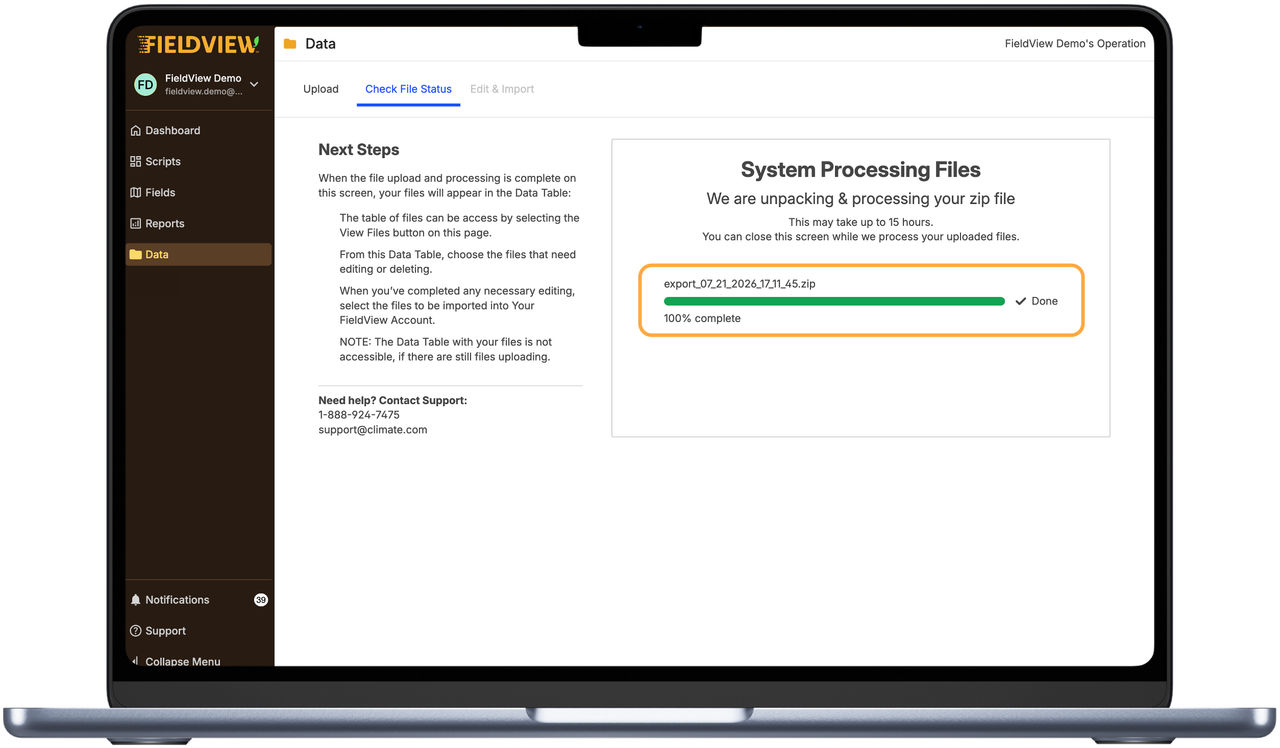
9. The uploaded file will show under the Check File Status tab while it is being processed
- Note: Additional files can be uploaded at any time by navigating back to the Upload tab while processing continues in the background
Review and Manage Uploaded Files
After uploading the zipped file, navigate to the Edit & Import tab
- Review uploaded files
- Use the file type tabs at the top of the page to view and review uploaded files by category
- Filter files Apply filters to quickly sort and focus on specific files (Client, Farm, Crop, Hybrid, Year, Source, Field Assignment, Status)
- Apply filters to quickly sort and focus on specific files (Client, Farm, Crop, Hybrid, Year, Source, Field Assignment, Status)
- Customize the display
- Select Columns to customize the display by showing or hiding options – simply click the
to hide and click
again to make it visible
- Select Columns to customize the display by showing or hiding options – simply click the
- Select files for import
- Select the checkbox next to individual files to include them in the import
- To select all files at once, use the checkbox in the header row above the first column
- Perform file actions - After selecting one or more files, click Action to choose from the following options:
- Edit Details: Update the Client Name, Farm Name, Crop Type or Hybrid for individual line items or for multiple lines as a batch edit
- Import files: Import the selected files from the Data Inbox
- Delete: Remove uploaded data from the Data Inbox
- Re-run Field Assignment: If necessary, reprocess field assignments to help ensure uploaded files are associated with the correct field boundary in an account before importing

Once the selected files have been successfully imported, a green confirmation message will appear in the upper-right corner of the screen. If any issues are identified during the import process, you will receive an error notification.

For additional details about import errors and warnings, navigate to the Issues Detected tab.

Put Your Data to Use
Review current and historic years of planting and harvest data with the Yield Analysis tool to better understand seed performance by operation, field, hybrid and soil type.

Compare uploaded data to other map layers.
