Rebuild and Clear Maps with FieldView Cab App

Overview

The Rebuild Maps tools refresh maps in the FieldView™ Cab app and are commonly used after changes are made on the web, such as spatial reprocessing or using the Fix Data tool. Understanding which option to use (and when) helps ensure your data displays correctly and prevents unintended data loss.


Available on: Apple iOS™


Read Before Proceeding


Do NOT clear and rebuild maps if your data has not fully synced to the web. 


Clearing and rebuilding removes local data from the iPad® and reloads data from the FieldView™ cloud. If data has not finished syncing, that data may be permanently lost. 

Cab App - Settings - Rebuild Maps and Clear Data

Rebuild Maps

What Rebuild Maps Does

    • Refreshes maps using data currently stored on the iPad®
    • Applies edits made on the FieldView.com
    • Does not remove local data from the device

    When to Use Rebuild Maps

      • Maps look outdated or incomplete
      • Data was reprocessed on the web
      • You were instructed to rebuild after using the Fix Data tool

      How Data Syncing Affects Rebuild Maps

      When data is live-streamed from a FieldView™ Drive or Precision Planting 20|20® monitor, the Cab app initially displays a visual snapshot of the map. The raw data takes longer to fully sync to the iPad® device.


      If syncing is interrupted:

      • Only the snapshot may exist locally
      • Rebuilding maps will display only data that has fully synced

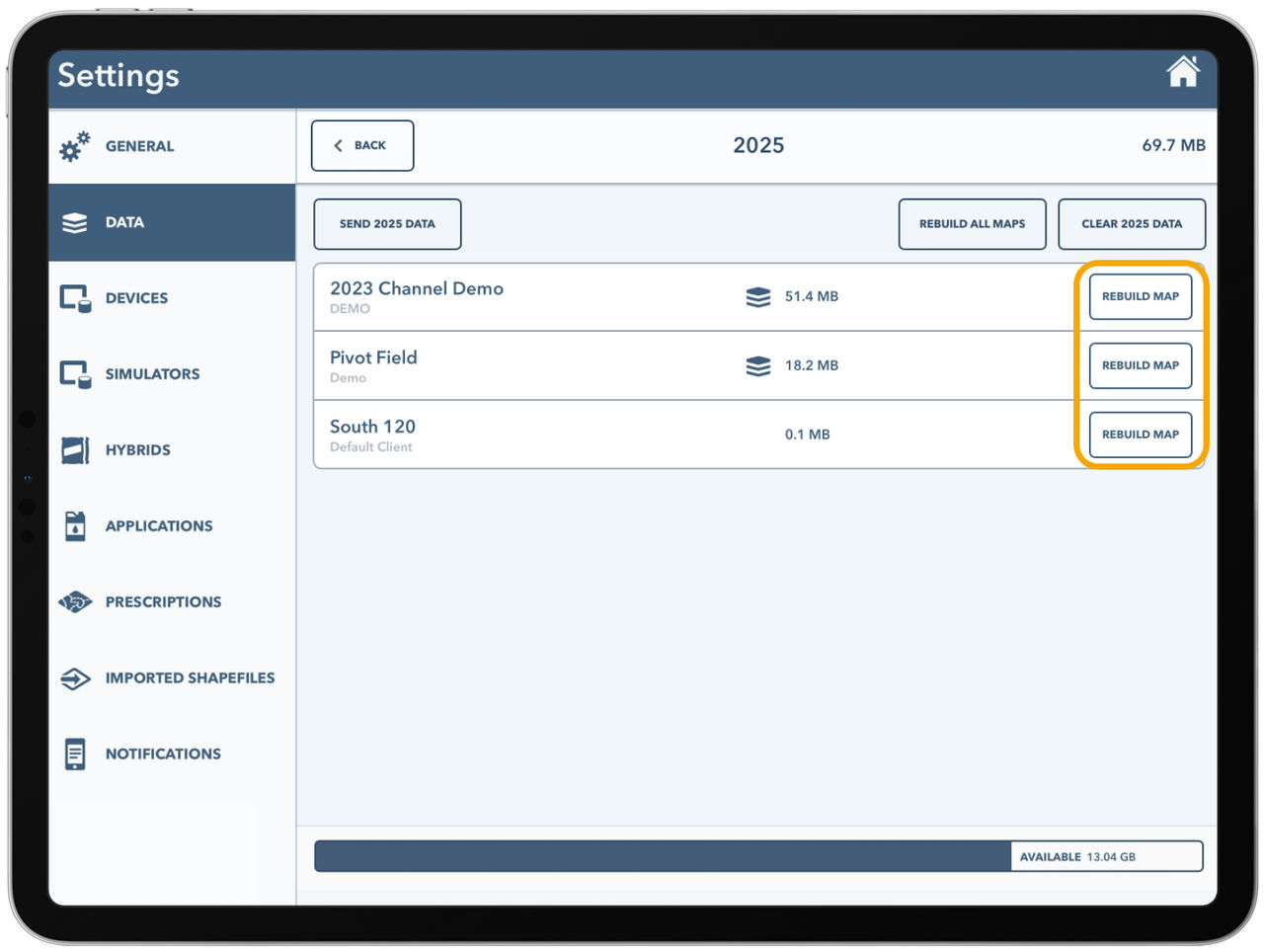
      How to Rebuild Maps

        1. Open the FieldView™ Cab app
        2. Go to Settings > select Data
        3. Choose the season you want to rebuild (for example, 2025)
        4. Select Rebuild Map next to the desired field(s)
        FieldView


        Optional

        • Select Rebuild All Maps to rebuild all fields for the selected season (Maps rebuild one field at a time.)

        Clear and Rebuild Maps

        What Clear and Rebuild Does

          • Deletes all locally stored data on the iPad® device
          • Re-downloads data from the FieldView™ cloud

          Warning

          Clearing and rebuilding maps will delete any data that has not fully synced to the web. Only use this option after confirming all data has fully synced.

          When to Use Clear and Rebuild Maps

          Clear and rebuild maps only if:

          • Data is fully synced to the web
          • Maps continue to display incorrectly
          • You are instructed to do so by FieldView Support

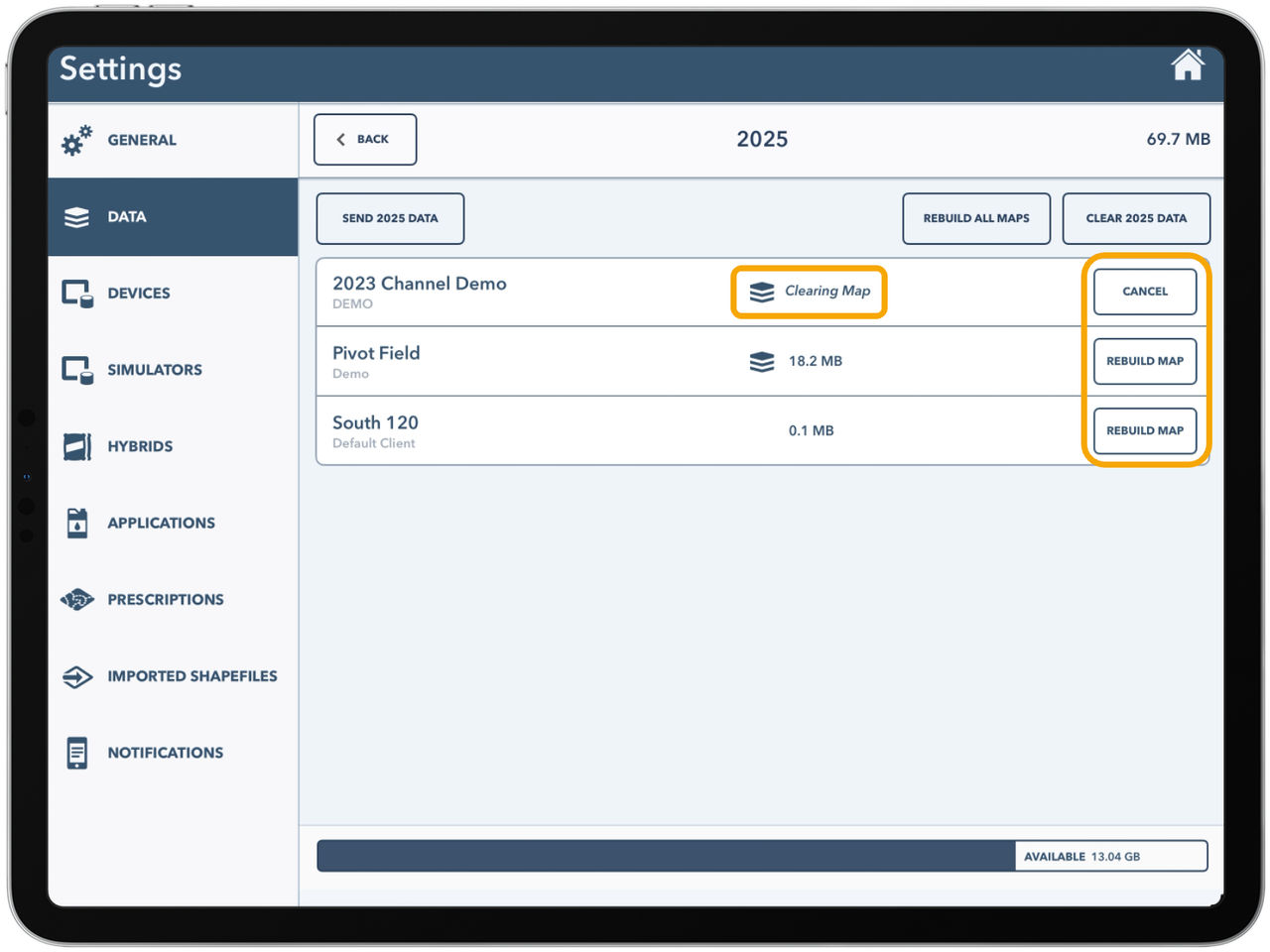
          How to Clear and Rebuild Maps

          1. Open the FieldView™ Cab app

          2. Go to Settings > select Data

          3. Choose the season you want to clear and rebuild (for example, 2025)

          4. Press and hold Rebuild Map next to the desired field(s)

          • A ”Clearing Map” message will appear
          • To clear all data at once, select Clear 2025 Data
           

          FieldView


          Optional

          • Select Rebuild All Maps to rebuild all fields for that season

          Choosing the Right Option

          Action

          Rebuild Maps


          Clear and Rebuild Maps

          Recommended When

          Refreshing maps after web edits


          Fully synced data but persistent display issues

          Risk Level

          Low


          Higher

          Best Practices

            • Confirm syncing is complete before rebuilding or clearing
            • Use Rebuild Maps first whenever possible
            • Reserve Clear and Rebuild Maps for advanced troubleshooting


            For additional questions or troubleshooting steps, please reach out to our FieldView Support Team at 1-888-924-7475.