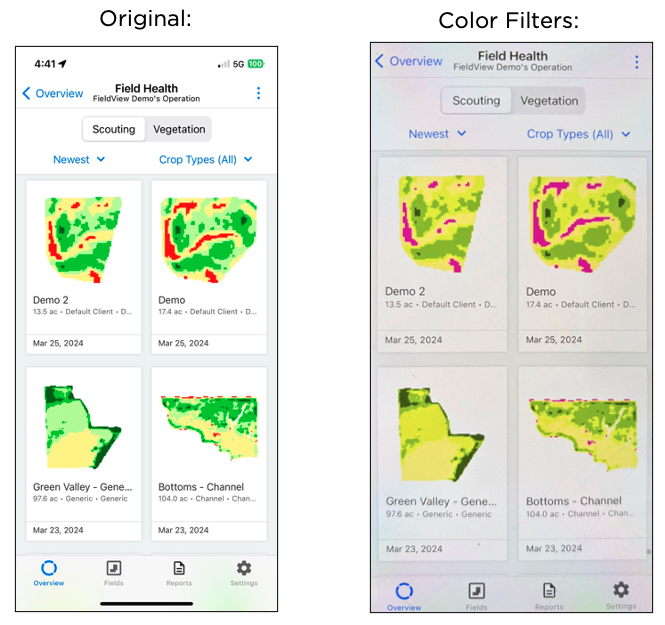
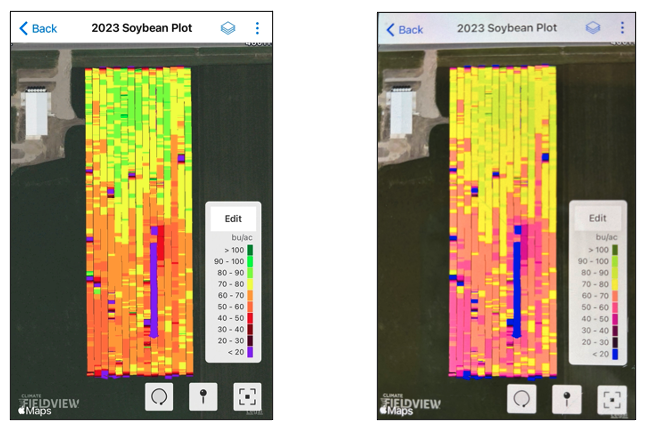
Color Vision Deficiency Accessibility for FieldView™ Platforms on iOS™ and Android™ Devices
Both Android™ and iOS™ operating systems have the capabilities to switch the color schemes to make the devices accessible for users with color vision deficiency. This guide provides steps on how to adjust the color scheme to allow our Field Health images, yield maps, etc. to be accessed by these users.
Android Steps:
1. Navigate to the Settings app
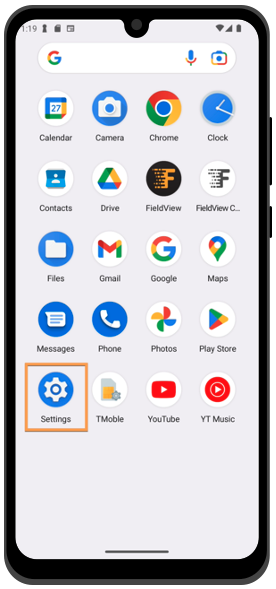
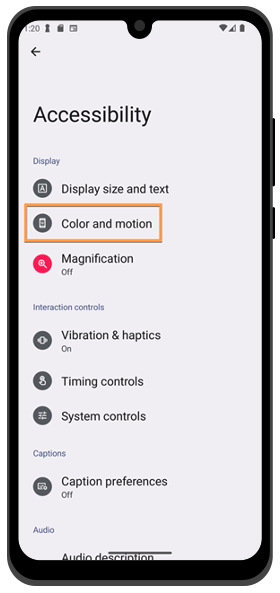
2. Select Accessibility
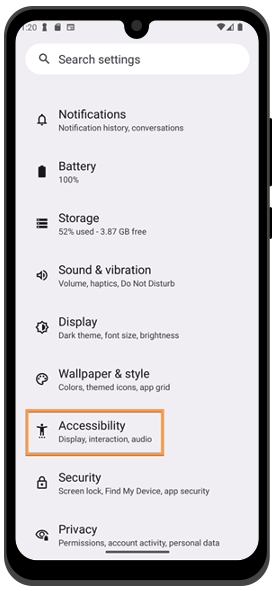
3. Select Color and Motion
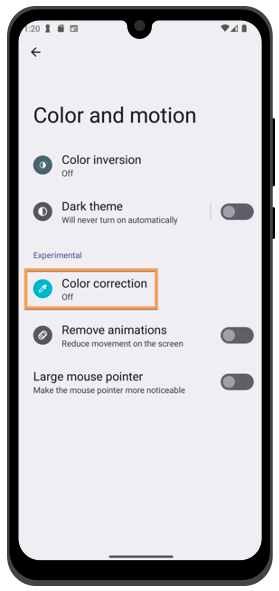
4. Select Color Correction
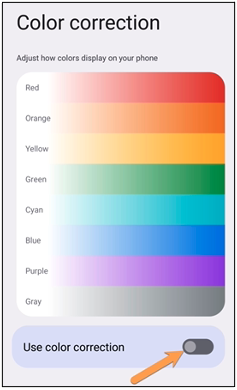
5. Toggle "Use Color Correction" to On
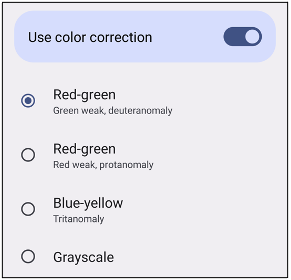
6. The user will be able to choose from the following options:
- Red-green (Green weak, deuteranomaly)
- Red-green (Red weak, protanomaly)
- Blue-yellow (Tritanomaly)
- Grayscale
iOS™ Steps:
1. Navigate to the Settings app
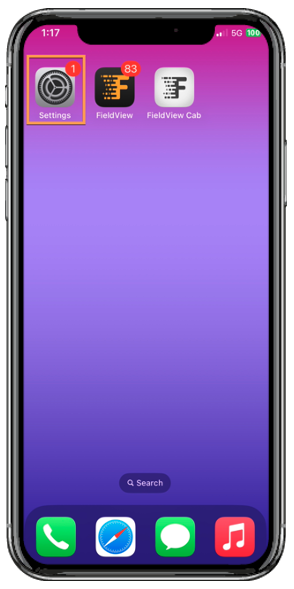
2. Select Accessibility
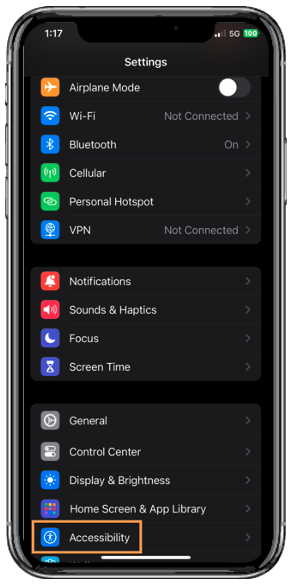
3. Select Display & Text Size
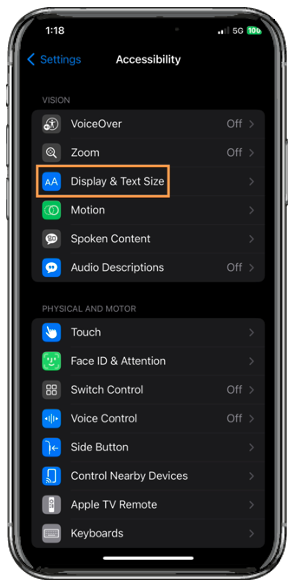
4. Select Color Filters
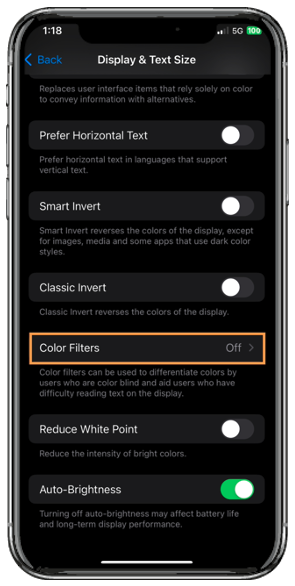
5. Toggle "Color Filters" to On
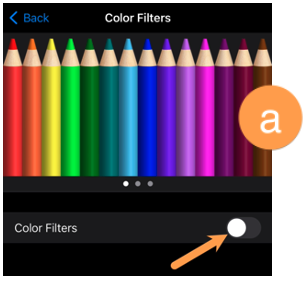
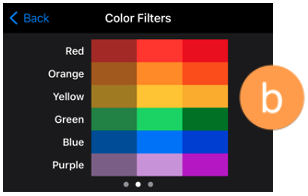
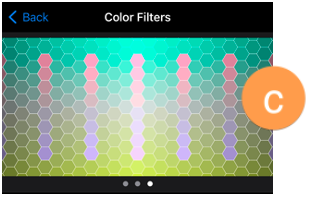
The user will see three examples of color spaces to help them select an option that fits their needs. Swipe left or right on the examples to find a filter that works best for you.
- Pencils in a rainbow of colors
- Three columns of color intensity
- Vertical lines on a variable color background
The user will be able to choose from the following options:
- Grayscale
- Red/Green Filter (Protanopia)
- Green/Red Filter (Deuteranopia)
- Blue/Yellow Filter (Tritanopia)
- Color Tint
Examples: