FieldView App Overview for Android Devices
Overview
This article provides an in-depth look at the FieldView app features and more, helping you make the most of FieldView on your Android device.
Available on: Android™
The FieldView™ app brings all your agronomic data together so you can instantly visualize crop performance. These powerful tools allow you to uncover insights and make smarter decisions year-round. This article gives an in-depth overview of what you can do with the FieldView app on your Android device.
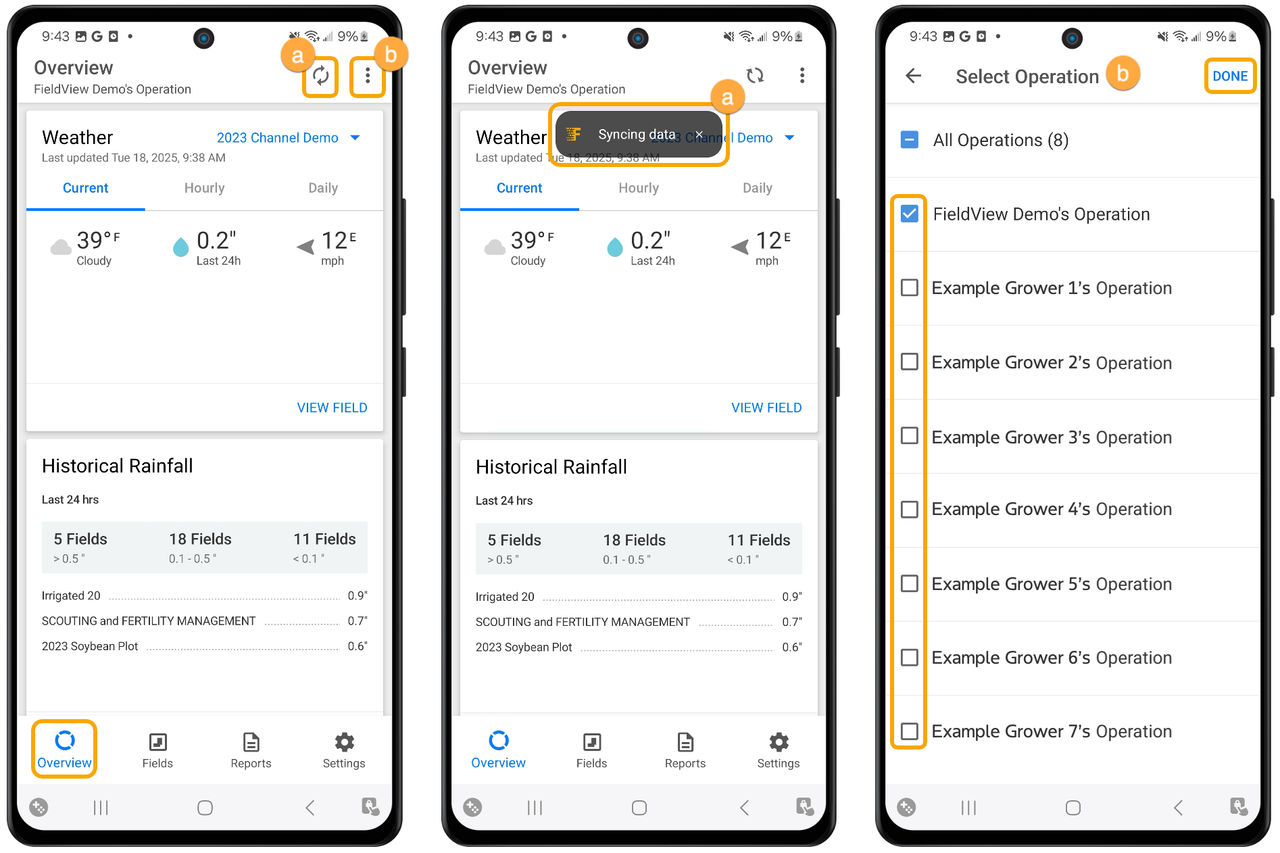
Overview Tab:
a. Sync Data button - tap this button to refresh your app and get the latest information for your fields
b. Select Operation button - click here to select the operations you want to view
Weather Tile:
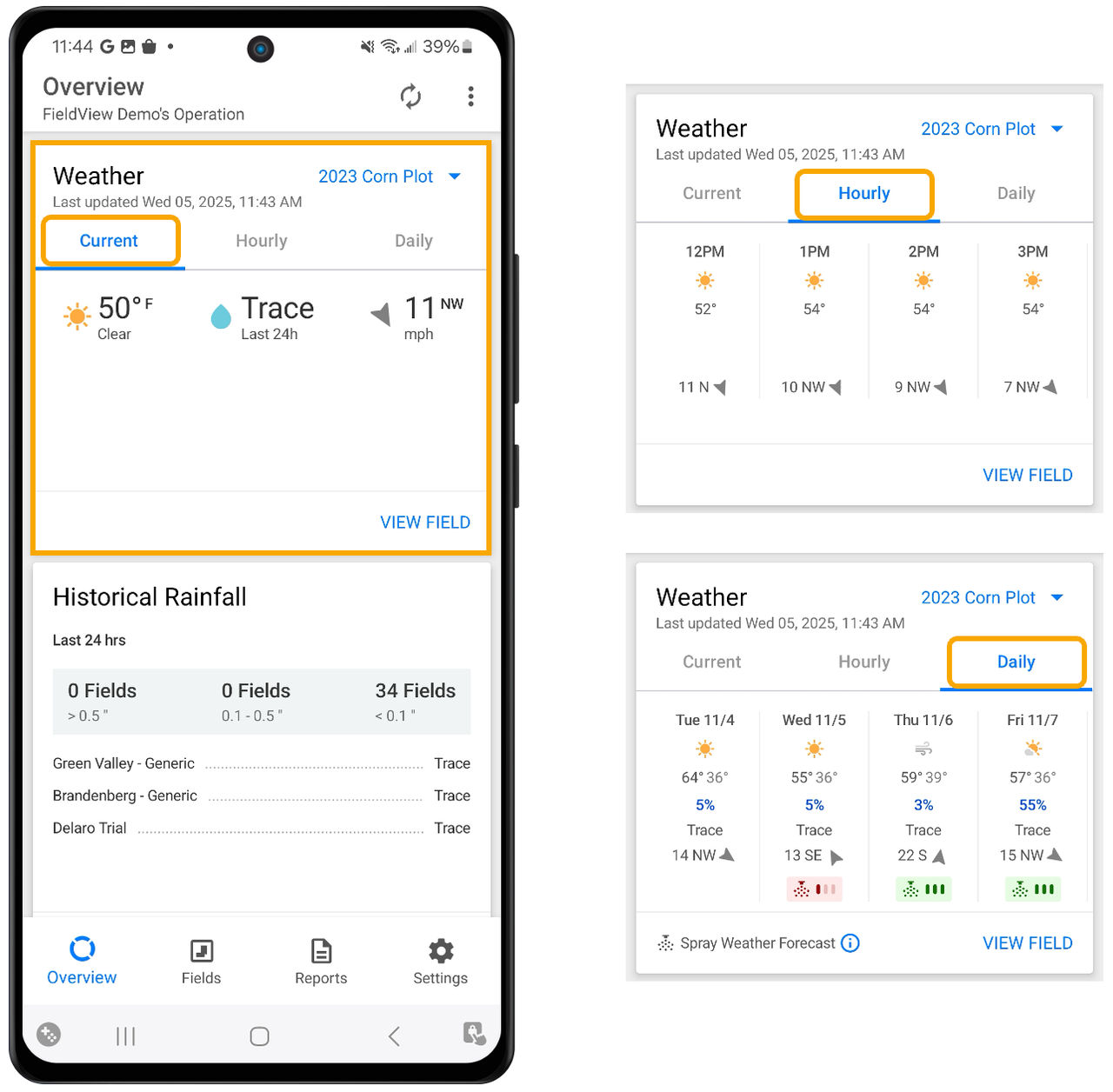
This tile shows current, hourly, and daily weather conditions for a specific field and will default to the field closest to your current location. To view this information for another field, click the field drop-down menu in the upper right-hand corner of this tile.
Spray Weather Forecast is located under the Daily tab. It uses weather data - such as wind, rain, and temperature - to recommend the best possible window for spraying. For more information on Sprayer Weather Forecast, click here.
Historical Rainfall Tile:
The Historical Rainfall tile gives a quick summary over rainfall amounts during the last 24 hours. Tap View All fields for more information.
a. Here you will be able to view rainfall over the last 24 hours, so far today, and season to date
b. Click View Radar to direct you to the Radar screen
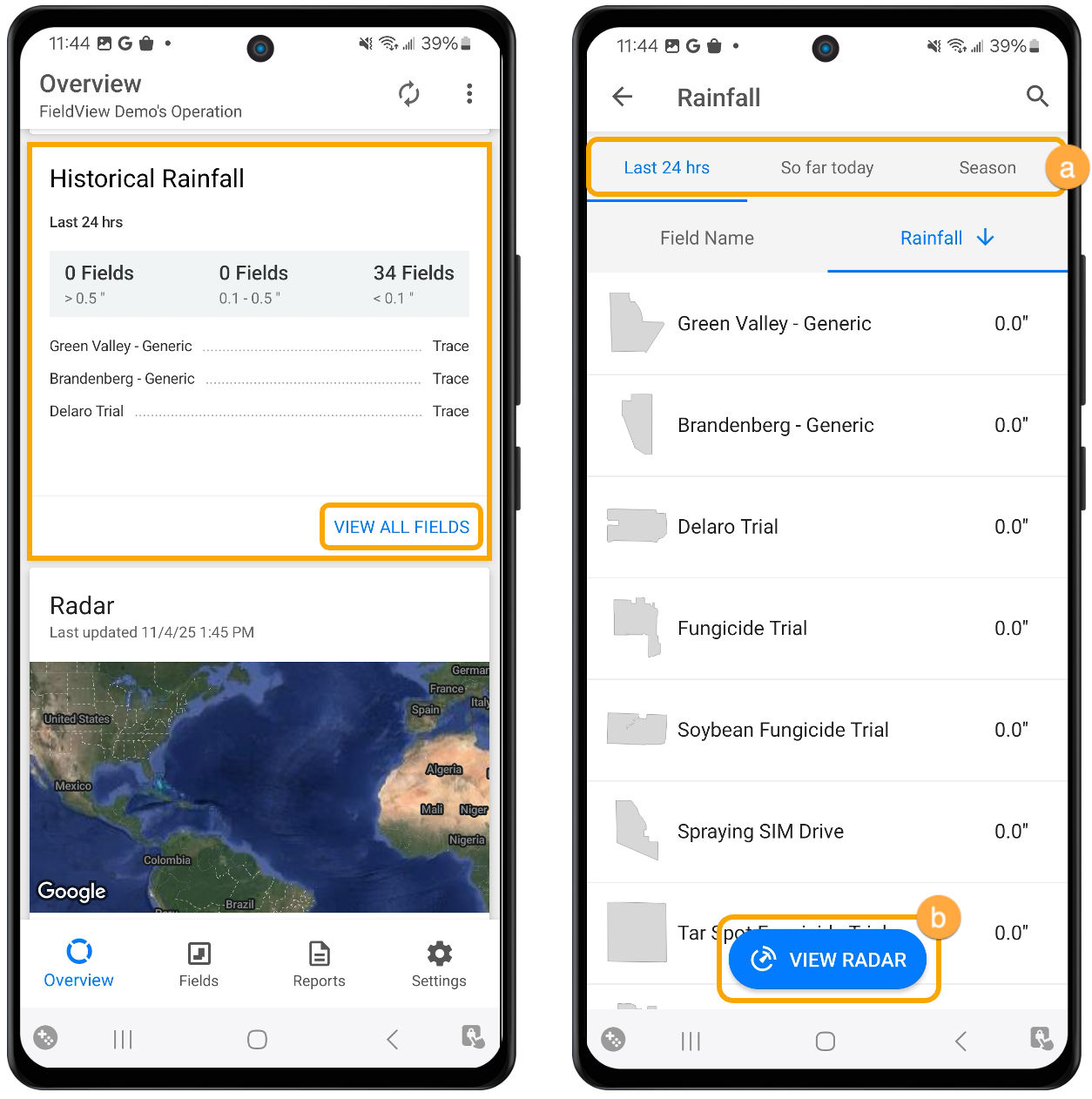
- The blue arrow next to the selected column will show whether it is sorted in ascending or descending order (if the column is showing ascending and you want it descending, or vice versa, simply tap the column header again)
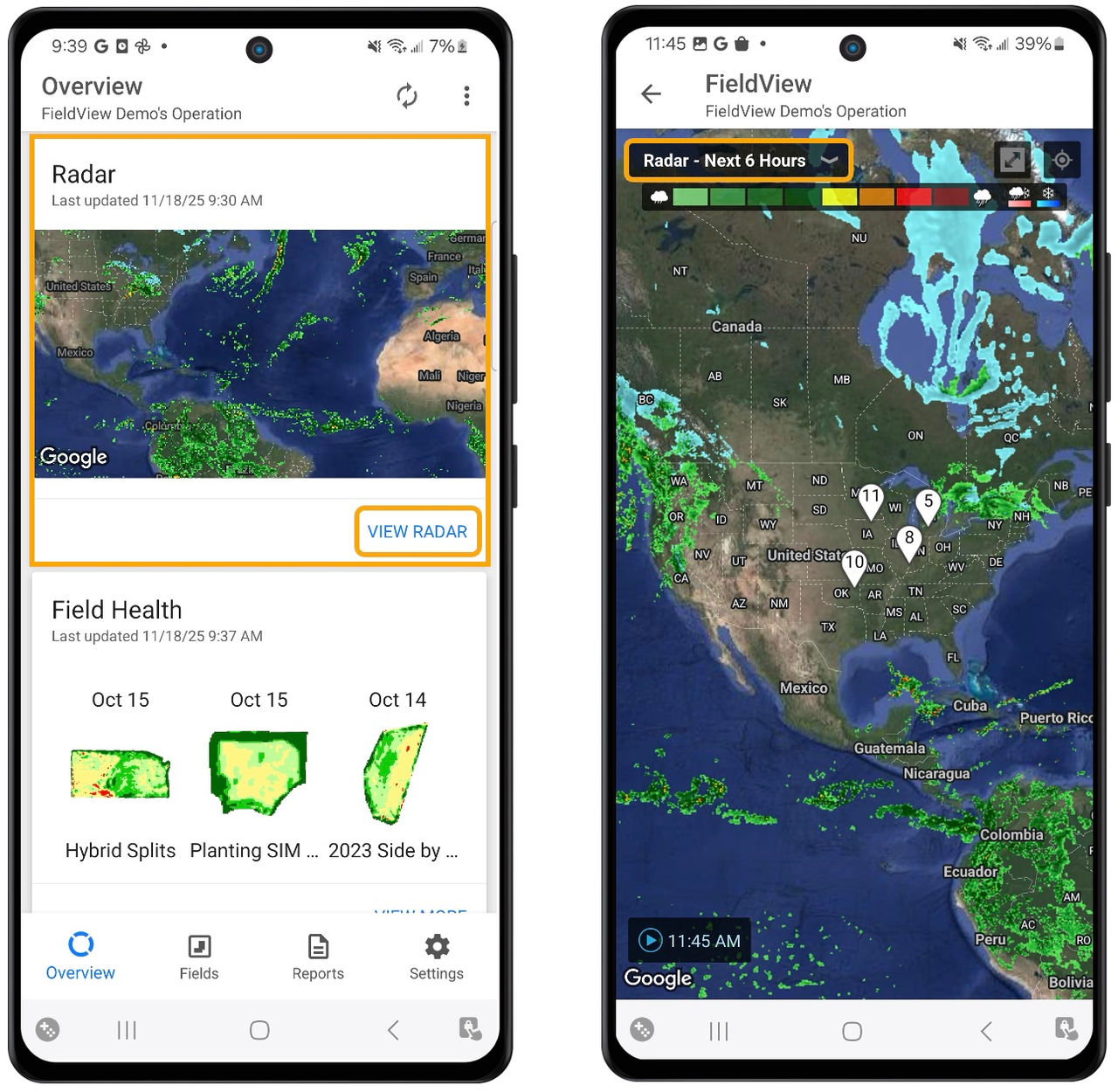
Radar Tile:
1. Click View Radar
2. Select an overlay to display - next 6 hours, last 24 hours, or radar off
Field Health Tile:
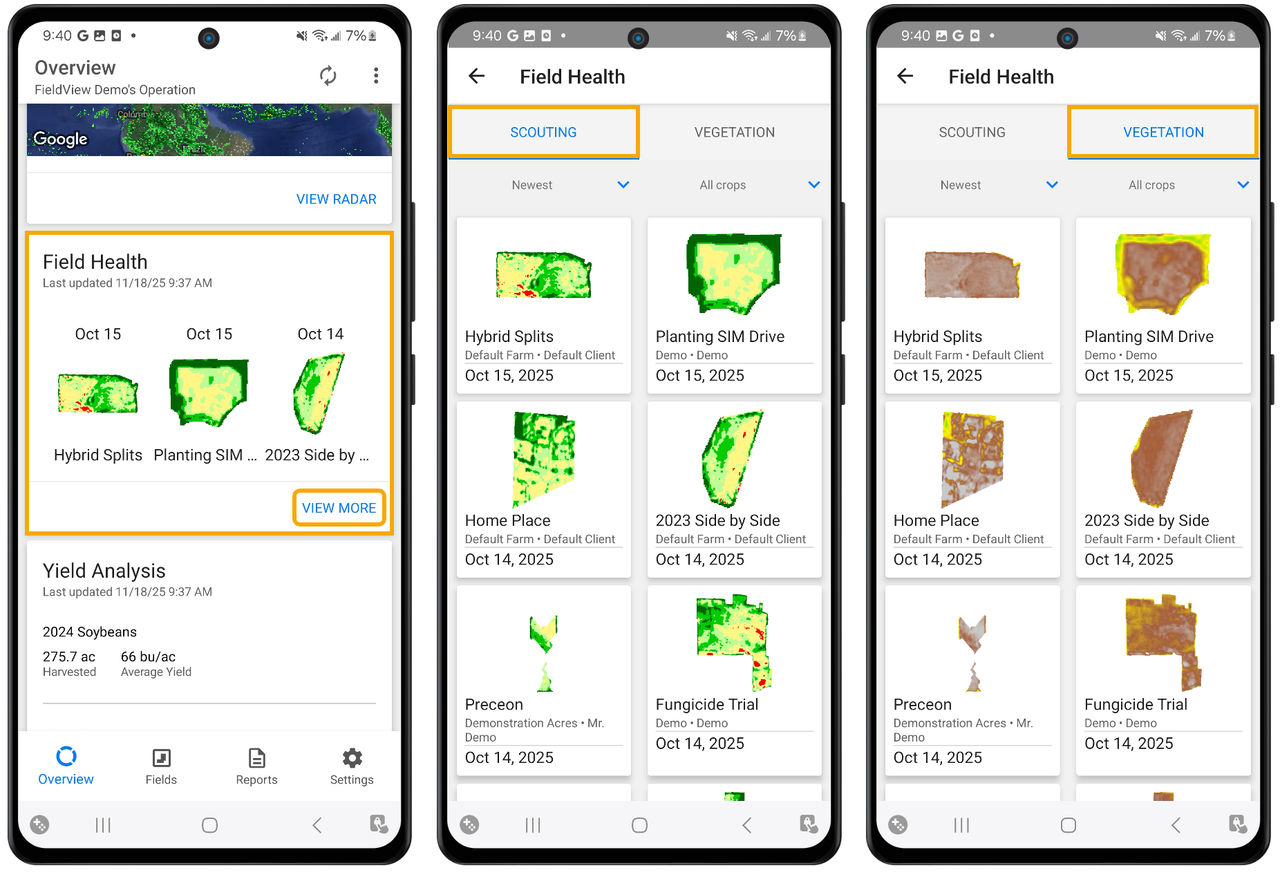
1. Click View More to access Scouting and Vegetation images for your fields.
- For more information on Field Health Imagery, click here.
Yield Analysis Tile:
The FieldView™ Yield Analysis feature provides detailed harvest results that can help you uncover unique field, hybrid and soil performance insights to optimize yield and improve profitability. This powerful data allows users to gather and review yield performance and identify yield-limiting factors that lead to more informed seed selection. Make field harvest data management simple with analysis of seed performance across an entire operation or analyze at the field level to help you determine the outcome of key agronomic decisions you've made throughout the year.
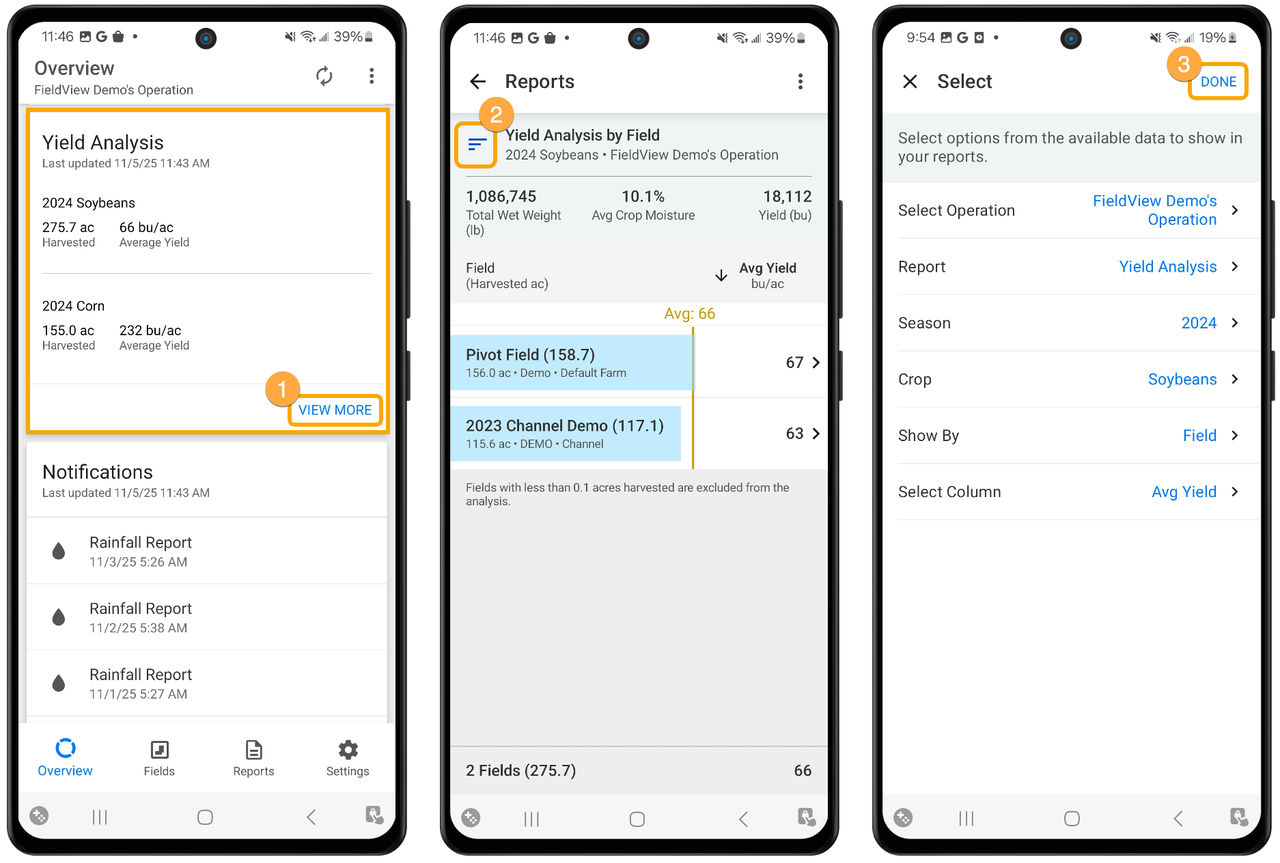
1. Click View More on the Yield Analysis tile
2. Click the Filter button to make adjustments to your Yield Analysis report
3. Once you have made any necessary adjustments to your filter options, click Done
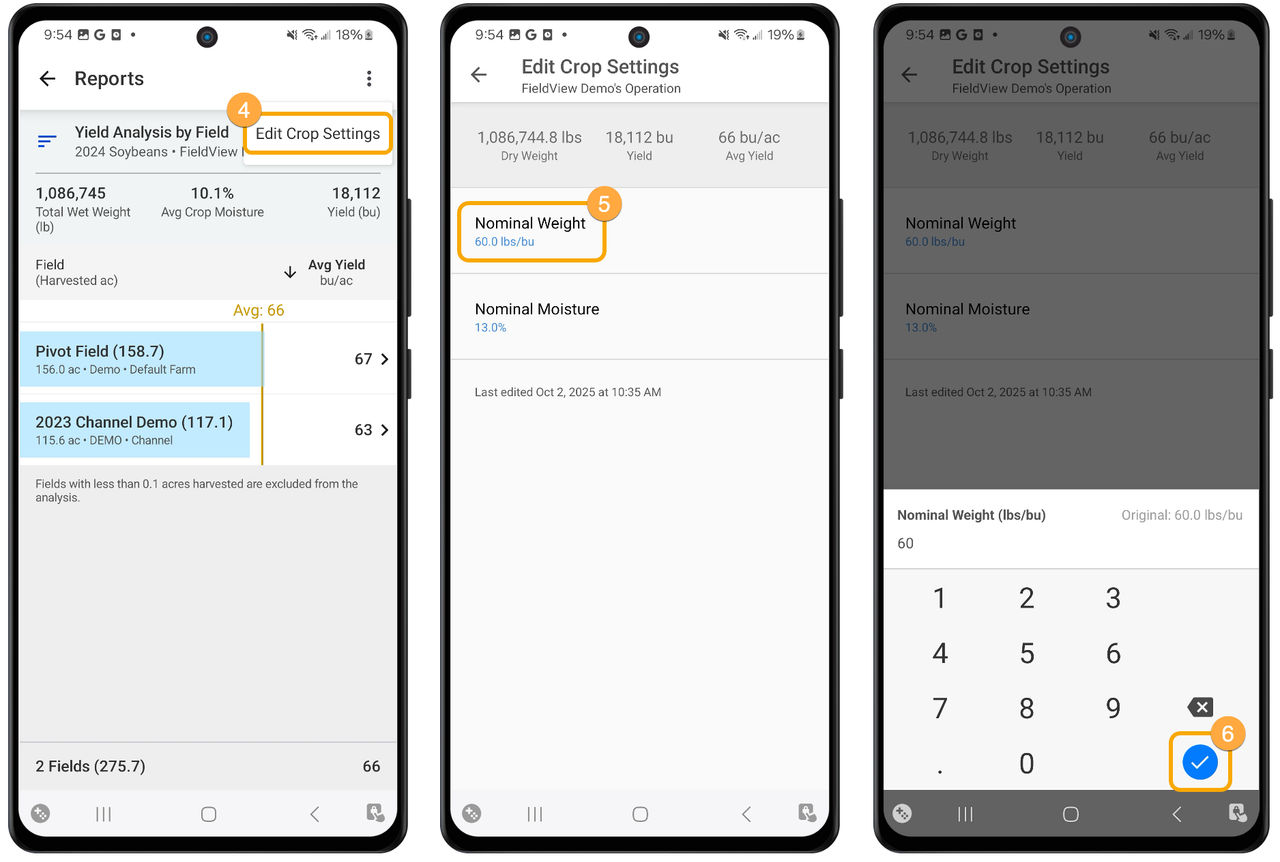
4. To adjust the Crop Settings, click the three dots in the top right corner and select Edit Crop Settings
5. Select the Crop Setting you would like to adjust
6. Enter in the correct amount and click the blue checkmark to save your changes
Grain Futures Tile:
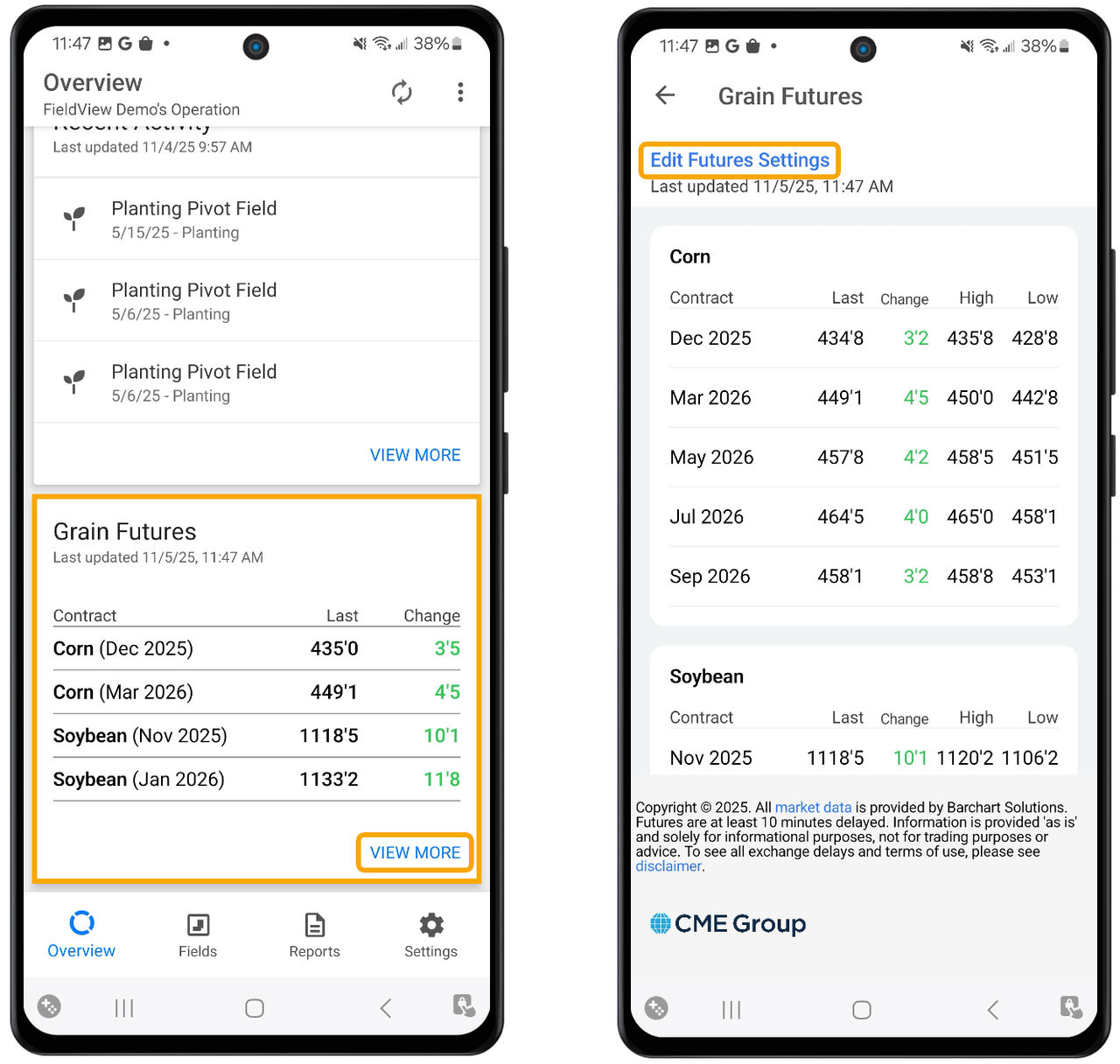
Take control of your future by accessing grain futures prices right within the FieldView™ app, empowering you to make informed trading decisions and maximize your profit. For more information on Grain Futures, click here.
Notifications Tile:
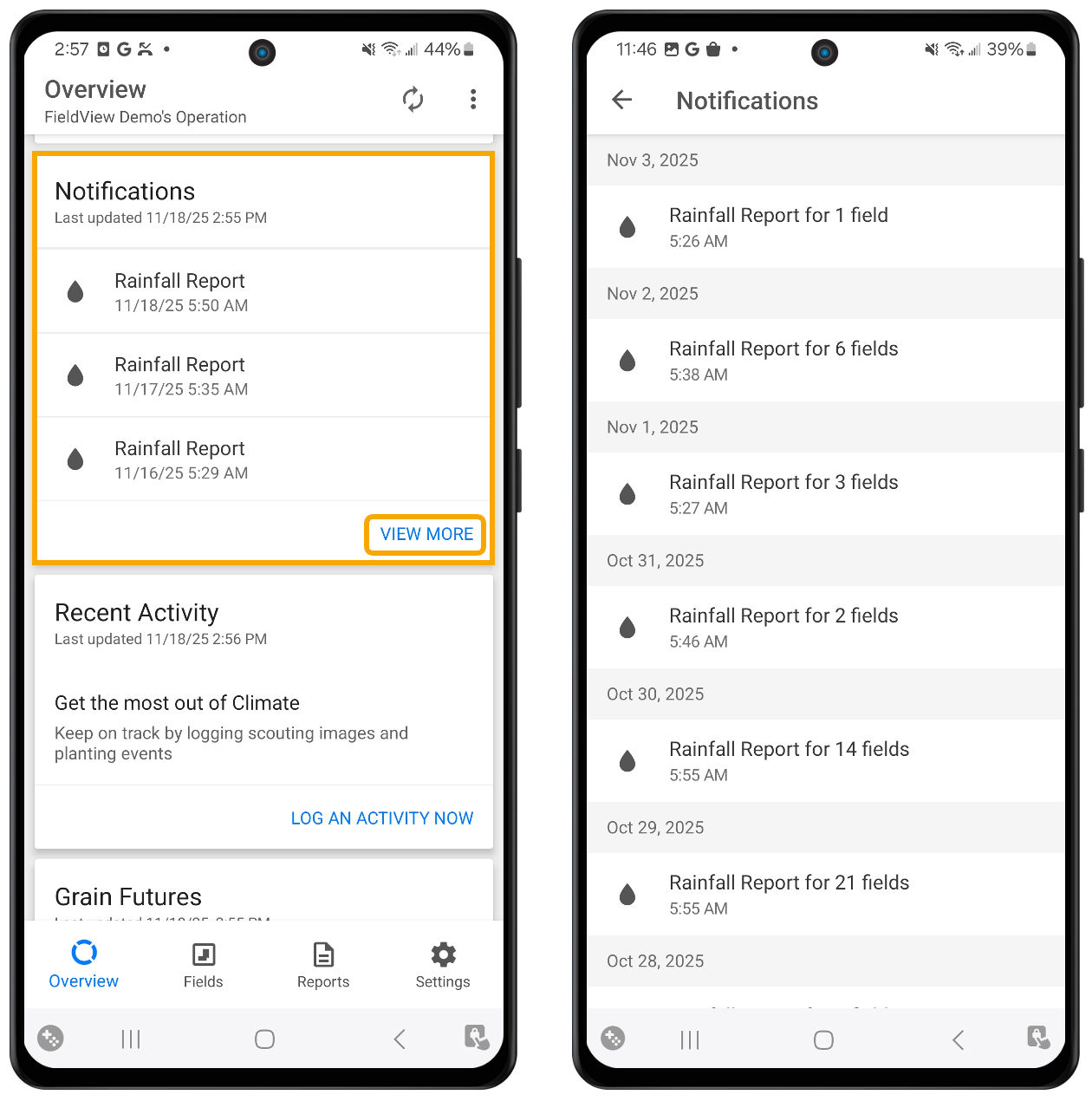
The notifications tile will show a quick summary of recent activity on your fields. Click View More to see the rest of your notifications.
Recent Activity Tile:
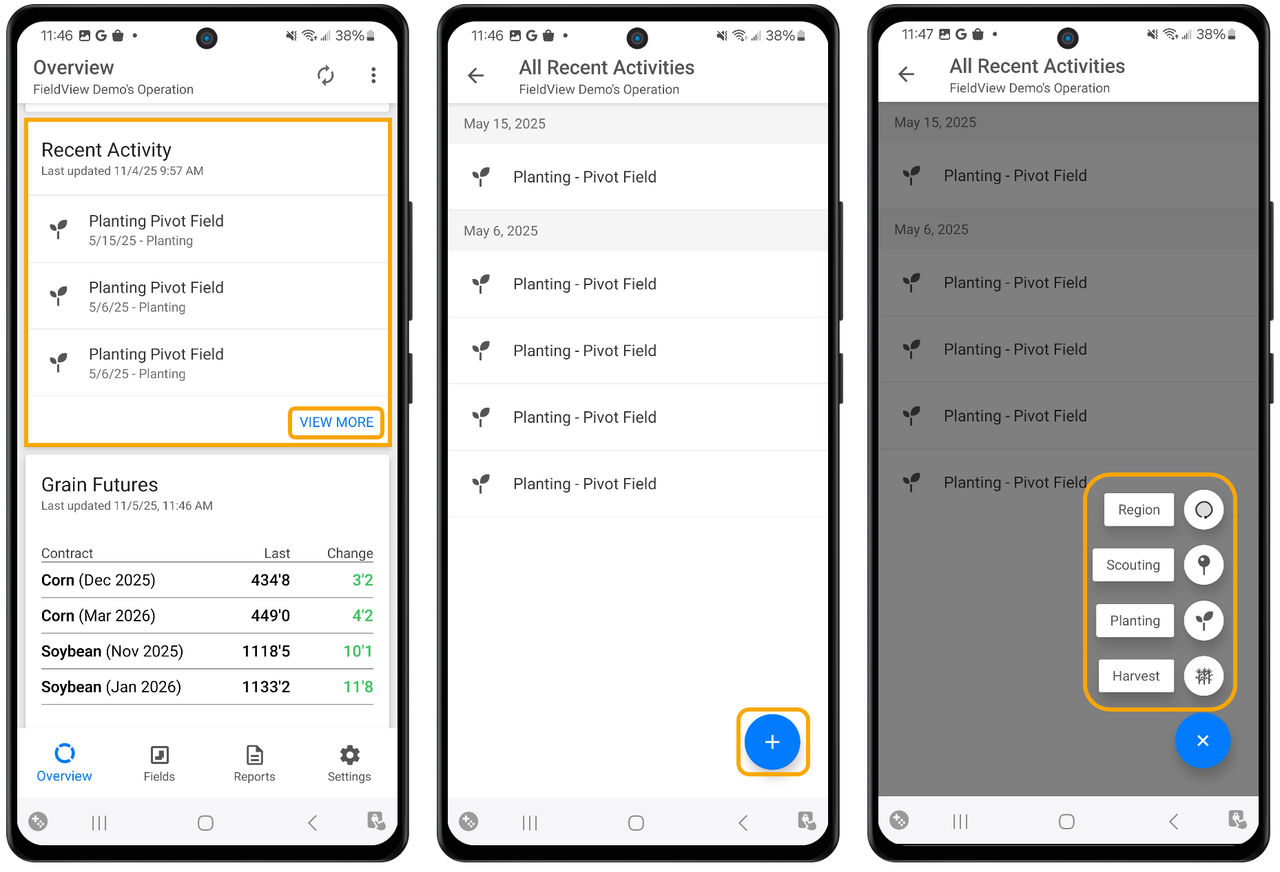
The Recent Activity tile shows a quick summary of recent activities. Click View More to see the rest of your activities or to add a manual activity.
Fields Tab:
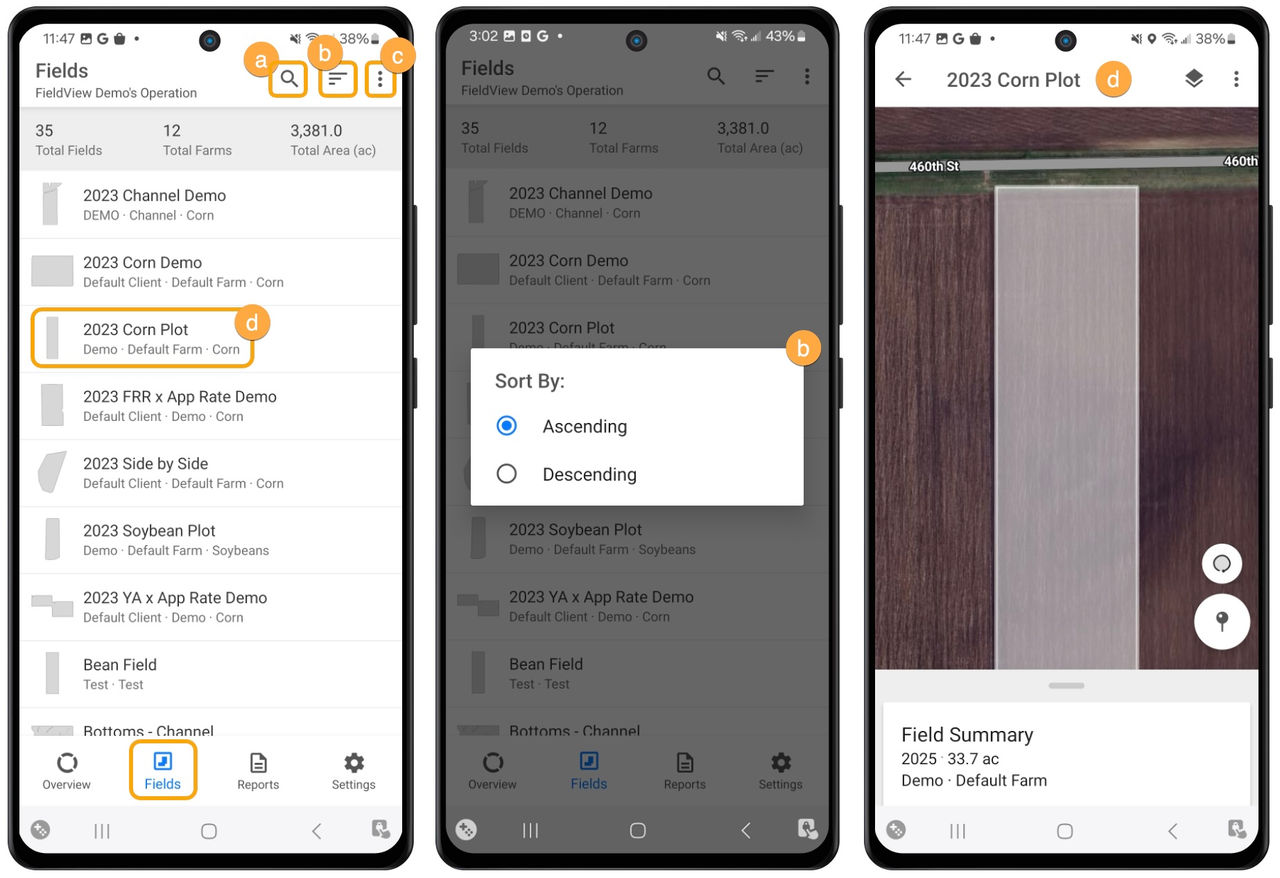
a. Search: Click here to quickly find a field
b. Sort: Sort your fields by ascending or descending order
c. Select Operation: Select the operations you want to include in your Fields list
d. Map: Directs you to the map screen where you will see all your fields
e. Fields List: Select a field name to redirect you to the Fields Summary page
Field Region Report:
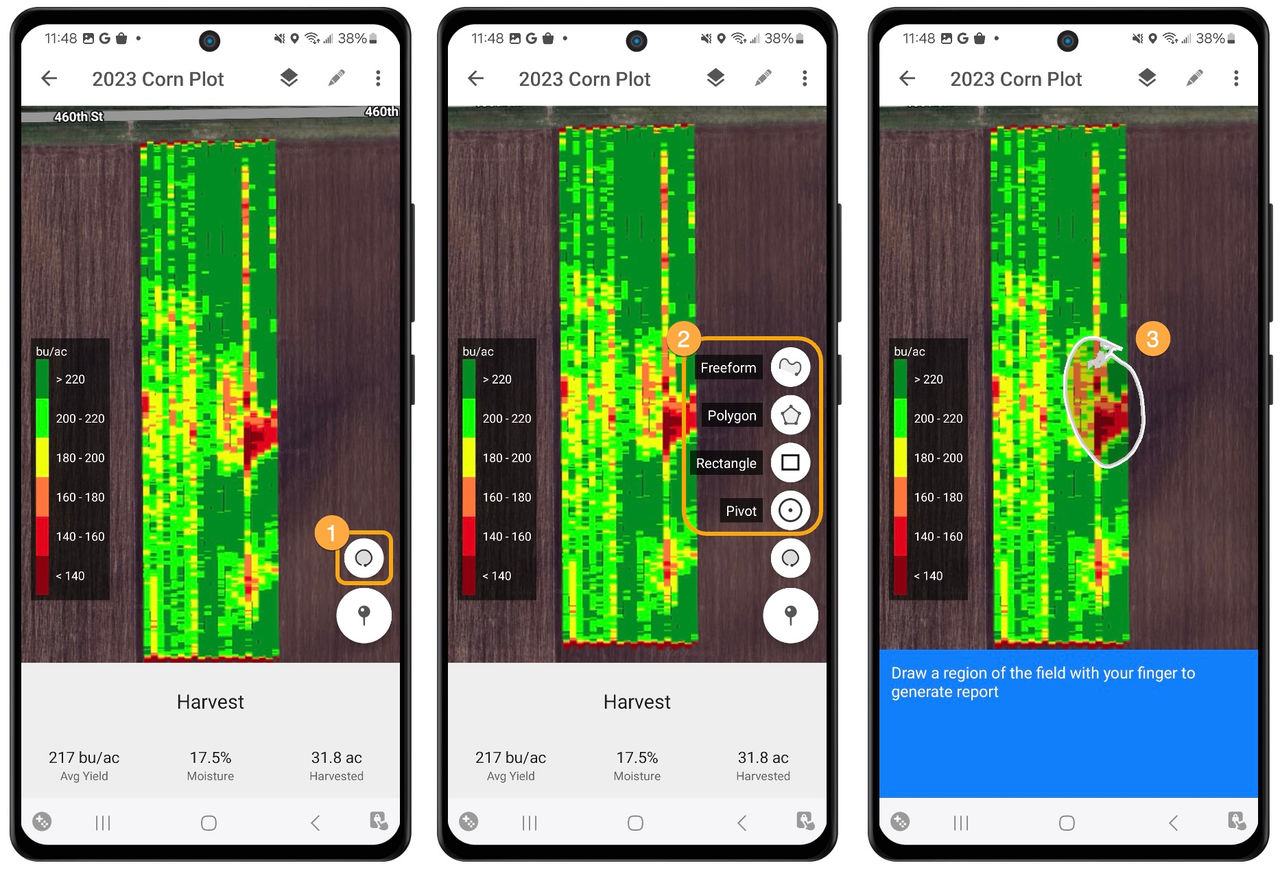
1. Select Field Region Report button
2. Select Freeform, Polygon, Rectangle, or Pivot
3. Draw region with finger
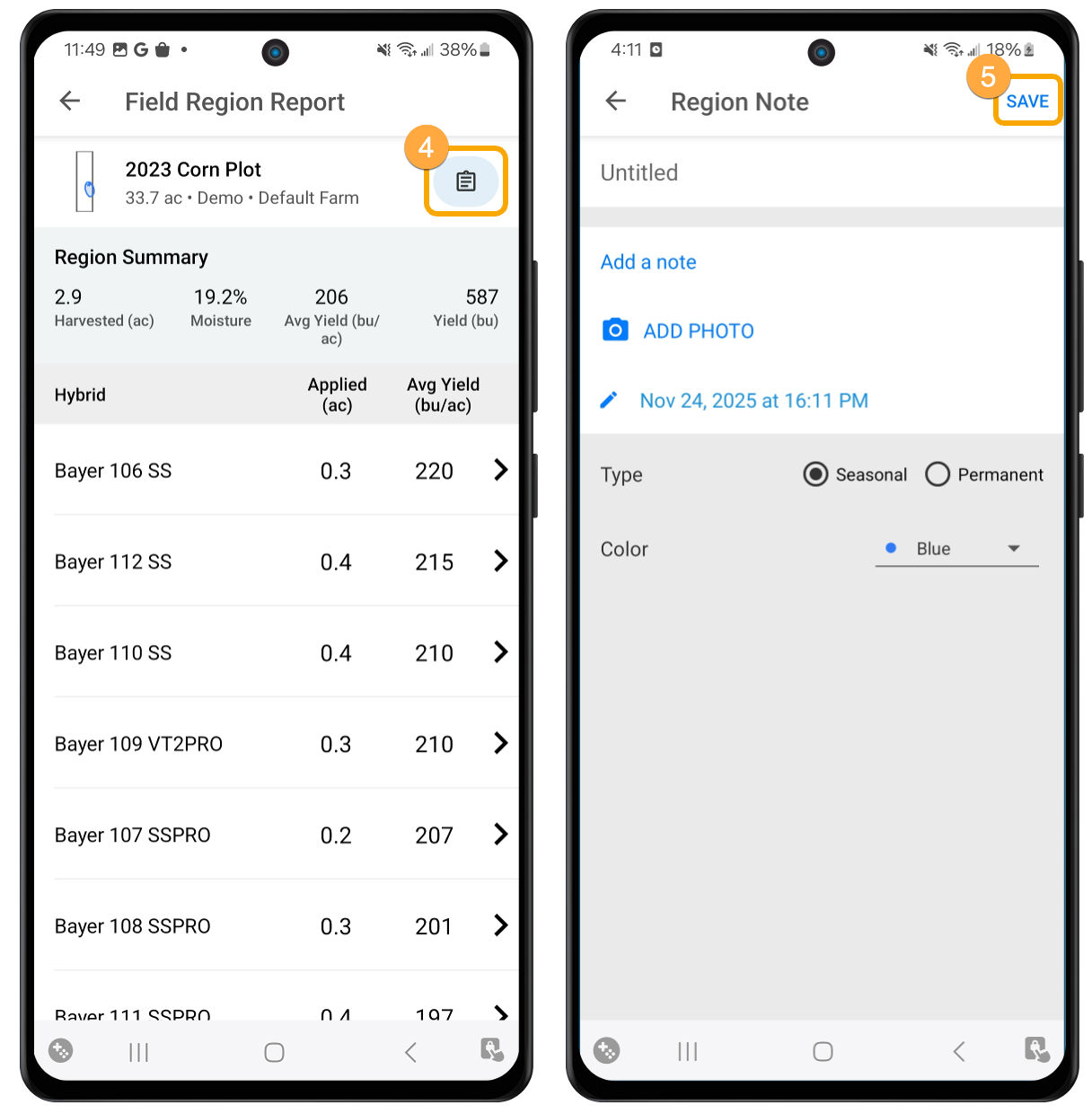
4. Tap Add a Note and add the following information (if applicable):
- Title
- Photo
- Notes
- Identify region as seasonal or permanent
- Select a color for the region outline
5. Click Save
For more information on Field Region Reports, click here.
Editing the Legend:
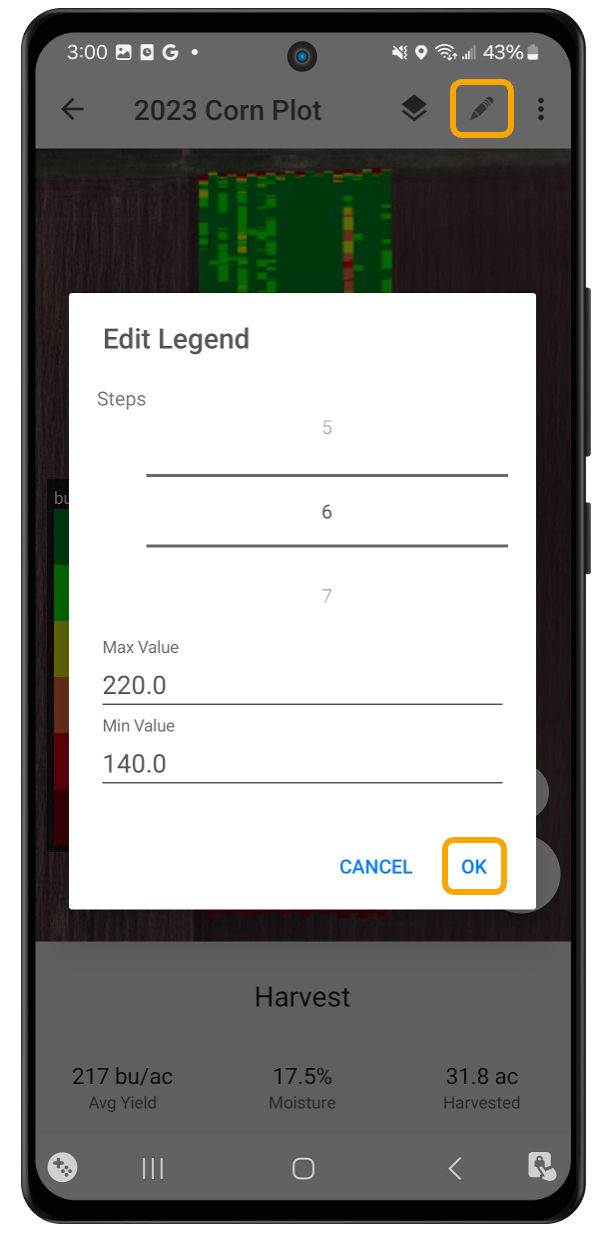
1. Click the Pencil icon in the top right corner of the screen
2. Set the number of steps and define minimum and maximum values
3. Click OK
Creating a Scouting Pin:
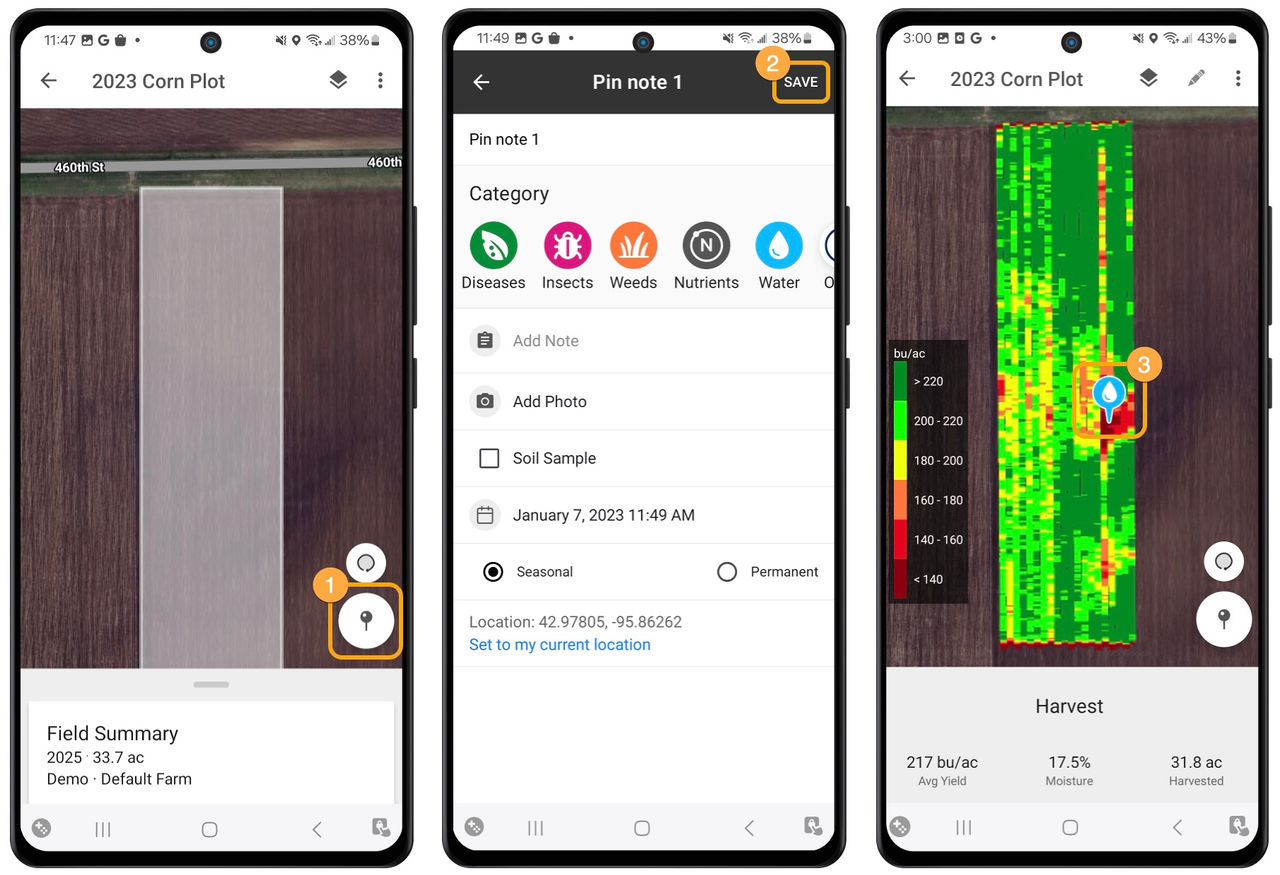
1. Select the pin icon in the lower right corner of the screen, then tap on the map to drop the pin.
2. An information box will appear on the screen for entering photos or notes to document conditions at the pin location. Once you have completed all information for the pin, touch Save.
3. You will now be able to visualize the pin on your field.
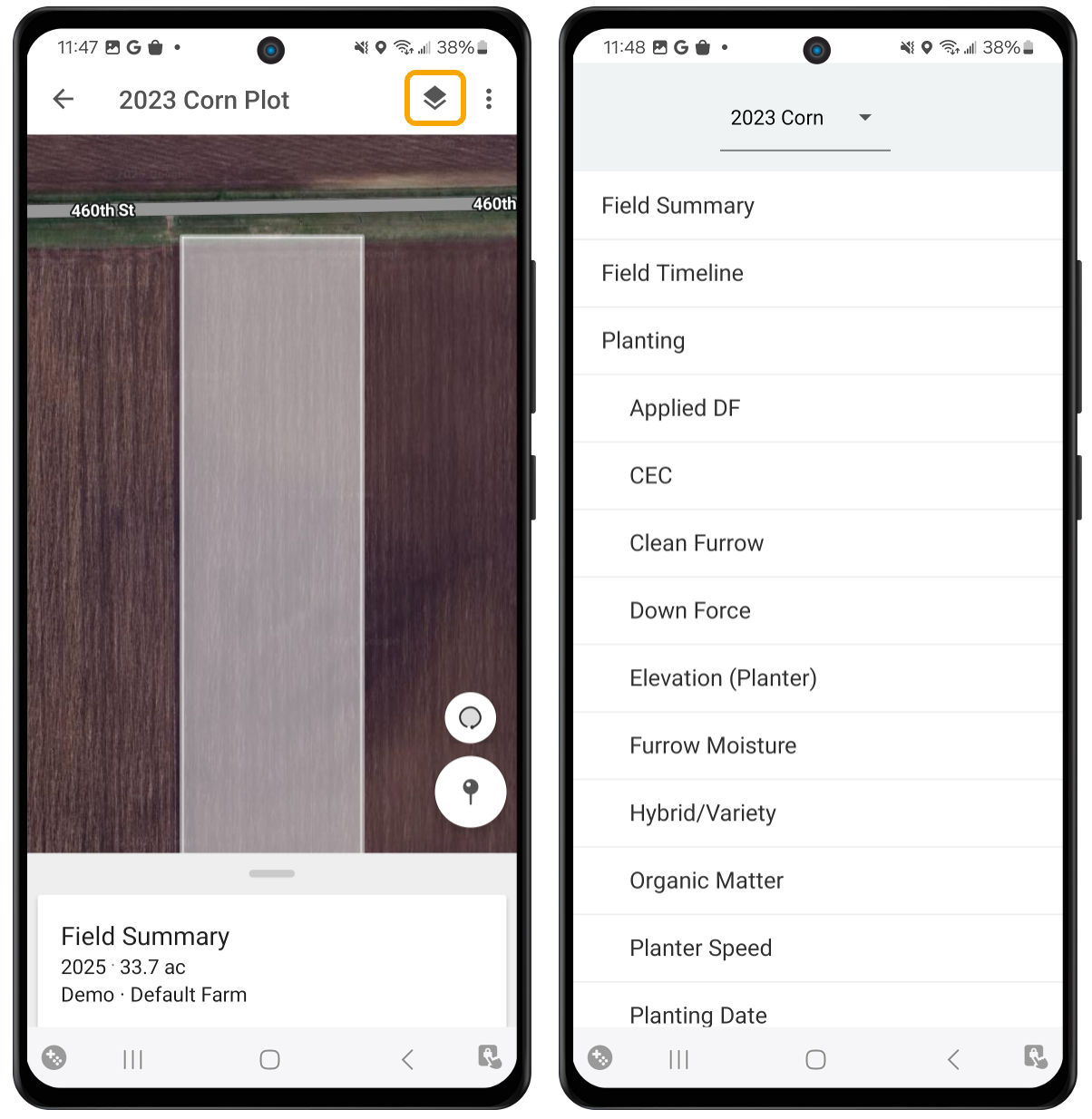
Changing Season and Map Layer:
- To change the season and map layer, click the Map Layers button in the top right corner
Reports Tab:
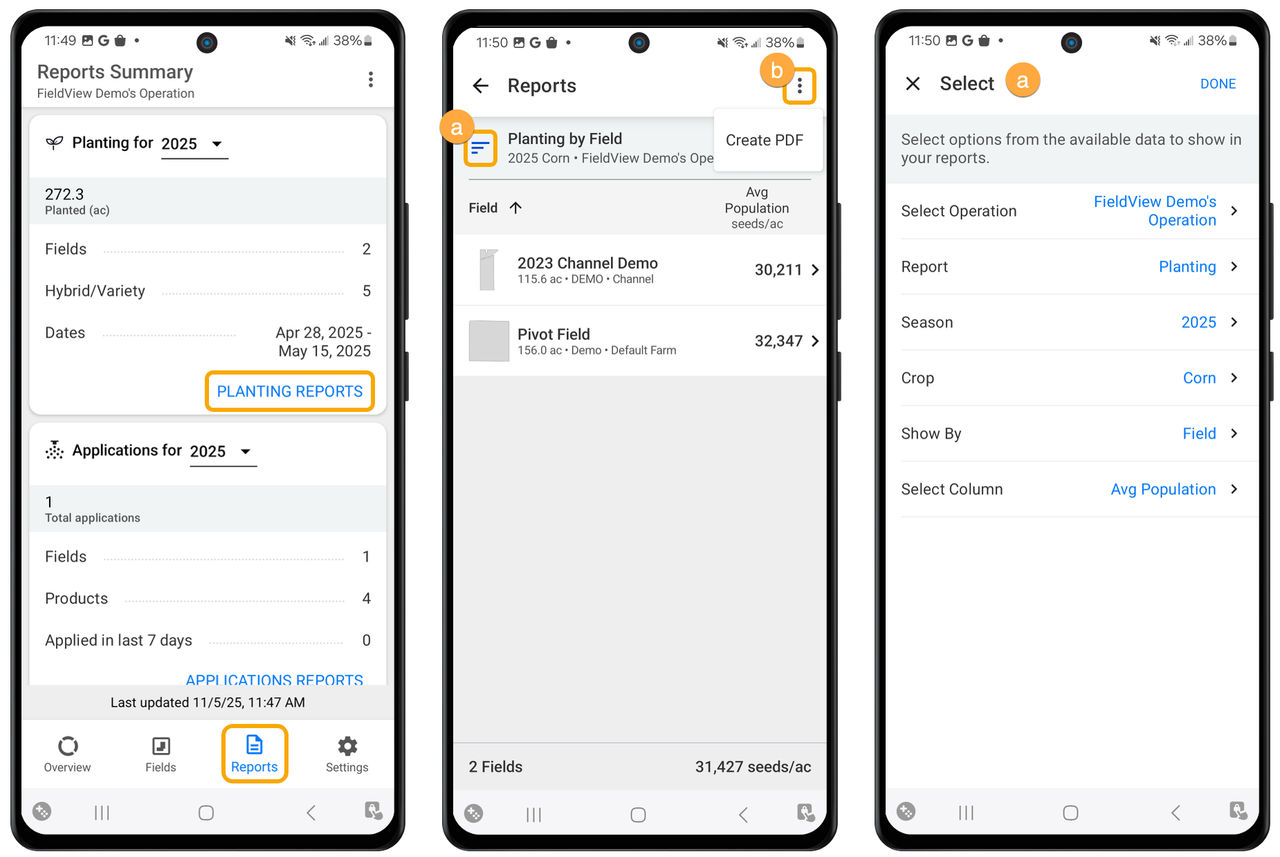
Once you have selected a report type (Planting, Application, etc.), you will be able to dive deeper into the information.
a. Click the Filter button to choose from the available options to show in your report
b. Select the three dots in the top right corner to create a PDF report
Settings Tab:
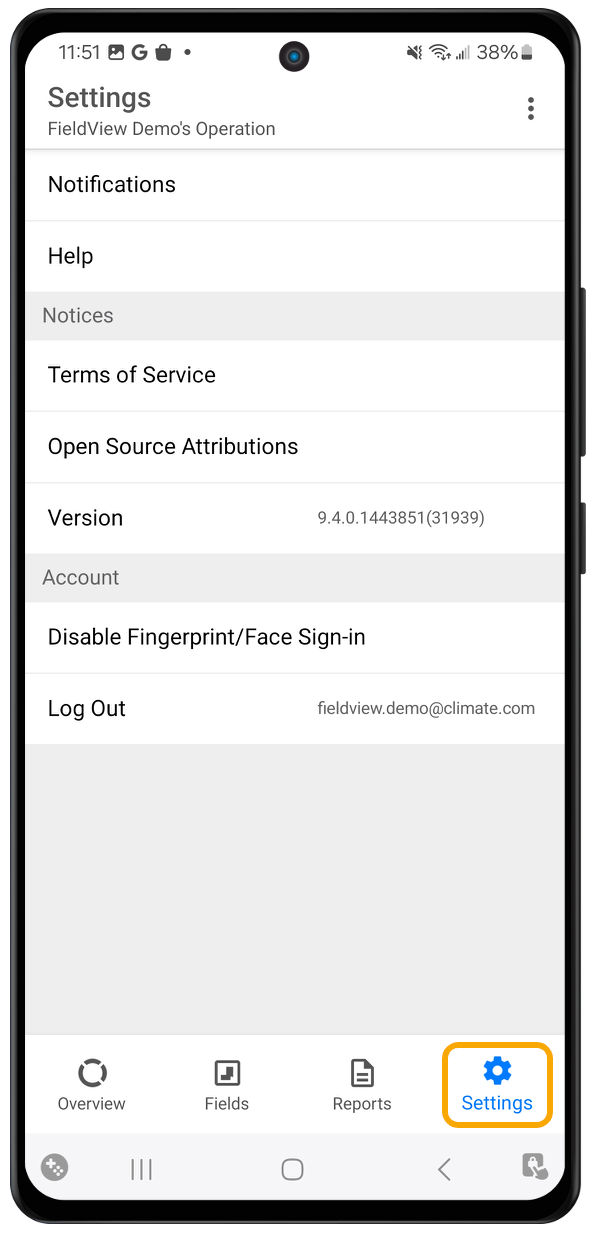
Use the Settings tab to manage and customize your app experience. From here, you can:
- Adjust Notifications – Choose the types of notifications you want and how you receive them (email or mobile push).
- Find Support Contact Information – Quickly access help when needed.
- Share Screen with Support – Enable screen sharing for troubleshooting.
- View Terms of Service – Review the app’s terms and conditions.
- Check App Version – See which version of the app you’re using.
- Disable Fingerprint/Face Sign-In – Turn off biometric login options.
- Log Out – Sign out of your account securely.