FieldView™ Drive Overview and Installation
Instructions on how to install the FieldView™ Drive in the cab and pair the FieldView™ Drive to your mobile device.
The FieldView™ Drive is an in-cab hardware device that plugs into your equipment’s CAN diagnostic port, capturing both machine and field data. It connects your equipment to your iPad® via Bluetooth®, monitoring and displaying data as you pass through your fields.
1. Check to see if your equipment is compatible or contact your local FieldView™ Dealer.
2. Download the FieldView™ Cab app for free from the Apple App Store®.
3. Use the FieldView Drive Starter Kit to successfully install the FieldView Drive. Install the iPad mount in the cab and plug in the USB charger.
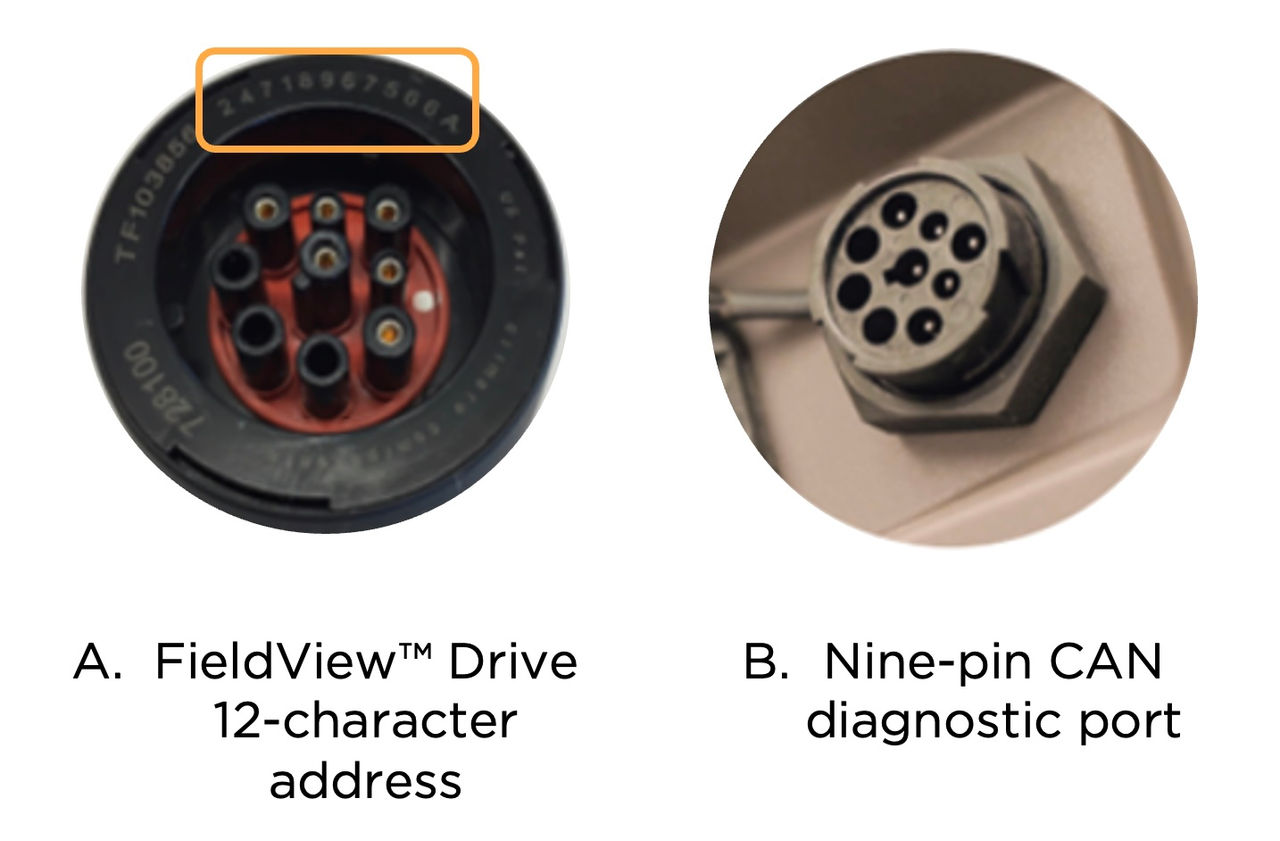
A. On the underside of the FieldView™ Drive, you will find a unique, 12-character address which will help you identify the FieldView Drive when pairing with Bluetooth®.
B. Plug the FieldView Drive into your machine's nine-pin CAN diagnostic port and turn clockwise to lock into place. Power on your machine. The light on the FieldView Drive will blink green twice, indicating a successful docking.
4. Launch the FieldView™ Cab app, and log into your account. The FieldView Drive's light will then glow green.
5. On your iPad® device in the Cab app home screen, navigate to Settings, then to Devices. Select Pair New Device, and then select the Drive, and use the Bluetooth® feature to wirelessly connect.
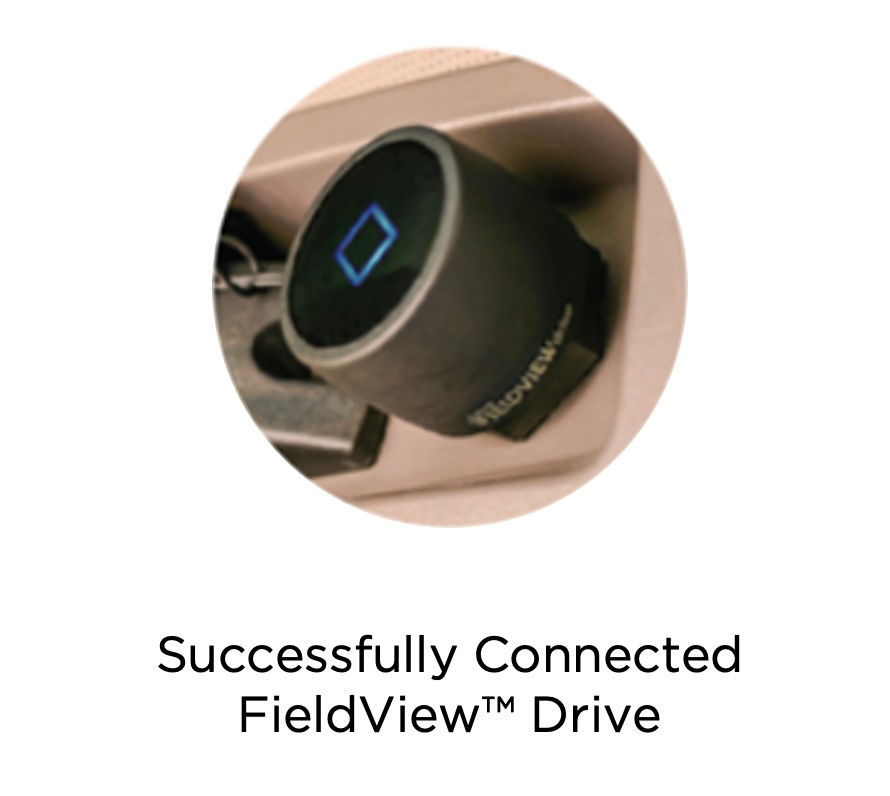
6. The FieldView Drive's indicator light will glow blue. This means installation and Bluetooth pairing have been successful.