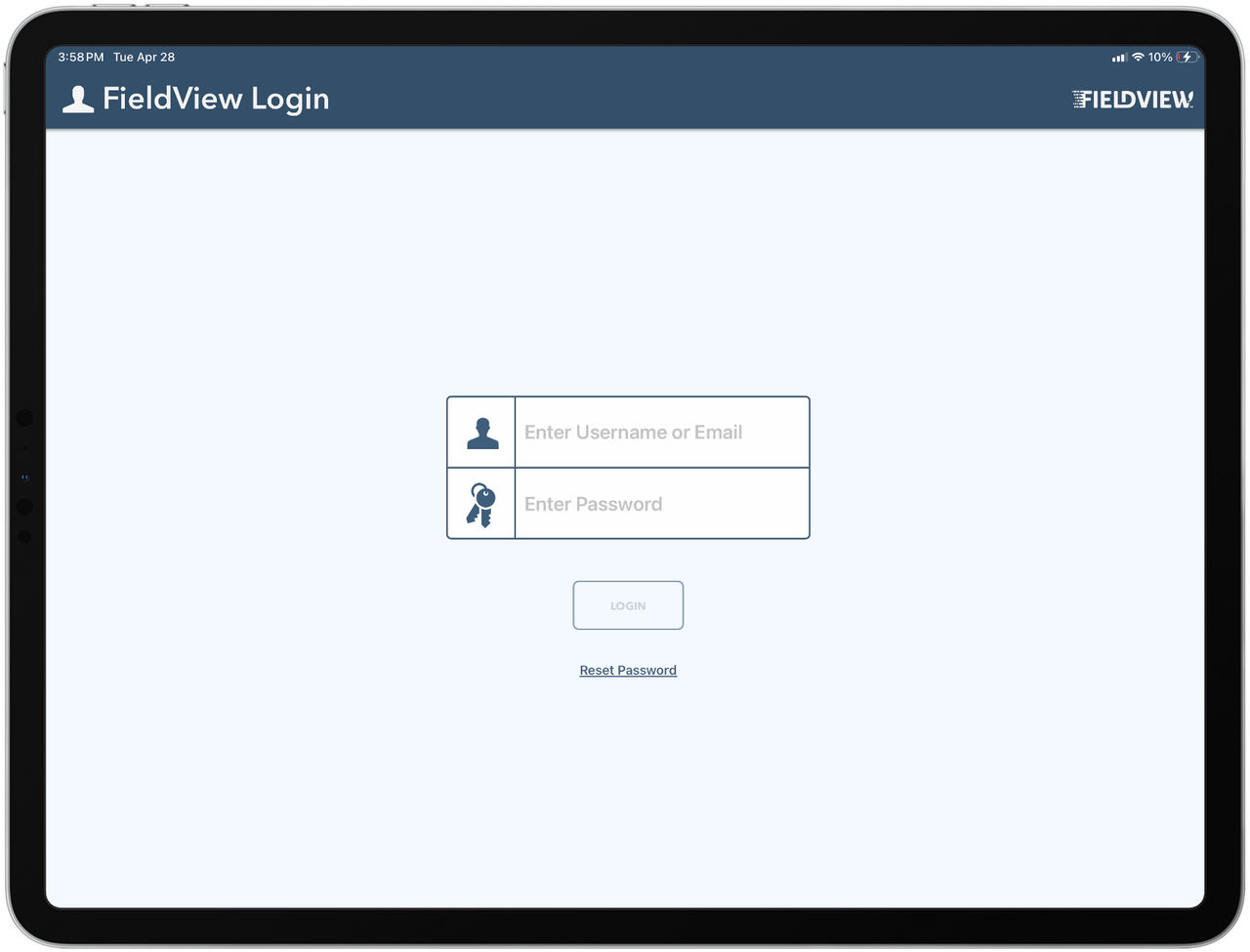
How to Log Out or Switch Accounts in FieldView Cab App
Overview
FieldView™ Cab app allows growers to log out of their account without deleting the app. Growers also have the option to be logged into multiple accounts and utilize the switch accounts option to toggle between them.
Available on: Apple iOS™
1. From the FieldView™ Cab app Home screen, tap Settings.
2. The General settings option is selected by default in the left-hand column.
3. Tap Switch Accounts or Log Out (in the bottom right corner) to perform your desired action.
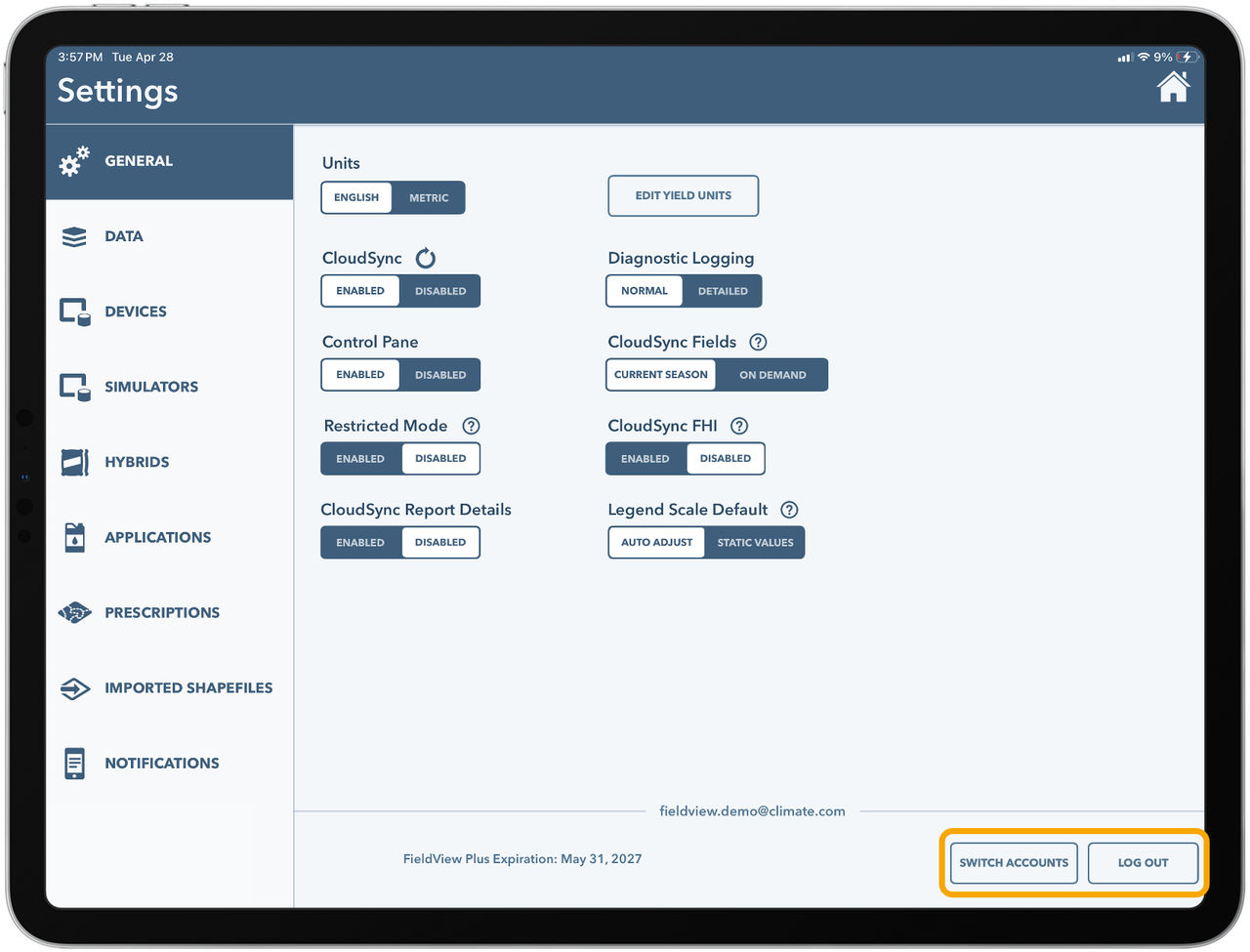
4. Tap Log Out to sign out of the current account.
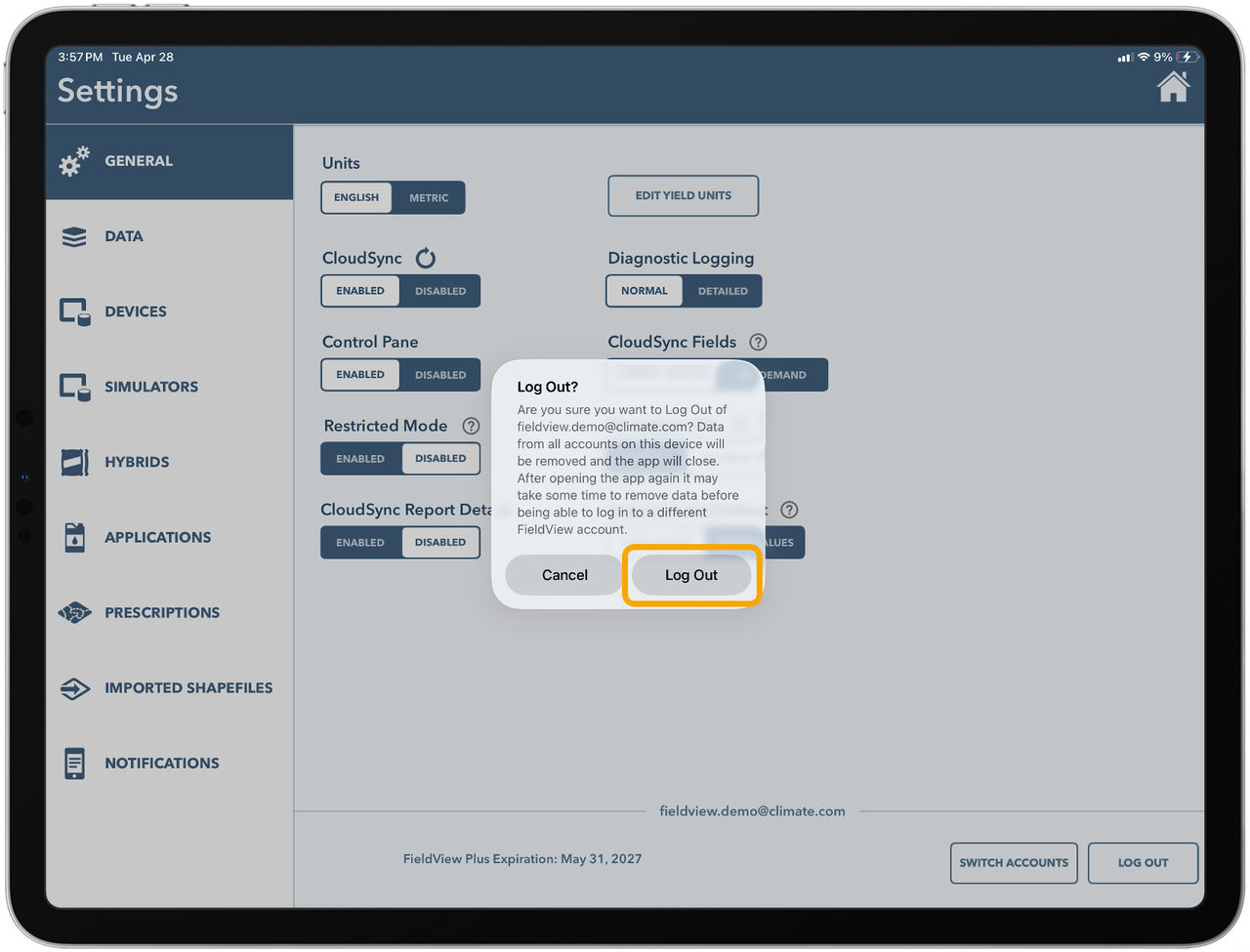
- The app will close, and FieldView data store on the iPad® device will be removed.
Note: Logging out does not delete FieldView account data that has successfully CloudSynced. Your data remains available and can be accessed again after you log back in. Logging out only removes the data stored locally on the iPad®. To avoid potential data loss, confirm CloudSync is complete before logging out. Logging out before CloudSync finishes may result in lost data.
5. Tap Switch Accounts to sign into a different FieldView account.
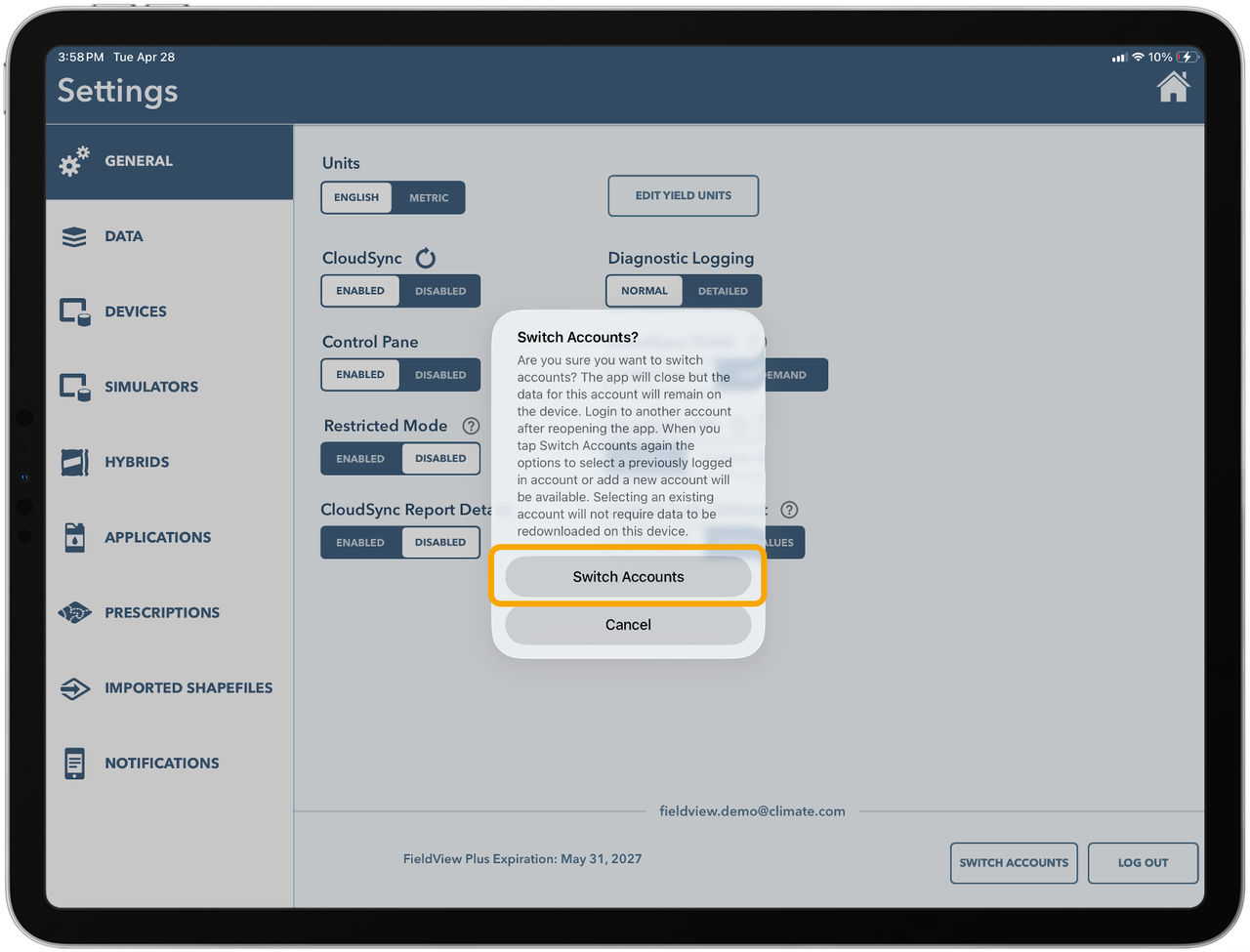
- If another account has recently signed in on this device, the FieldView Cab app will display the saved username for quick selection.
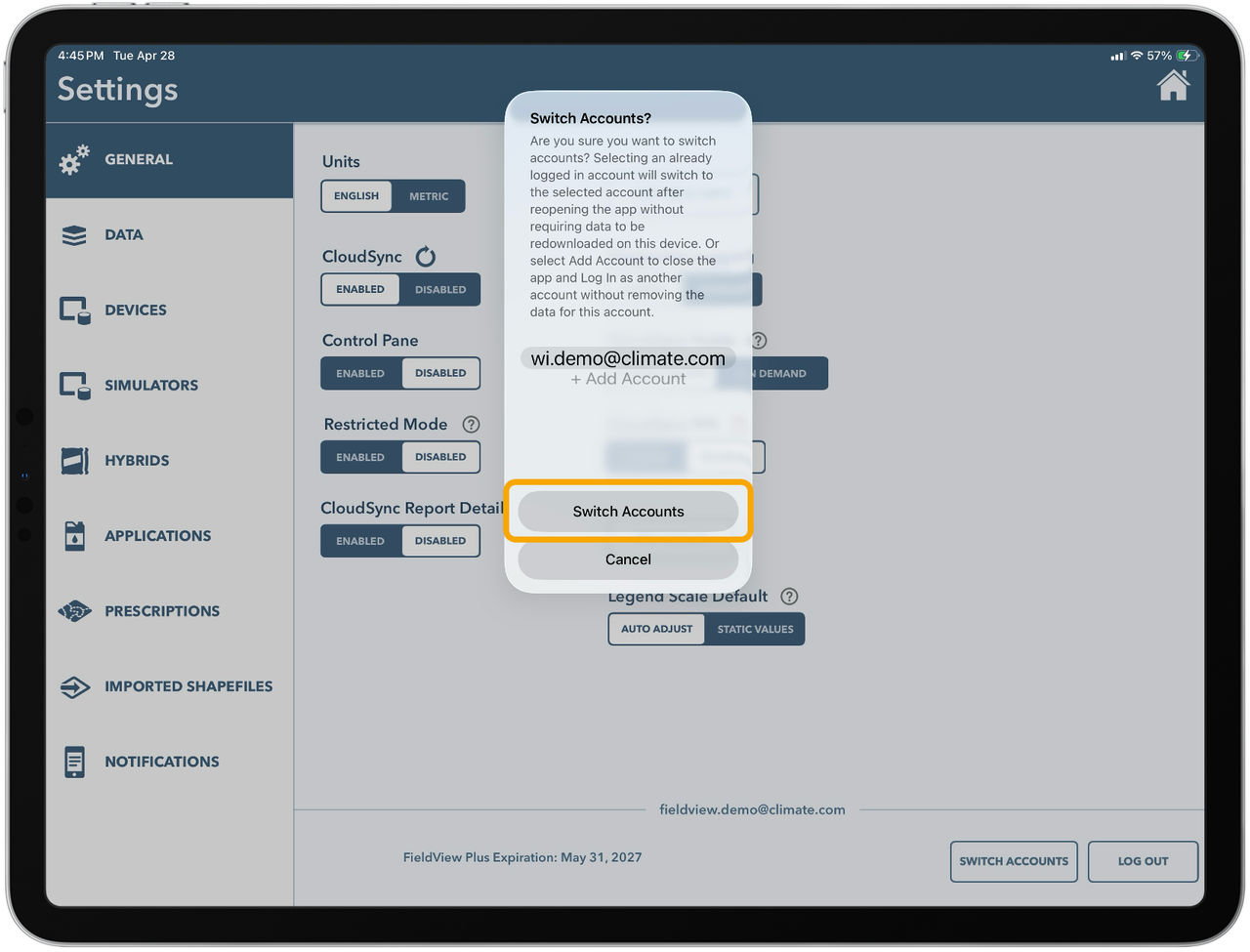
- If no saved account is available, you will be logged out and prompted to sign in from the login screen.