How to Make Multi-Combine Yield Adjustments in FieldView Cab App
Overview
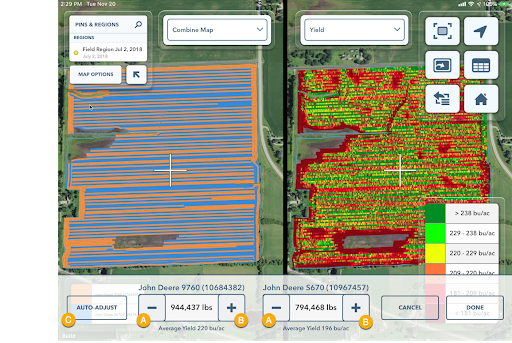
The Climate FieldView™ Cab app enables users to adjust yield data for multiple combines that have harvested a field.
View PDF Guide
Accessing the FieldView Cab App Harvest Summary Reports for Yield Adjustments
1. From the More Menu, select the Harvest Summary Report
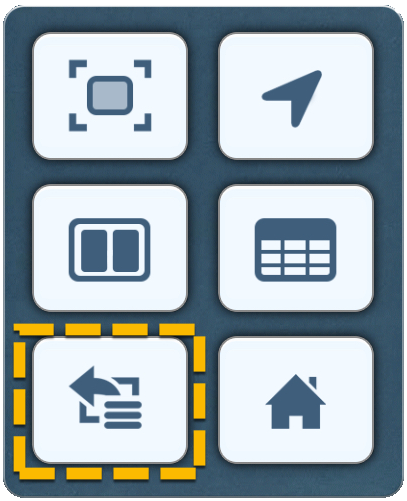
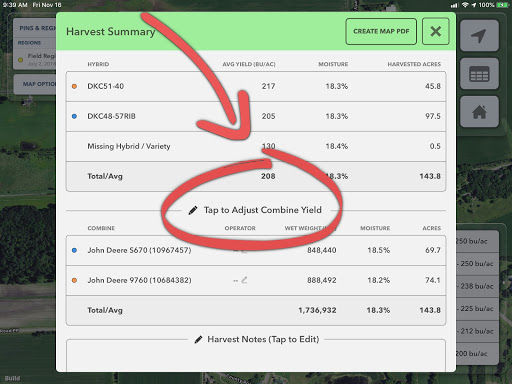
2. Scroll down to the Combine section.
3. Tap on Adjust Combine Yield.
4. The report will disappear, and adjustment controls will appear.
Ways to Make Yield Adjustments for Multiple Combines in FieldView Cab App
There are two ways to adjust yield:
1a. Select the Minus (A) or Plus (B) for either combine to adjust weight up or down.
NOTE: As the weight is increased or decreased the map will update to reflect the change and every other combines weight will also be adjusted so that the overall field weight stays the same.
OR
1b. Tap the Auto-Adjust (C) button to automatically have yield distributed to the area harvested by each combine.
2. Tap Cancel to stop and exit without saving.
3. Tap Done to complete the adjustment.
4. These adjustments will be reflected in the Field Region Report and Yield Analysis following the next CloudSync.