How to Fix Planting and Harvest Data with FieldView
Overview
FieldView™ customers now have the ability to edit their own data, including changing crop type or hybrid name as well as delete fields.
Step-by-step Guide to Fix Planting and Harvest Data with FieldView
Step 1
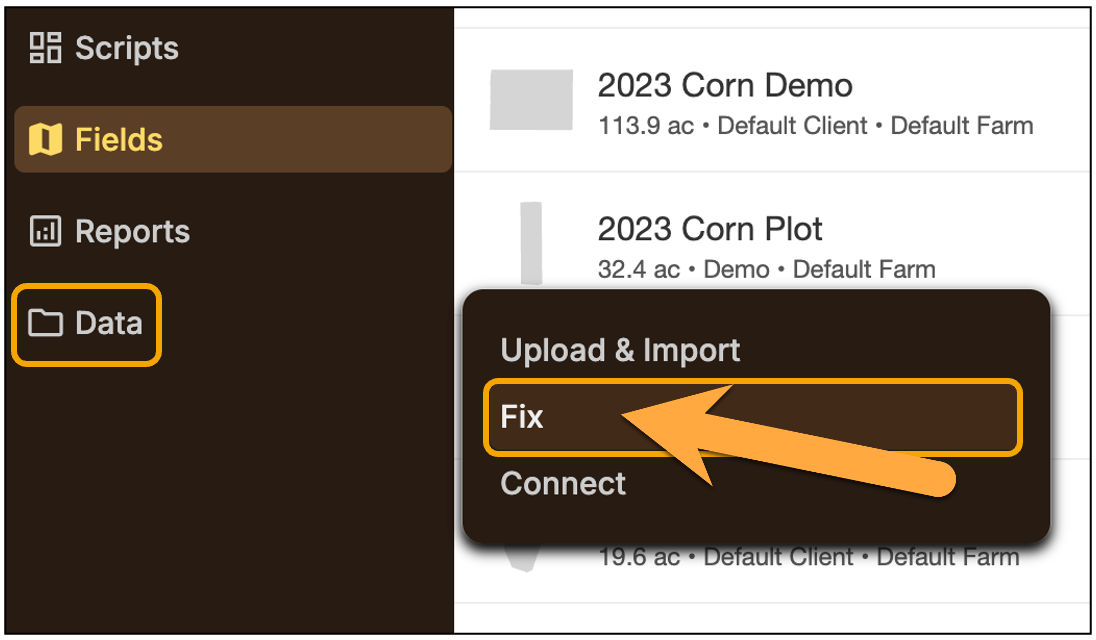
- After logging into your FieldView™ account, click on Data.
- Choose Fix.
Step 2
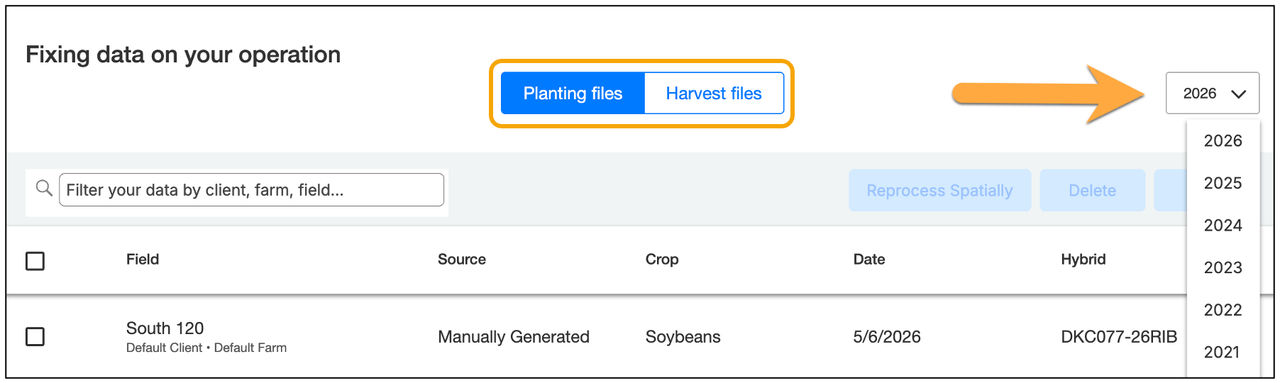
Select the activity you wish to edit data for (Planting or Harvest).
Then select the Year of data you would like to edit using the dropdown provided.
Step 3
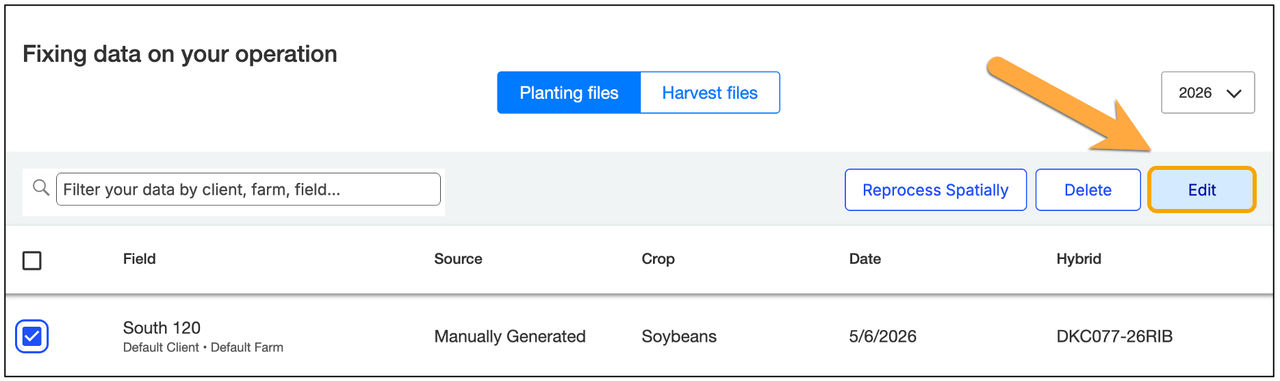
- Notice that within the Planting tab you can review the source of your data, the original crop type, the planting date and hybrids or varieties identified.
- Select which field(s) you want to edit
- Note: You can batch edit by clicking on the checkbox at the top left of the Field column which will select all fields.
- Click Edit to begin fixing your data.
Step 4
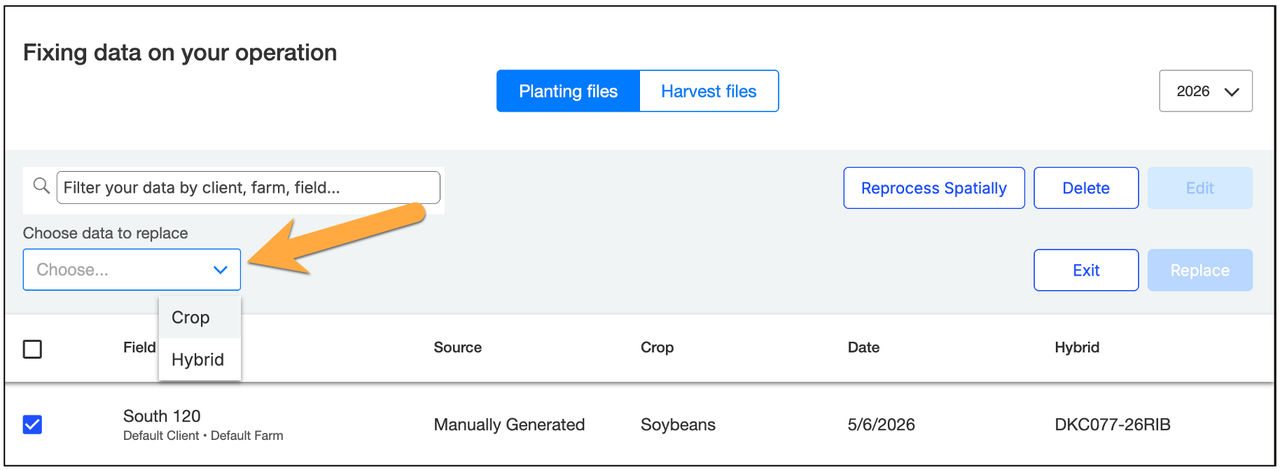
- You have the choice to edit Crop type or Hybrid name.
- Note: Within the Harvest tab you can only edit Crop type.
Step 5
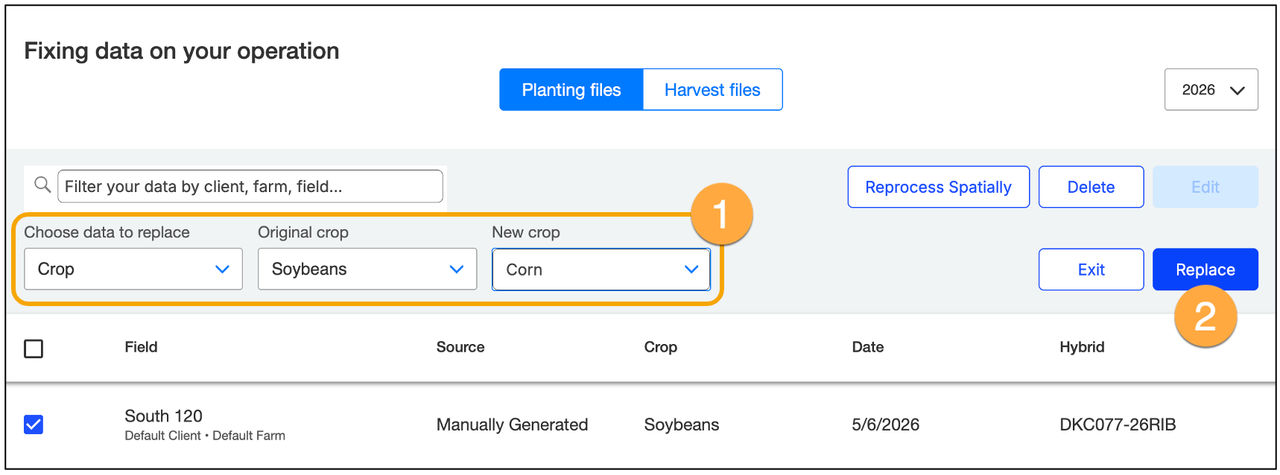
1. To edit Crop type, first select from the dropdown the originally collected crop. Then choose the new crop type.
2. Next, click on Replace, highlighted in blue and located on the right side of the page.
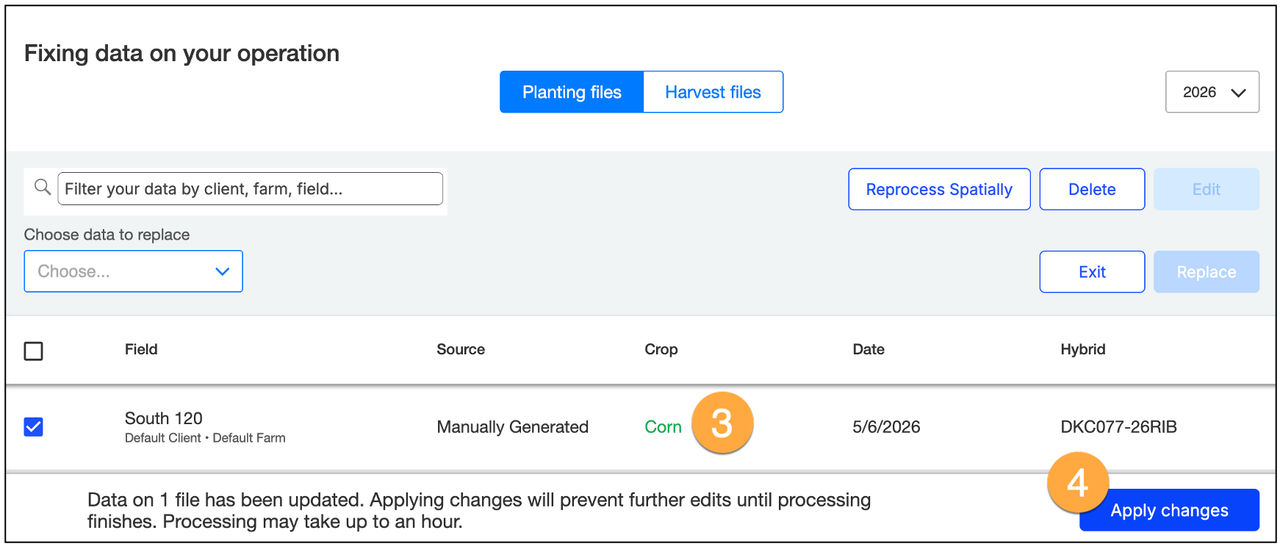
3. You will notice that the changed Crop type will be shown in green text within the Crop column.
a. Review the changes and make further edits as needed.
4. Lastly, choose Apply Changes at the bottom right of the screen.
Step 6
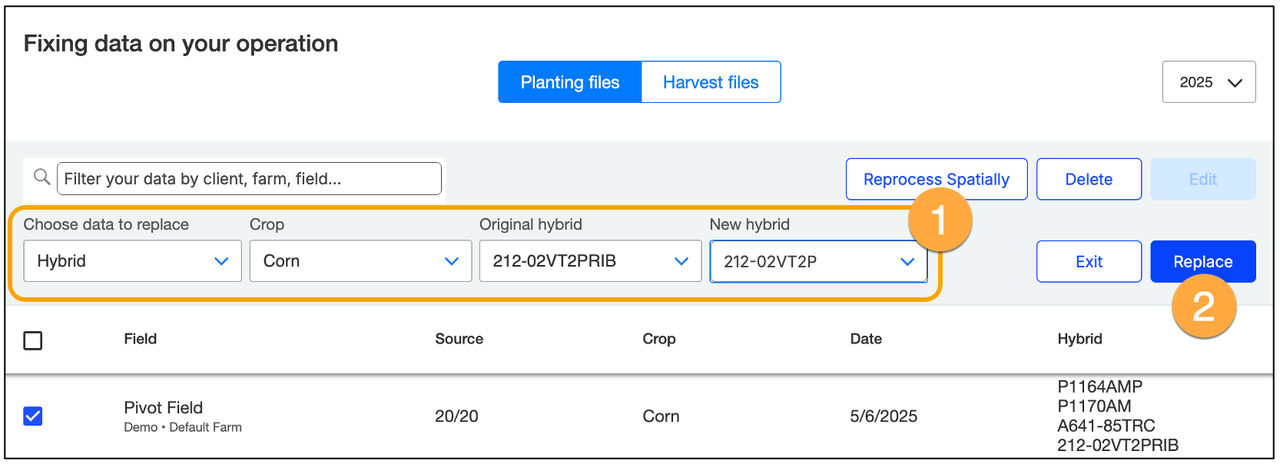
1. To edit Hybrid name, first select from the dropdown, the originally collected hybrid. Then choose the new hybrid name by using the dropdown or typing the hybrid or variety name.
2. Next, click on Replace, highlighted in blue and located on the right side of the page.
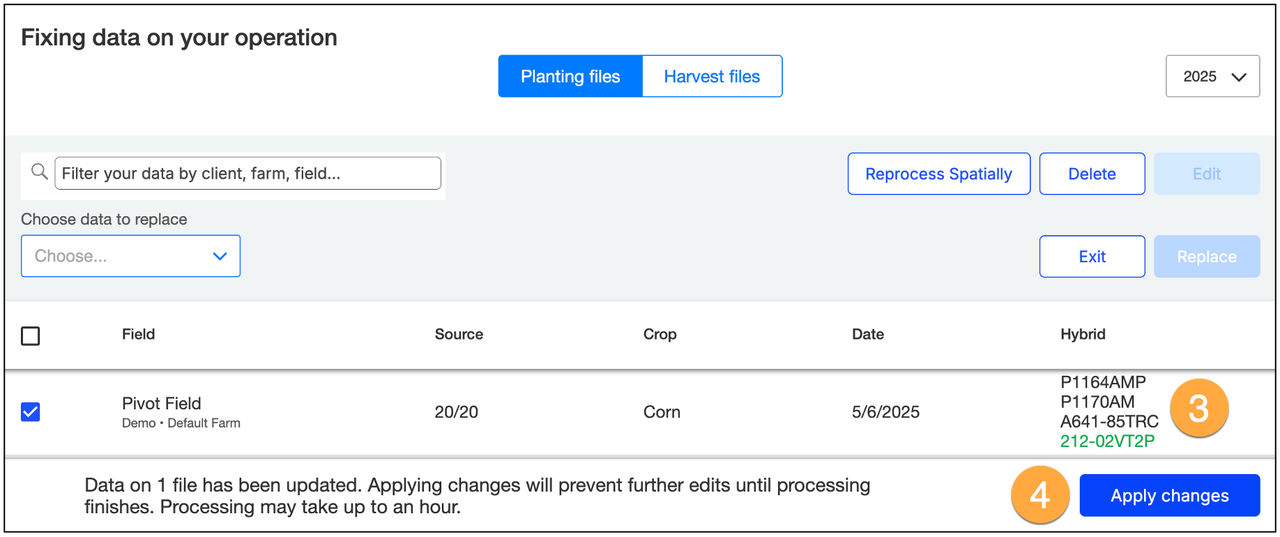
3. You will notice that the changed Hybrid name will be shown in green text within the Hybrid column.
a. Review the changes and make further edits as needed.
4. Lastly, choose Apply Changes at the bottom right of the screen.
Step 7
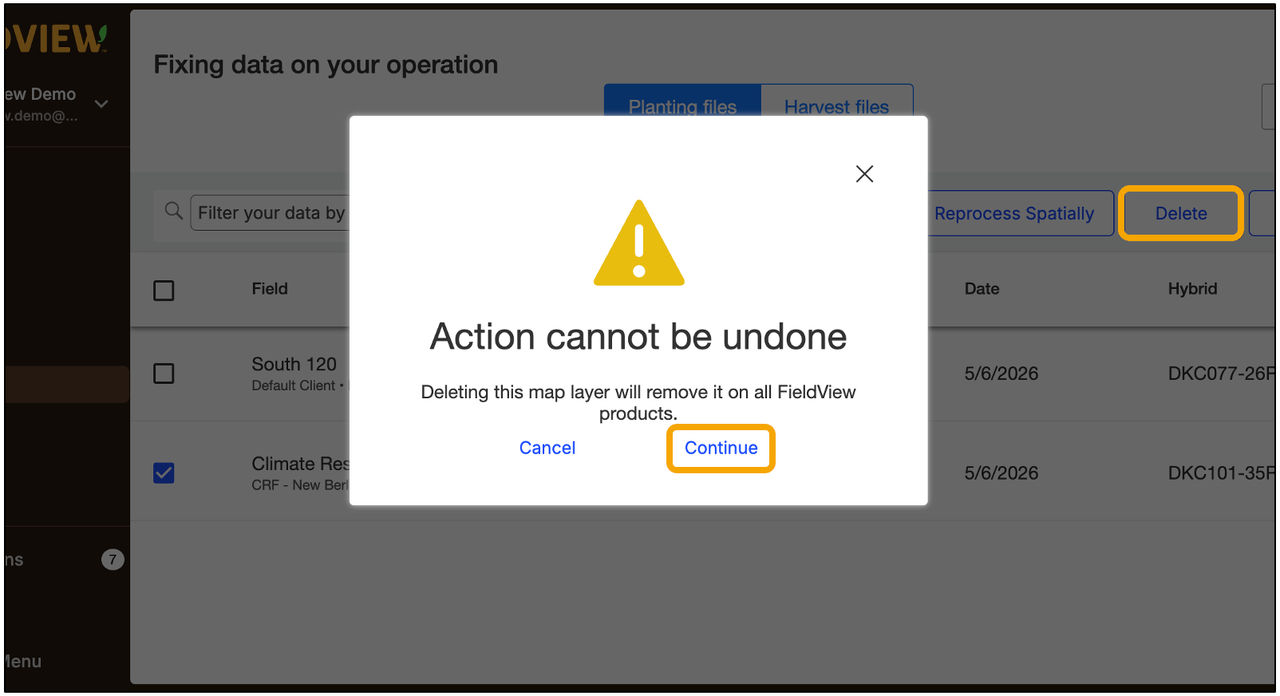
- You also have the opportunity to delete files within both the Planting or Harvest tabs.
- After selecting the field or fields you wish to delete, click on the Delete button located on the right side of the screen.
- A notification will appear making sure you want to delete these files.
- Choose to Continue with the delete or Cancel. (Clicking continue means this data will be deleted and this action cannot be undone.)