Identifying John Deere SeedStar Planting Controllers
Overview
These tips will help you understand which John Deere® SeedStar™ planting controller is being used.
Note: For these tips, you have to be in the action of planting. There is not a good way to identify the planting controller without being engaged in a planting activity.
SeedStar™ 2 Task Controller
Look for an icon on the home screen that says Planter and press to open.
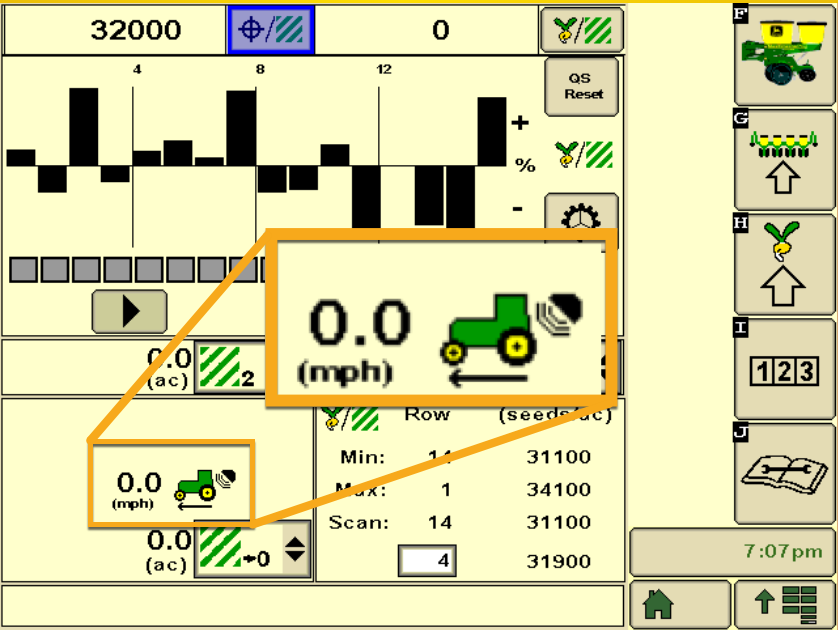
- The planter screen will look like the image to the left and you can tell you have a SeedStar 2 if there is an MPH indicator in the bottom left corner.
Look for an icon on the home screen that says Planter and press to open.
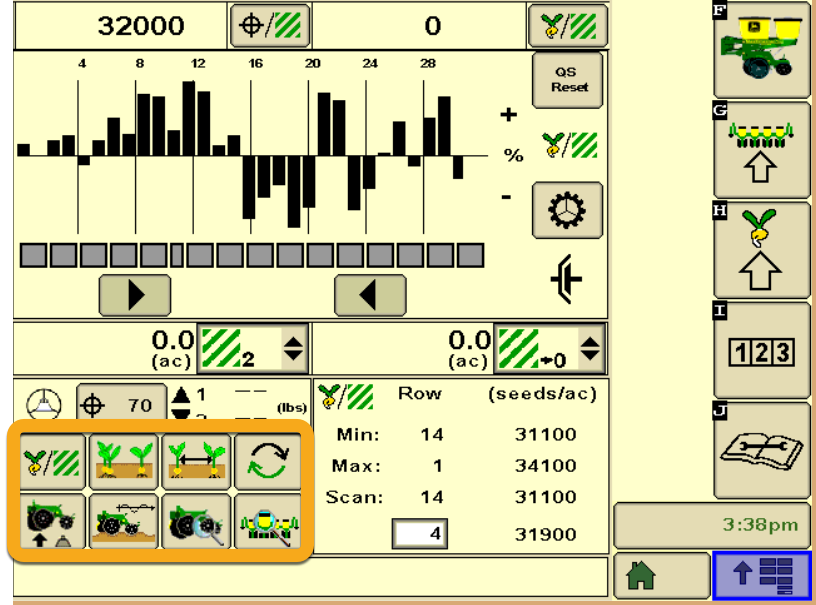
- The planter screen will look like the image to the right. You can tell you have a SeedStar XP if there are a group of buttons/options in the bottom left corner.
SeedStar™ 3HP Task Controller
Look for an icon on the home screen that says Planter or ePlanter and press to open.
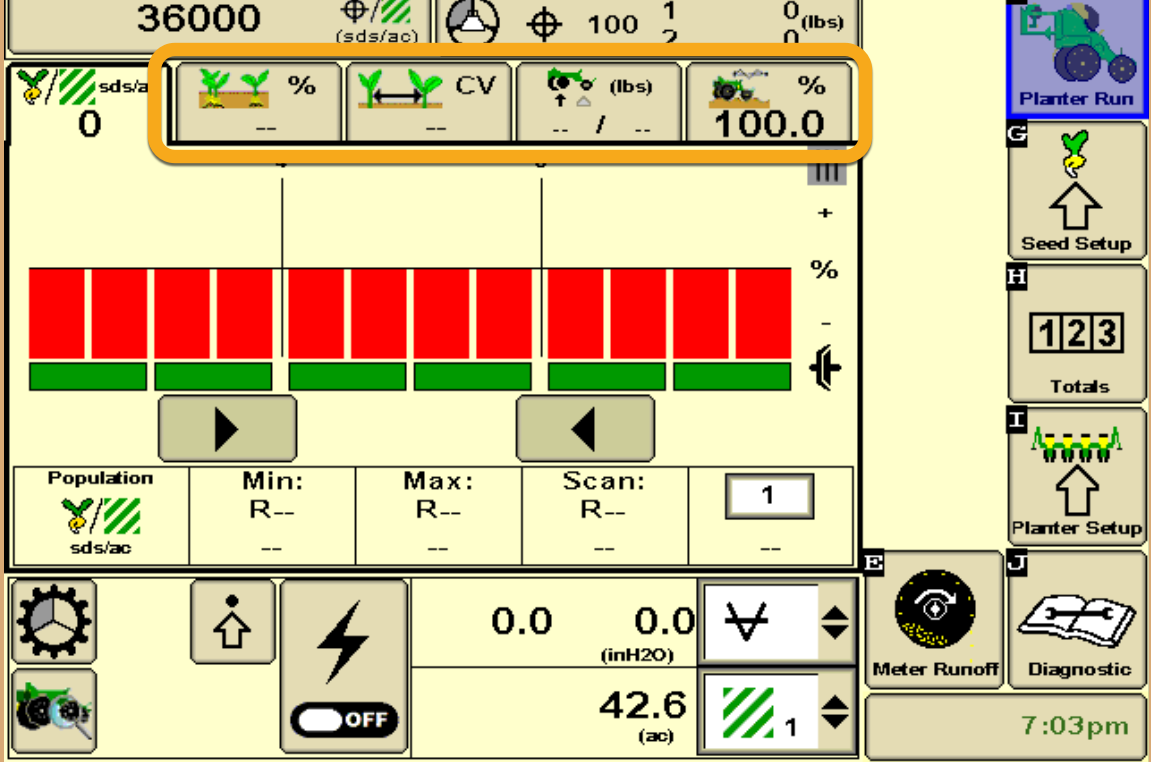
The planter screen will look like the image to the left. You can tell you have a SeedStar 3HP if:
You notice a complete layout change vs. what you would see in a SeedStar 2/XP.
The group of selection buttons (similar to SeedStar XP) are located across the top of the screen.
SeedStar™ 4HP Task Controller
SeedStar™ 4HP Task Controller is currently compatible with FieldView™ Drive, Data Inbox and Sync with John Deere Operations Center.