How To Create Yield Analysis Reports in FieldView App
Overview
Enhance Your Productivity with In-Depth Seed and Field Performance Analysis. Turn the information you have into the answers you need.
View PDF Guide
The FieldView™ Yield Analysis feature provides detailed harvest results that can help you uncover unique field, hybrid and soil performance insights to optimize yield and improve profitability. This powerful data allows users to gather and review yield performance and identify yield-limiting factors that lead to more informed seed selection. Make field harvest data management simple with analysis of seed performance across an entire operation or analyze at the field level to help you determine the outcome of key agronomic decisions you’ve made throughout the year.
You can now email or print the reports from your iPad® device and share them with your dealer or agronomist immediately upon leaving the field.
Yield Analysis Report Creation in FieldView App
- Establish an internet connection with your mobile device and select the FieldView™ app.
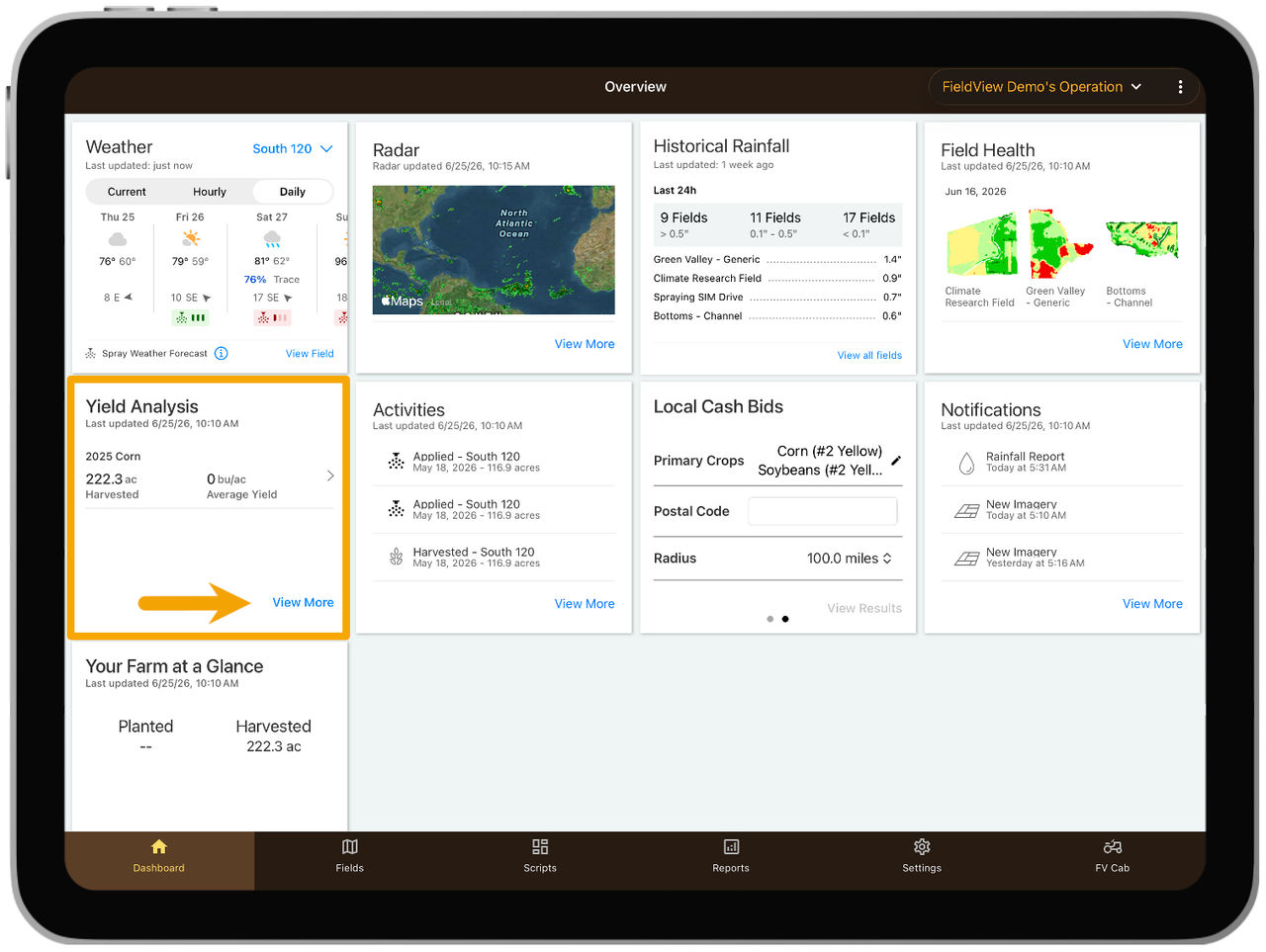
- From the Dashboard screen in the FieldView app, find the Yield Analysis card. Review the status card of a snapshot of the most recent harvest activity documented by FieldView.
- Tap the Yield Analysis card to view more detailed yield data for products planted on your operation.
Reviewing Harvest Data in FieldView App
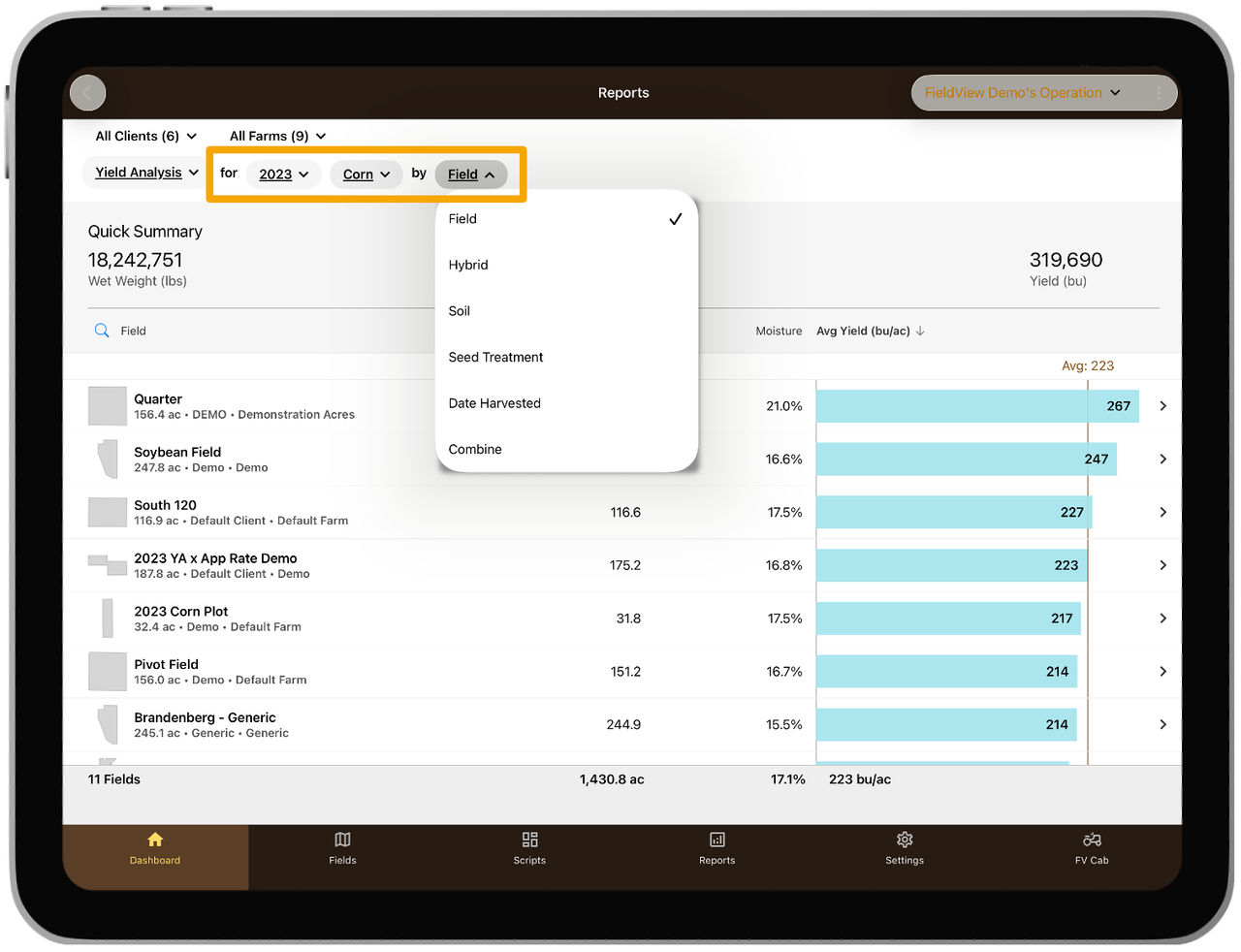
- At the top left of the Yield Analysis screen, select Field, Hybrid, Soil, Date Harvested, or Combine to choose which report you want to review.
- Review data for a specific field by tapping on the Field Name.
- To view data for a specific year and crop, use the dropdown menus in the upper left.
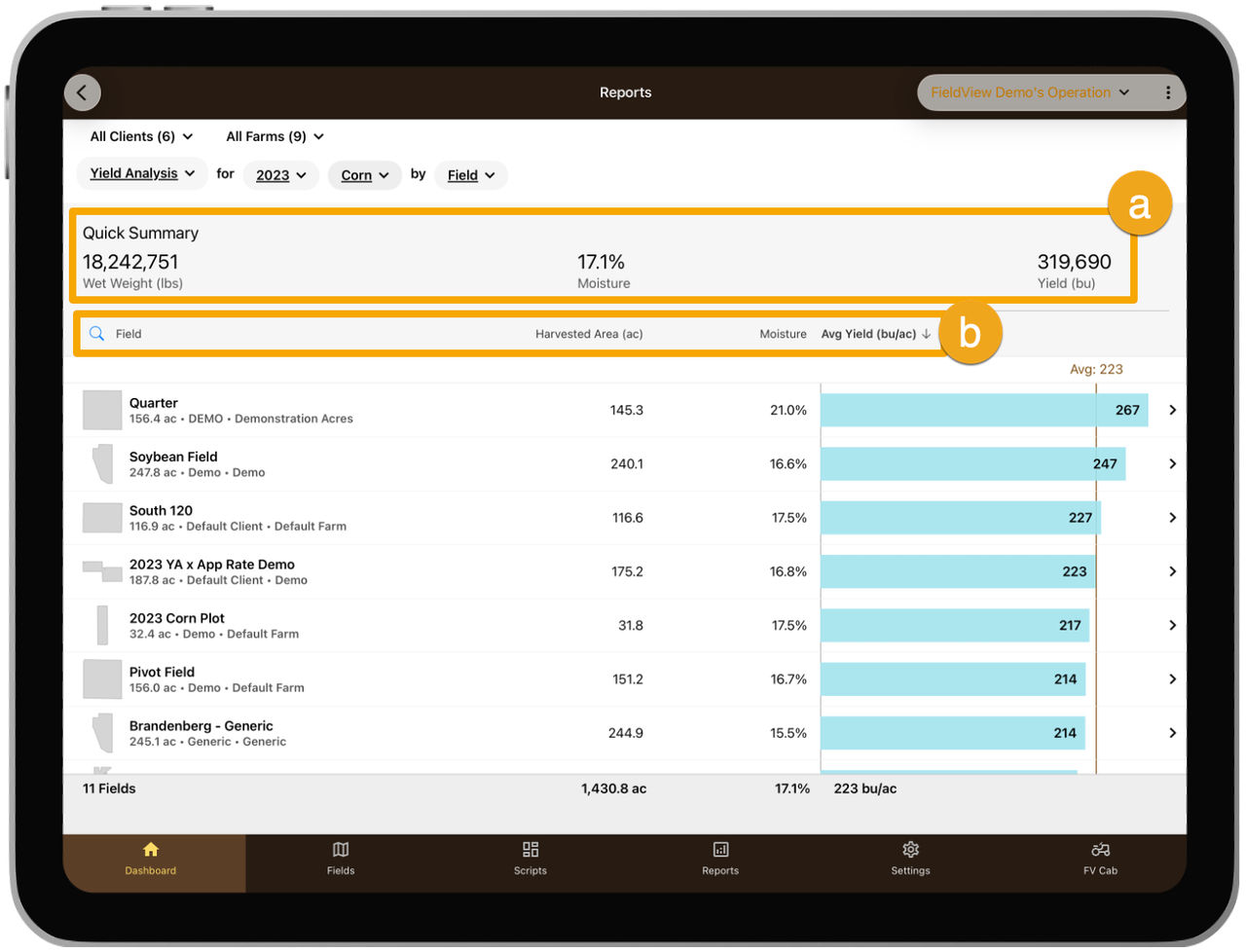
a. Each Yield Analysis page has a Detailed Summary near the top. This summary displays the overall harvest results for a selected crop, including number of fields, total harvested acres, bushels and average yield per acre and average moisture.
b. Sort Yield Analysis results by Field Name, Average Yield, or Harvested Acres. Tap on any column heading to toggle the sort feature in ascending or descending order.
Download & Save FieldView App Yield Analysis CSV/PDF Reports
For easy access and sharing, the Yield Analysis Report can be viewed as a CSV or PDF file that can be emailed, printed, and/or saved directly from your mobile device.
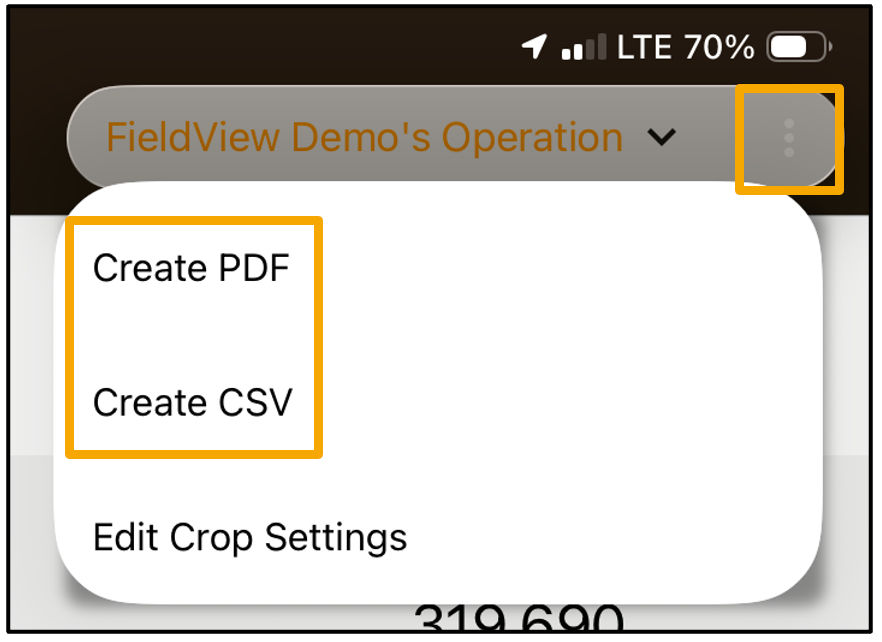
CSV Report:

PDF Report:
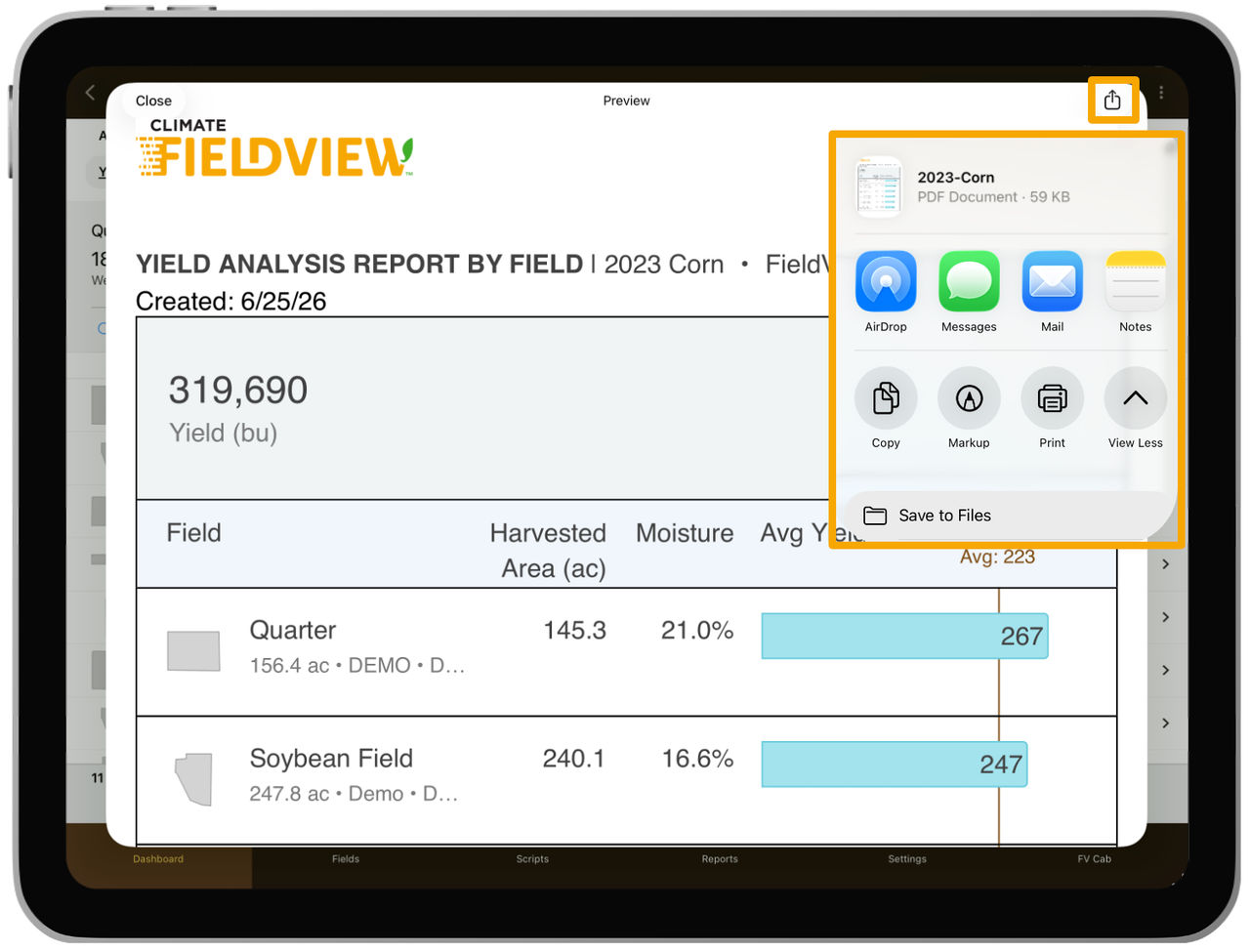
How to View Yield Analysis by Application
Yield Analysis by Application helps you perform field level analysis to determine how the crop protection and fertility products you applied throughout the season impact yield. This feature helps identify what worked, what didn’t, and what could be next year.
1. Open the FieldView™ app
2. Tap Reports
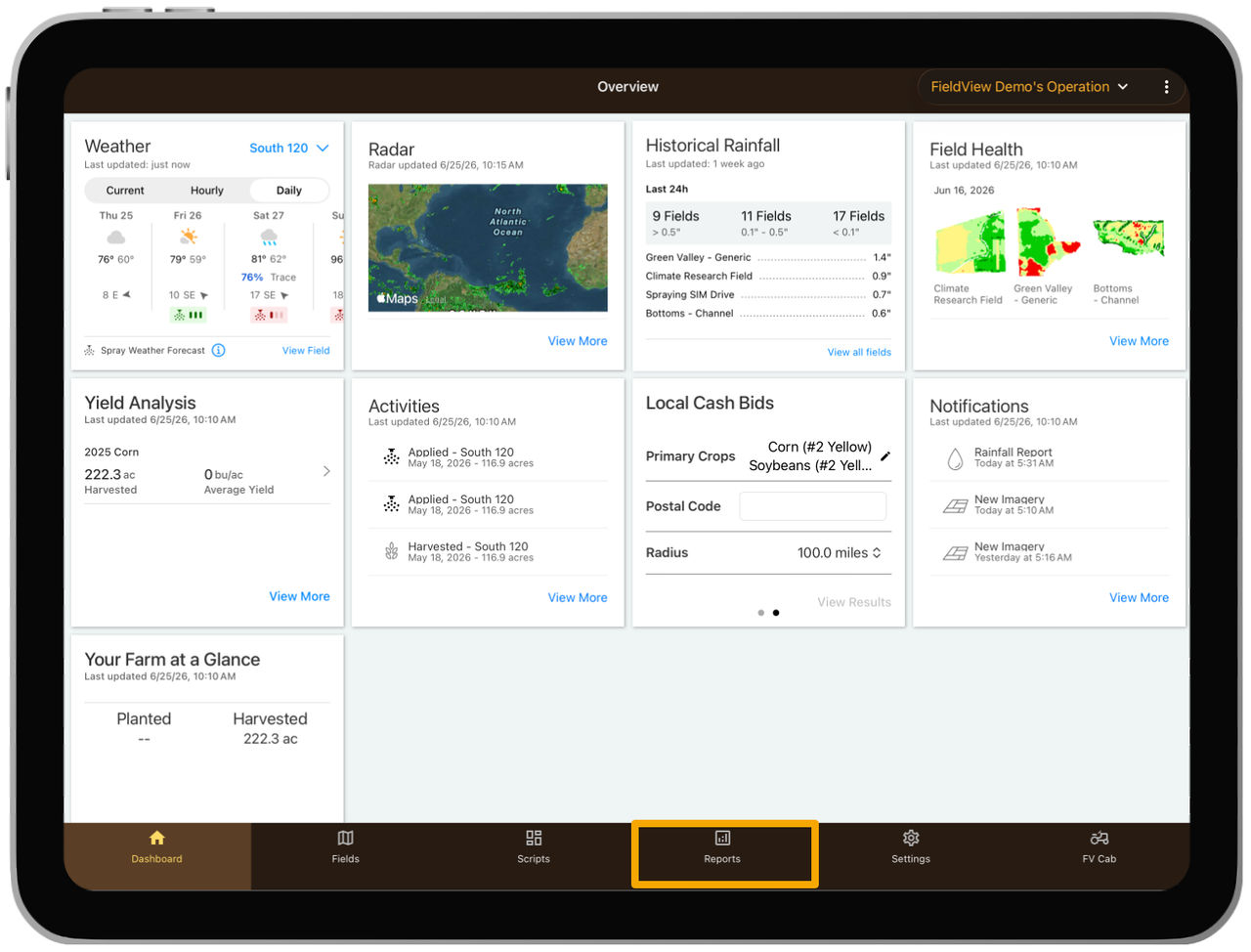
3. Scroll to Yield by Application for a given year
4. Tap Yield by Application Reports
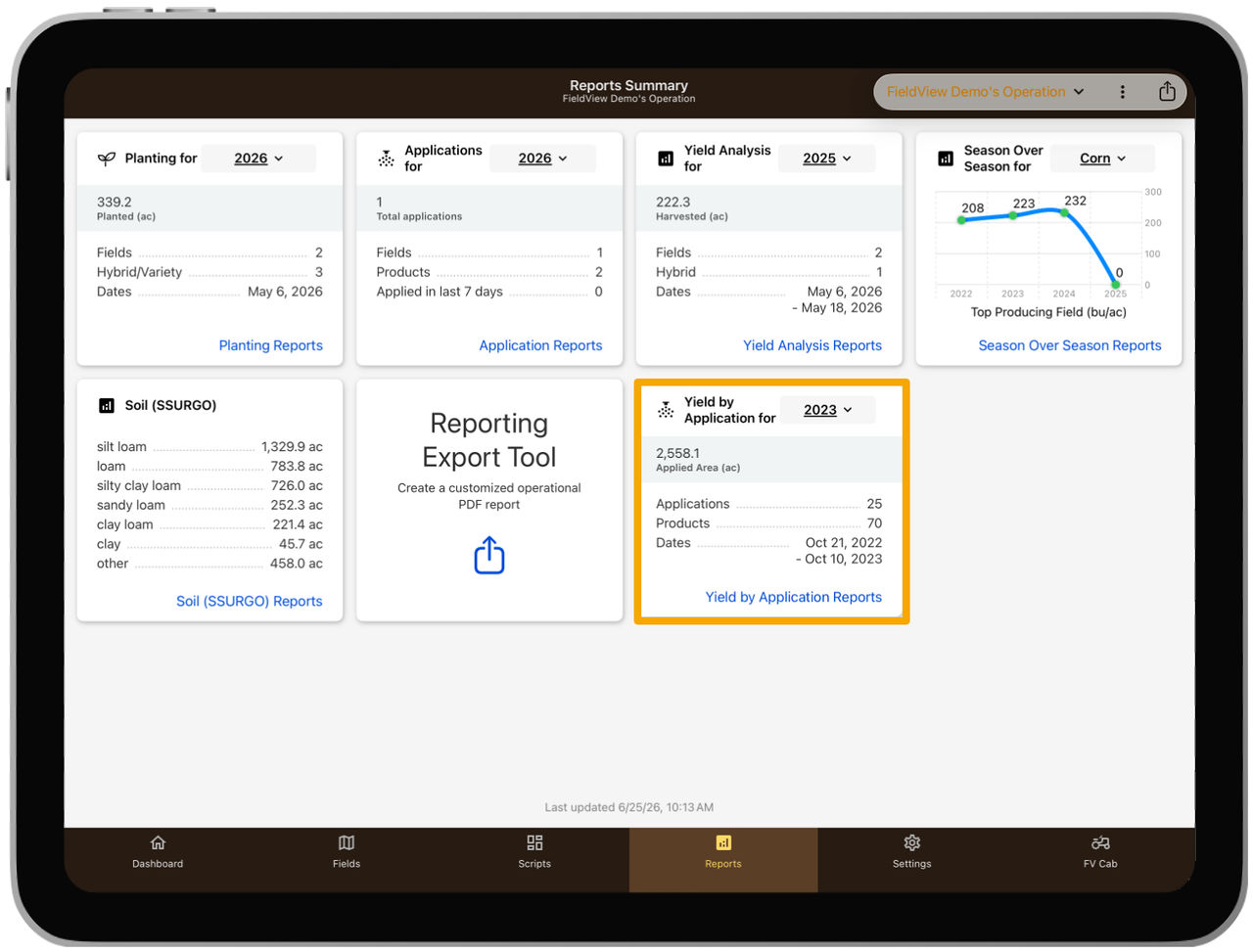
Here you can toggle the year and crop you wish to view and can sort by number of applications.
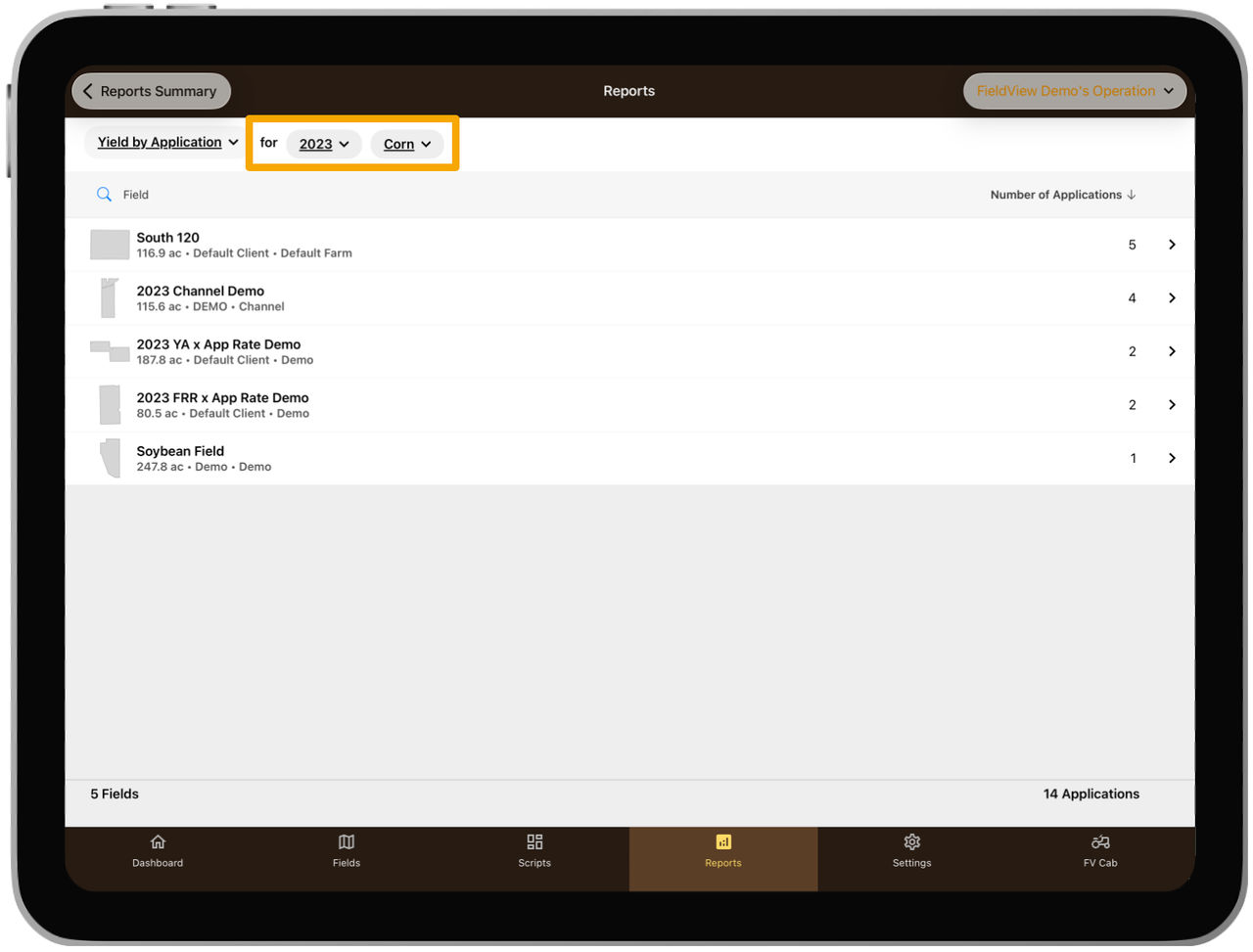
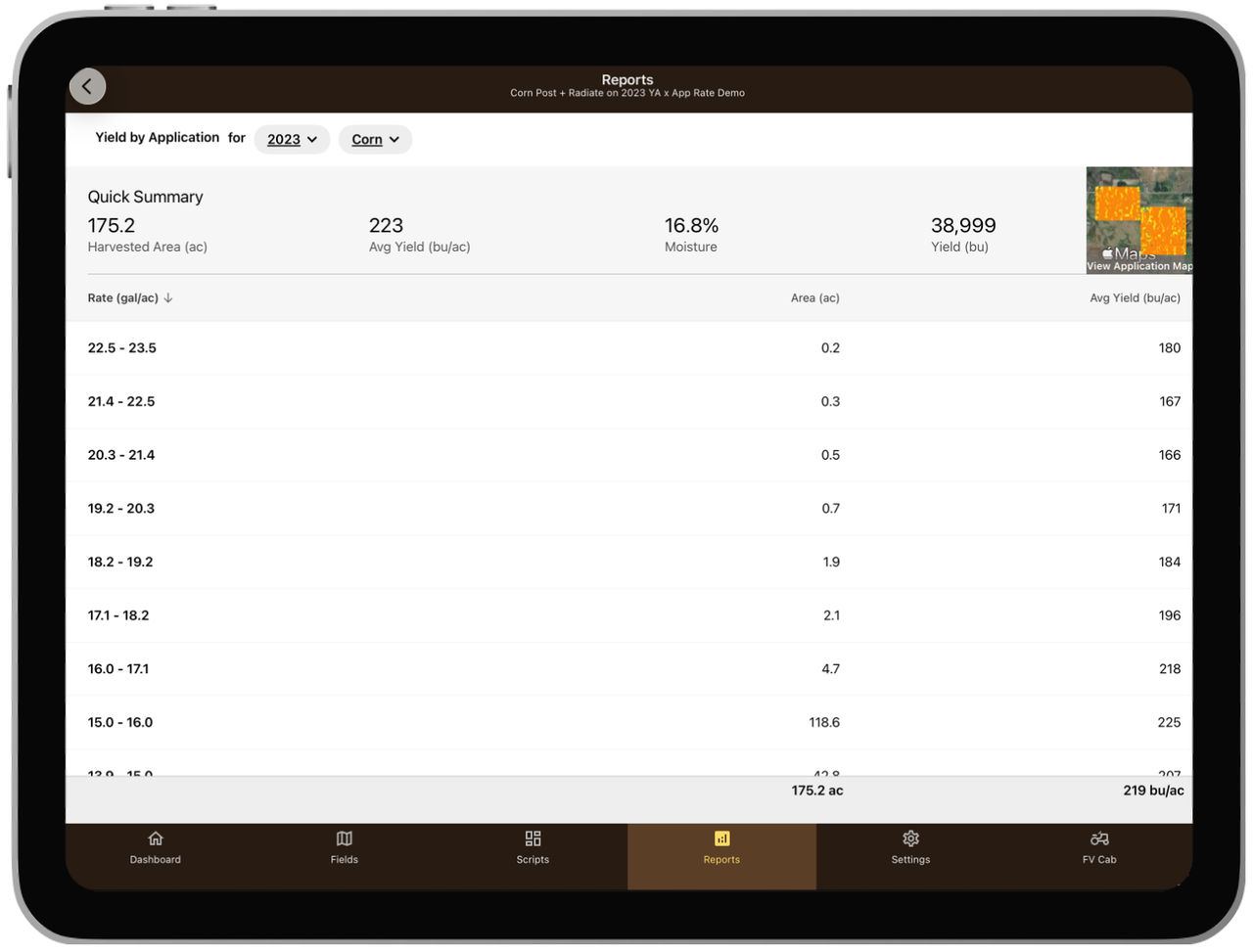
5. Tap into the field to dive deeper into the data – you can view harvested area, average yield, percent moisture, and total yield for your operation
6. Tap to sort by applied area
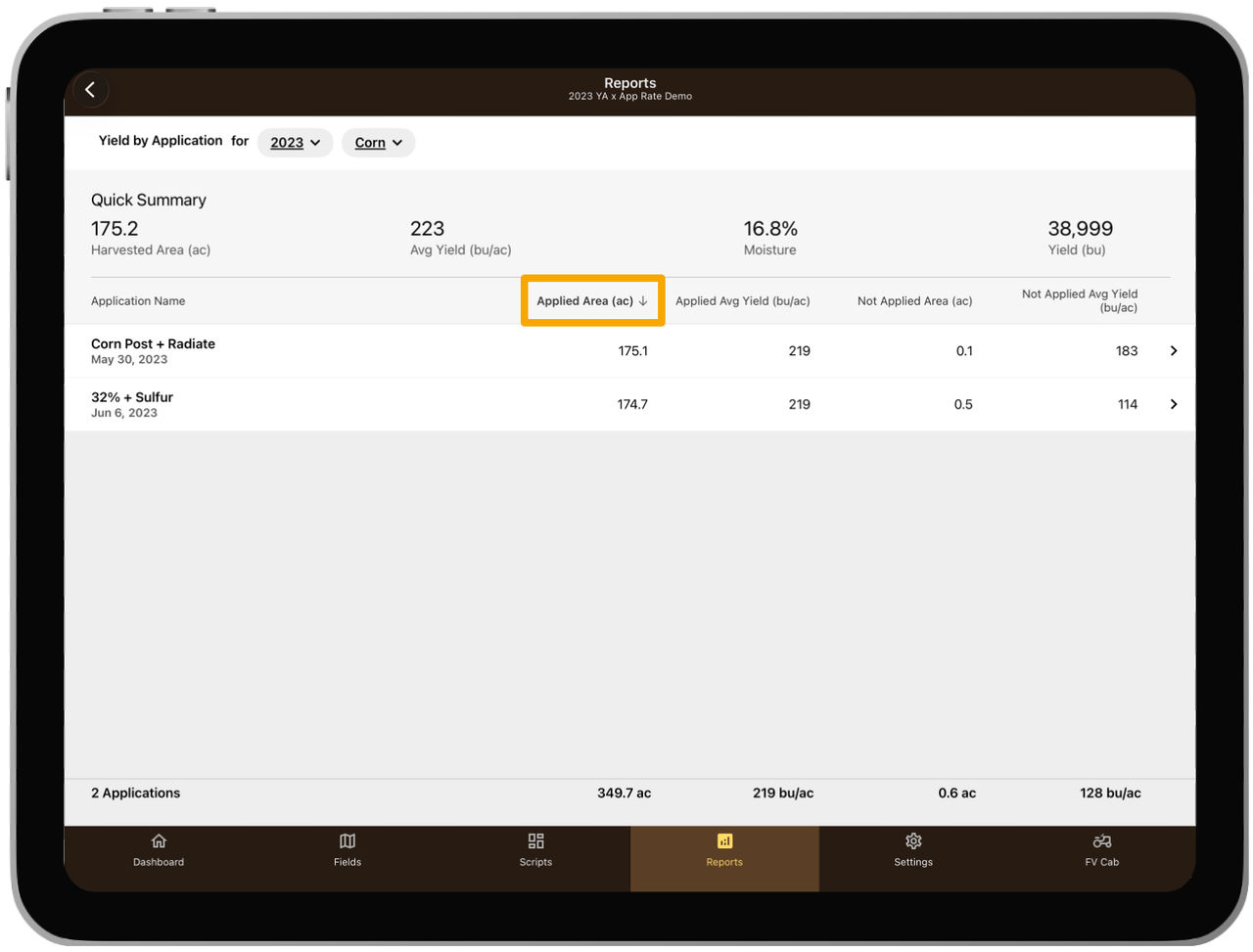
Tap into a specific application to view the rate applied over a certain area and average yield by bushel per acre