How to Utilize the SplitView Feature with FieldView Plus
Overview
The SplitView feature allows for FieldView™ Plus users to view two map types at the same time in the FieldView™ Cab app on iOS®, the FieldView app, or FieldView on the web. Both maps stay synchronized as you move through the field.
Available on: Apple iOS™
SplitView in the FieldView™ App
When analyzing a field in the FieldView app, select the SplitView button to allow two maps to be viewed simultaneously. The two maps move in sync with one another at all times.
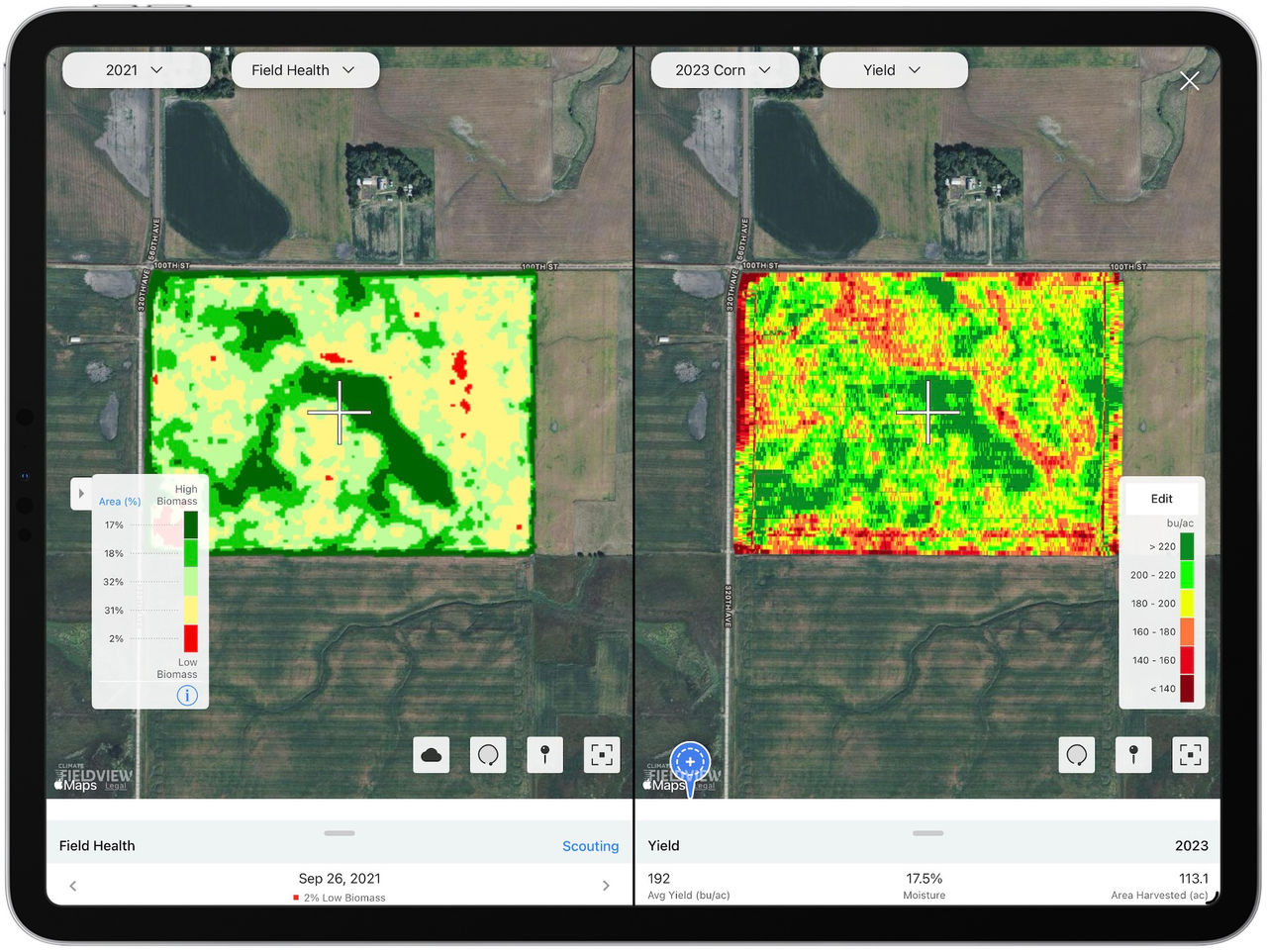
SplitView in the FieldView™ Cab App
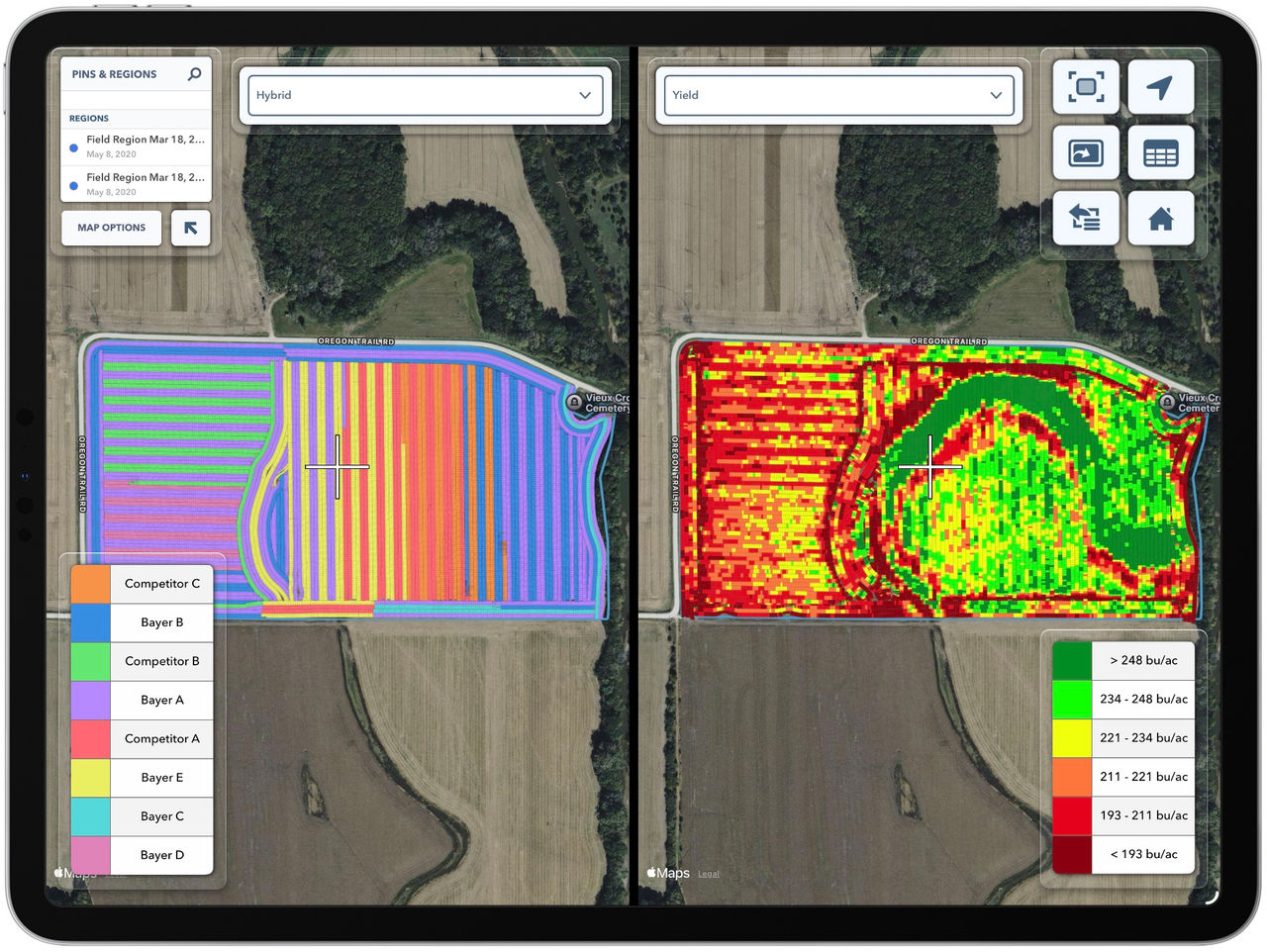
When analyzing a field in the Cab app, select the SplitView button to view two maps at the same time. Both maps remain synchronized as you move through the field.
If you open a Field Report while using SplitView, the report will always correspond to the map displayed on the right side of the screen. Imported maps can also be viewed in SplitView.
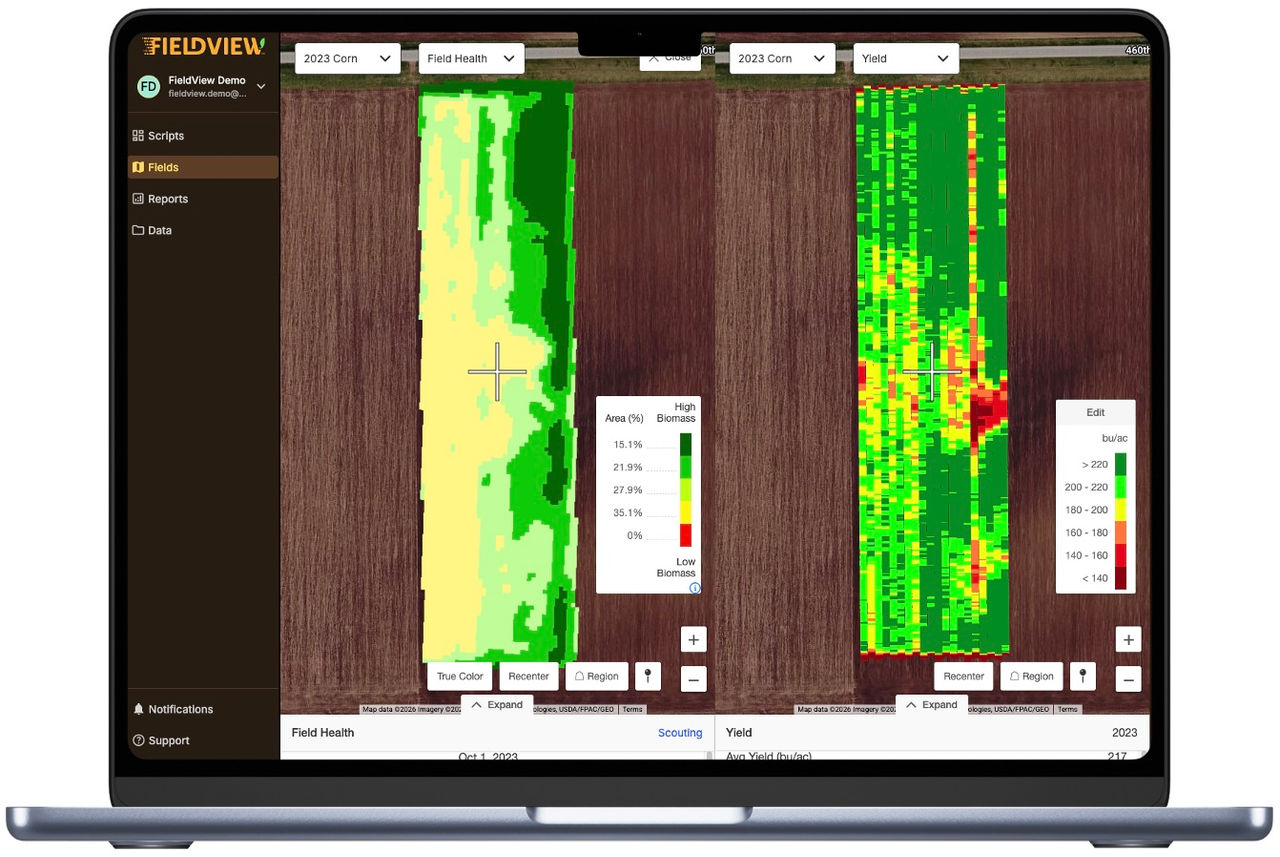
SplitView on FieldView.com
When analyzing fields on FieldView.com, select the SplitView button to easily view two maps side by side.
Note*: A FieldView Plus subscription is required to use the SplitView feature on all platforms.