Creating a Scouting Pin with FieldView Online & In App
Overview
FieldView's scouting pin tool enables users to effectively detail their scouting notes, allowing them to efficiently classify and tag their scouting information.
Available on: Apple iOS™, Android™
Creating a Scouting Pin in the FieldView™ App
The scouting pin tool offers an intuitive and structured field scouting experience, allowing FieldView users to enter actionable notes and categorize issues like diseases, insects and weeds. These color-coded icons make distinguishing field pins easy.
There are two methods to creating a scouting pin on any map layer in the FieldView app:
1. Long press (touch and hold) on the screen at the location you would like to pin
or
2. Select the pin icon in the lower right corner of the screen, then tap on the map to drop the pin.

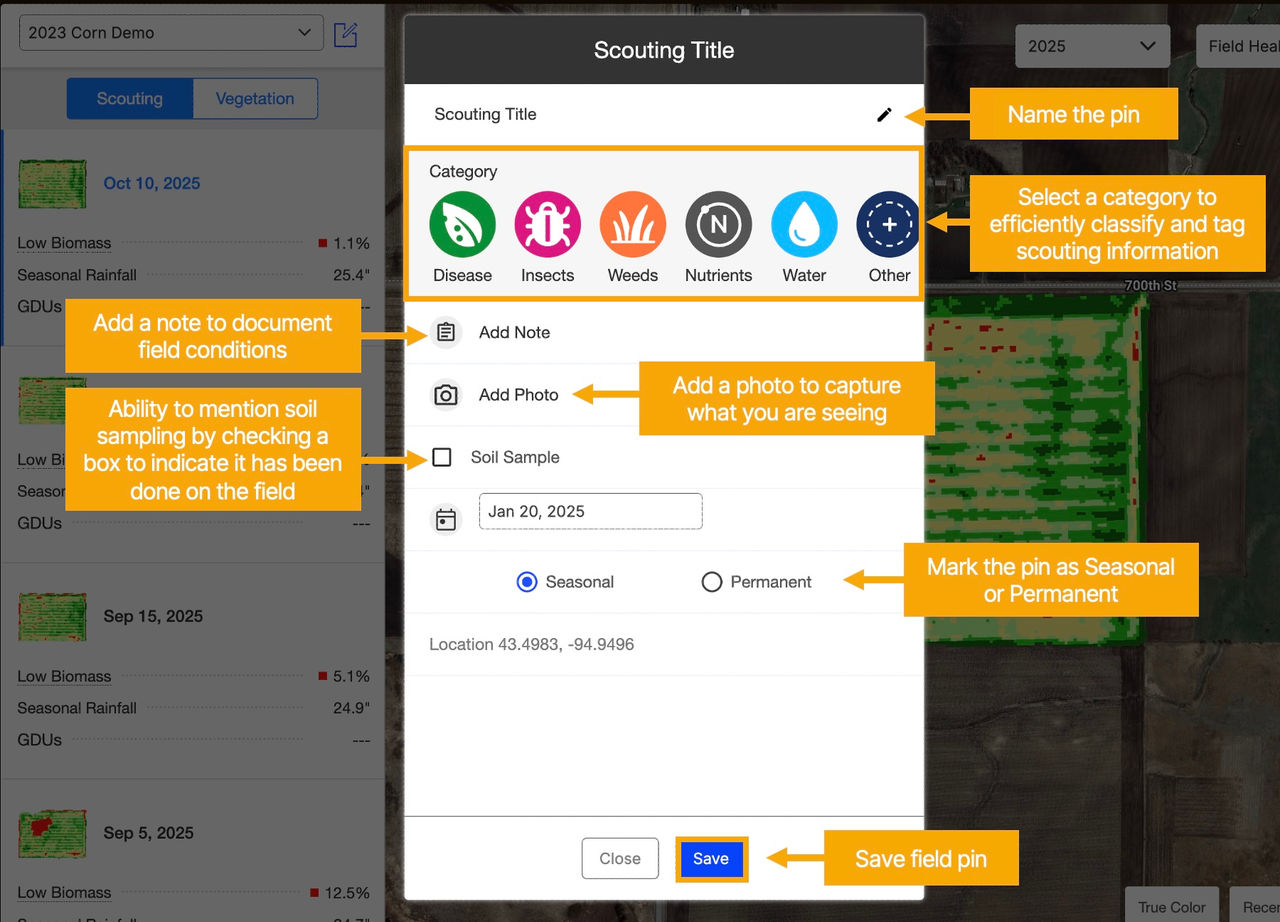
An information box will appear on the screen for entering photos or notes to document conditions at the pin location. Once you have completed all information for the pin, touch Save.
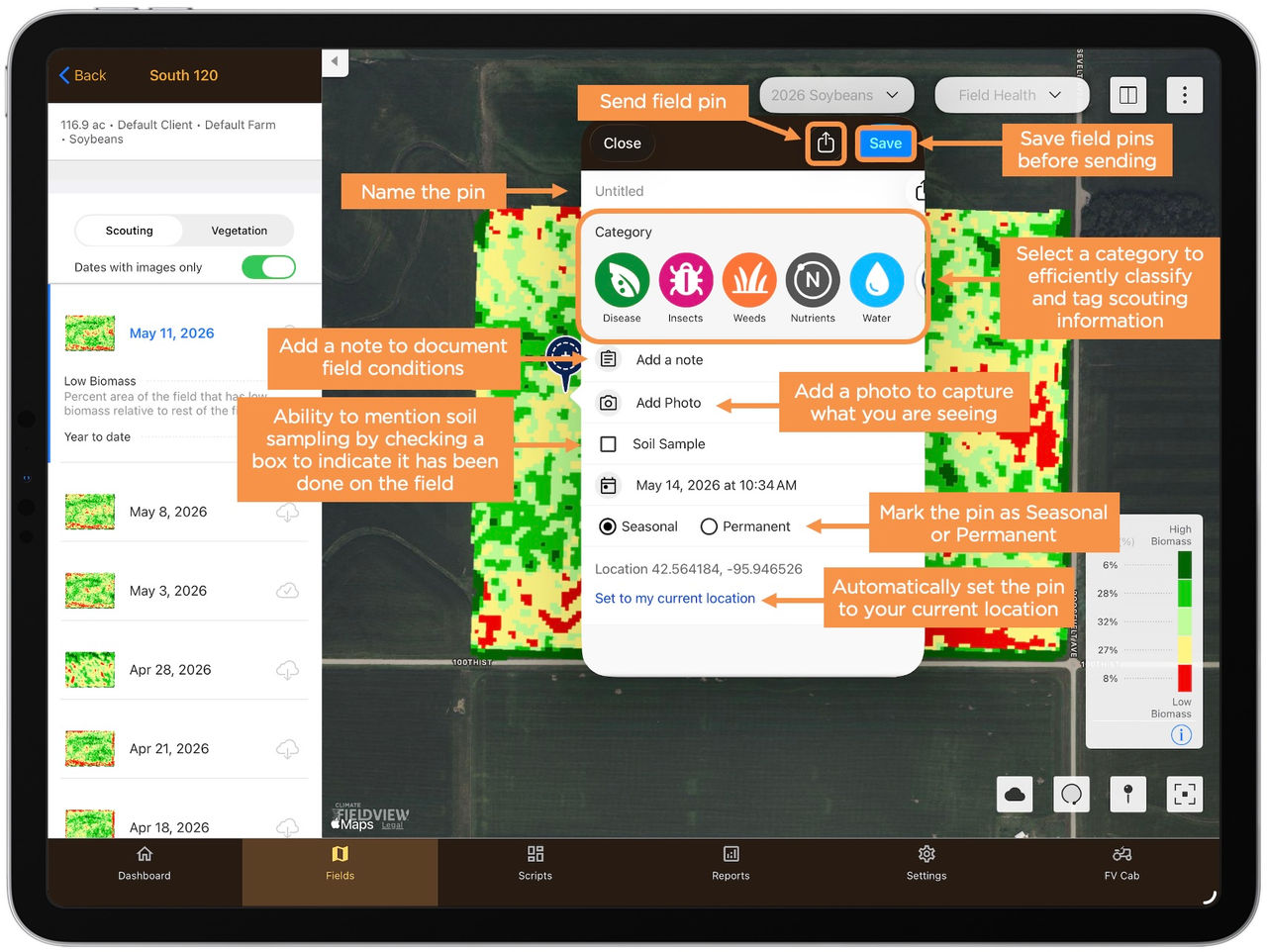
Field pins and the associated notes and/or photos can be sent to agronomists, farming, partners and crop advisors to share the location allowing for collaboration on issues you may be noticing the field.
Prior to sending a pin, it must be saved to ensure any photos or notes entered are retained.
Once all information has been entered, touch the Save button and the information box will close.
To re-open the pin information box, touch on the actual pin to bring up the field pin box. To send the pin, touch the sharing icon.
Once the pin is re-opened, the Save button changes to Update.
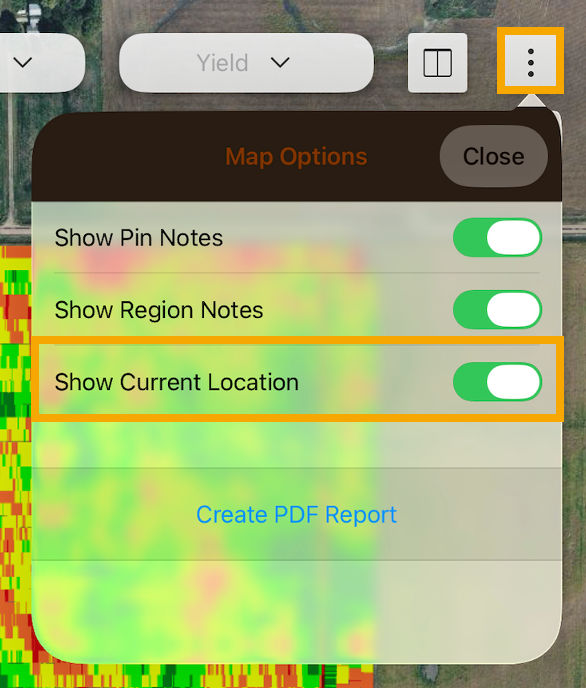
Utilizing your scouting pins in the field is enhanced by turning on location services--this allows your current location to be identified. Turn on location services in the FieldView™ app by touching the Map Options button in the upper right and confirm that the Show Current Location options is turned ON.
Note: To save on data and battery usage, turn off location services once you are done scouting in the field.
Creating a Scouting Pin on fieldview.com
1. Navigate to fieldview.com and login.
2. Select the field you want to drop a pin on.
3. Select the pin icon in the bottom right corner of the screen.

4. Enter pin details into the information box and click Save.