Scouting Guide for FieldView App & FieldView Cab App
Overview
Details of how to place scouting pins, utilize vegetative or scouting imagery for directed scouting in FieldView™ as well as how to place a scouting pin in FieldView™ Cab app.
Available on: Apple iOS™, Android™
Scouting with FieldView™ is available on Android™, iPhone®, and iPad® devices.
On your mobile device open the FieldView™ app.
- When the FieldView™ app launches, you will be viewing the Dashboard screen.
- In the upper right corner, click on the operation name to see all operations shared with you. If you do not have any operations that are shared with you, the screen will be blank in this area.
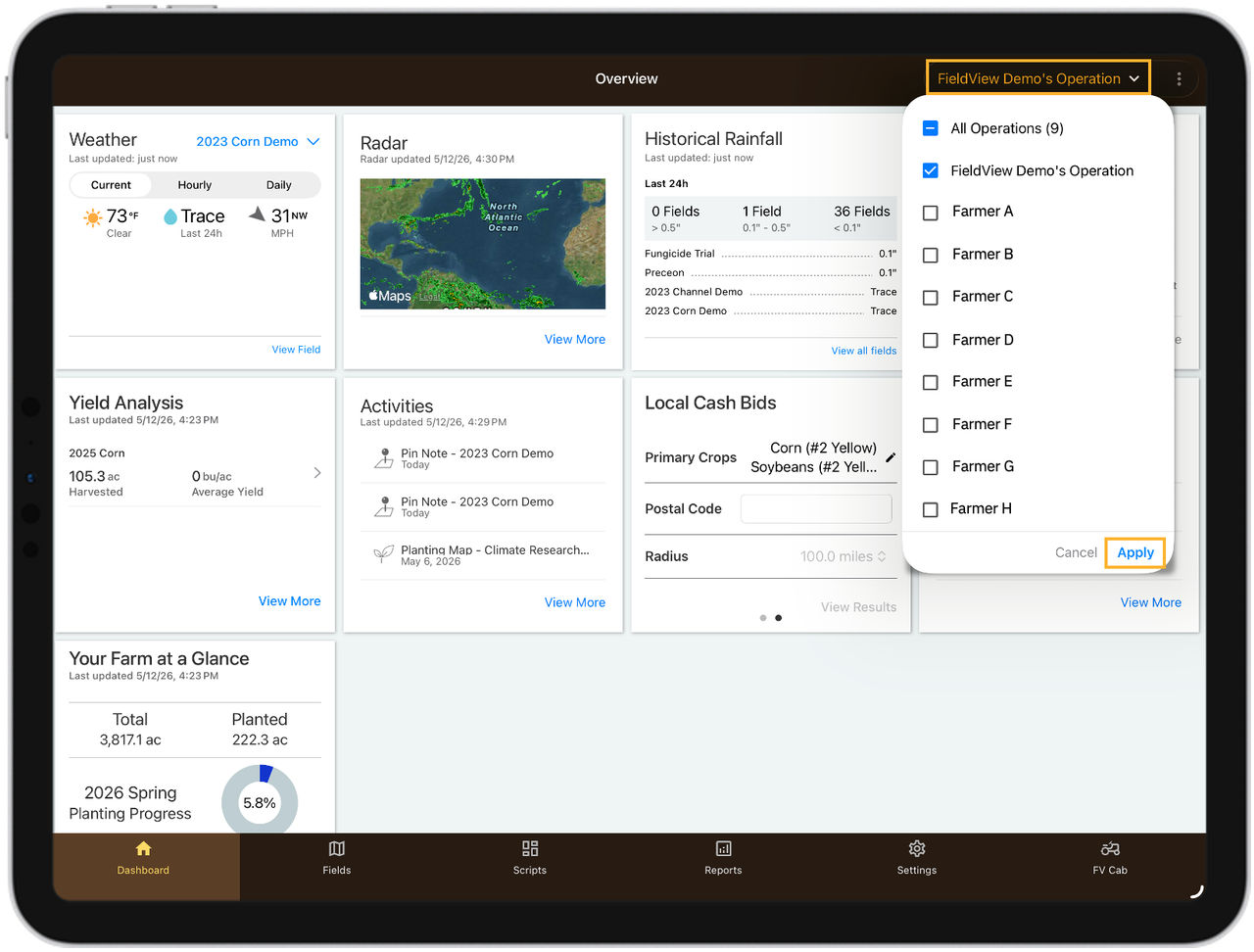
Confirm the operation to be scouted is selected. You can select all operations or one specific operation to limit the fields that you are viewing.
To Scout Using Field Health Imagery:
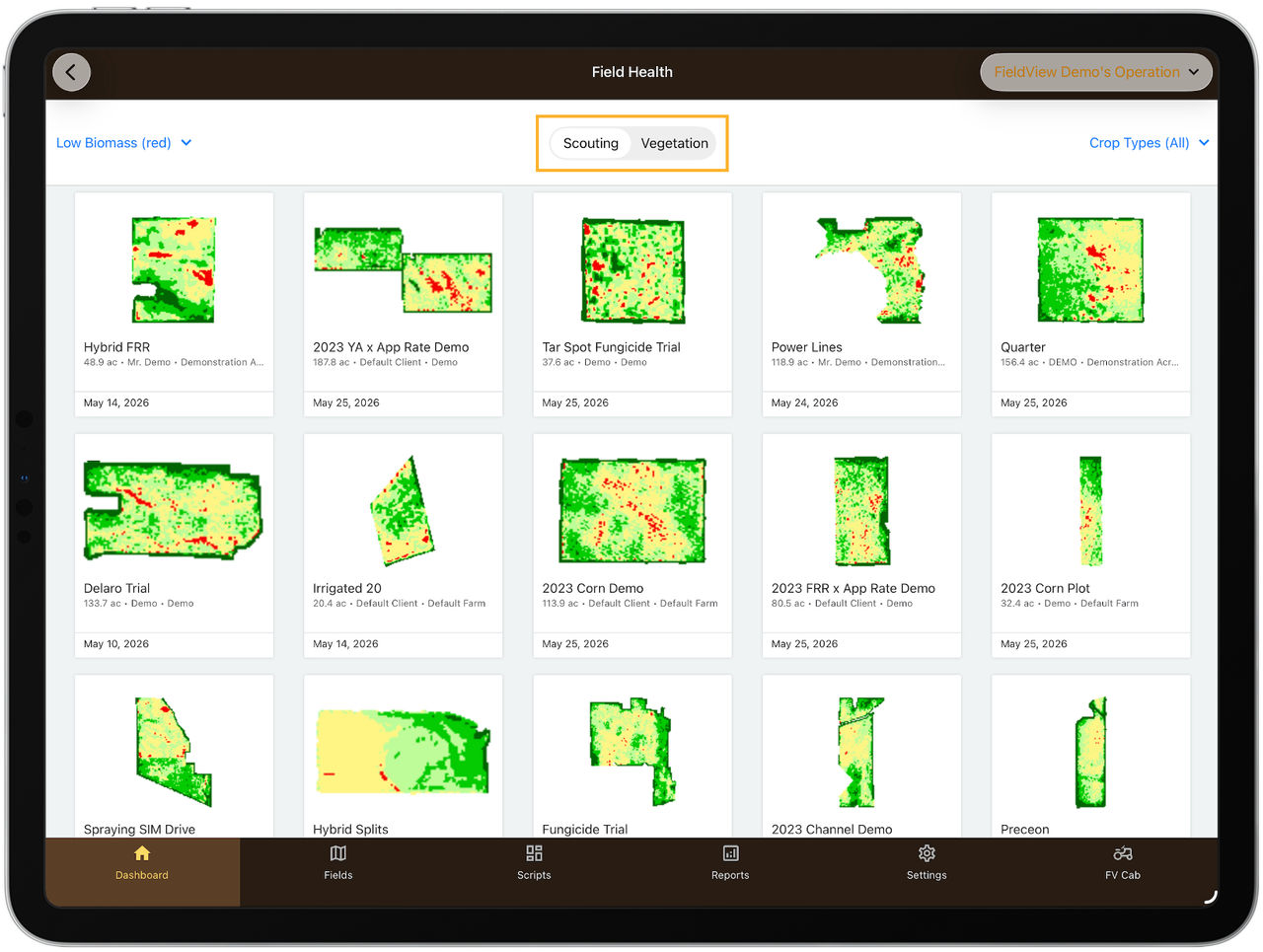
Using the vegetation and/or scouting images in gridview as guidance, look for areas of your fields that may need a field visit to fully assess the plant health of your crop. These areas can be marked by creating a scouting pin to help you, your agronomist, farming partner or crop advisor identify the specific area in the field that corresponds with a lower biomass or an area of the field that may be progressing slower than the rest of the field.
- From the Dashboard screen, select View More from the Field Health card.
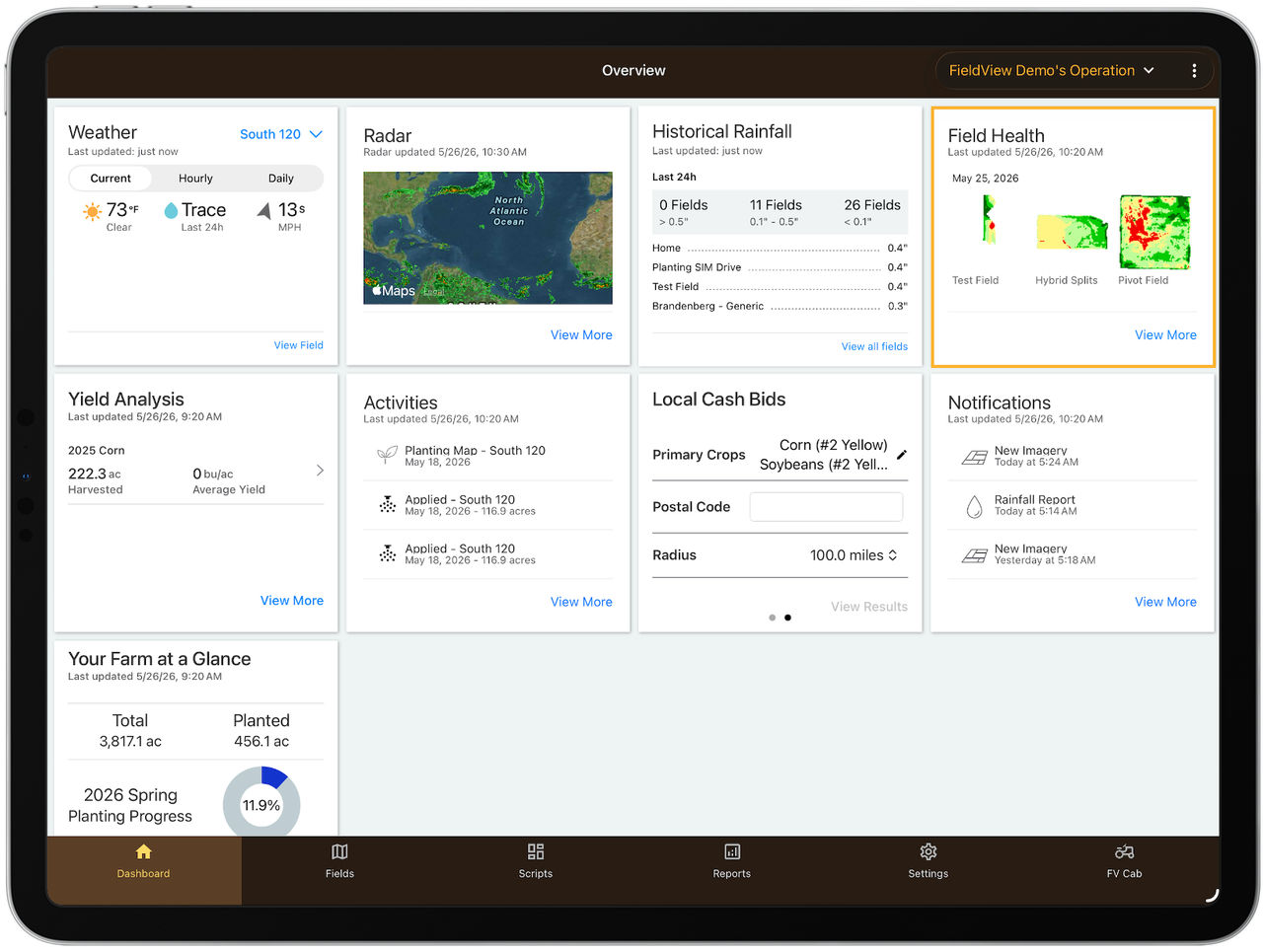
The Field Health overview card will show you the three most recent images that have been loaded into your account.
Selecting a Specific Field to Scout:
1. From the Field Health gridview screen, select the field which you would like to perform scouting activities by touching on the Field Health image for that field.
2. The field you select will show on the right side of the screen with valuable demographic information about the field on the left (weather, wind speed, planting date, planting population, hybrid, harvest information, field health imagery, and GDUs).
Prior to going to the actual field location, areas of interest can be pinned on the field map to help you find them once you are at the field.
Using Field Health Imagery vegetation and scouting maps, soil maps, hybrid maps, or any other map layer available, you can find areas of concern prior to entering the field. Select different map layers from the menu on the Fields screen.
Vegetative Map:
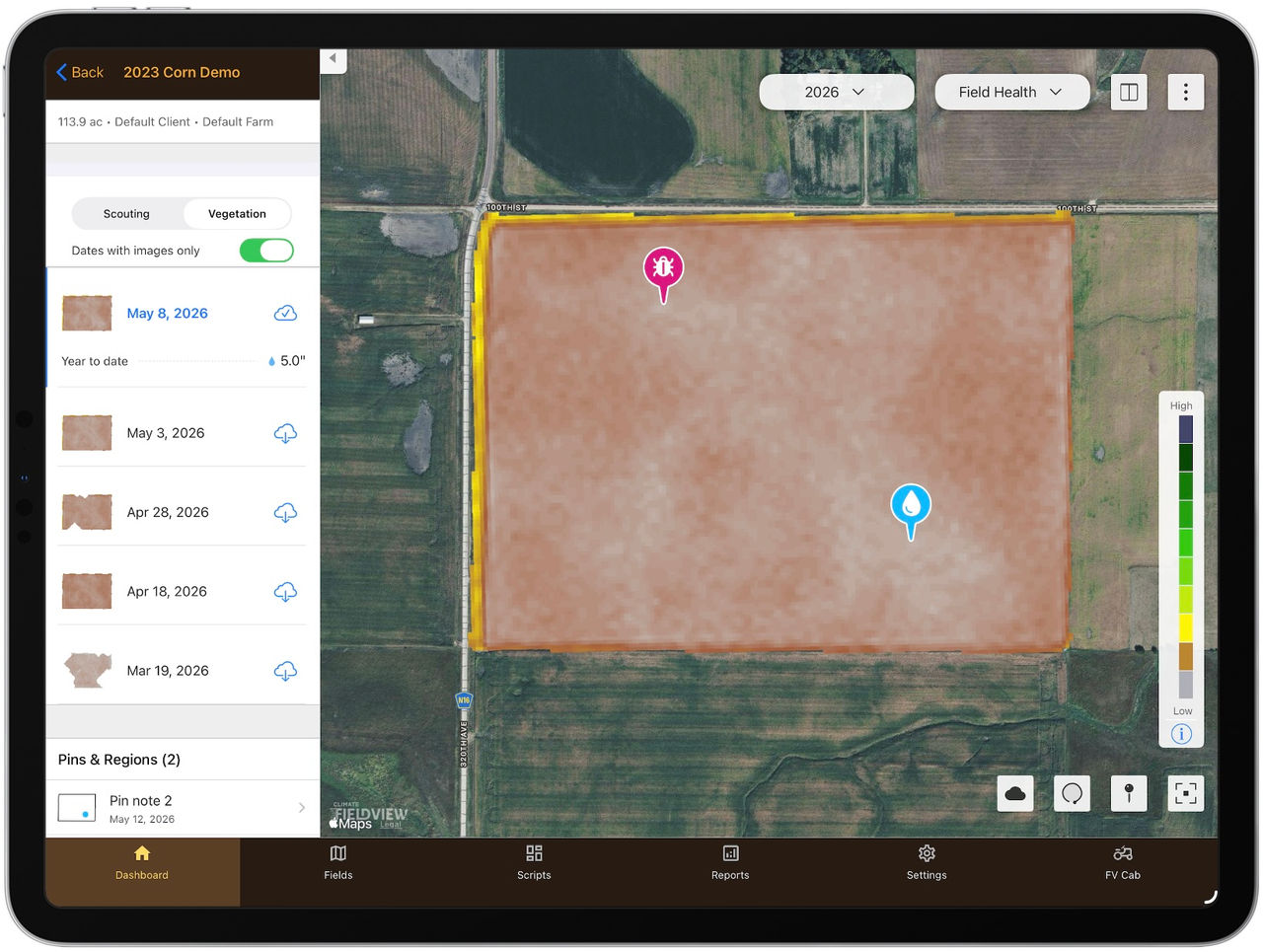
Scouting Map:
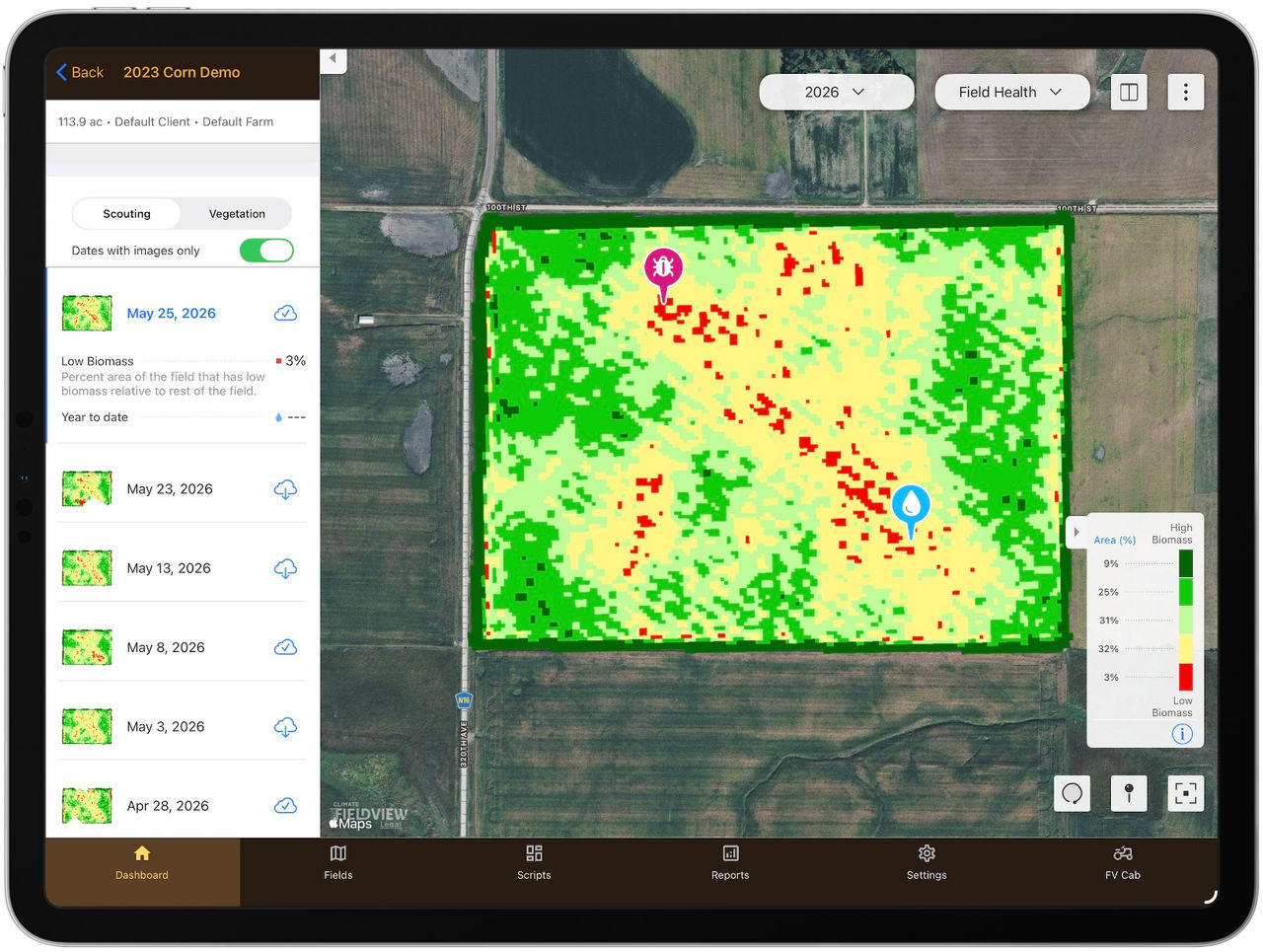
Two methods to creating a FieldView™ scouting pin on any map layer:
1. Long press (touch and hold) on the screen at the location you would like to pin.
2. Select the pin icon in the lower right corner of the screen, then tap on the map to drop the pin.
3. An information box will appear on the screen for adding photos or notes to document conditions at the pin location. Once you have completed all information for the pin, touch Save and the information box will close.
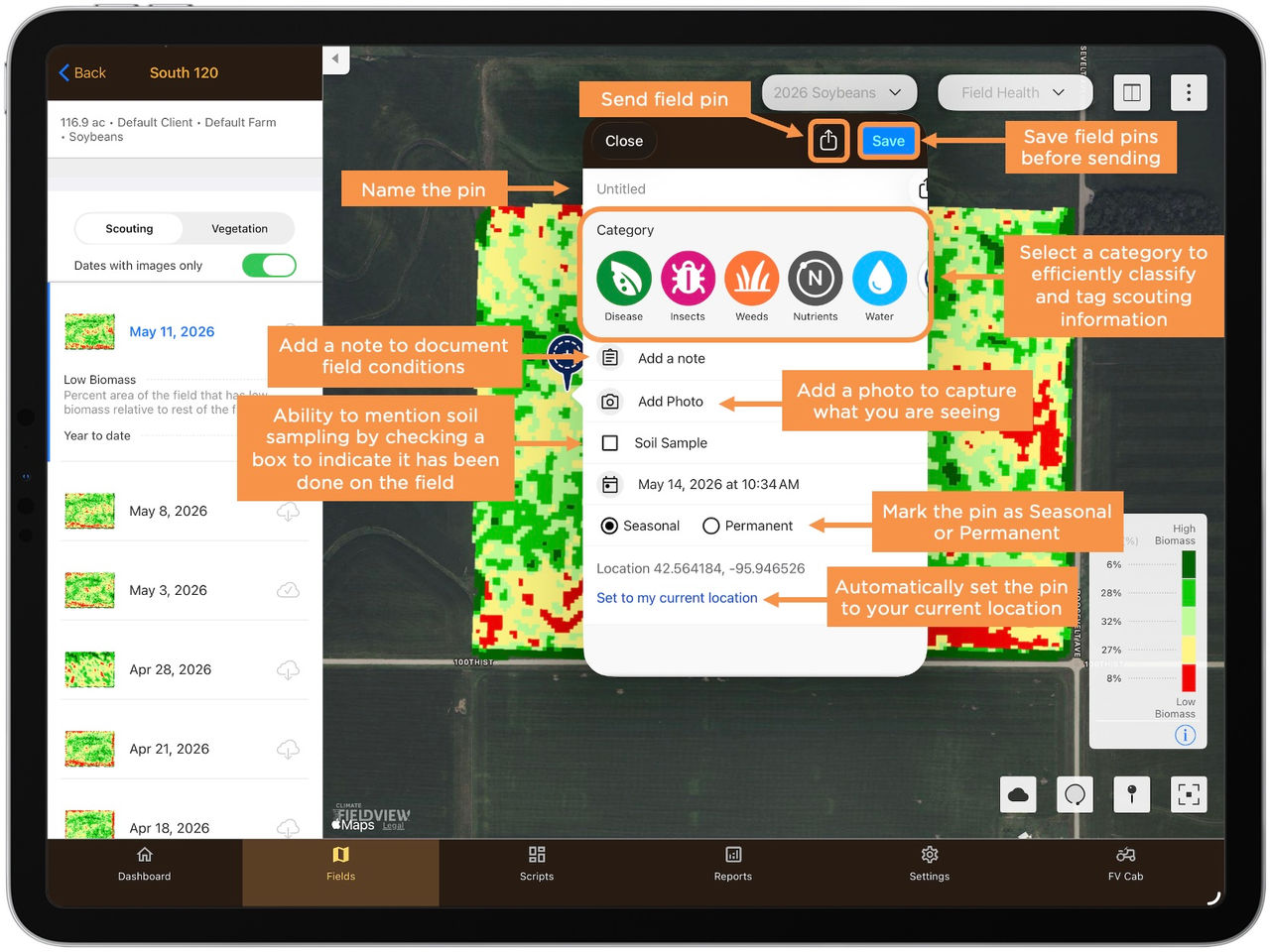
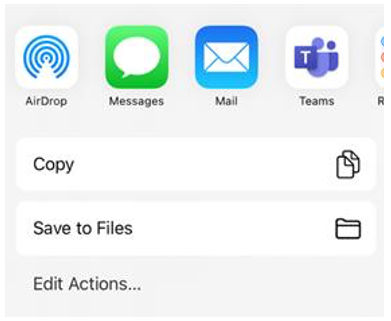
4. Field pins and the associated notes and/or photos can be sent to agronomists, farming partners, and crop advisors to share the location, allowing for collaboration on issues you may be noticing in the field. Prior to sending a pin, it must be saved to ensure any photos/notes save. To send the pin, touch the sharing icon.
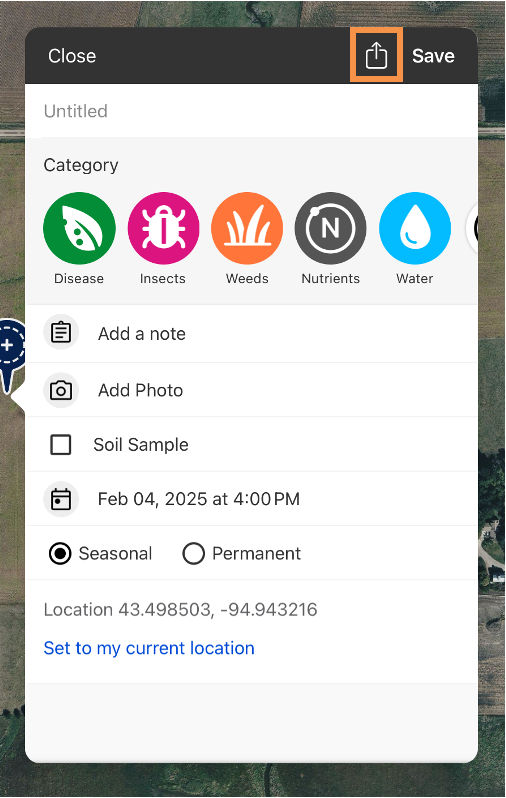
5. To re-open the pin information box, touch on the actual pin to bring up the Field Pin box.
6. Utilizing your scouting pins in the field is enhanced by turning on location services - this allows your current location to be identified. Turn on location services in the FieldView™ app by touching the Map Options button (three dots) in the upper right corner and confirm that the Show Current Location option is turned on.
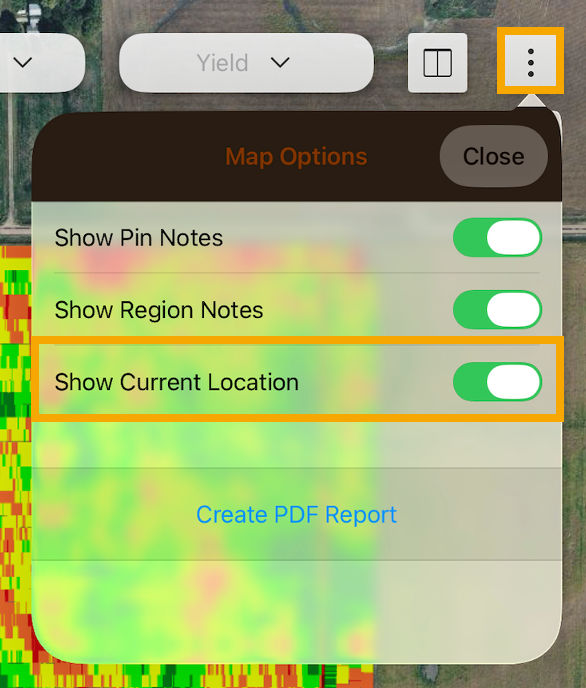
Location services is beneficial to understand the field location in relationship to different field characteristics such as soil type or hybrid planted.
Hint: Be sure to turn off location services once you are done scouting in the field to save on data and battery usage.
Scouting Activities
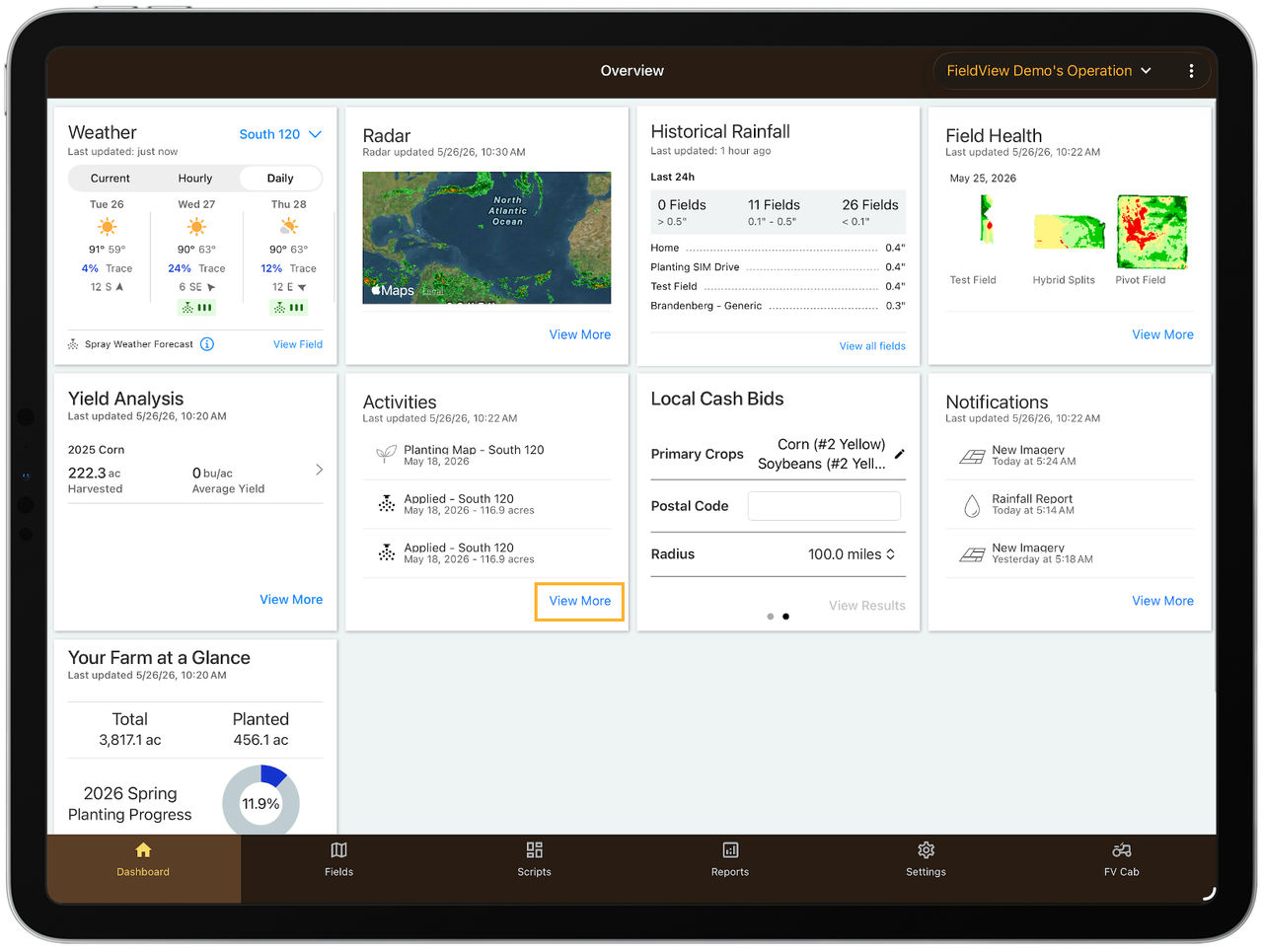
1. To view the recent scouting activities, utilize the Activities card from the Dashboard screen.
2. To see more detail regarding recent scouting activities, select View More.
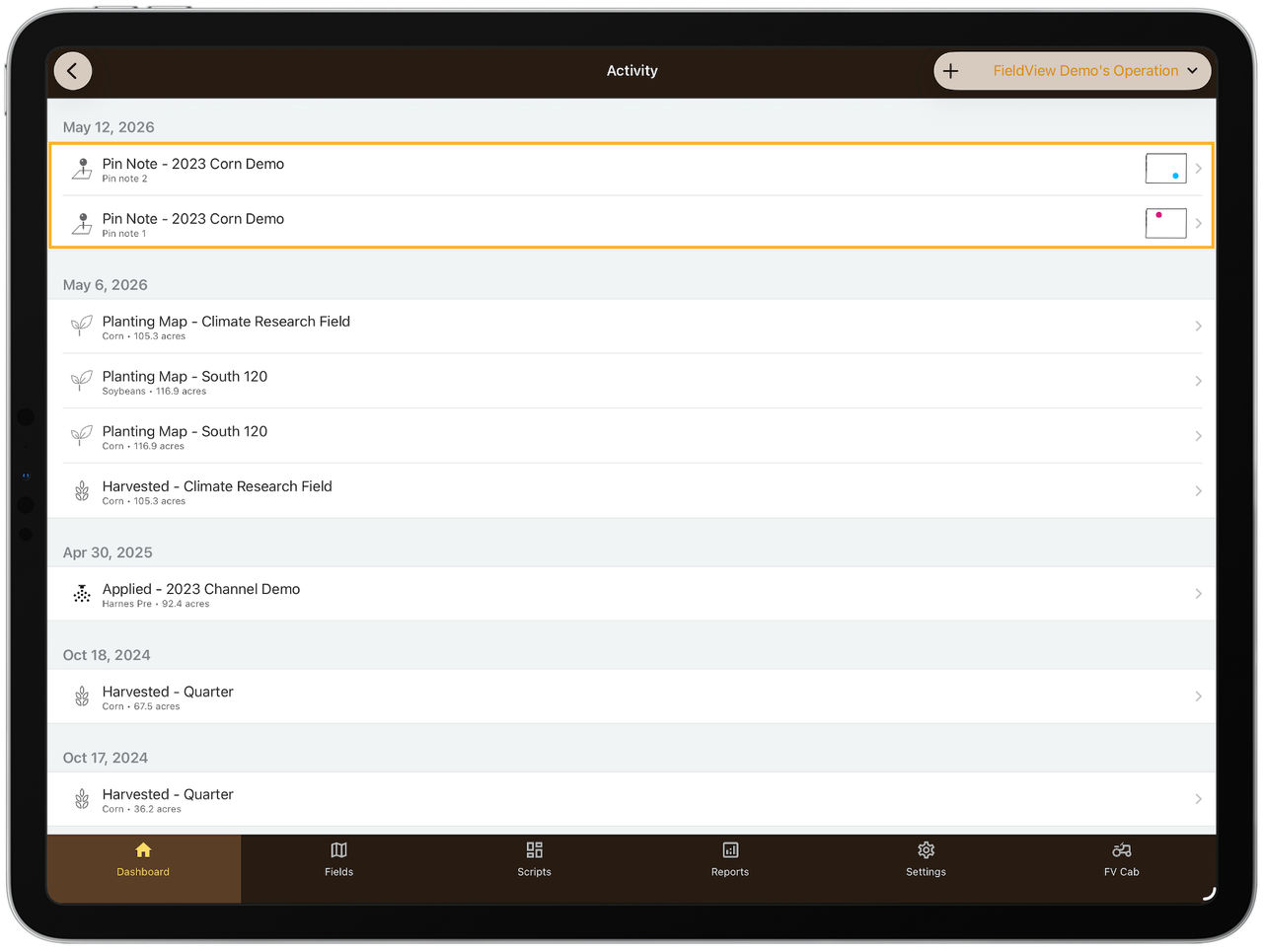
3. From this screen, select the arrow associated with each scouting note to go directly to the field and the notes on that scouting pin.
Tips:
Pin sharing is real-time. Anyone that has shared access to a field can view a scouting pin once it has been saved.
Utilizing different colors of pins for stand counts, disease, insects, or other notes can help to track and identify scouting pins for specific purposes.
Use Field Health Imagery to direct scouting and find problem areas quicker.
Assign scouting activities to others involved with your farming operation to ensure collaboration is taking place on the same area of the field.
Using the biomass imagery to drop pins on locations that need to be evaluated. Once a person is at the field location, these pins that were previously dropped can be used to navigate to the areas of concern using location services.
Direct people to specific locations of the field such as where to enter the field, field tiles, grass waterways. These features can be marked as permanent pins so they do not have to be created new each season.
Placing a Pin in the FieldView™ Cab App
Scouting pins can be created when using the FieldView™ Cab app.
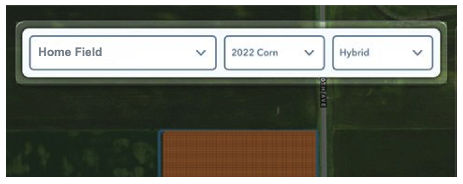
Step 1: Select the field, year, and map layer for which you would like to place a pin.
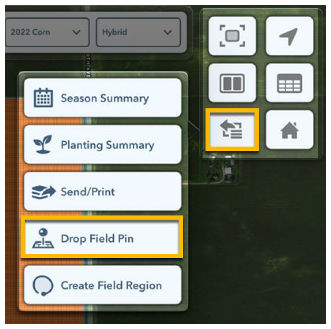
Step 2: Touch and hold the map on the desired pin location or press the More button then select Drop Field Pin.
Step 3: Add a photo or any notes to be recorded.
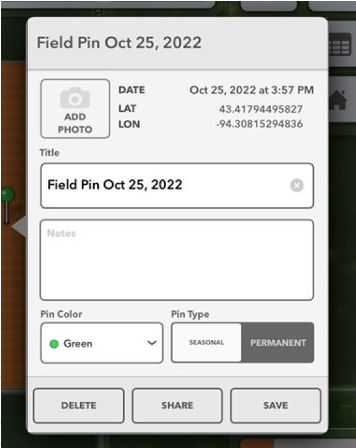
Step 4: Select the Share button to send the field pin via text or email to your agronomic partners.
Note: A field pin location can be adjusted after placement by touching and dragging the pin to the correct location.
For questions, please contact FieldView™ Support at 1-888-924-7475 or support@climate.com.