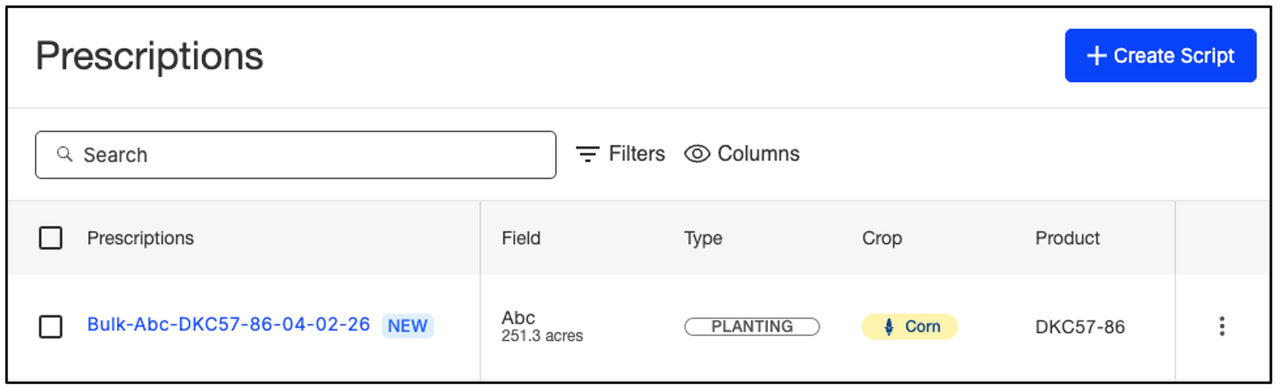
How to Create Bulk Prescriptions on FieldView.com
Overview
Available on: Web
Bulk Scripting lets you quickly script multiple fields at once, set hybrids and economic inputs in a single table, and generate faster, more localized recommendations using field-level seeding rates.
View PDF Guide
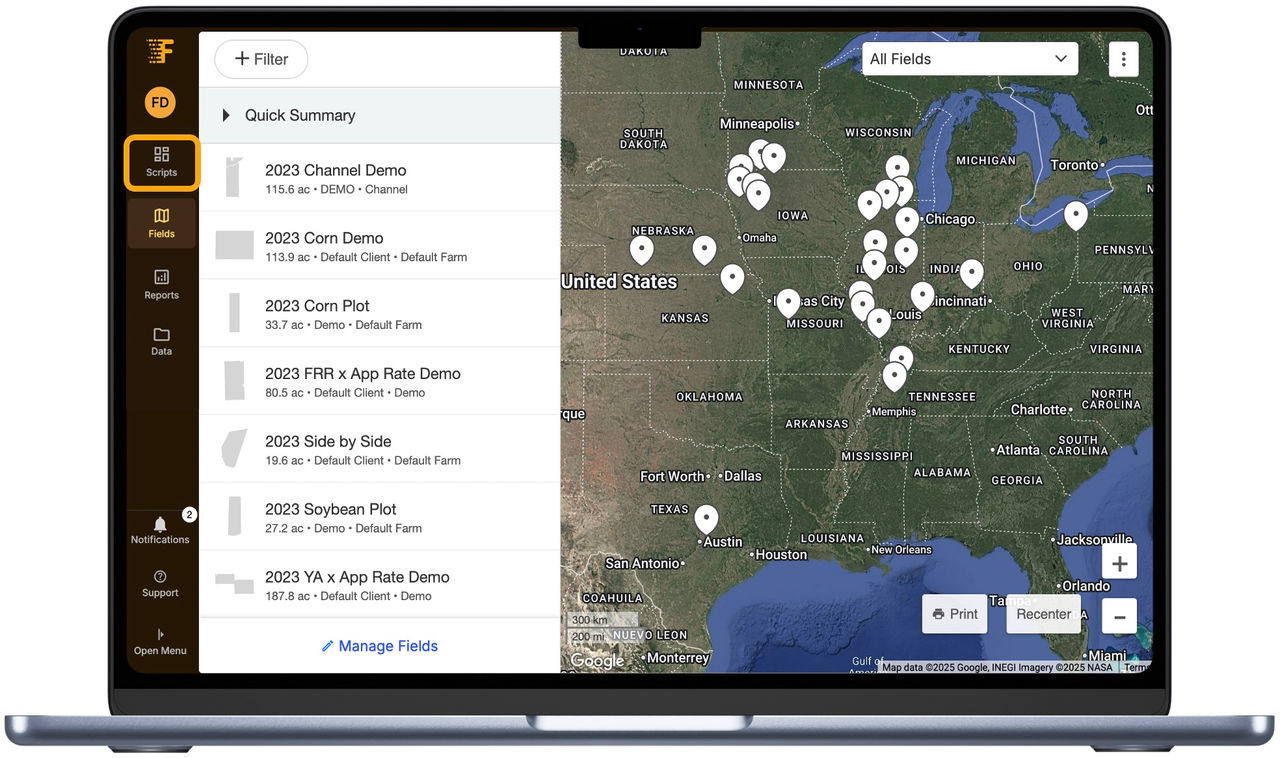
1. Navigate to fieldview.com and select the Scripts tab.
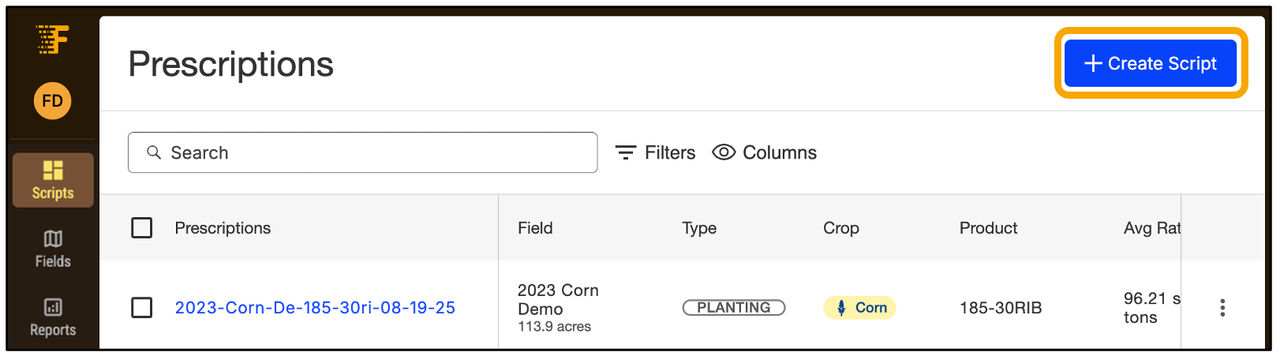
2. Select + Create Script.
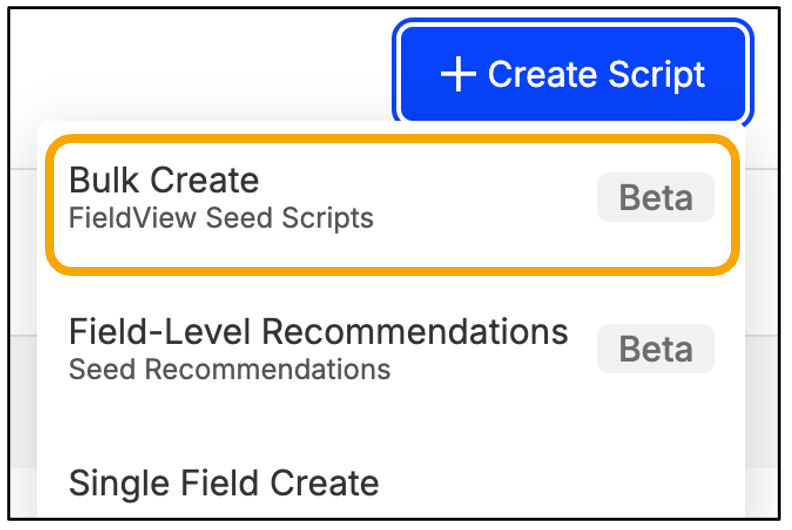
3. Select Bulk Create.
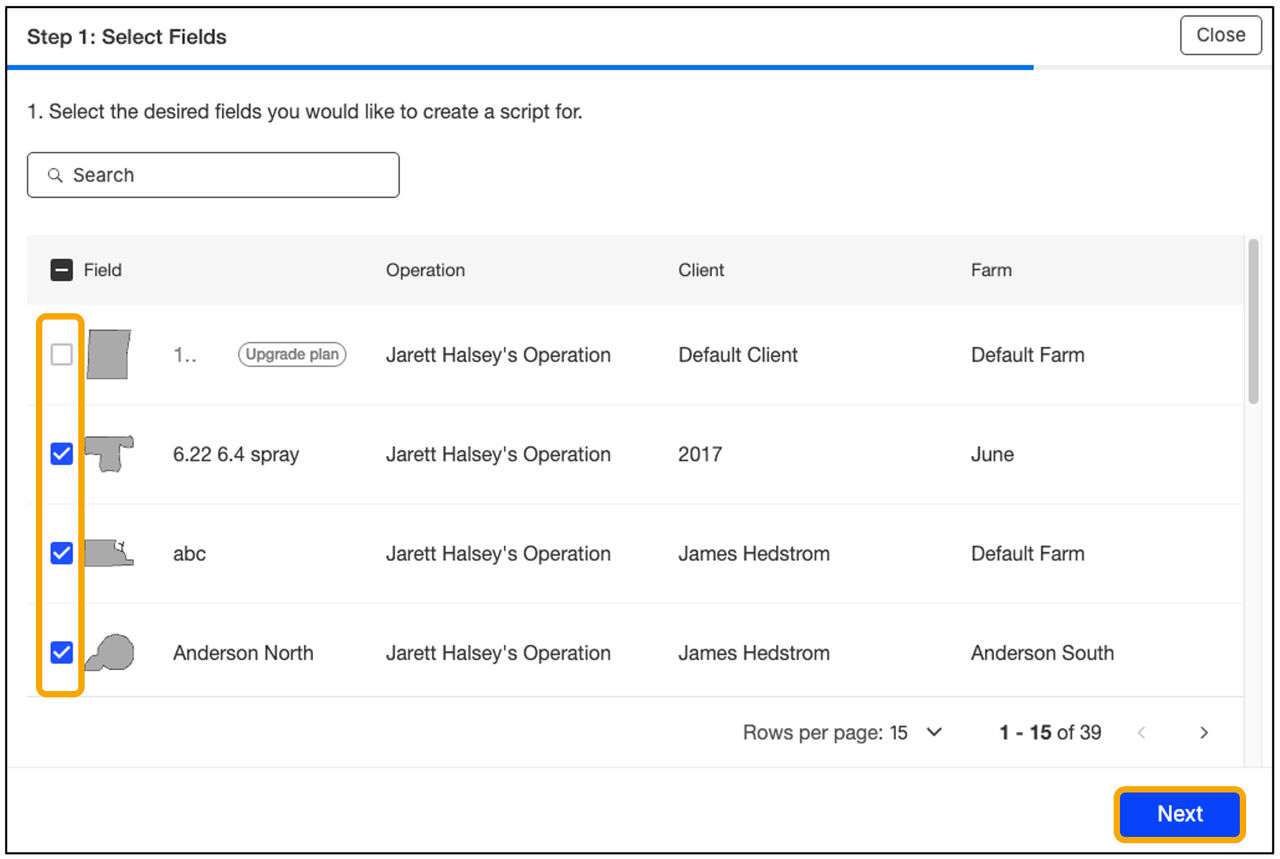
4. Select desired fields to create a bulk script for and click Next.
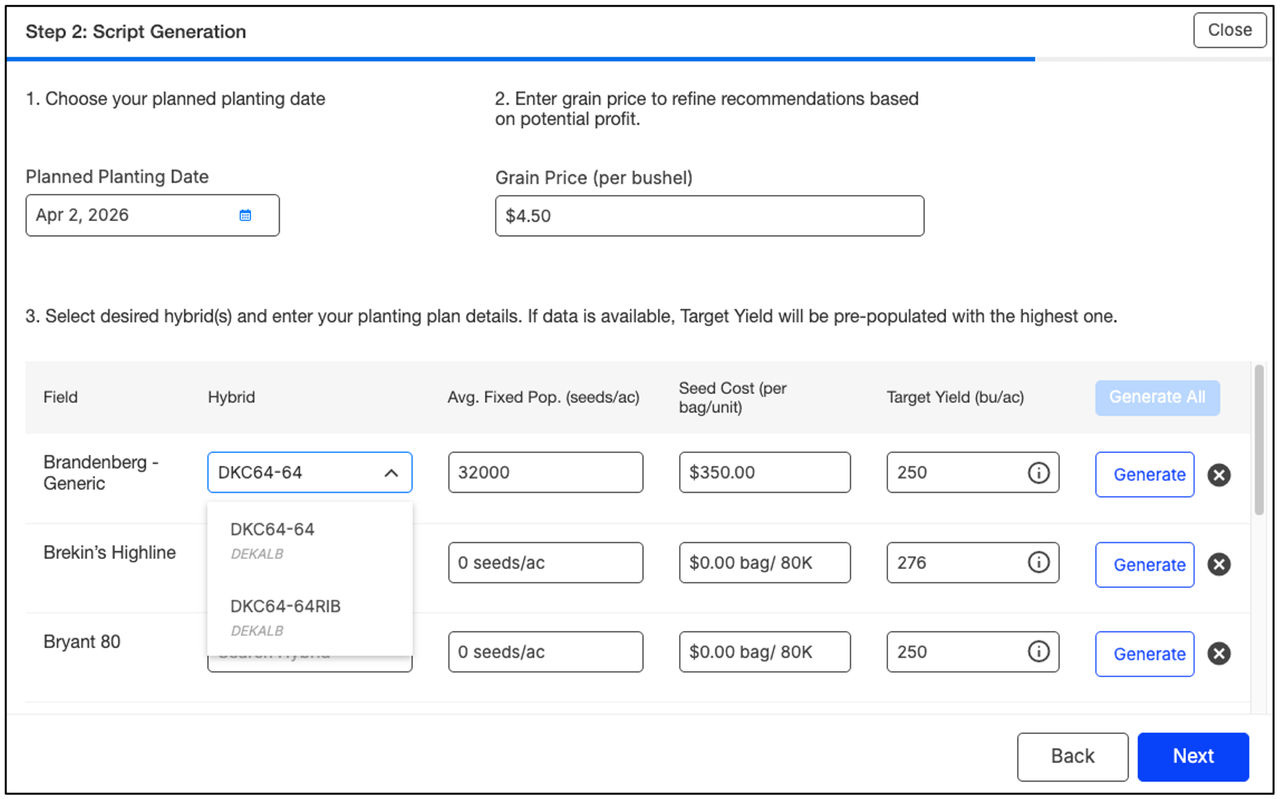
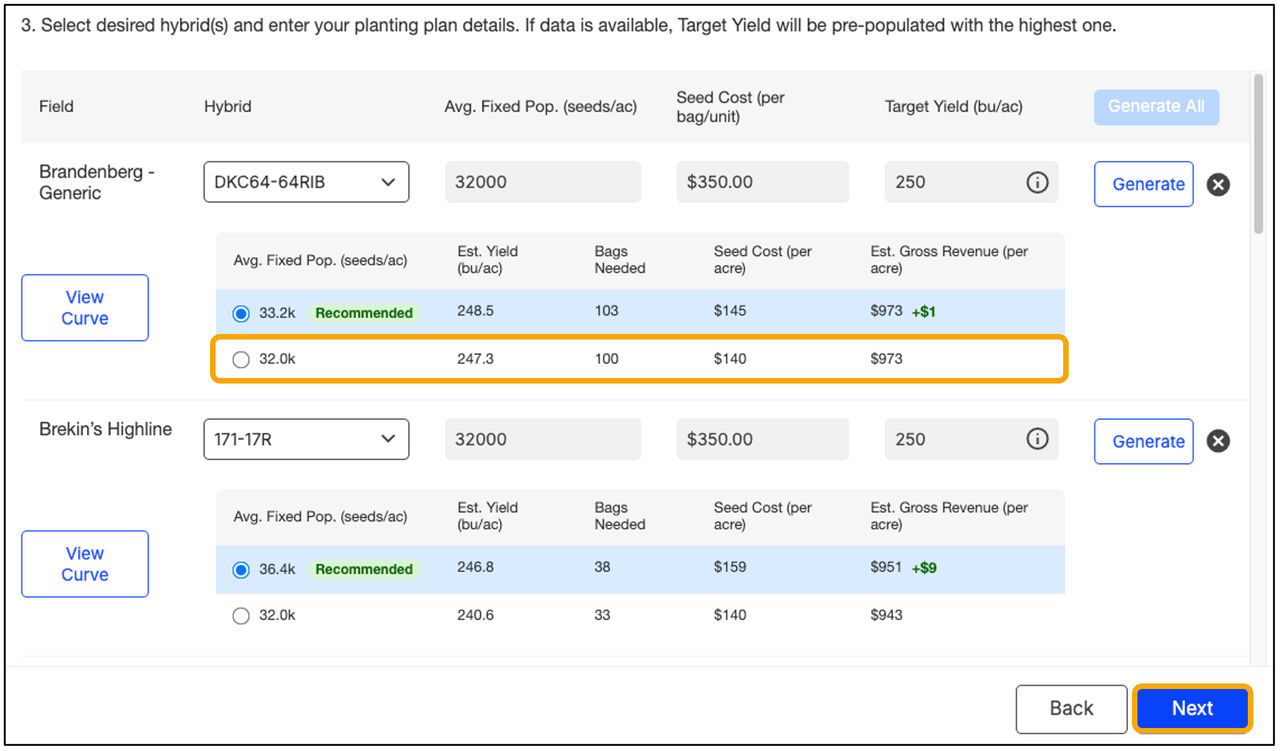
5. Select desired hybrids and enter your plan details.
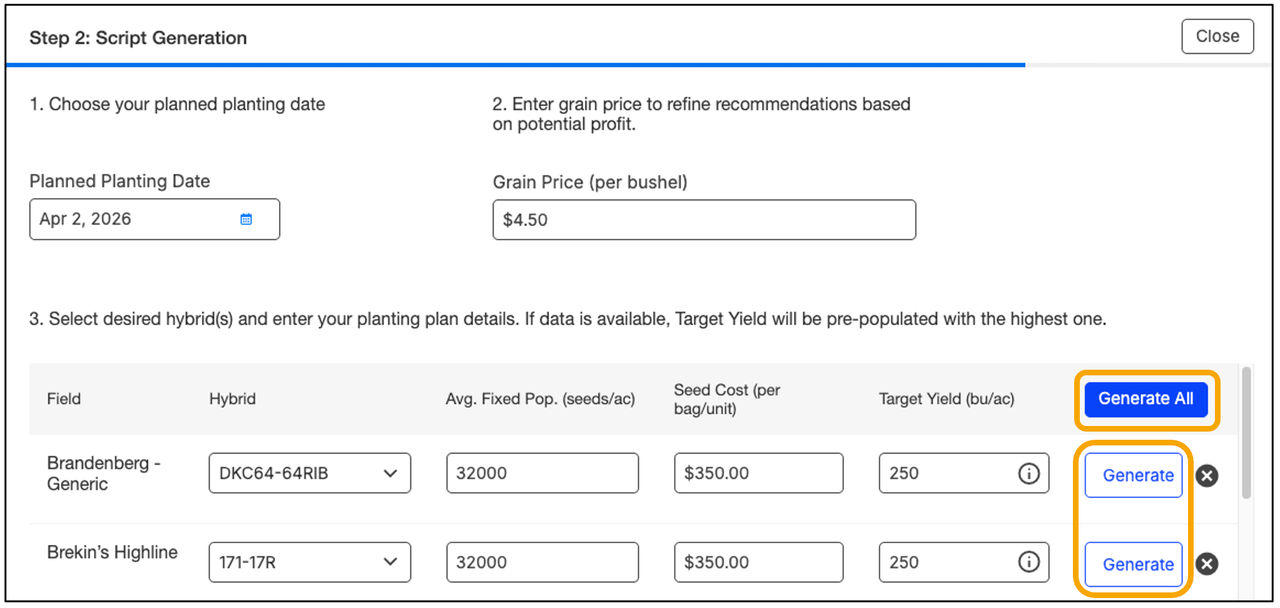
6. Select Generate for an individual field, or Generate All to generate recommendations for all fields at once.
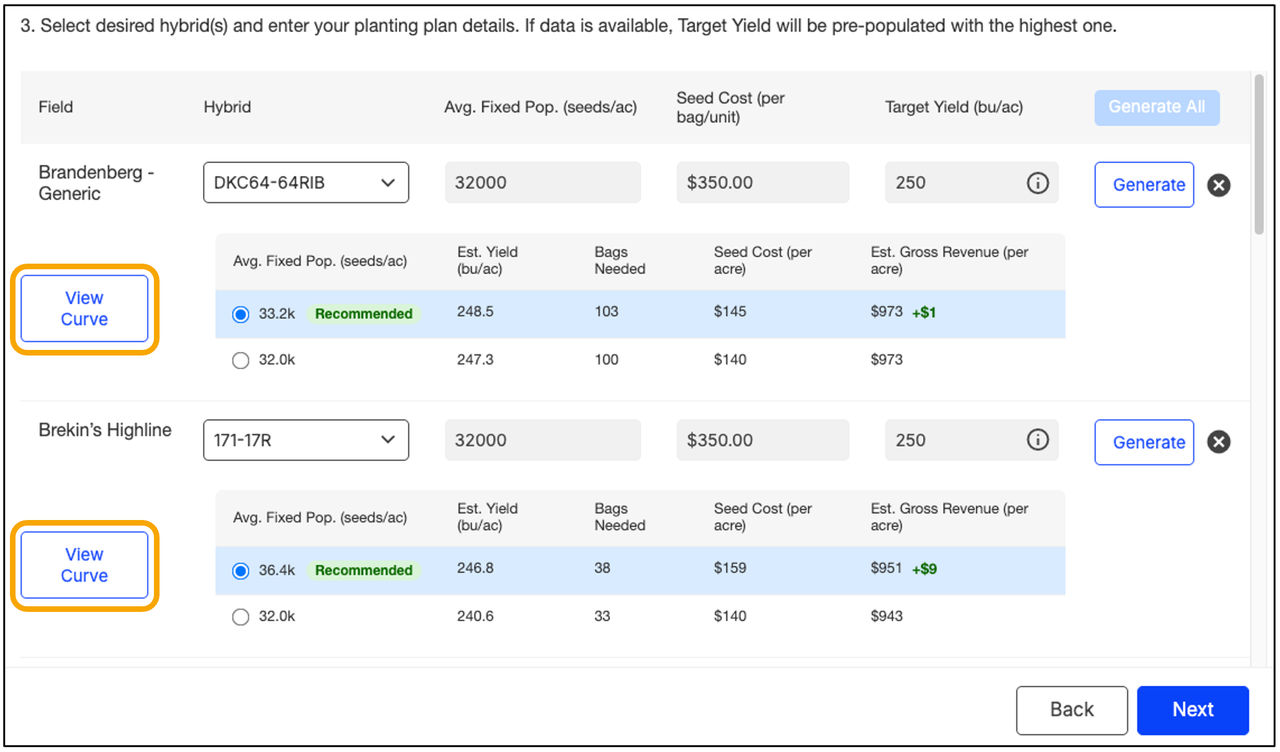
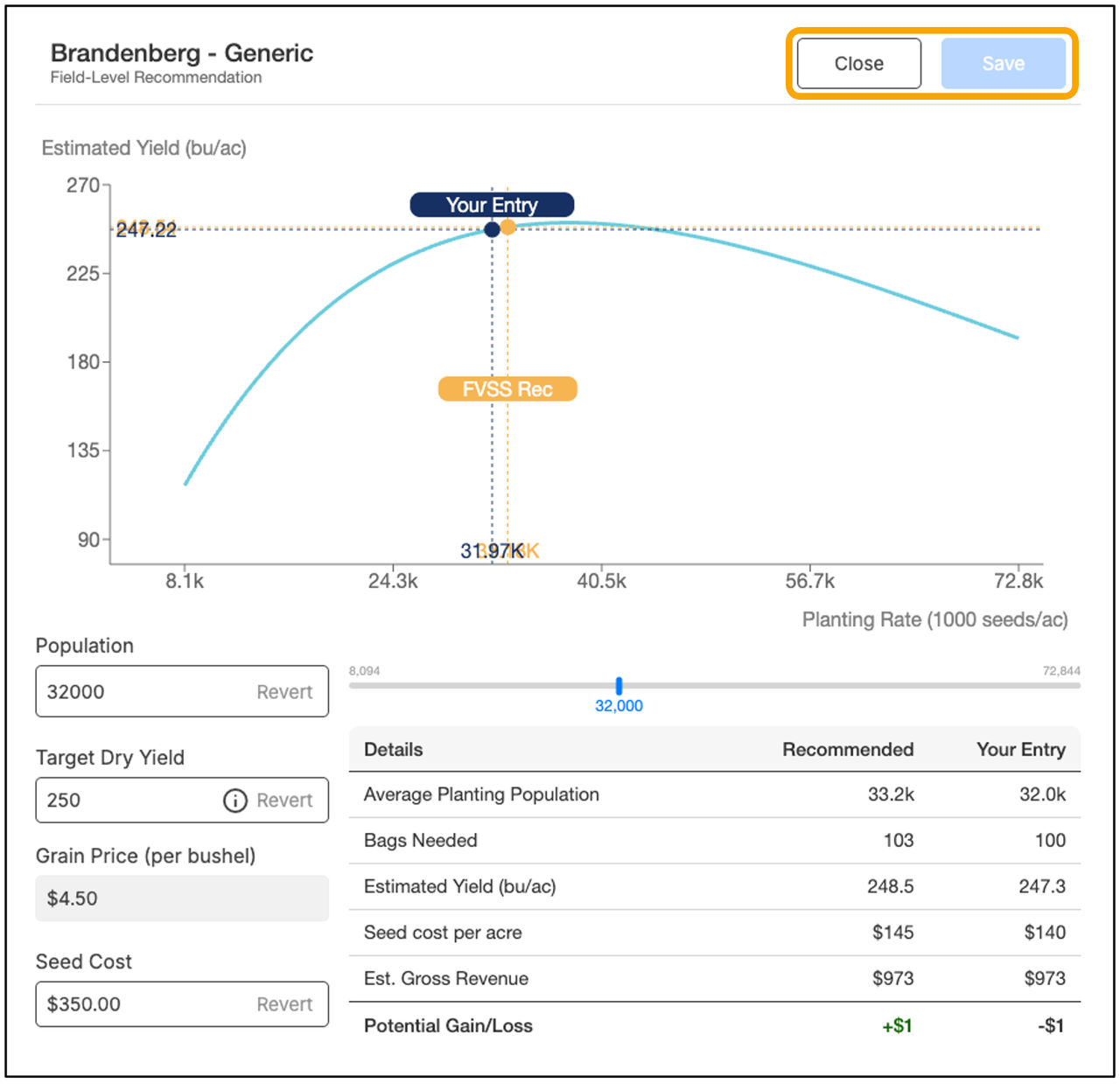
7. Click View Curve to see the Field-Level Seed Recommendation.
8. Adjust your planting details based on the recommendation by typing directly into the planting detail fields or by moving the planting rate slider or dragging the bar on the graph. When you are satisfied with your changes, click Save. If no changes are needed, click Close.
9. Updates will be reflected on the fields list > click Next.
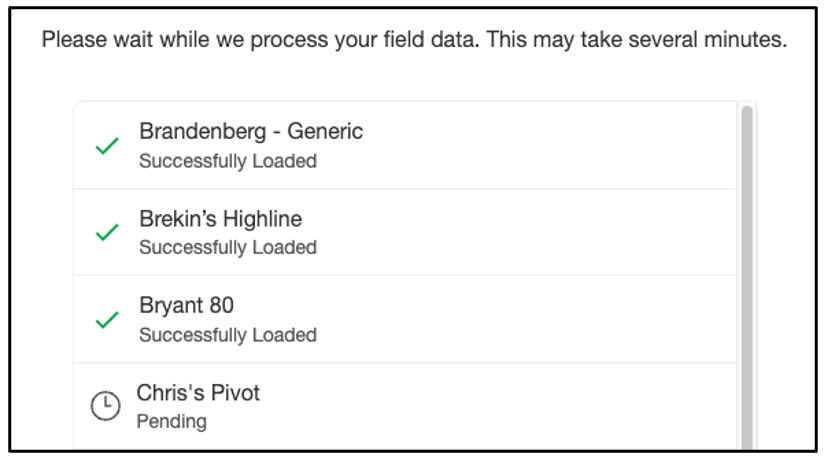
Note: Fields are automatically removed if required data layers are unavailable. A message appears stating, "Insufficient data. Field removed."
10. Click Save.
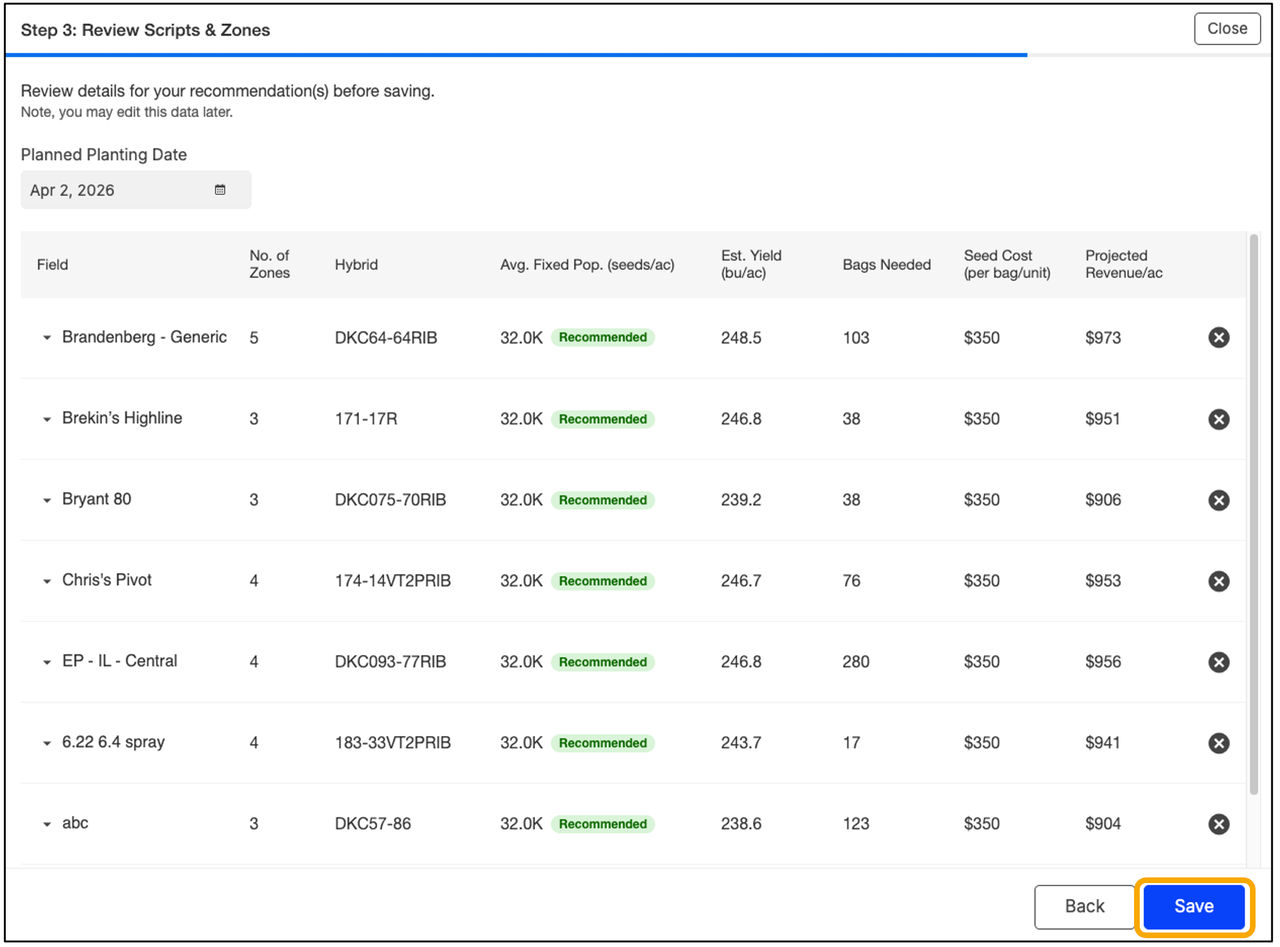
Your bulk script is now ready to be downloaded/executed!