Syncing & Executing Prescriptions on Precision Planting Gen 3 20|20 Monitors from FieldView Cab App
Overview
Instructions covering how to sync and execute prescriptions on Precision Planting® Gen 3 20|20® from FieldView™ Cab app.
Syncing Prescriptions
- The Precision Planting® Gen 3 20|20® will need to be on version 2022.0.0 or newer in order to follow these steps
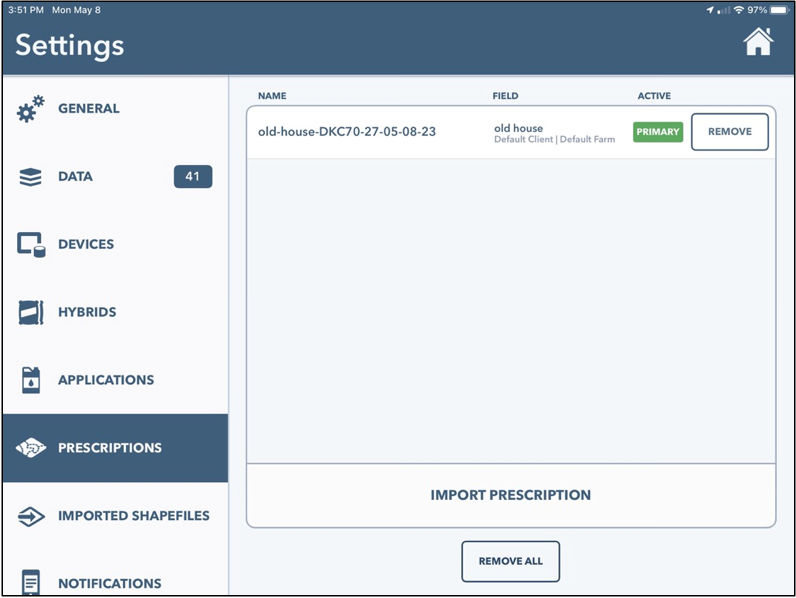
- The prescriptions will need to sync to CloudSync to the FieldView™ Cab app before importing scripts into the Gen 3 20|20
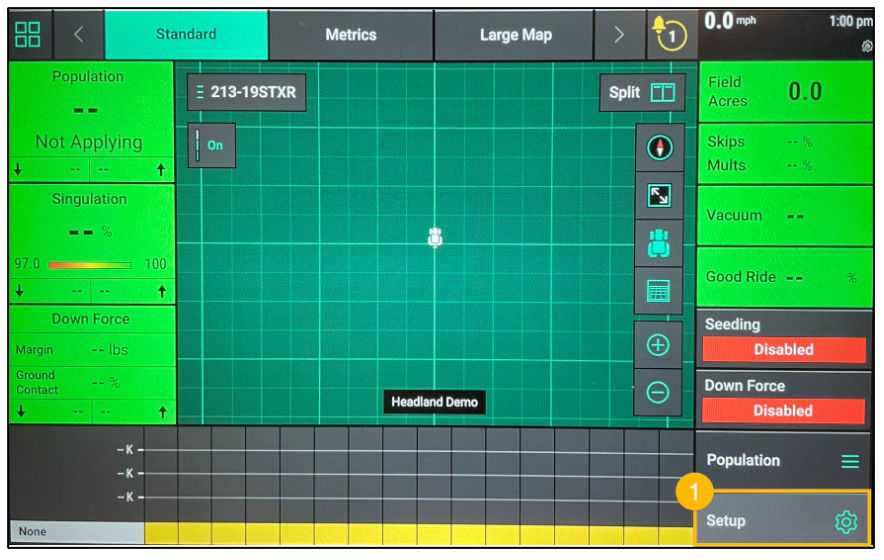
1. On the 20|20 display, navigate to Setup
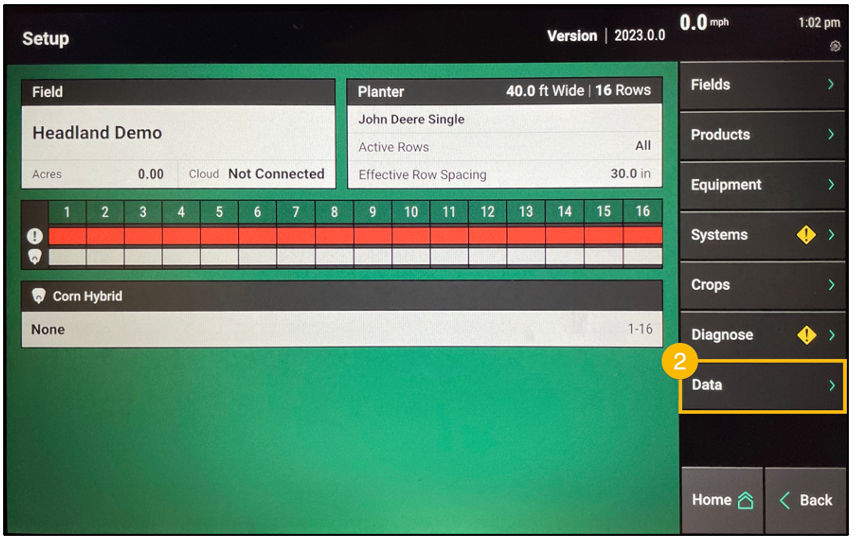
2. Select Data
3. Select Import
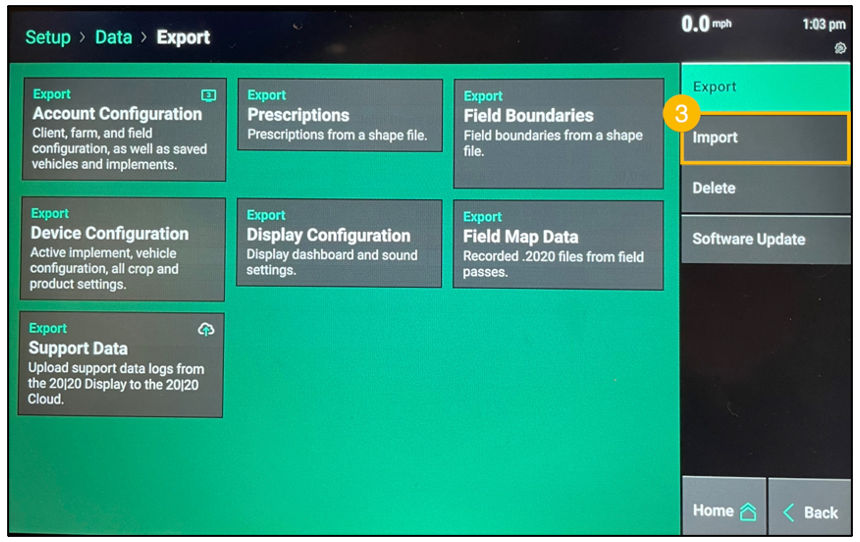
4. Select Import Prescriptions
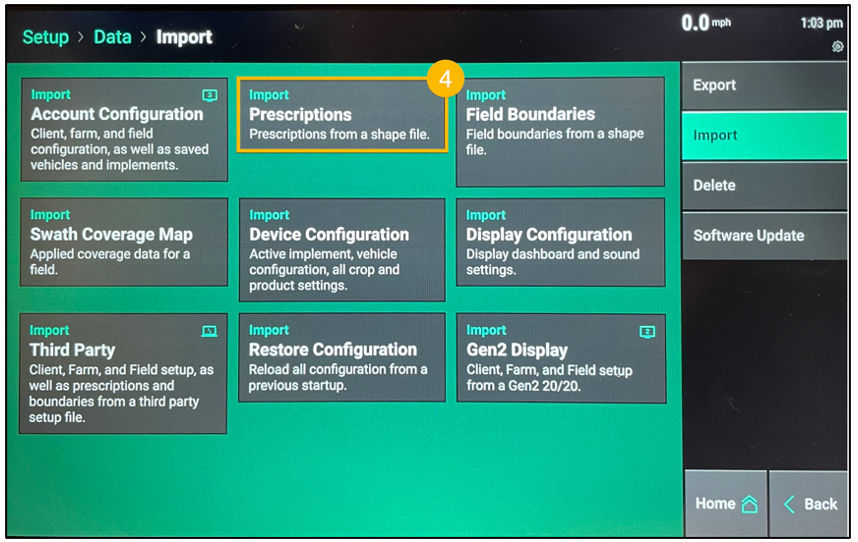
5. Select FieldView Module
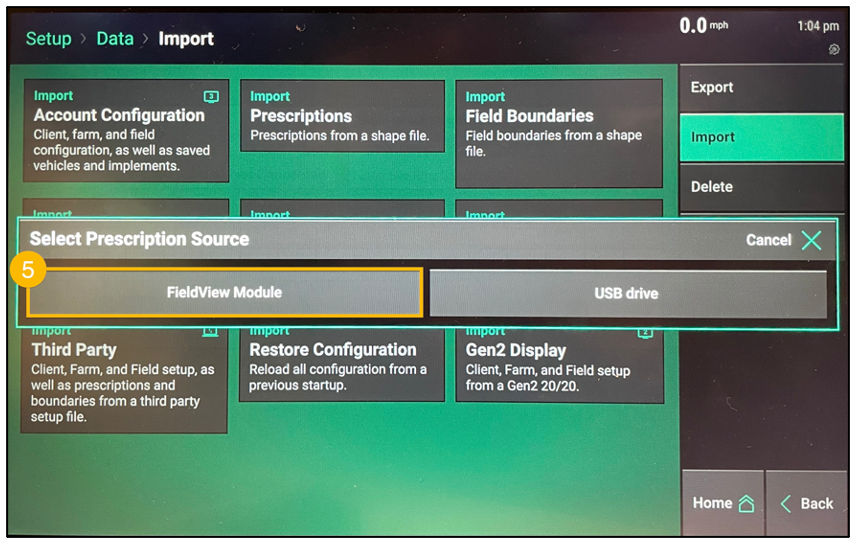
6. Select Seeding
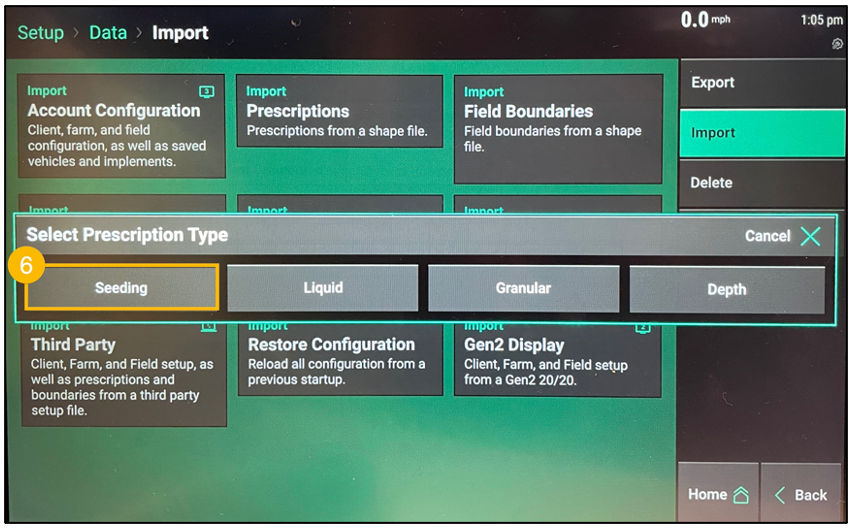
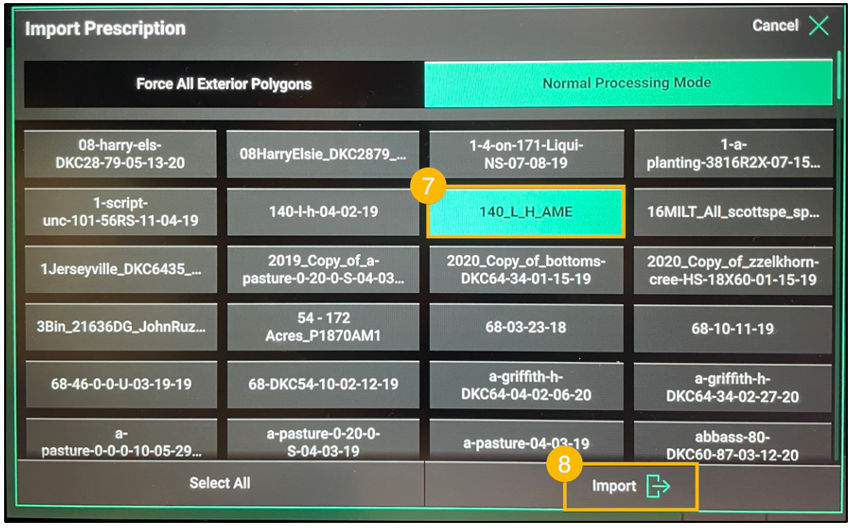
7. Select the prescriptions you are wanting to import
8. After selecting prescriptions, select Import
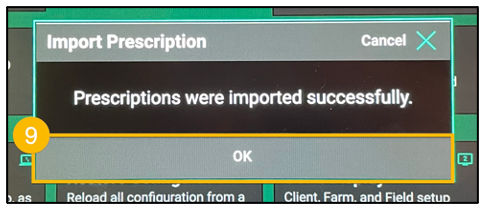
9. Select OK
Executing Prescription
1. Click on Setup > Fields > Active Field > Seeding (Under Field Prescriptions)
2. Click on the box next to "Seeding Prescription" and select desired prescription from the list - the attribute screen will pop up next to select desired attribute
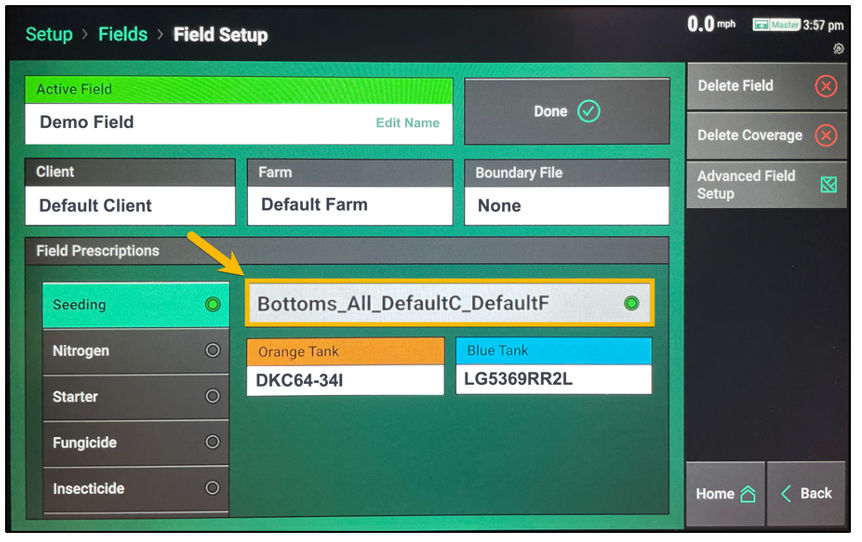
3. Overview the Field Prescriptions section and push Done
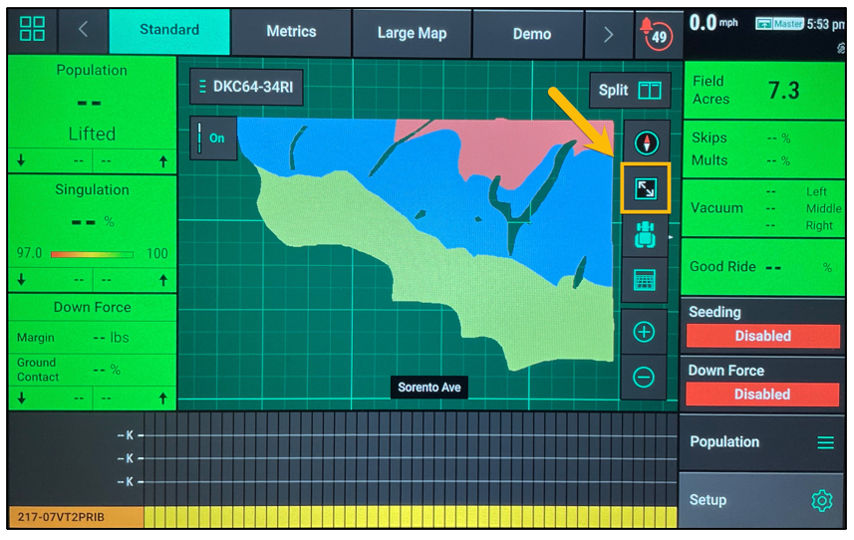
4. To visualize the map of the script, click the Home button, click on the "Standard" screen setup on the top of the display screen then click on the "Select Map Layer" button, select "Seeding Prescription", click "Cancel", then click on the highlighted icon