10 Years of FieldView™: The Early Years of Digital Farming
The smart farm: it’s a concept we’re all familiar with today. That’s thanks to the work of a few innovators in agricultural technology. Let’s meet some of them.
Harvest is on the horizon. Follow these steps to be sure you finish the season strong.
Fall will be here before we know it, which means we’re one step closer to seeing all that hard work finally pay off. To make this season the best one yet, there are a few steps you should take. Working one-on-one with growers, along with our amazing Support Team, I’ve gathered a list of ten things you can do to prepare for harvest.
The first and arguably easiest task you can check off your list is making sure you’re running the latest version of the FieldView Cab app (Version 15.2.0 or higher) on your tablet and phone. In the Apple App Store, find the FieldView Cab app, tap “Update” and you’re good to go.
With the timing of Apple’s iOS releases, we want to ensure that FieldView Cab app users have the best possible experience during the busiest time of the year. Our engineers are continuously monitoring upcoming releases from Apple. Turning off automatic software updates is an easy way to ensure that you have the best possible experience. Using your tablet, simply go to Settings > General > Software Updates to turn off Automatic Updates. Once a final release version is available, our engineers will review and approve it to ensure it still provides the best possible experience. If you have any questions about this, call the Support Team at 1-888-924-7475. One of our digital farming experts can walk you through the process step-by-step.
To keep all your maps updated throughout harvest, make sure you have CloudSync enabled in the FieldView Cab app. Go to Settings to check, and click Data Status > Sync Data to Cloud. This will ensure all the data you collected over the growing and planting season is protected in the cloud and accessible for harvest.
Avoid throwing off your yield data by checking your field boundaries on FieldView.com before you hop in the combine. A quick confirmation that you’ve excluded areas like treelines, ditches, creeks and ponds ensures the data you’re collecting will be as accurate as possible.
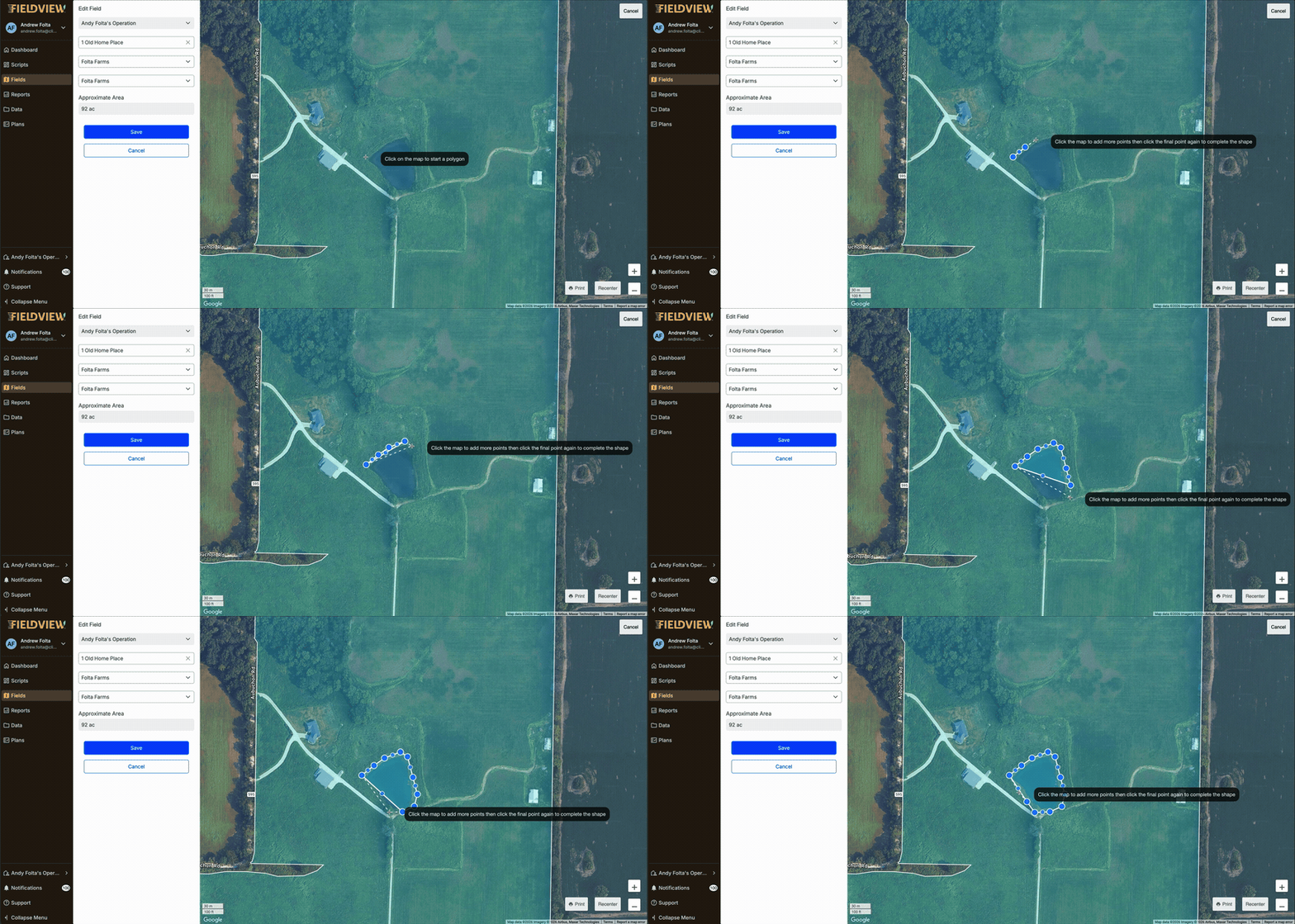
Log into FieldView.com. Click Manage Fields and select the edit button next to the field name. Click and drag to set your field boundaries.
Is your equipment compatible with the FieldView Drive 2.0? Use our compatibility guides to find out. If you’re already up and running with the Drive 2.0, it’s also a good idea to confirm it’s wirelessly paired to your iPad. This way, you’ll know for sure that your devices are synced, and your harvest data is being collected accurately.
For those who are using a Precision Planting 20|20 YieldSense® monitor, here’s how to check connection to FieldView.
At the end of the day (or year), all of your hard work comes down to one thing: results. And tracking your data makes those results clear. But if you didn’t collect planting data with the Drive 2.0 or a Precision Planting 20|20 SeedSense® monitor, no worries. You’ll want to upload planting data from last spring ahead of harvest, so you’re ready to visualize harvest data in real-time and quickly analyze crop performance. Uploading data can be challenging. If you need any assistance, don’t be afraid to reach out to the Support Team.
Check your hybrid or variety names, treatments, applications and prescriptions. Each hybrid and variety name should be consistent. If you label a product "Hybrid A" or name each in many different ways, you might have trouble recalling which hybrid you were referring to later.
“Cleaning” your data is always helpful before you head out to the fields. We like to think of it as a spell check for data collection. When using Data Inbox to upload data manually, you can fix data before you add it to your FieldView account, but you can also fix data once it’s already in your account.
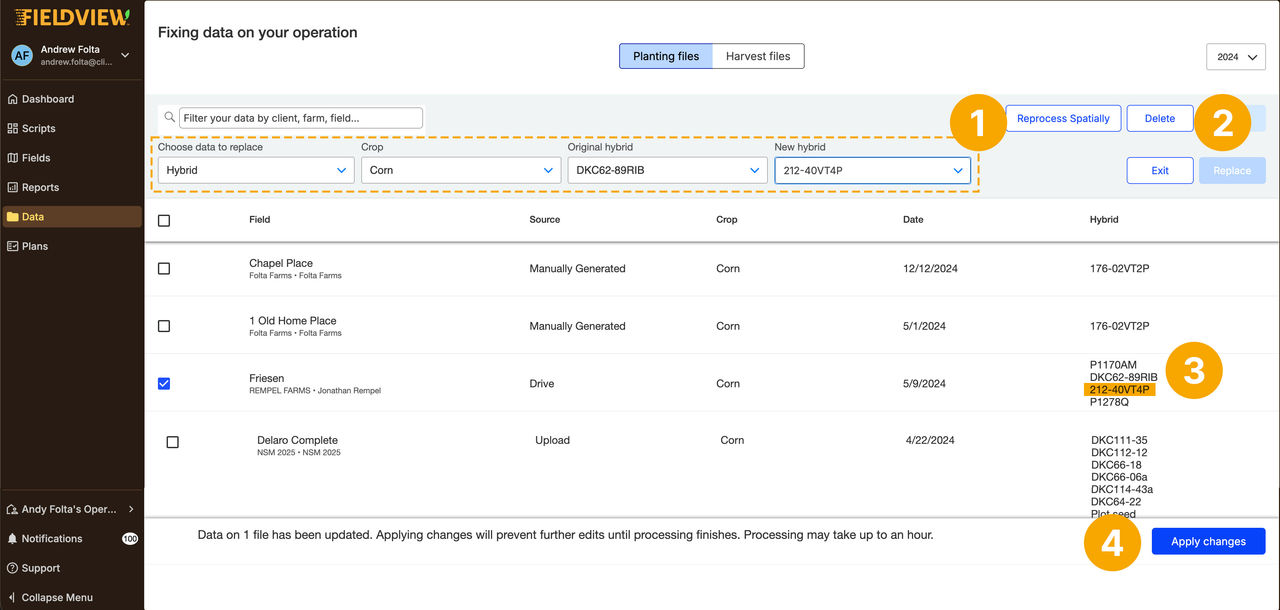
When uploading data, using consistent hybrid names means easier, more accurate analysis both this season and when you look back at your data in years to come.
How long has it been since you calibrated your yield monitor? Even if you just calibrated it during the growing season, it still needs to be recalibrated for harvest. Changing monitor components and crops and even fluctuations in grain moisture and density are all factors in yield monitor calibration. Recalibrating is key to improving the accuracy of your harvest data. Consult your monitor’s manual or contact the manufacturer for help. It’s also a good tip to check the available memory on your monitor to make sure you’re not close to maxing out.
There are over 20 iPad devices on the market and sometimes it can be difficult to determine if the iPad you have is compatible with FieldView or if you would be better served with a newer iPad model that best operates the FieldView apps. This guide will help you determine if you need to update your current device and make sure it’s ready for harvest.
Long hours and hard labor increase the potential for fatigue, so it’s important to be diligent about safety during harvest. When it comes to avoiding injury around equipment or bins, awareness is key.
During this busy season, our Support Team offers extended hours to keep you connected and collecting data. If you need to get into contact with the team, you’ve got options:
September 8 – November 3
September 19 – October 10
I hope everyone has a safe, productive harvest, and I encourage you to explore our additional resources to help you plan for a great season.

The smart farm: it’s a concept we’re all familiar with today. That’s thanks to the work of a few innovators in agricultural technology. Let’s meet some of them.
Long before AI-powered farming technology redefined planting zones and optimized fertilizer use, ancient farmers relied on instinct and observation to cultivate fertile soil. Learn how their early advances planted the seeds for the digital agriculture revolution that grows today.

There’s something in your soil that could spell trouble for next season. But there is good news, we can help.