How to Setup a Tractor and Planter in FieldView™ Cab App
Getting your tractor and planter setup before planting ensures that you will be ready to go when it is time to plant your fields. This walk through will help make sure you are ready when your crops need to be planted.
Note: Depending on your specific setup, screenshots may vary slightly
Tractor Setup
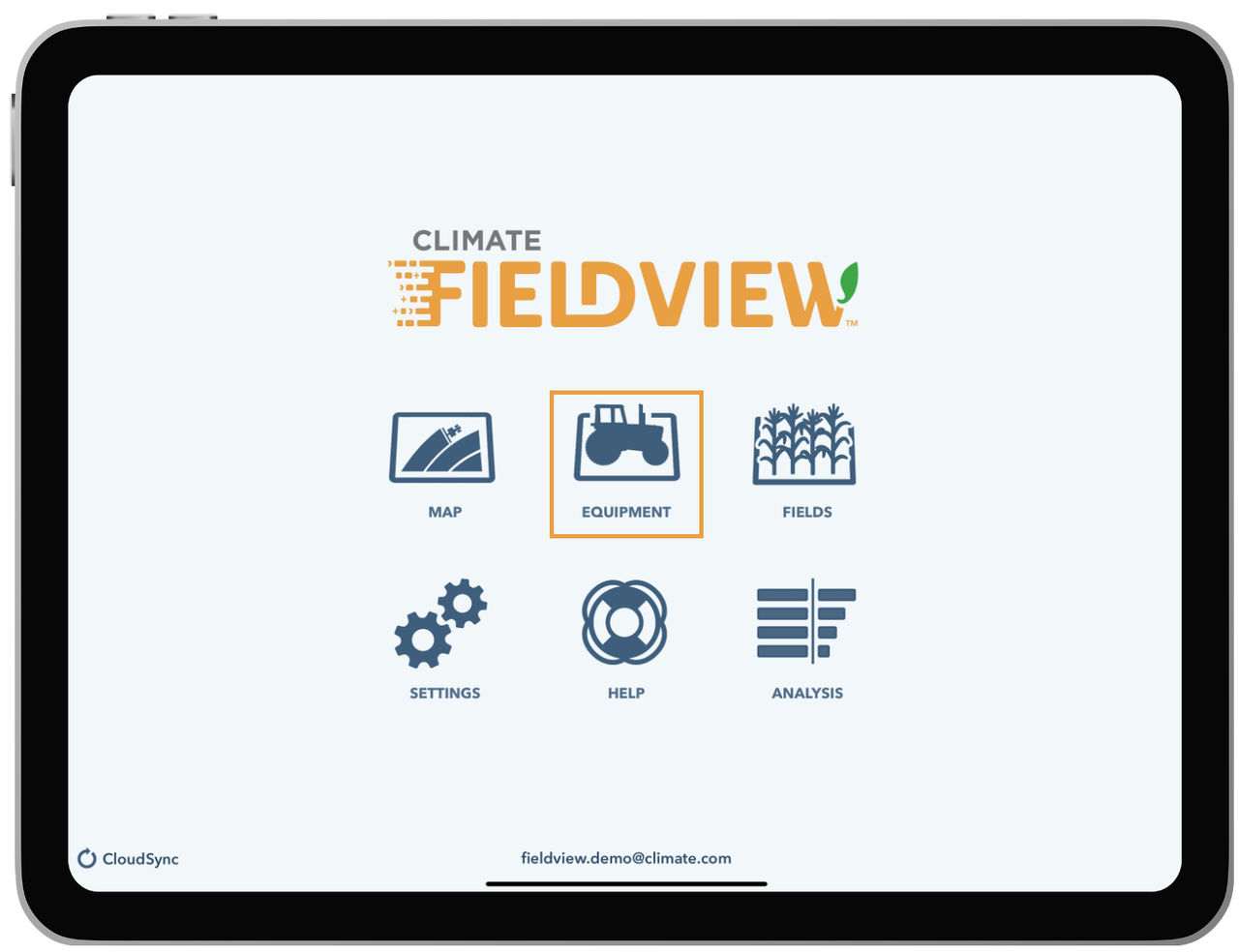
1. On the FieldView™ Cab app, go to the Equipment page
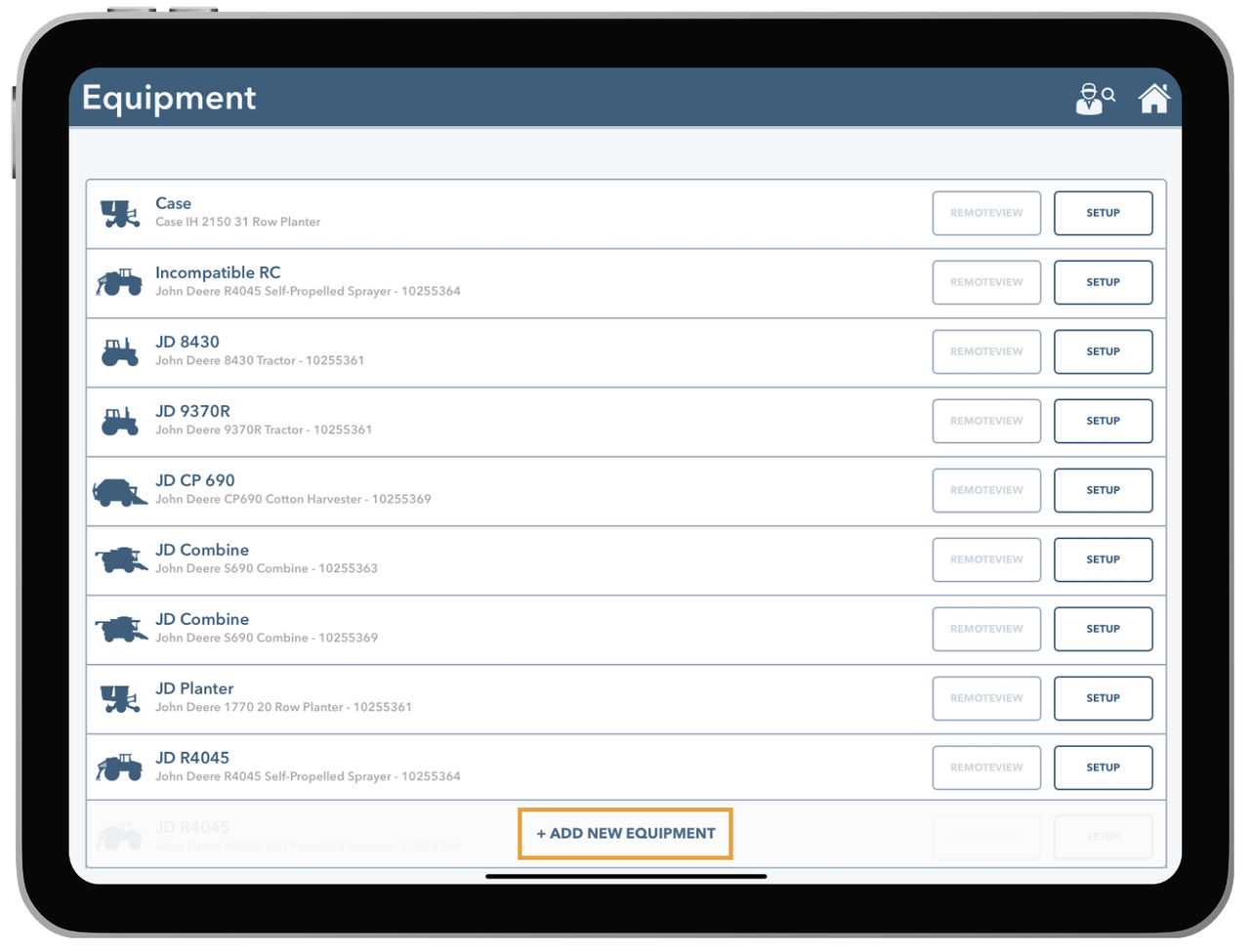
2. Click on + Add New Equipment
3. Select Equipment Type
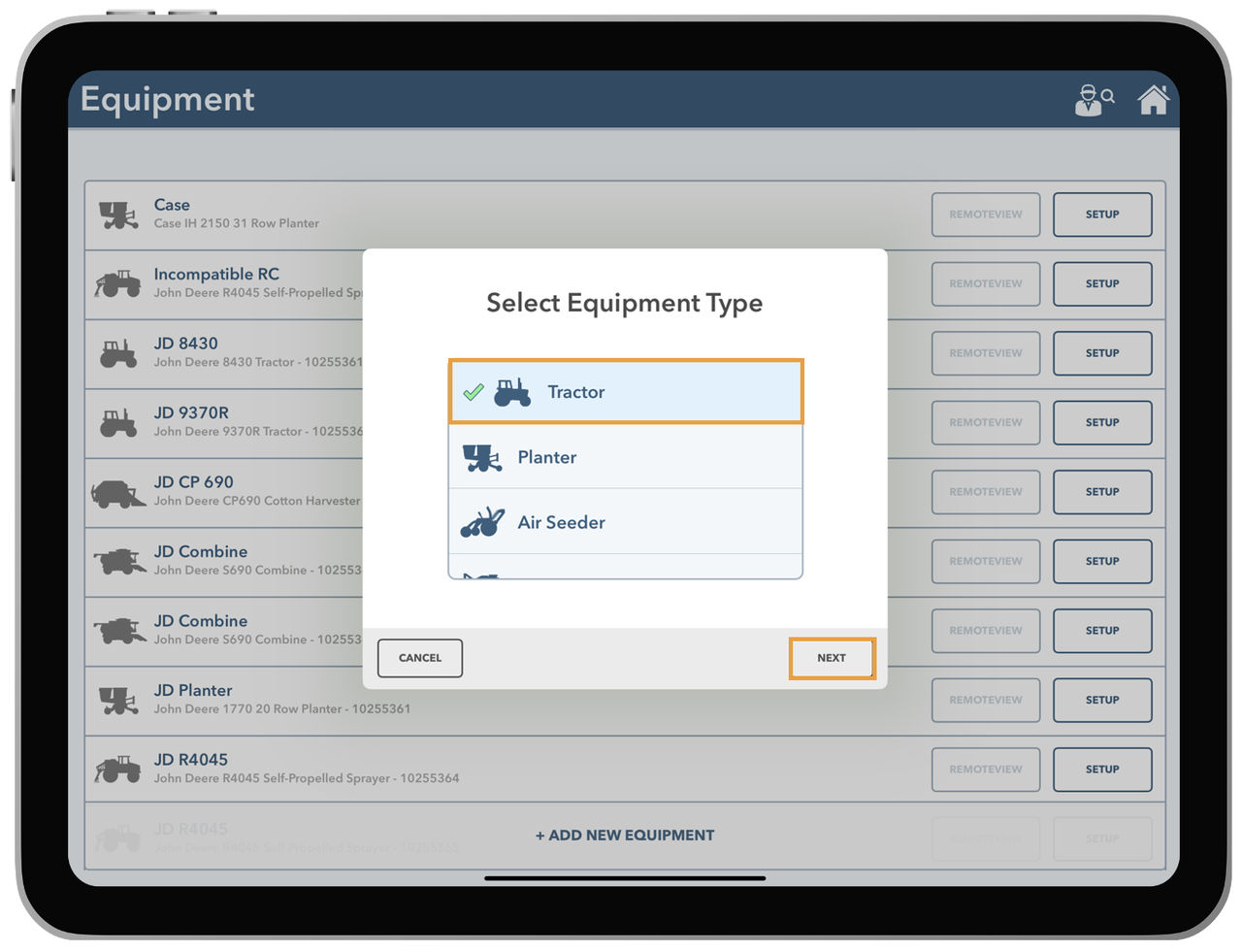
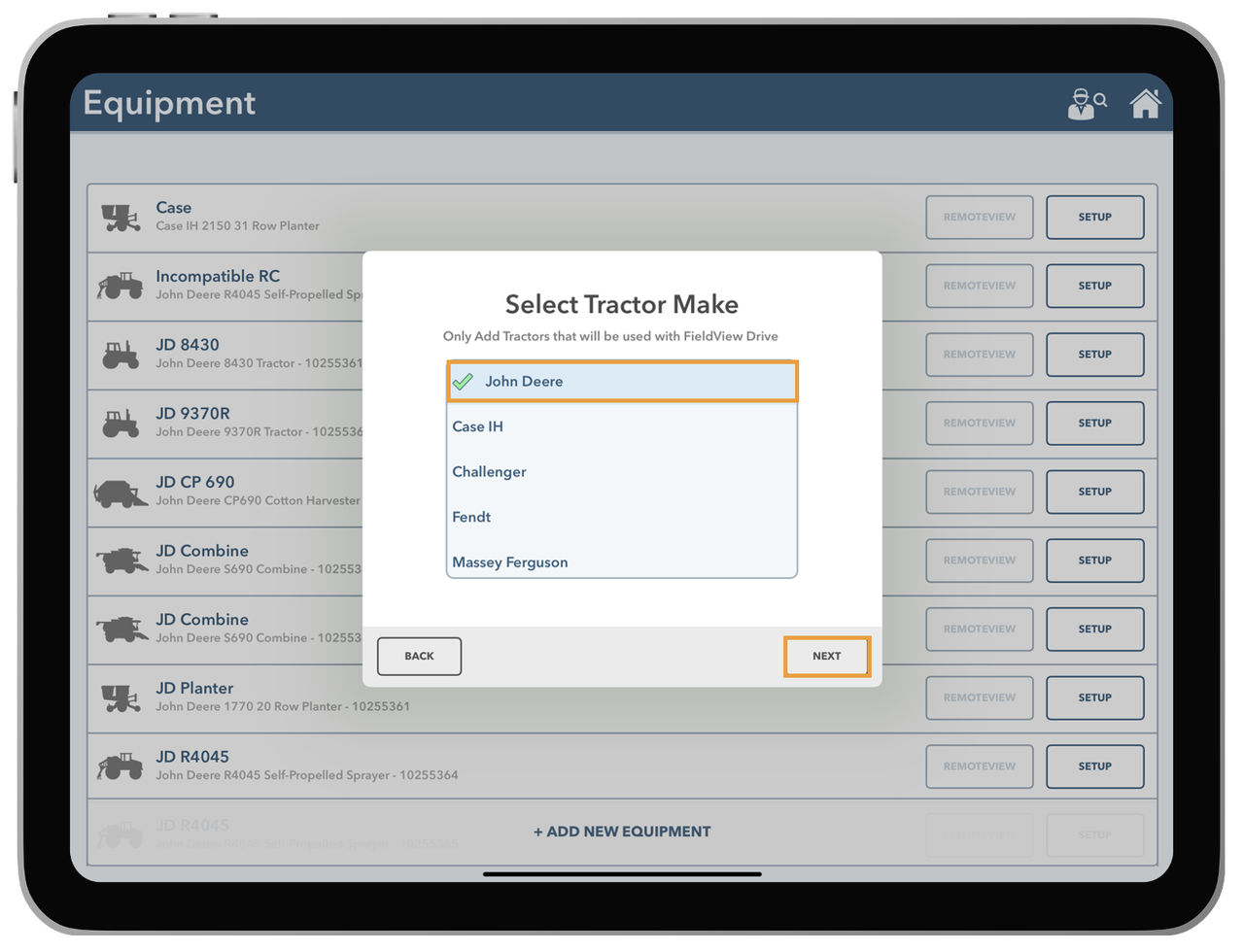
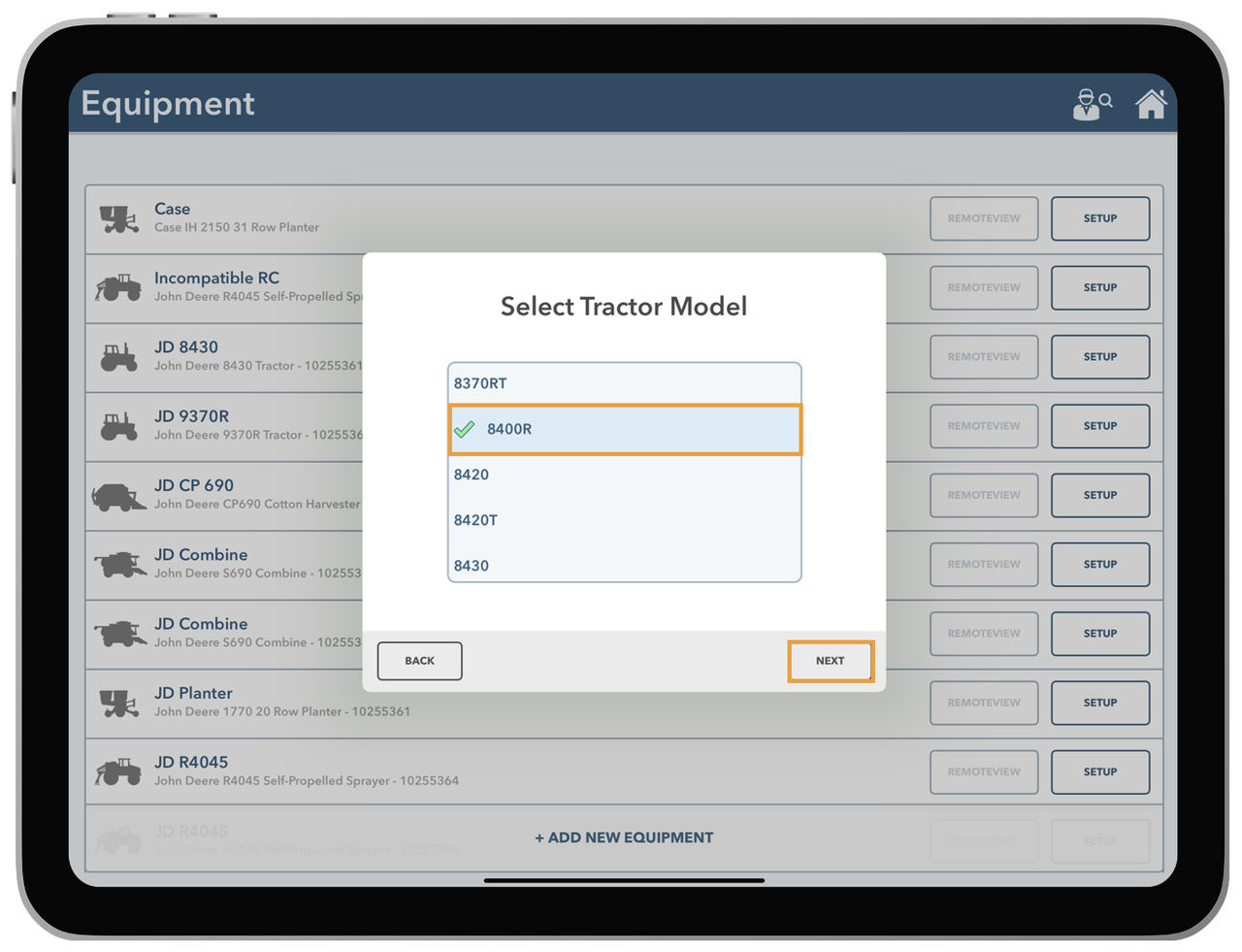
4. Select Tractor Make and Model
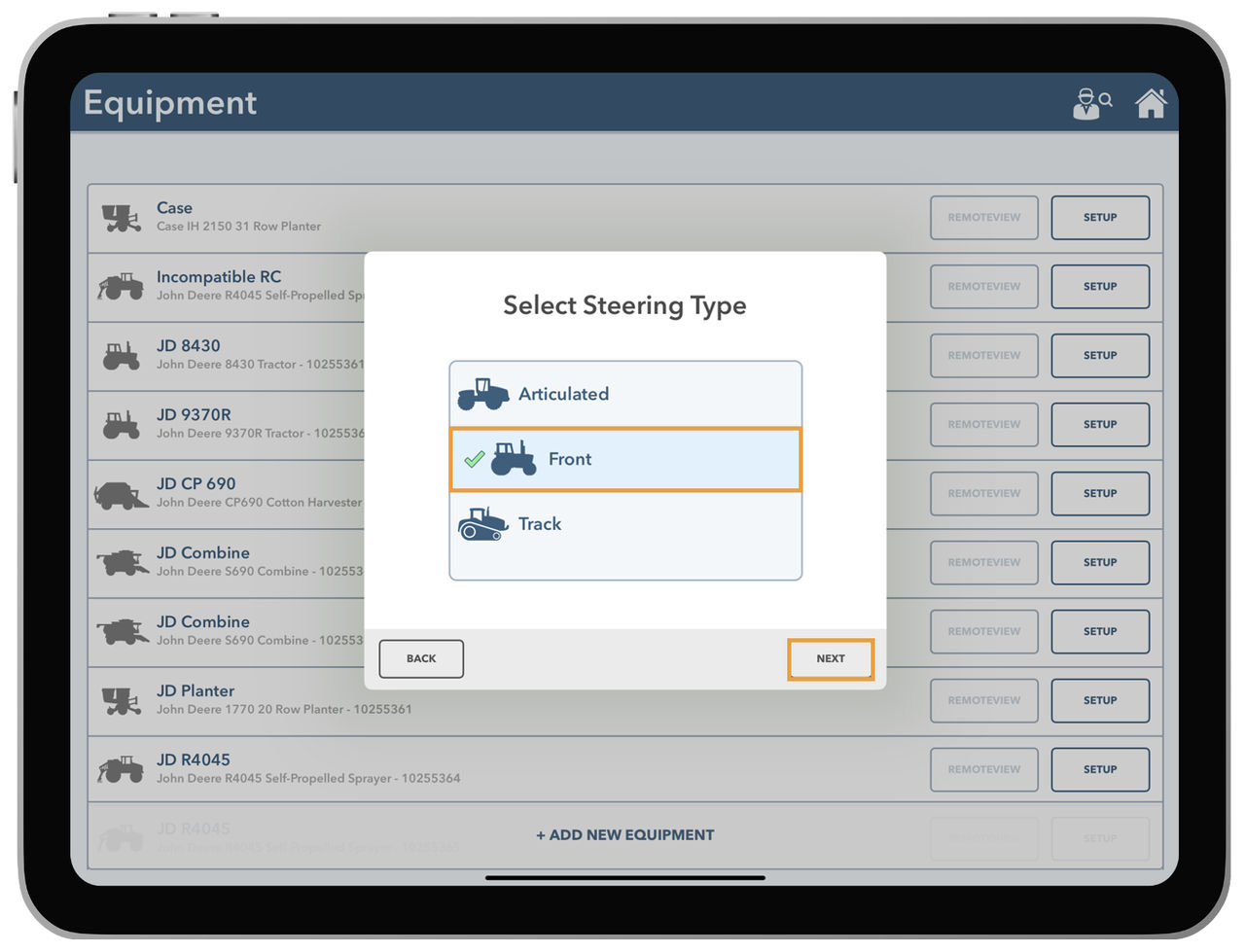
5. Select Steering Type: Articulated, Front, or Track
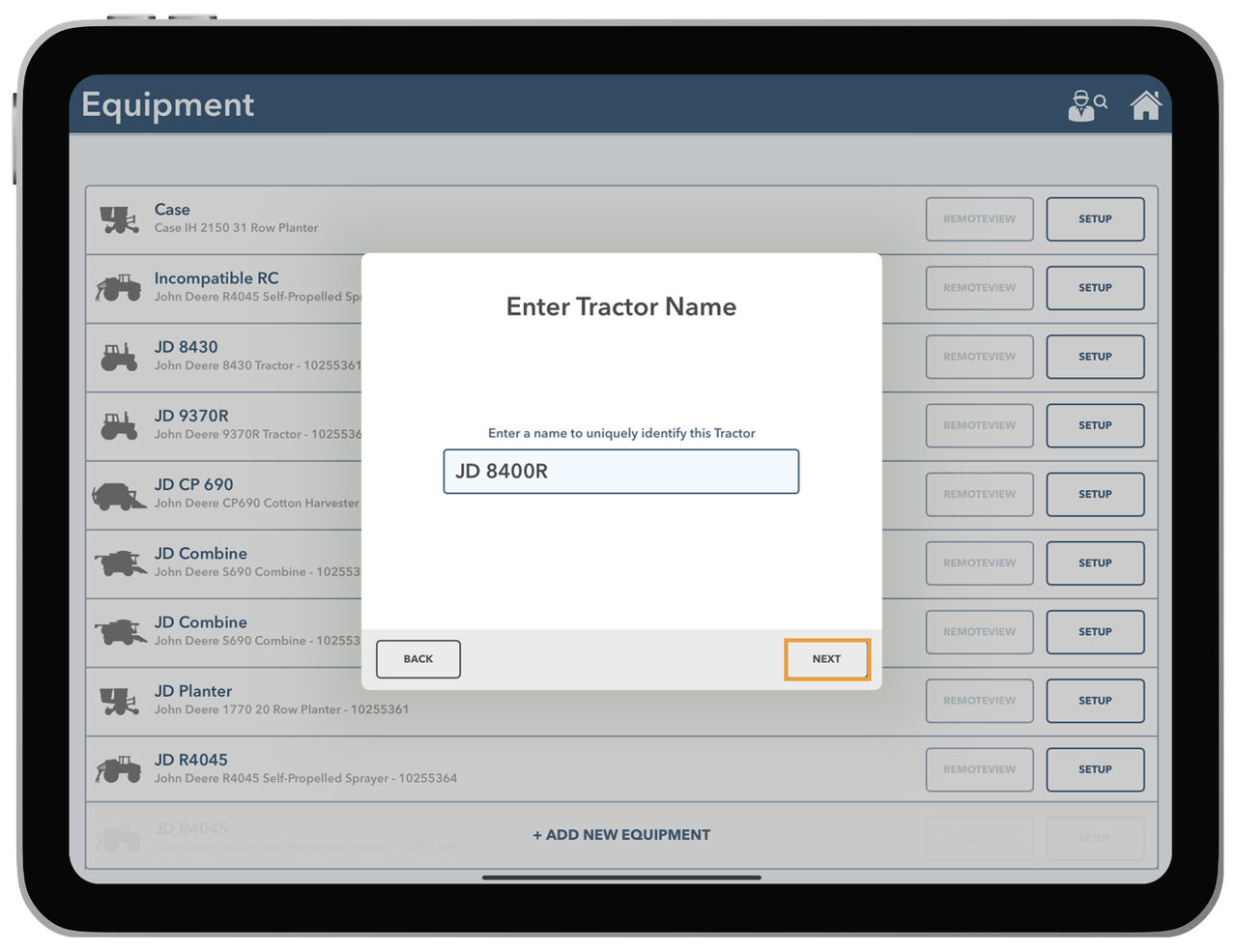
6. Enter Tractor Name to uniquely identify this Tractor
7. Verify GPS Measurements then click Done
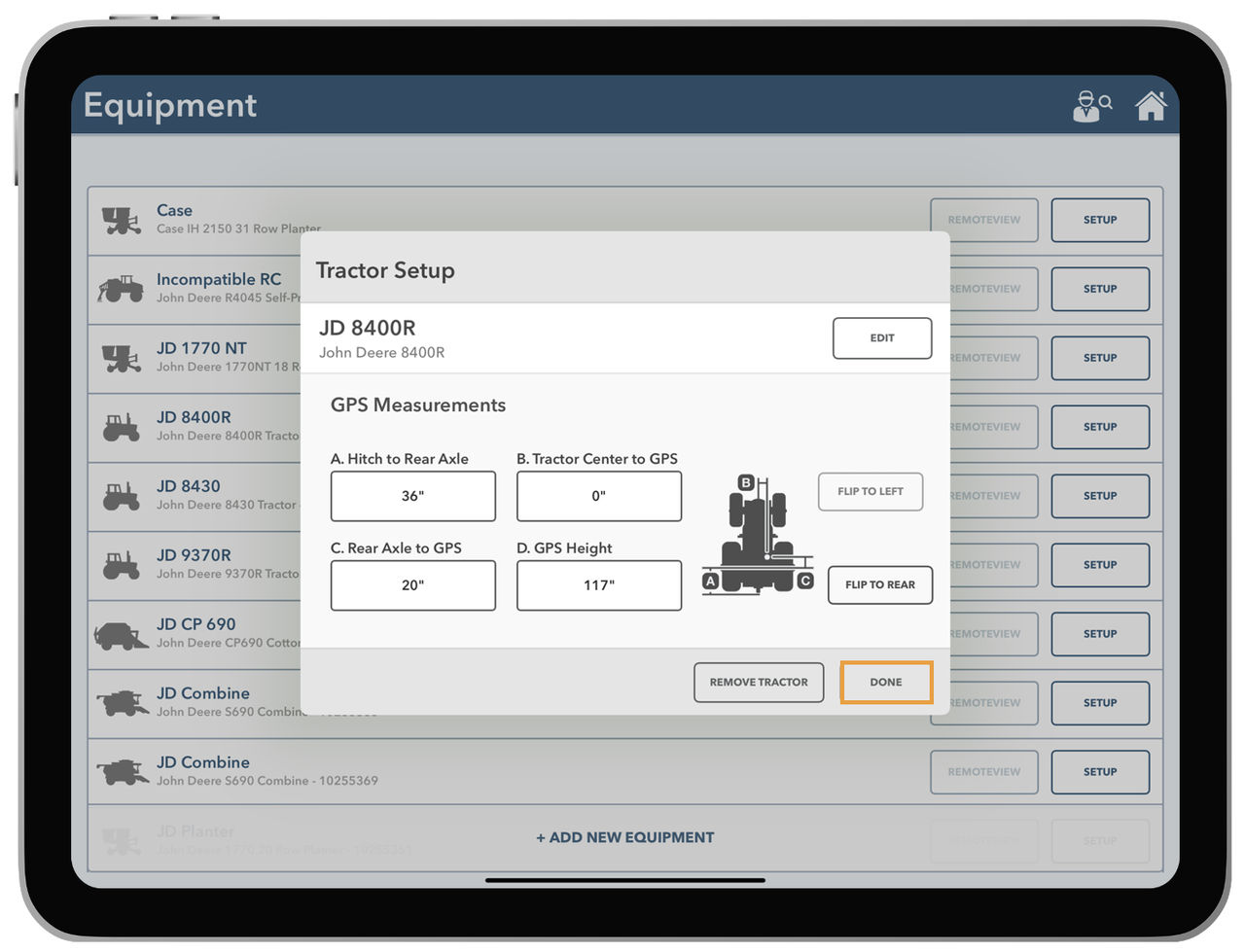
A. Hitch to Rear Axle: Distance between the rear axle to the hitch or point of contact with the implement
B. Tractor Center to GPS: Distance between the center of the tractor (can use hitch as center line) and GPS Globe (if tractor came from factory - measurement should be 0")
C. Rear axle to GPS: Distance between rear axle and GPS Globe
D. GPS Height: Distance from the ground to the GPS Globe
Planter Setup
1. From the + Add New Equipment page, select Planter and click Next
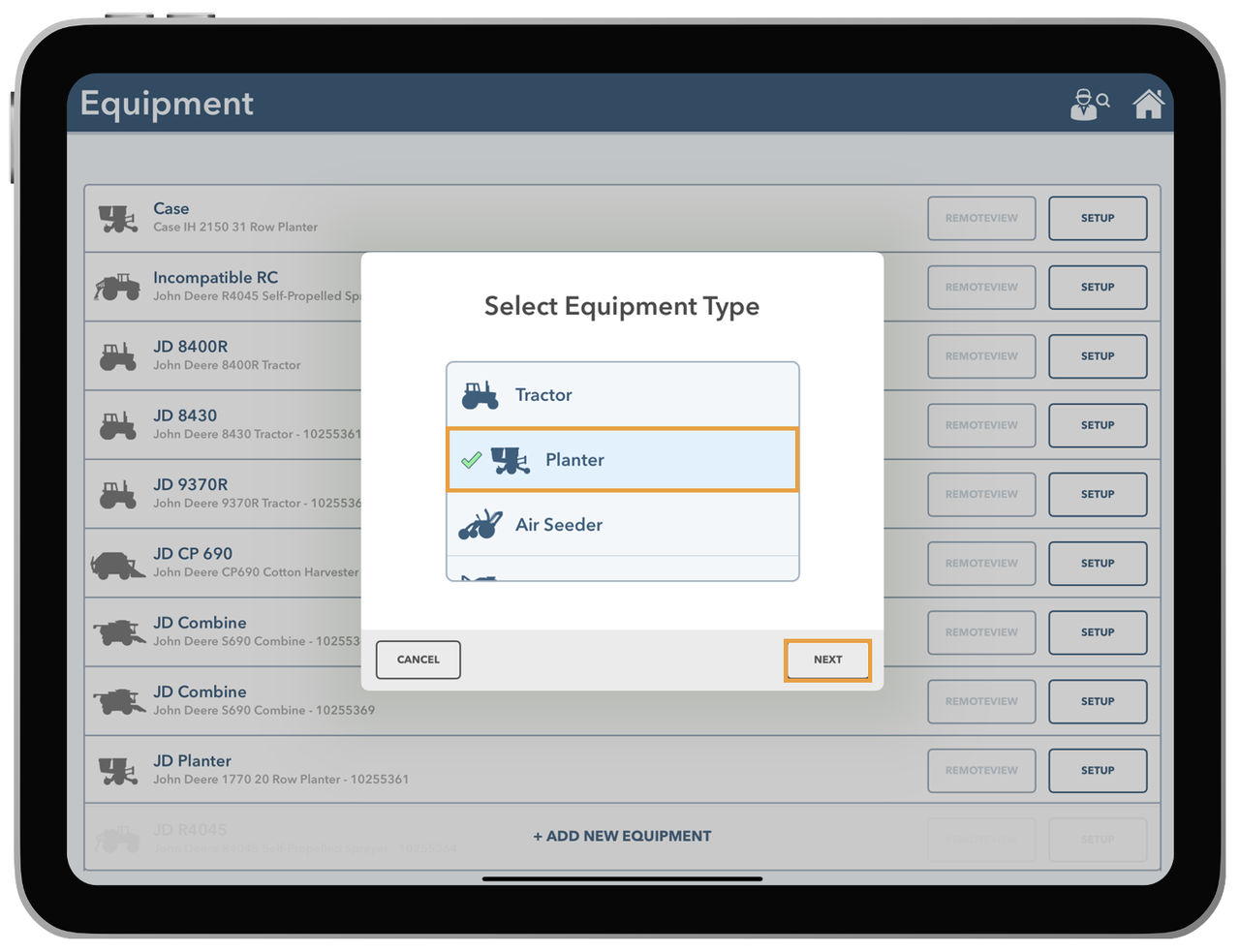
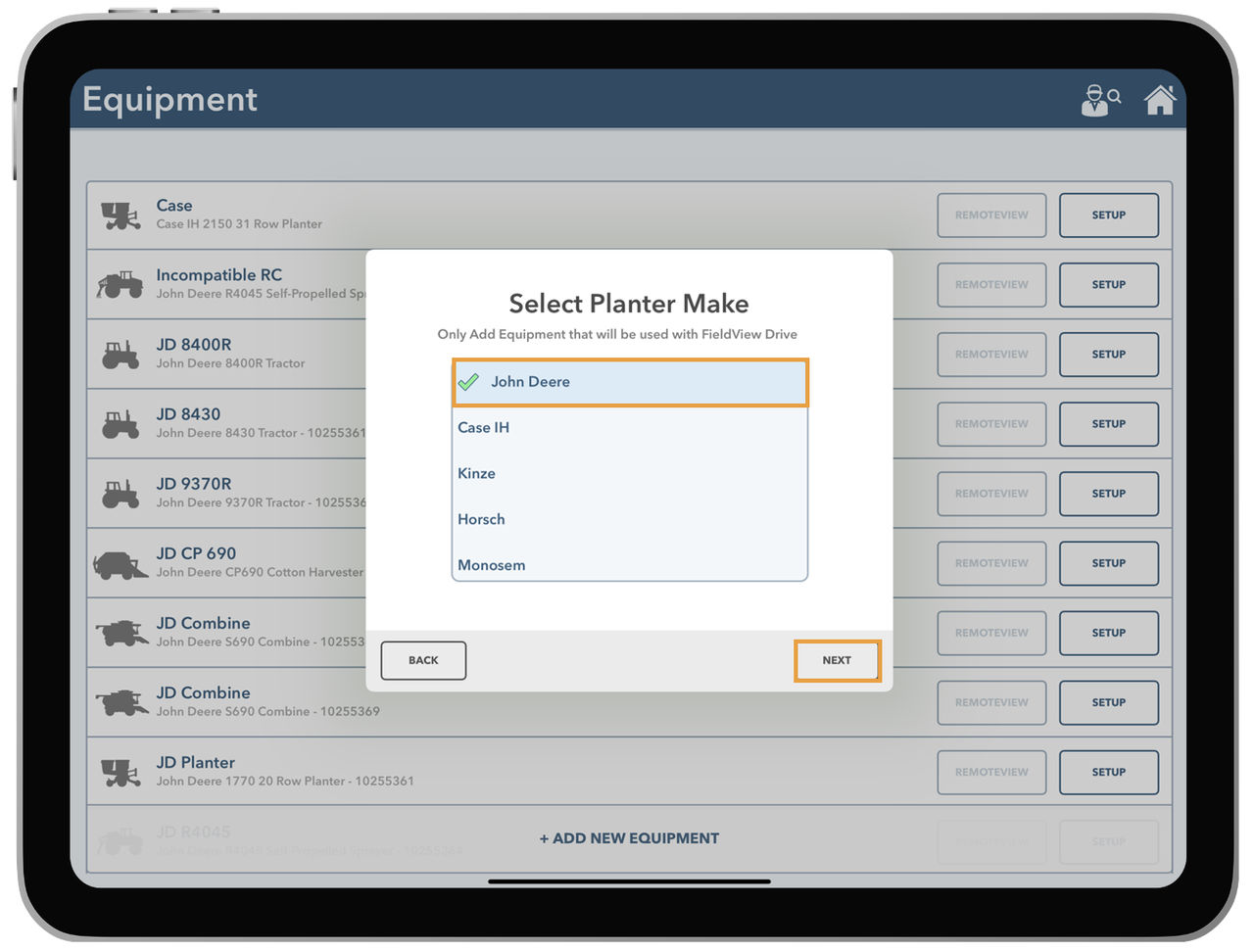
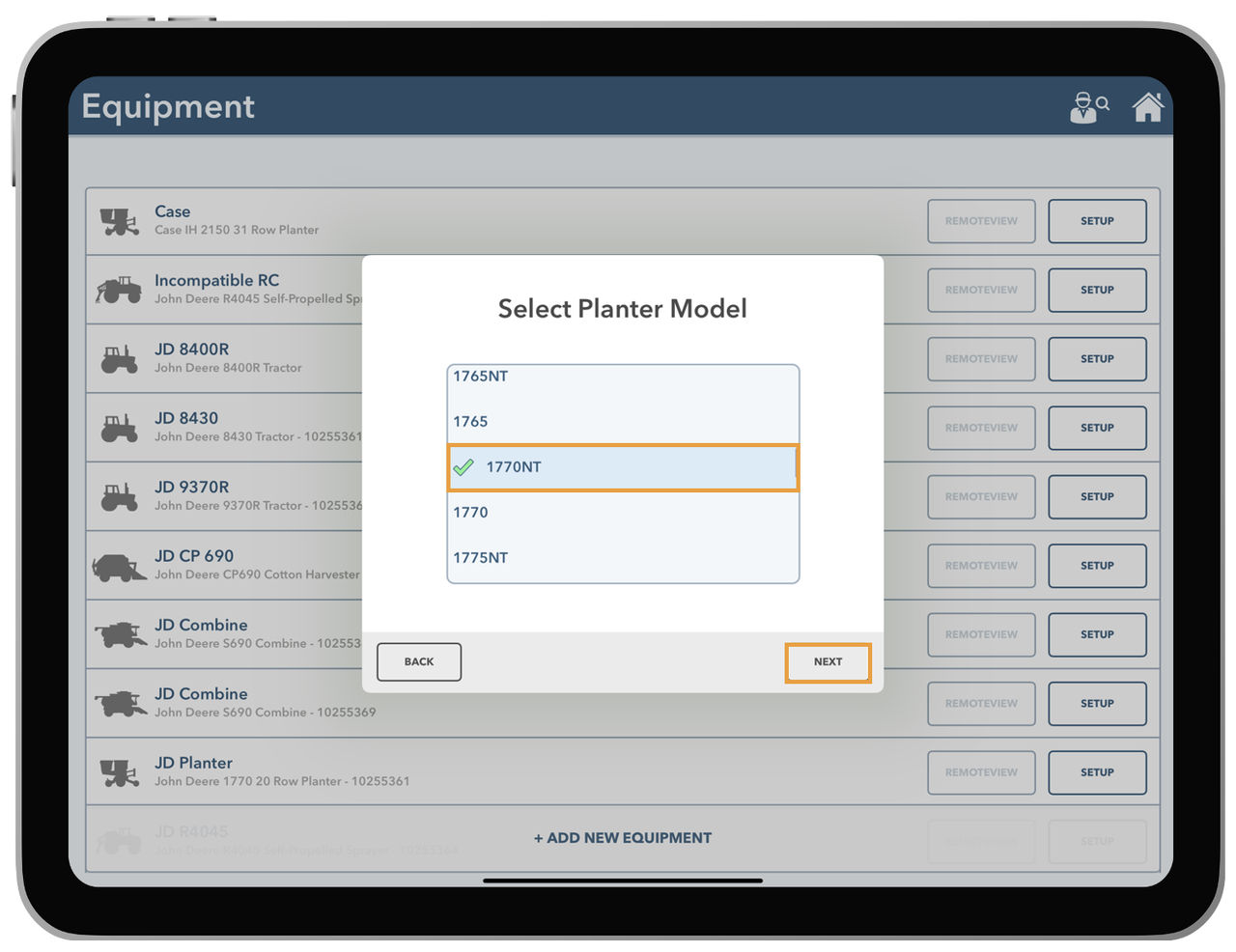
2. Select Planter Make and Model
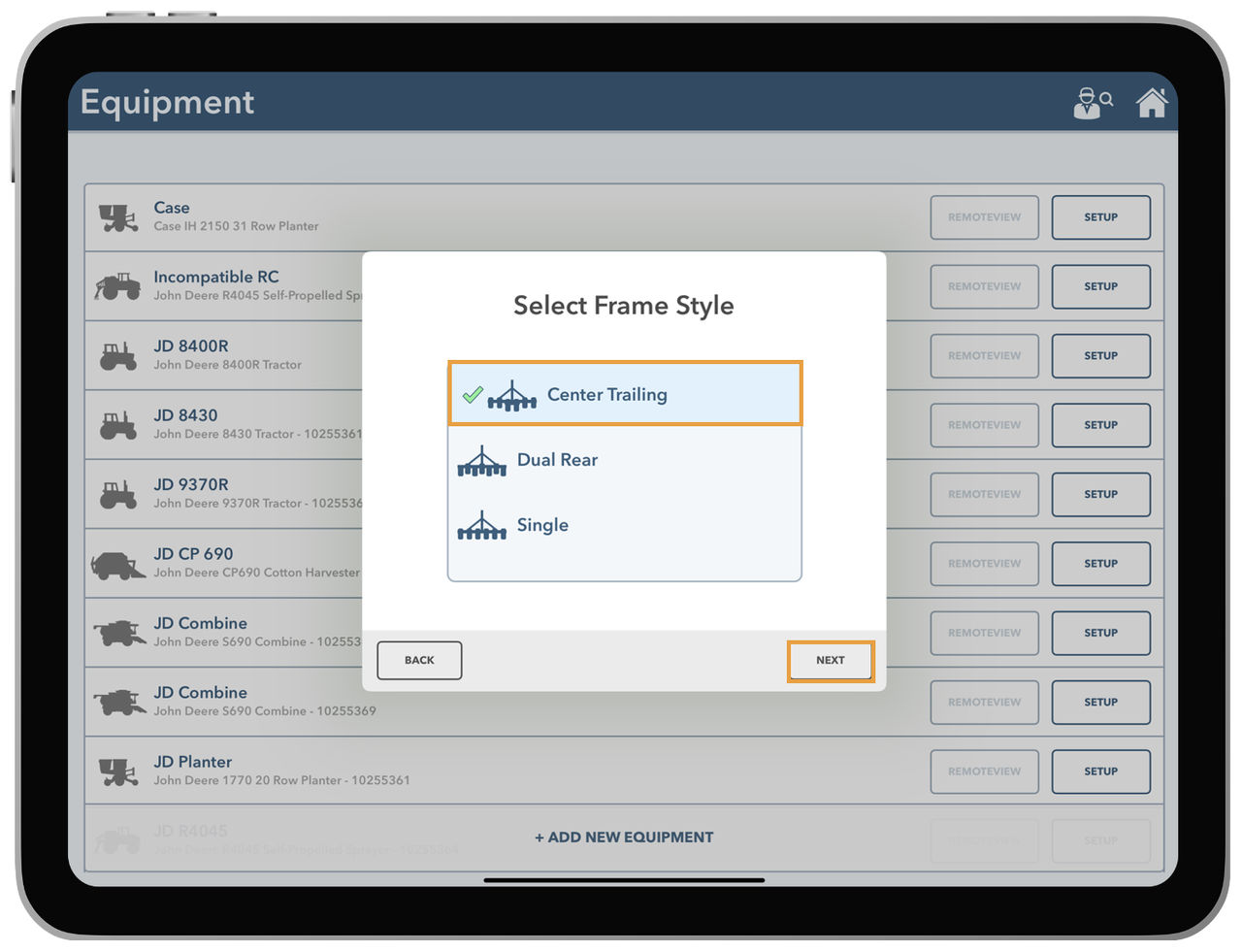
3. Select Frame Style: Center Trailing, Dual Rear, or Single
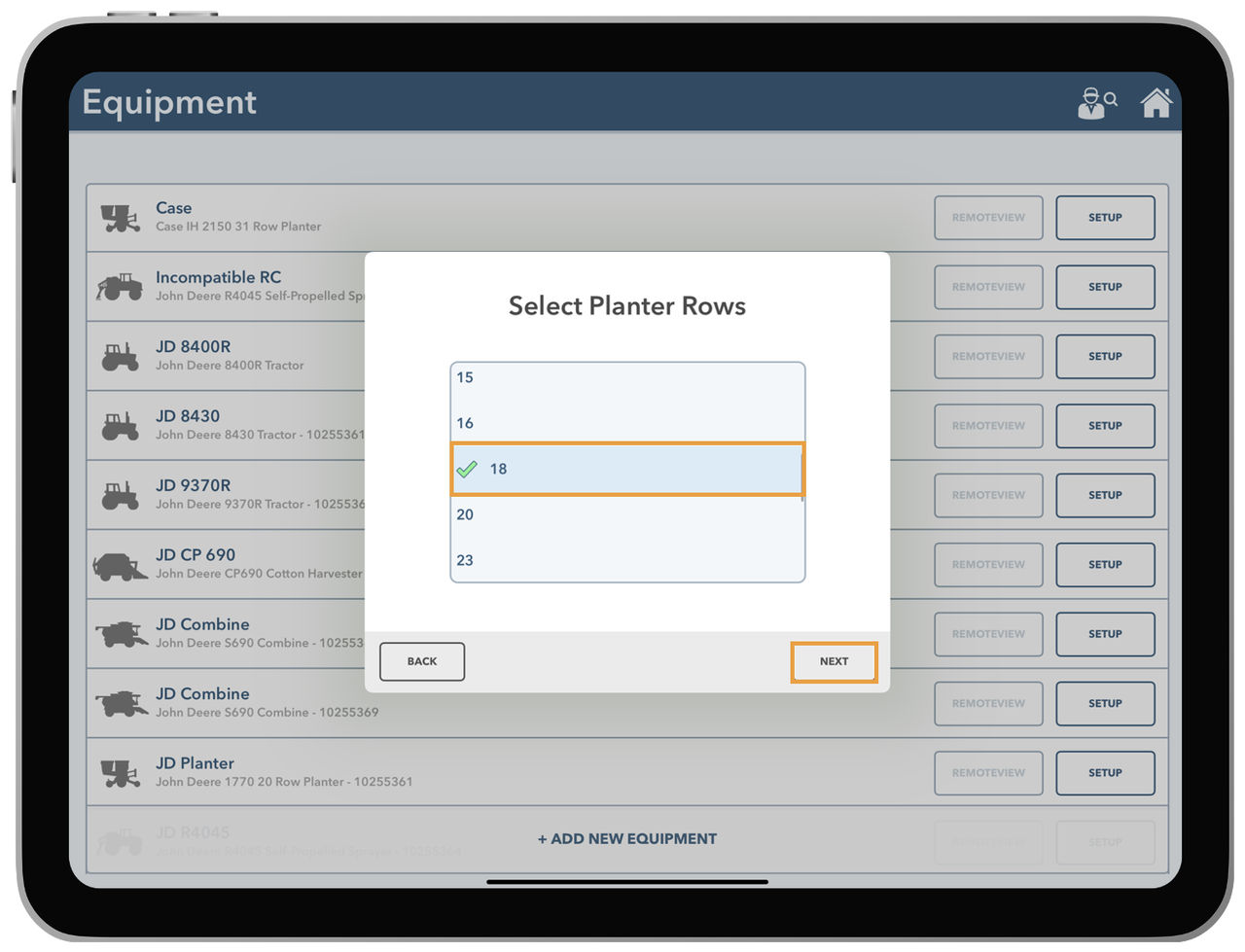
4. Select Planter Rows
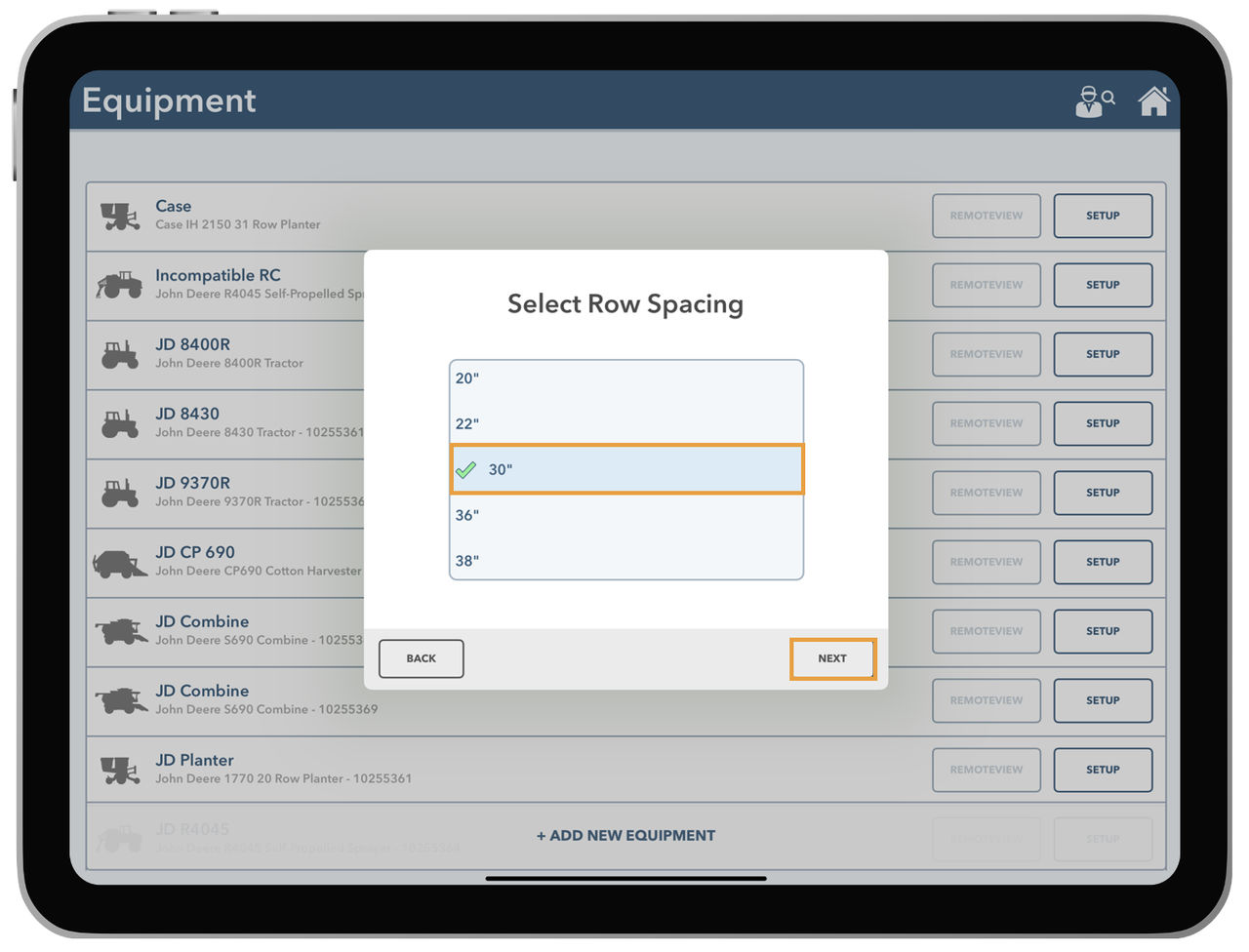
5. Select Row Spacing
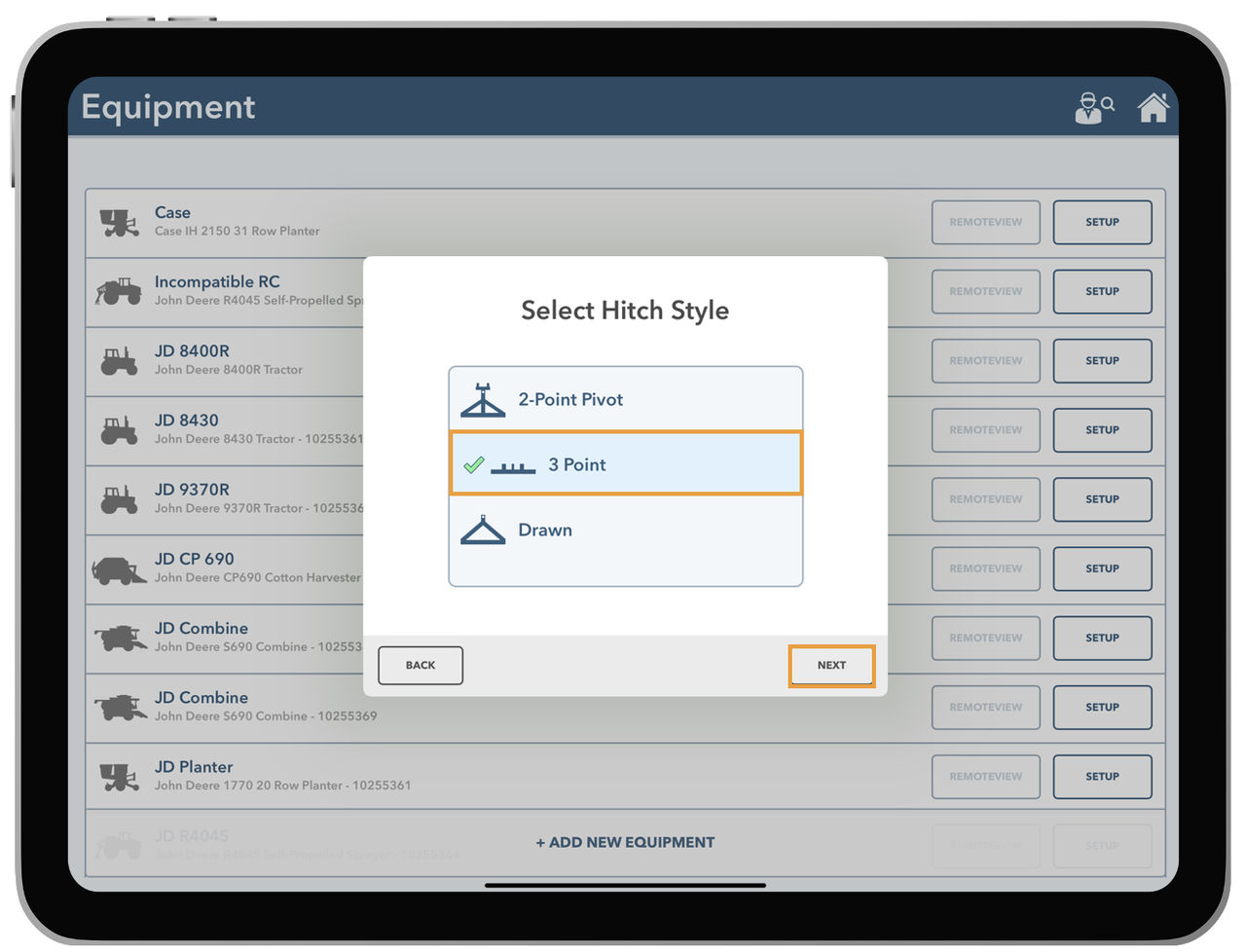
6. Select Hitch Style: 2-Point Pivot, 3 Point, or Drawn
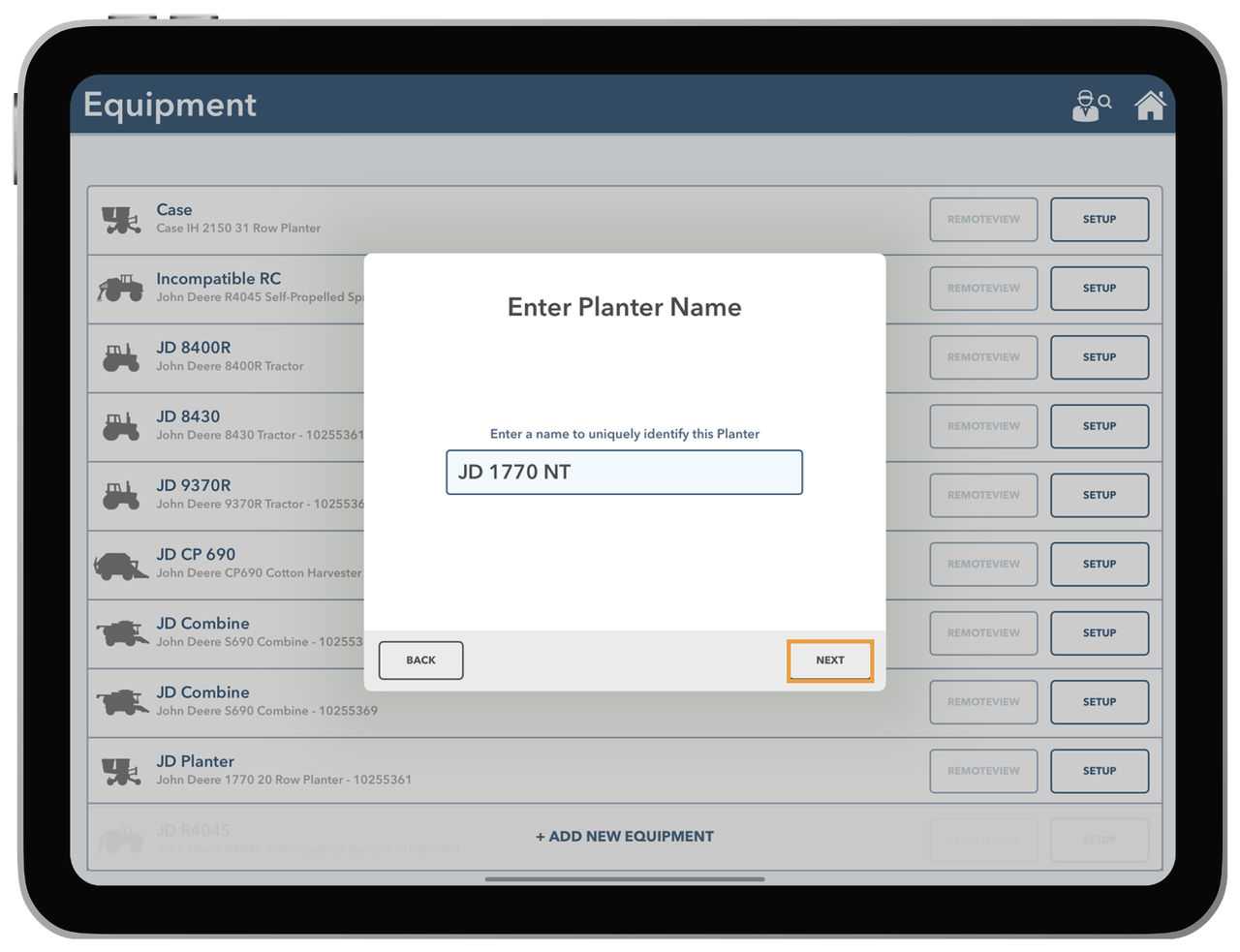
7. Enter Planter Name to uniquely identify this Planter
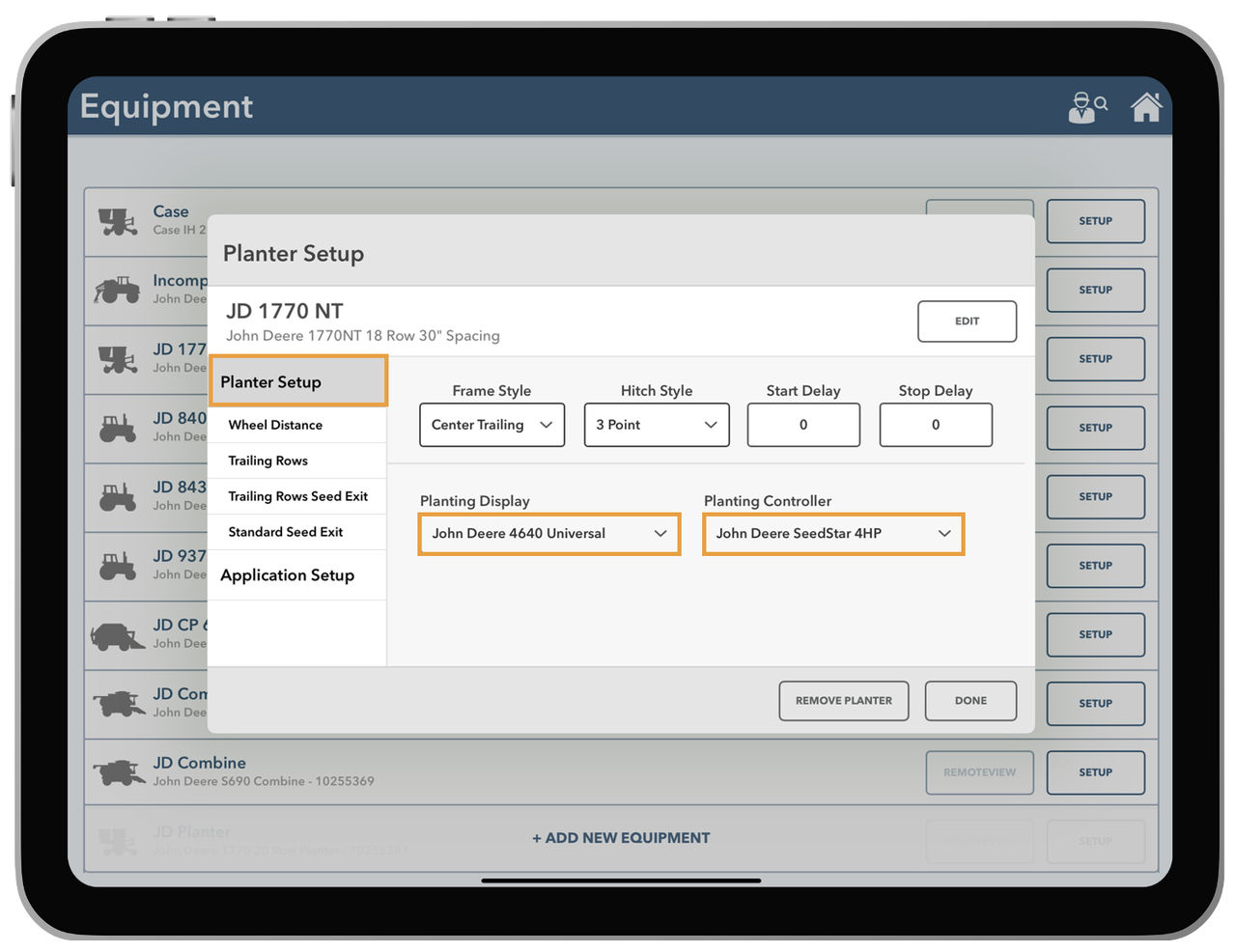
8. Verify Planter Setup
- Select Planting Display and Planting Controller
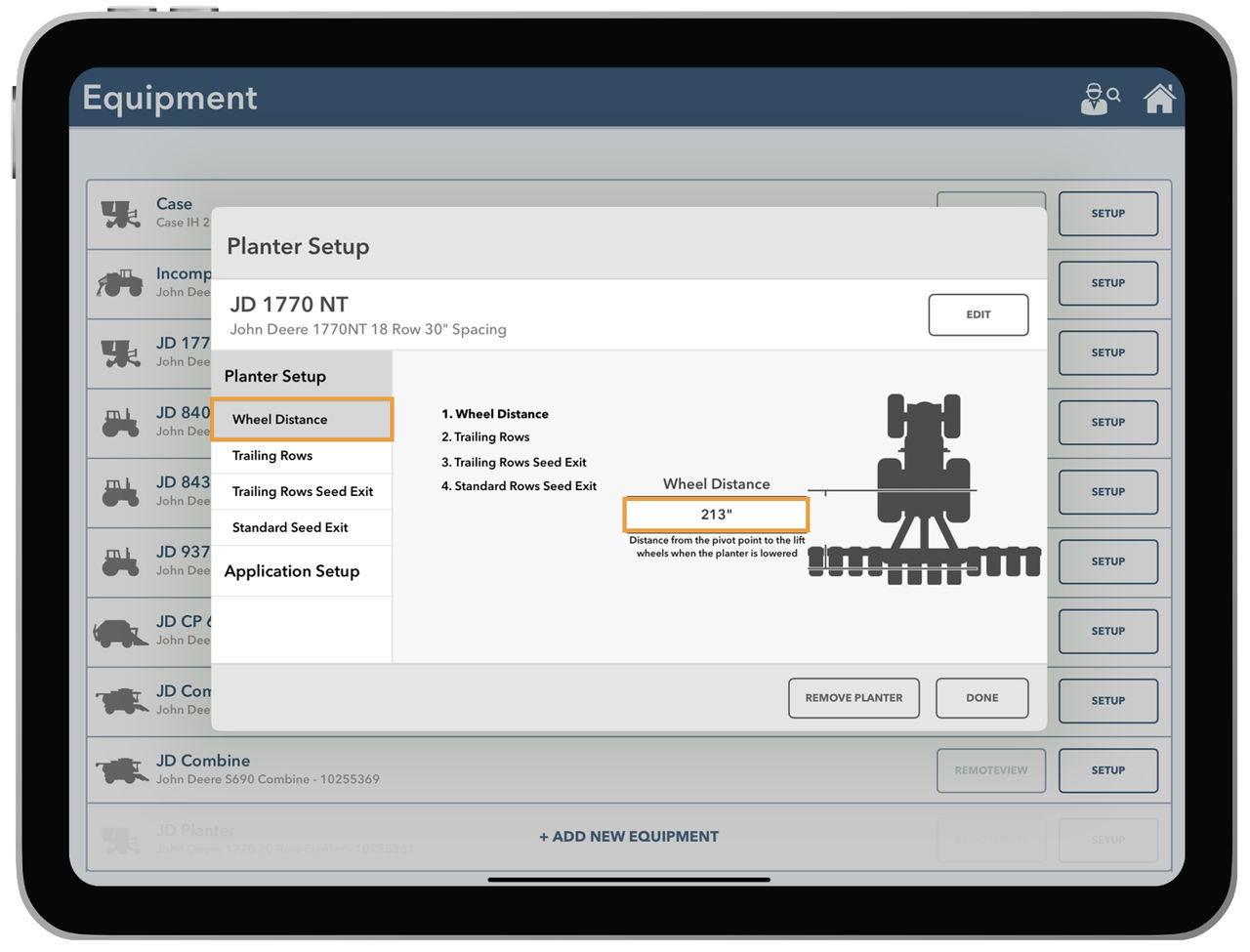
9. Verify Wheel Distance
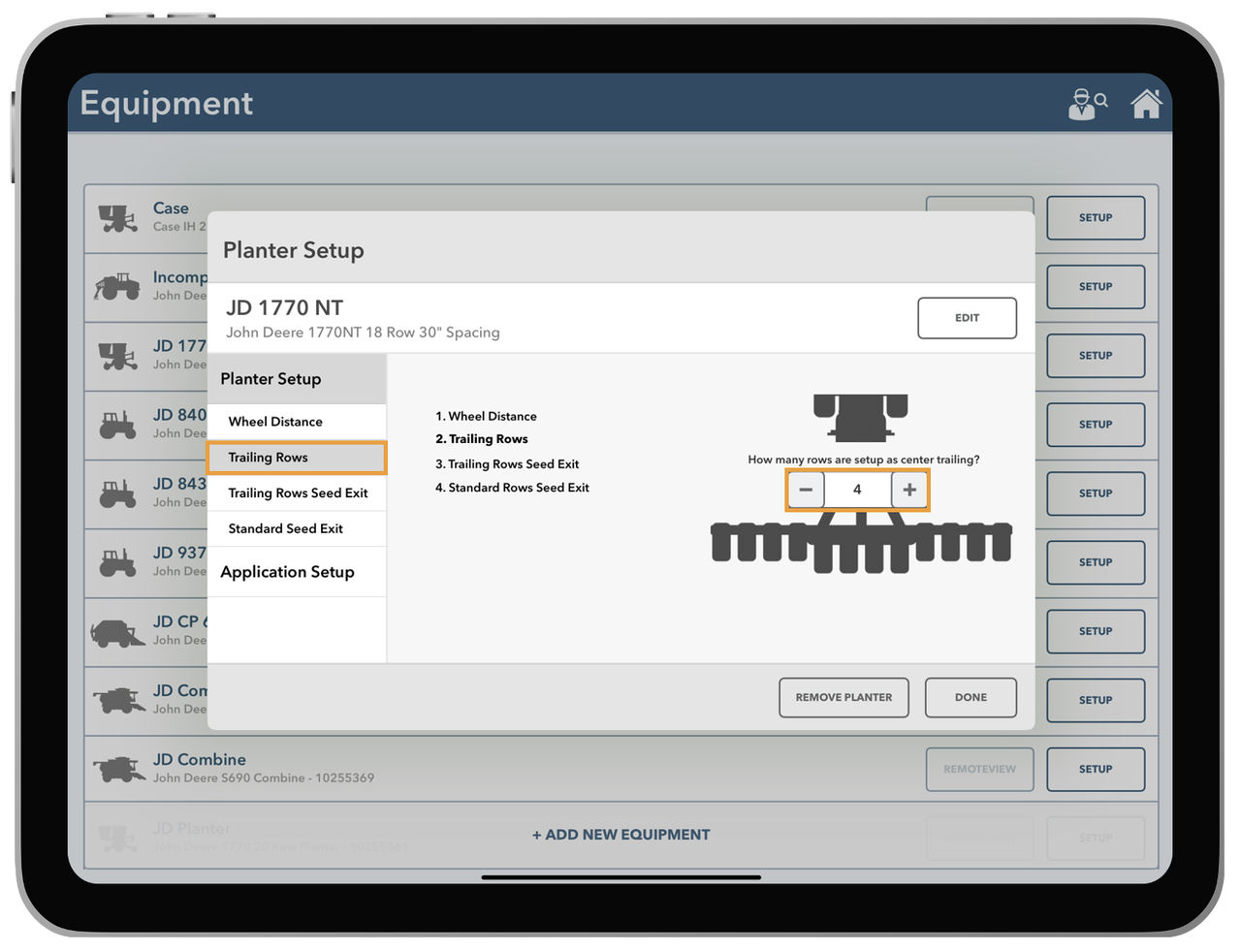
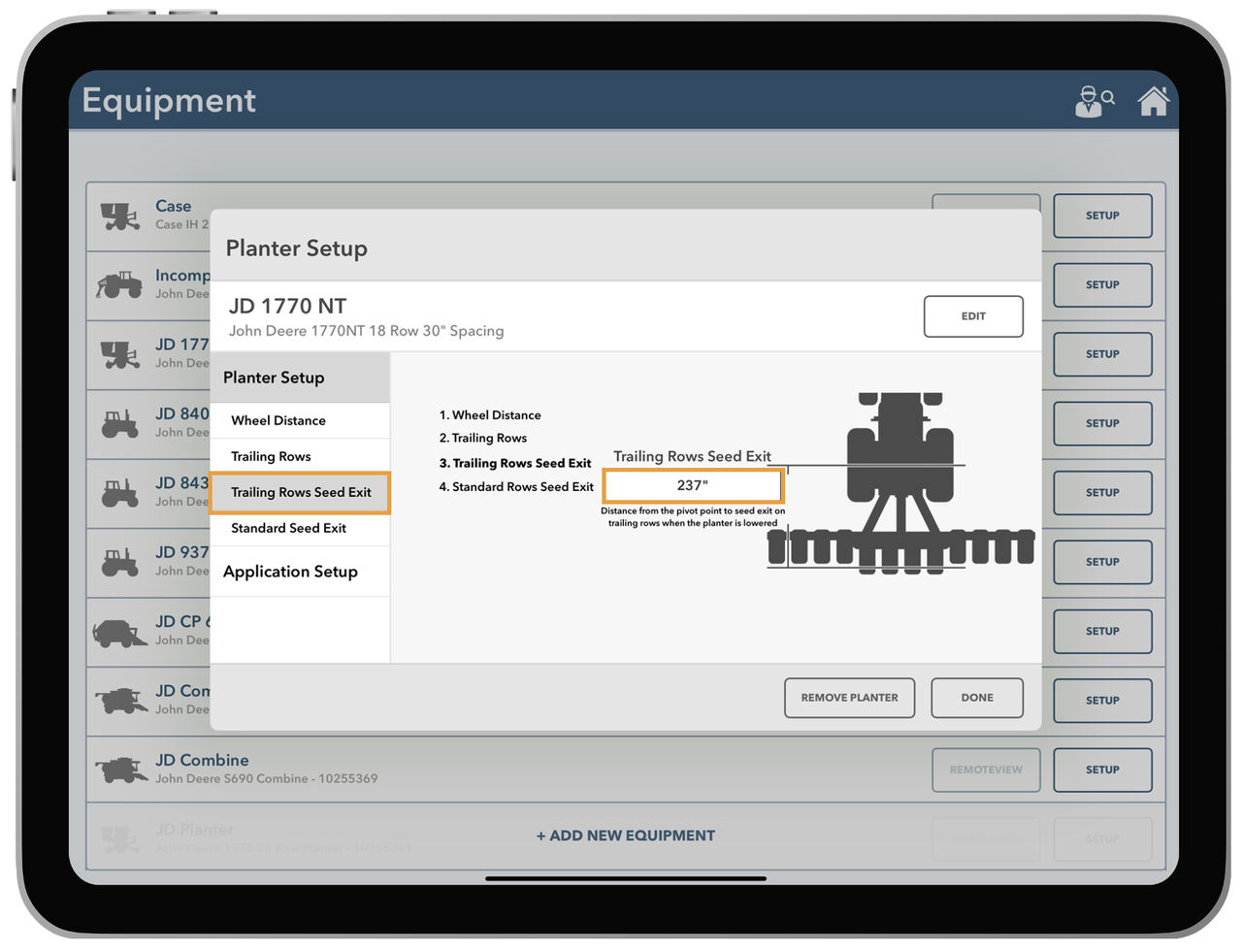
10. Verify Trailing Rows and Trailing Rows Seed Exit
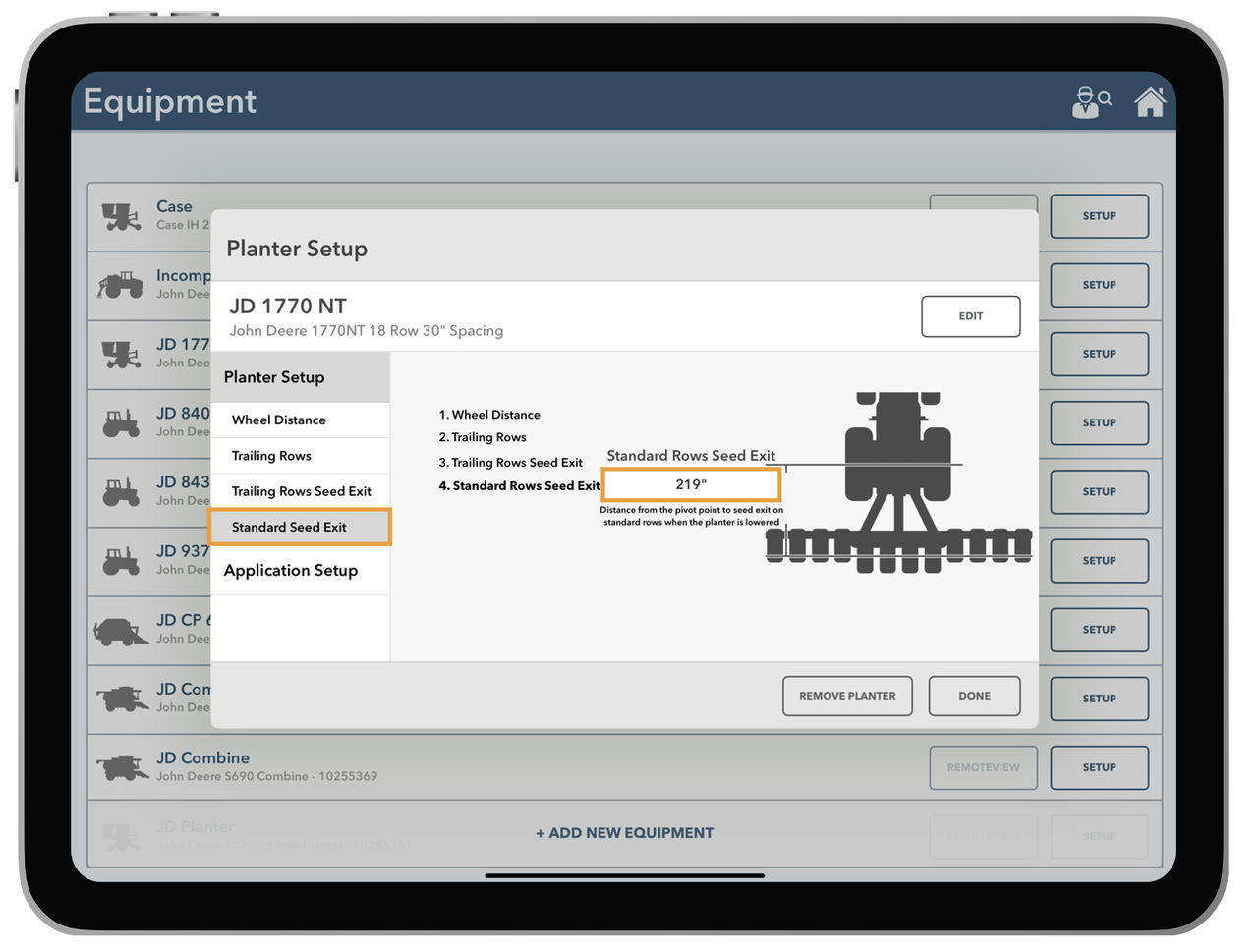
11. Verify Standard Seed Exit
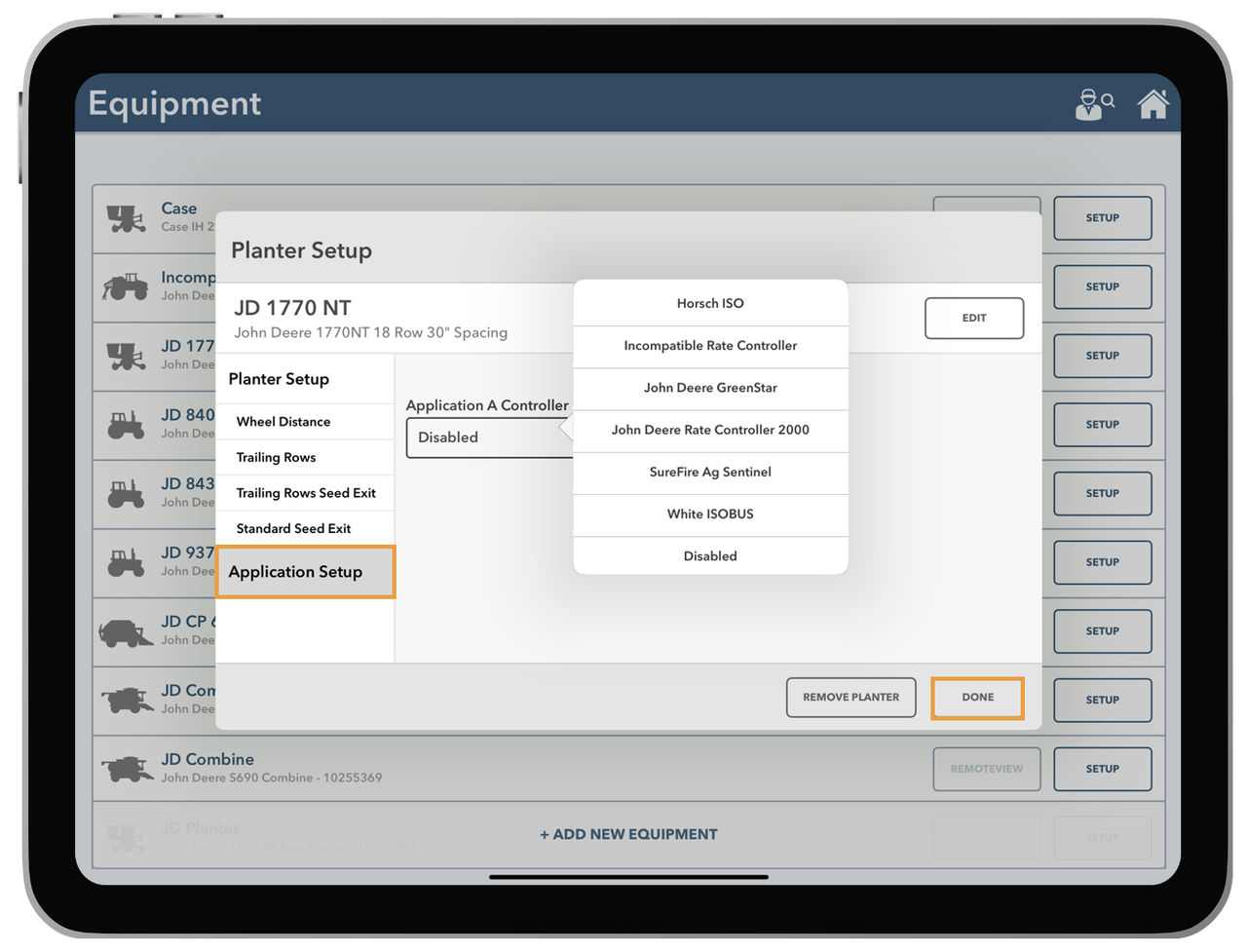
12. Verify Application Setup
- Choose Application Controller if applicable, otherwise, keep as Disabled and click Done