How to Download the FieldView™ Platform Apps
Steps on how to download the FieldView™ platform apps on Apple iOS™ and Android™ devices
Learn the FieldView™ essentials, including account and equipment setup, data collection, field mapping, and key tools.
Steps on how to download the FieldView™ platform apps on Apple iOS™ and Android™ devices
Take control of your future by accessing grain futures prices right within the FieldView™ app, empowering you to make informed trading decisions and maximize your profit.
This document outlines the steps to create a FieldView™ account via an Android™ mobile device.
Getting your field boundaries mapped, edited, or deleted with FieldView™.
This document outlines the steps to create a Climate FieldView™ account via the Web.
Take control of your future by accessing grain futures prices right within the FieldView™ app, empowering you to make informed trading decisions and maximize your profit.
This document provides an estimation on the amount of data used by the FieldView Cab app.
Instructions on how to install the FieldView™ Drive in the cab and pair the FieldView™ Drive to your mobile device.
Follow these step-by-step instructions to turn off automatic software updates
Each farm is different. Every field is unique. Use FieldView™ year-round to make data-driven decisions to maxmize your return on every acre. Utilize this guide for the steps on getting started with FieldView.
This step-by-step guide will get you started on FieldView™ platform basics and help you on your way to utilizing the power of FieldView™.
There are over 20 iPad® devices on the market and sometimes it can be difficult to determine which iPad you need to best operate the FieldView™ apps. Additionally, understanding which iPad model you have is key to determining when and if you need to update your device. This guide is designed to help you determine which iPad model you need to purchase or if you need to update your current device.
This document outlines the top issues that could be experienced during planting season, how to fix them and when to call the Climate Support Team.
Follow these steps to update the iOS software version on your iPad® device.
Both Android™ and iOS™ operating systems have the capabilities to switch the color schemes to make the devices accessible for users with color vision deficiency. This guide provides steps on how to adjust the color scheme to allow our Field Health images, yield maps, etc. to be accessed by these users.
Utilize this guide for key FieldView tasks to be completed each season.
Follow these steps to rearrange tiles on the FieldView™ app Overview screen.
Find fields and map layers easier and faster with filtering options on climate.com
Each farm is different. Every field is unique. Use FieldView™ year-round to make data-driven decisions to maxmize your return on every acre. Utilize this guide to hlep your farmers get started with FieldView.
Commonly asked questions about the FieldView™ Drive and Drive 2.0 (FAQ)
Instructions on how to install the FieldView™ Drive 2.0 in the cab and pair the FieldView™ Drive 2.0 to your mobile device.
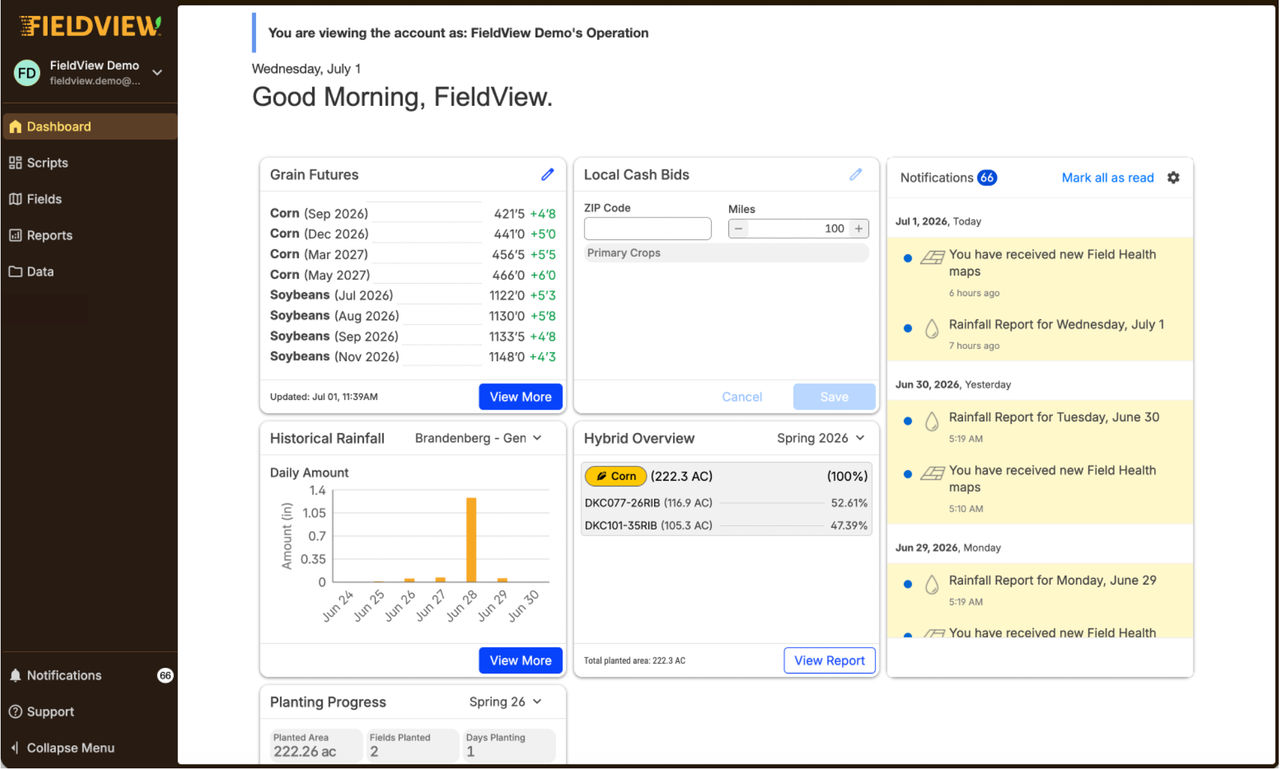
The FieldView Dashboard is a new homepage on FieldView.com that snapshots your operation using region-relevant widgets. Learn more about the update here.
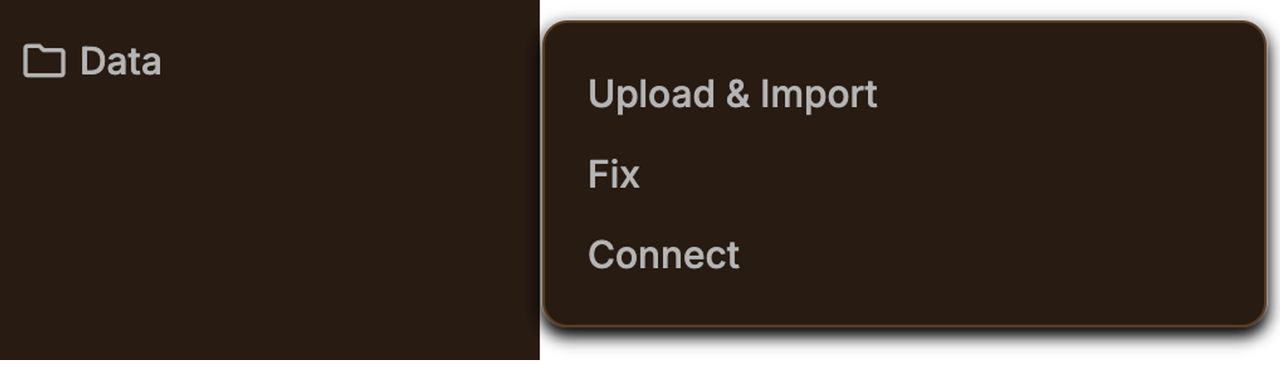
Learn how to use the new and streamlined Navigation Pane on FieldView Web. Our guide provides helpful images and steps to show you what's new in the layout.
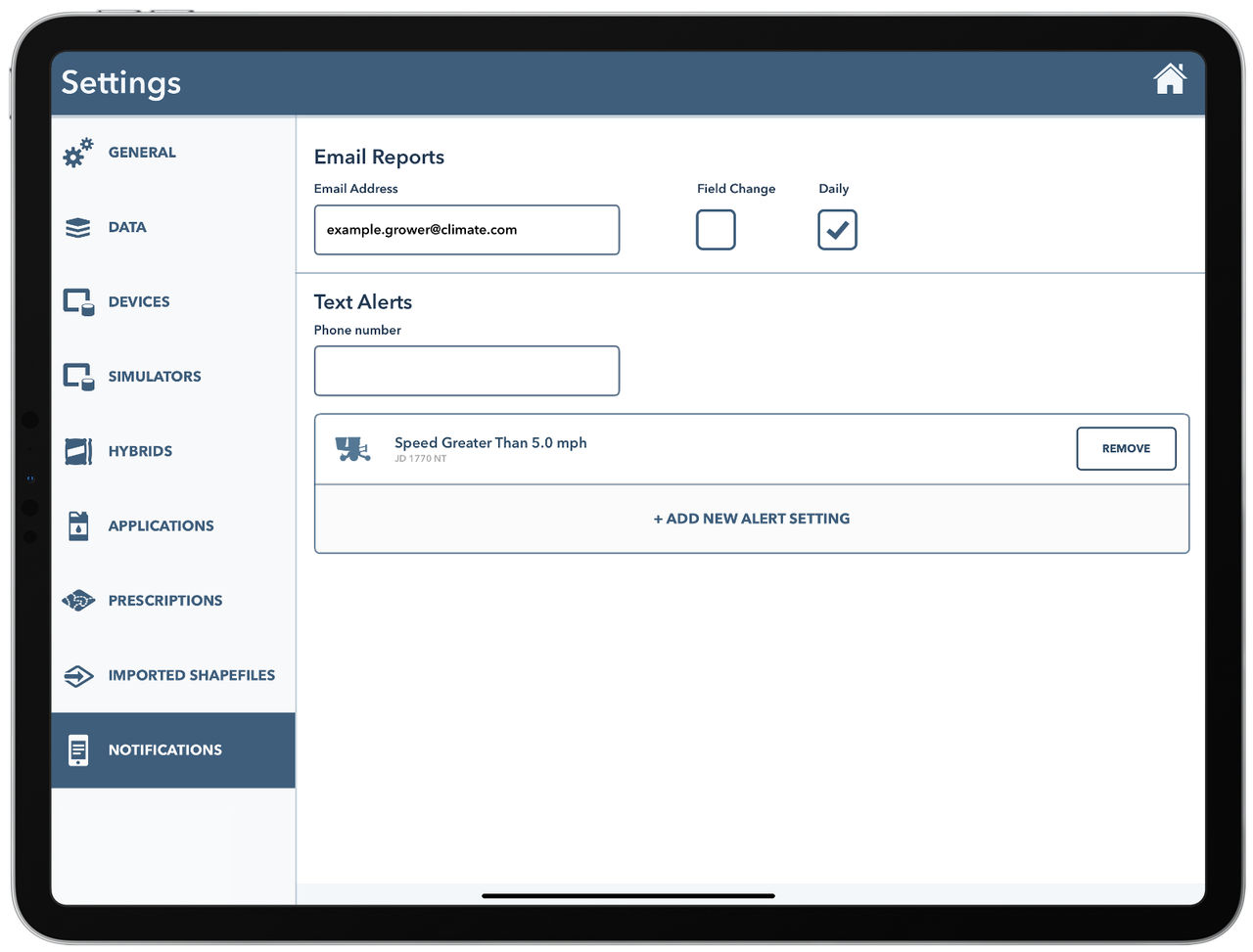
Enroll in notifications from FieldView Cab to stay updated on issues, progress, and performance. Learn how to get email reports and text alerts.
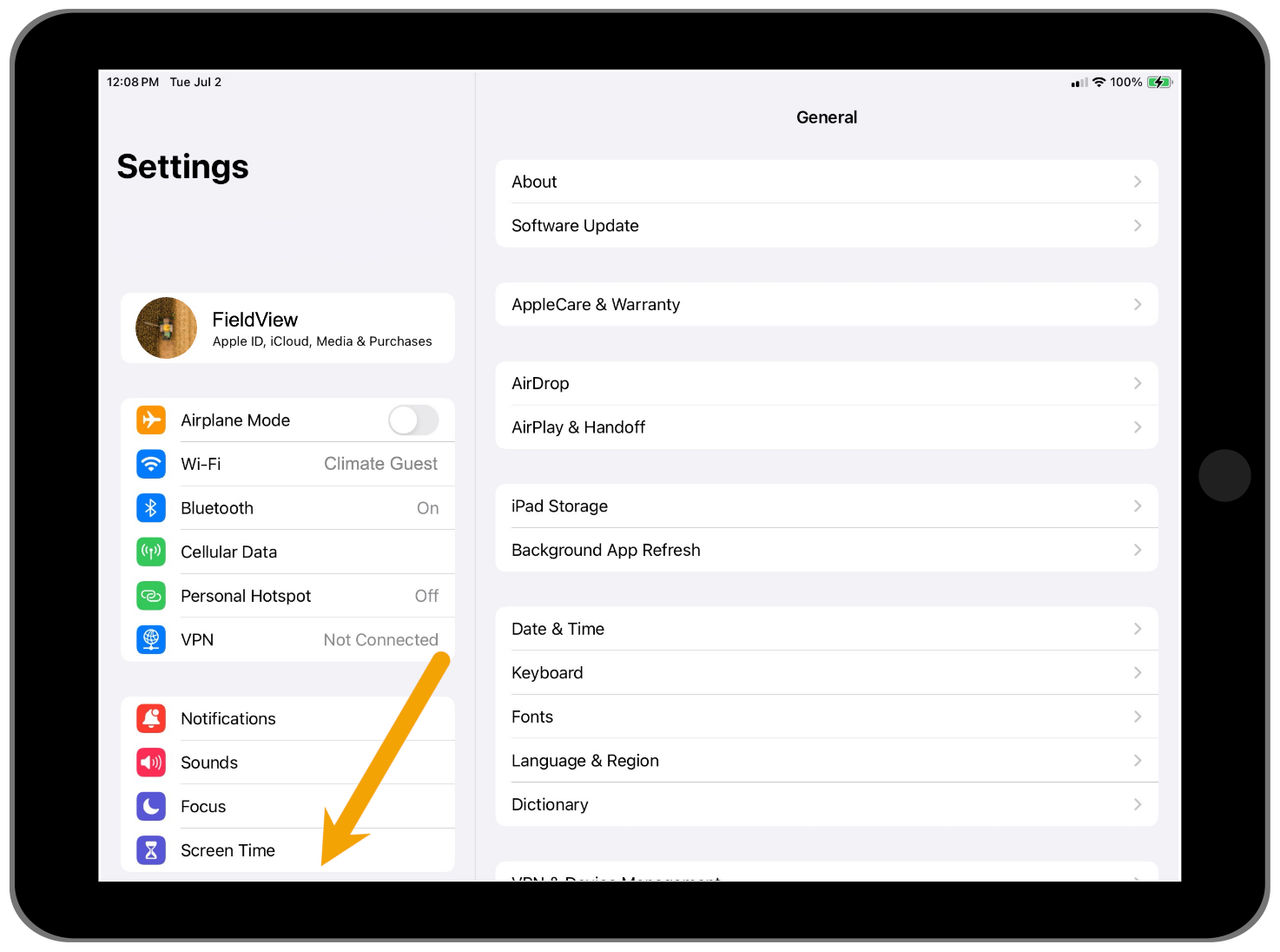
Update FieldView Apps on your iPad device. Follow our step-by-step guide to update your iPad’s iOS software and keep your FieldView Apps running properly.
View a list of frquently asked questions about iPad integration with FieldView Drive and FieldView Cab App. Learn about iPad recommendations and more.
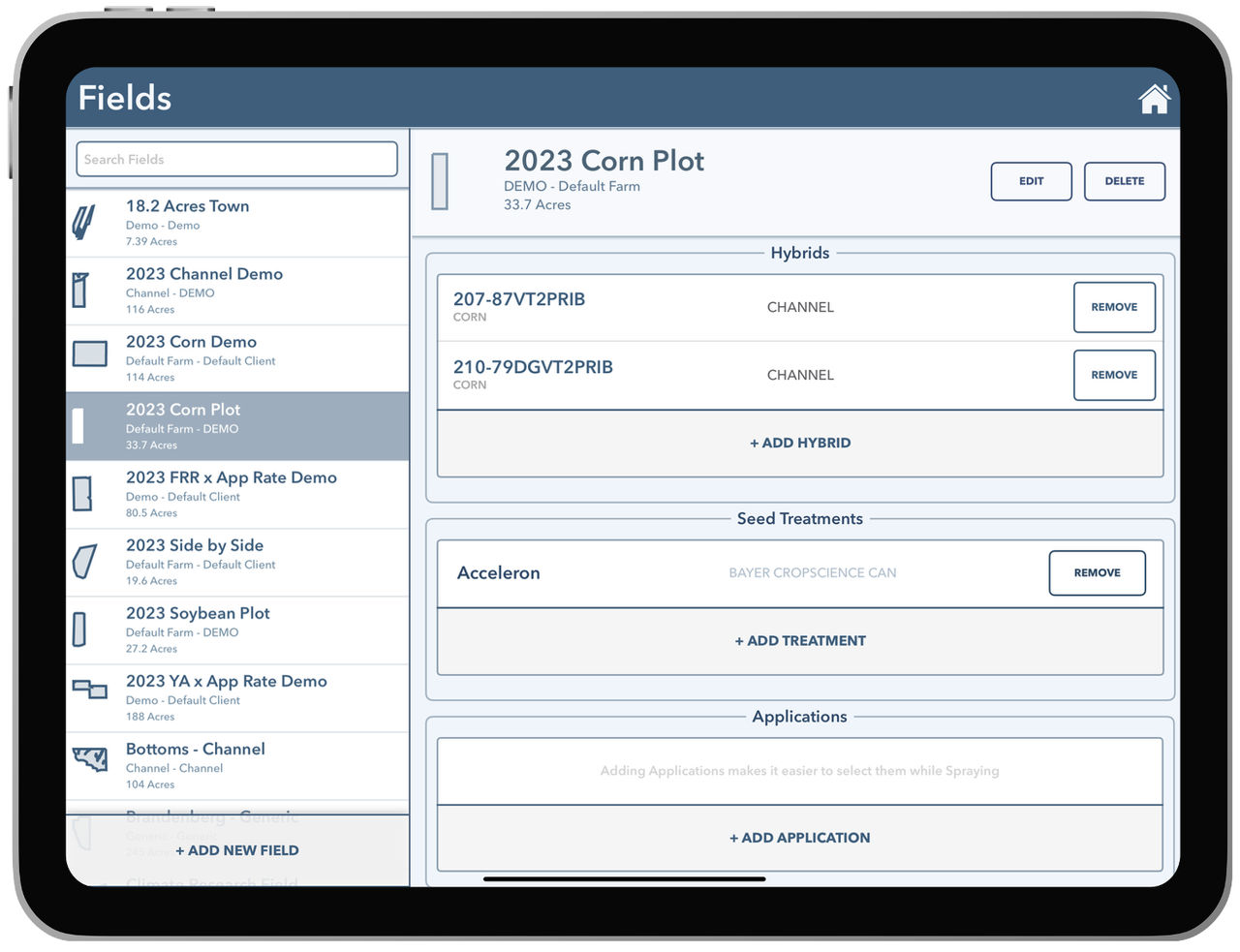
View a list of your field names using FieldView Cab App's Fields screen. Discover the Search Fields text box for displaying fields for edits or deletion.
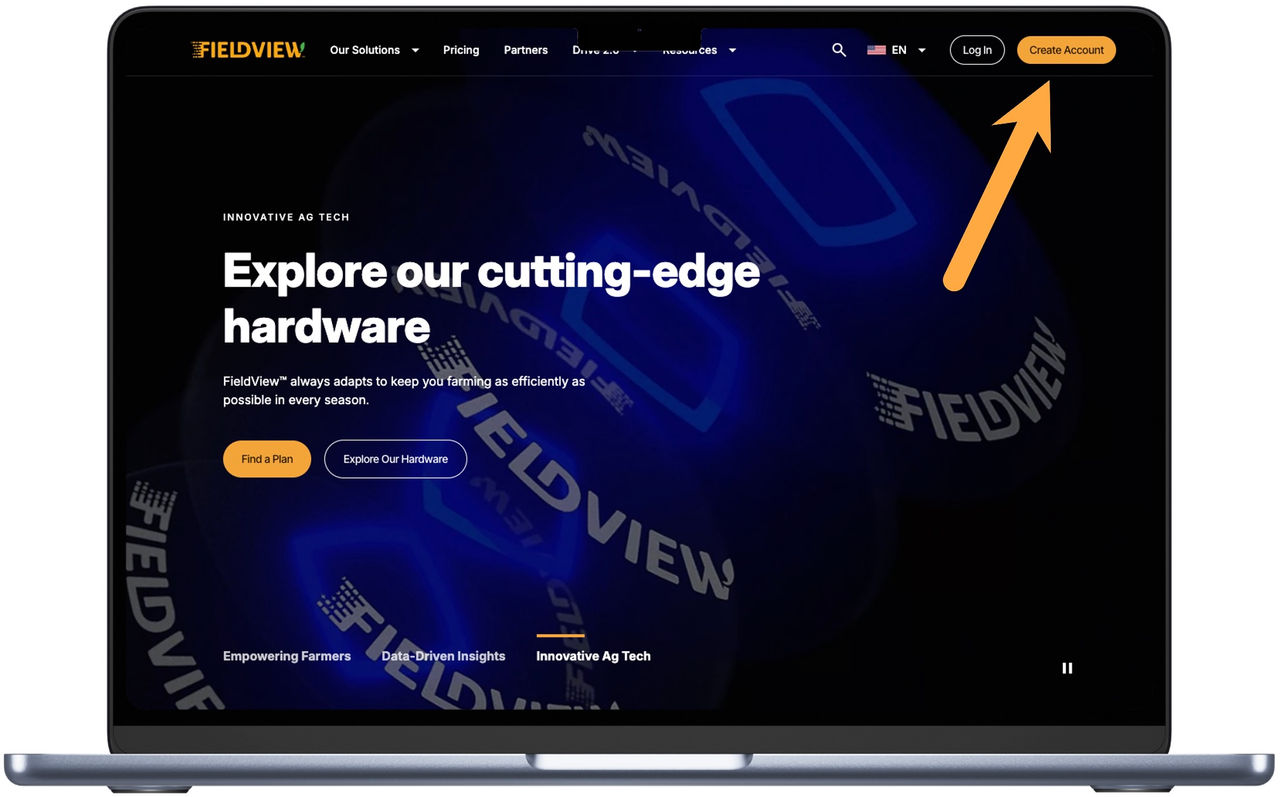
Set-up your account on FieldView.com. Our guide walks you through every step of from your inital FieldView account creation to email address verification.
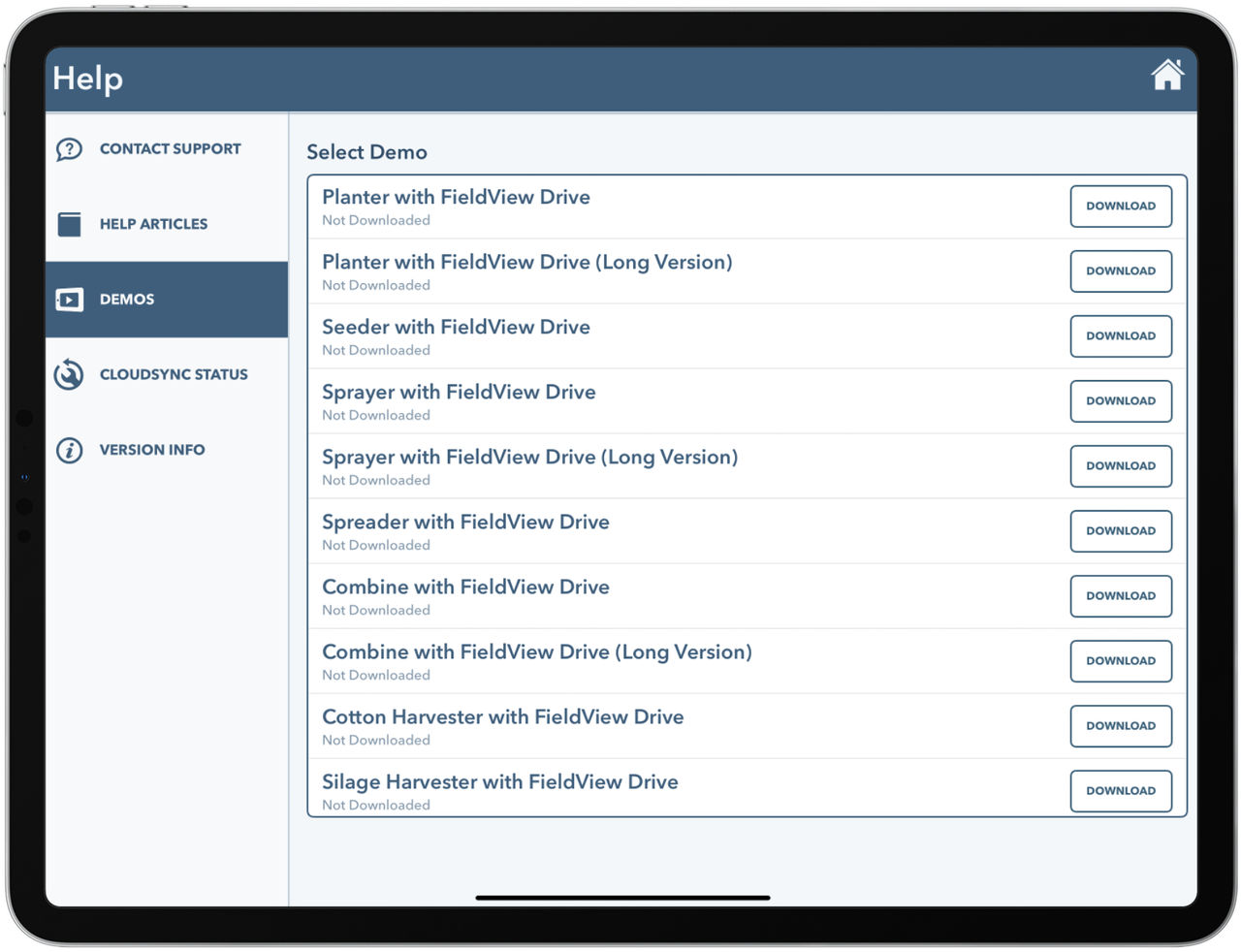
See our overview and learn how to access FieldView demo videos in FieldView Cab App View videos about planting, harvest, spraying, map layers, & more.
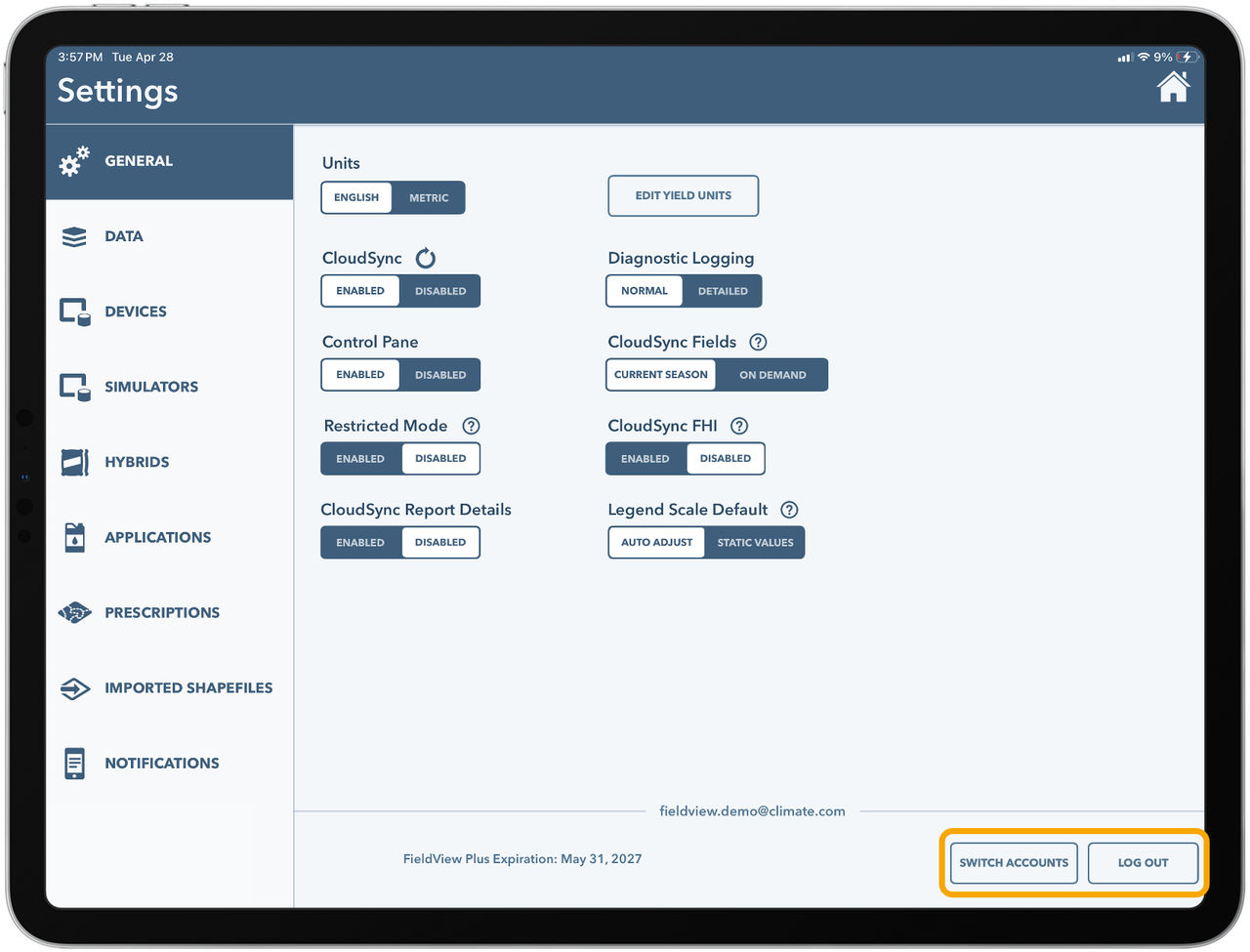
FieldView Cab App allows growers to log out without deleting the app or log into multiple accounts and toggle between them. Learn more with our guide.
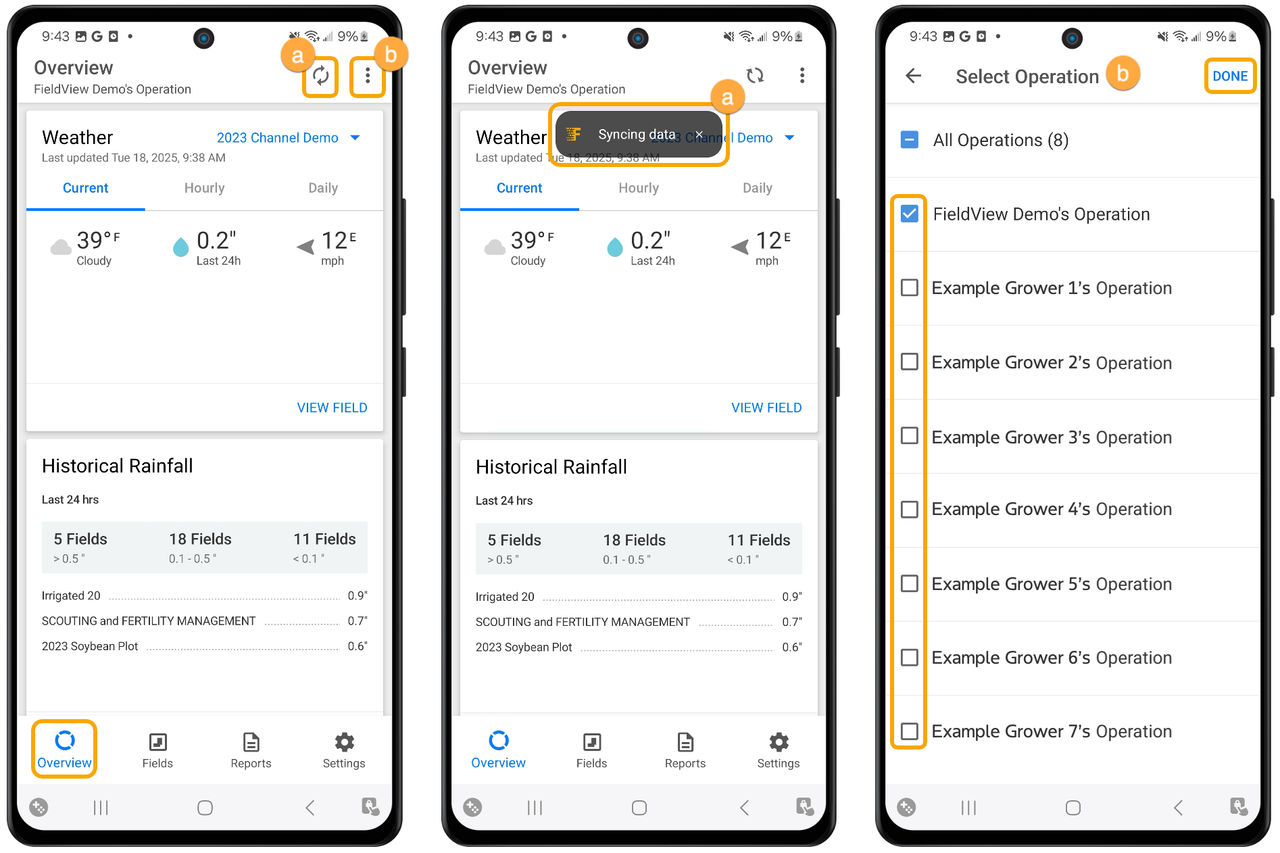
Make the most out of FieldView App on your Android mobile device. Discover our guide which provides an in-depth look at FieldView App features and more.
To change your FieldView account's email, you need to verify ownership with support. This article shares everything you need to know about changing your email.
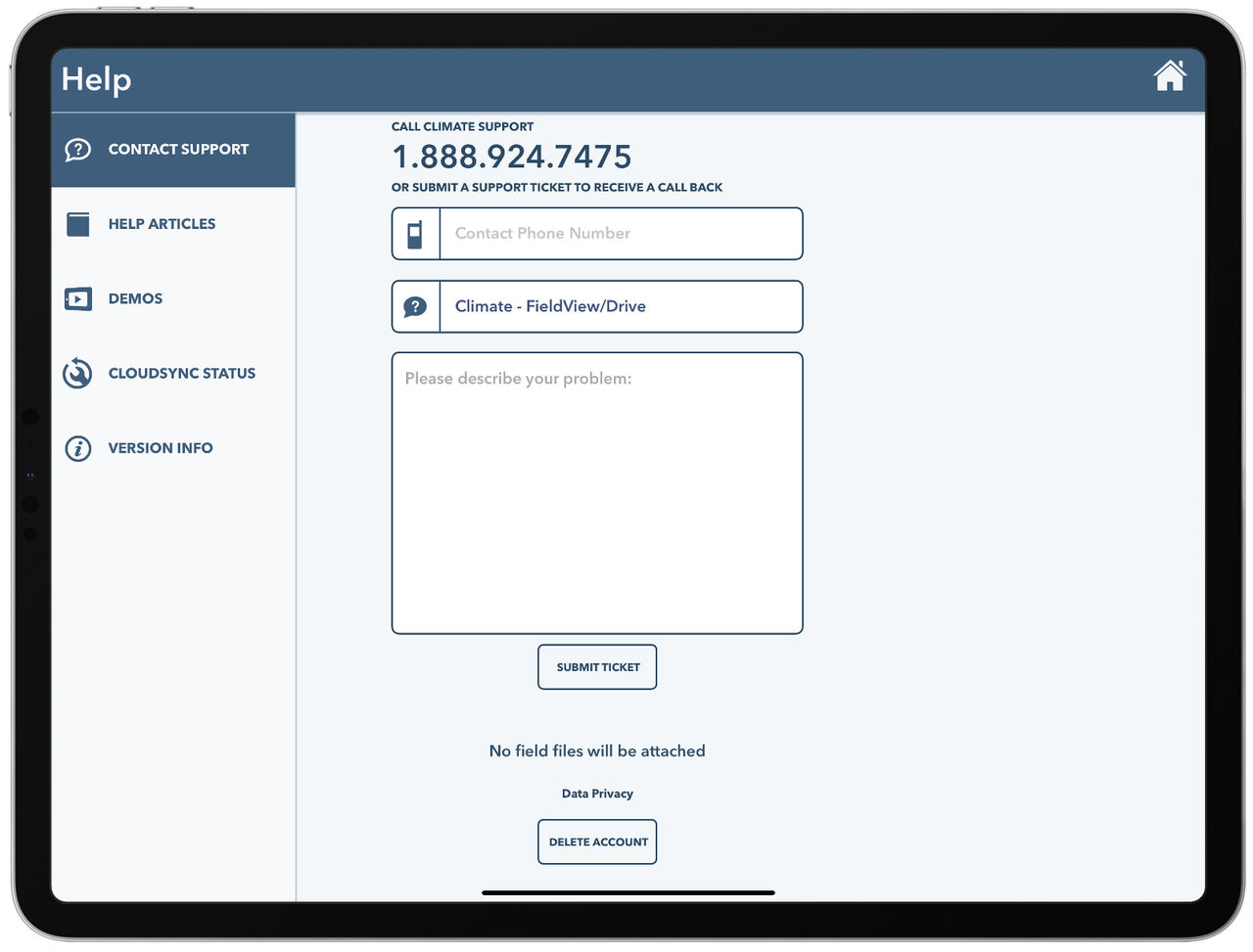
The "Contact Support" option lets FieldView Cab App users submit a ticket directly from their iPad device. Find other ways to contact support with our guide.
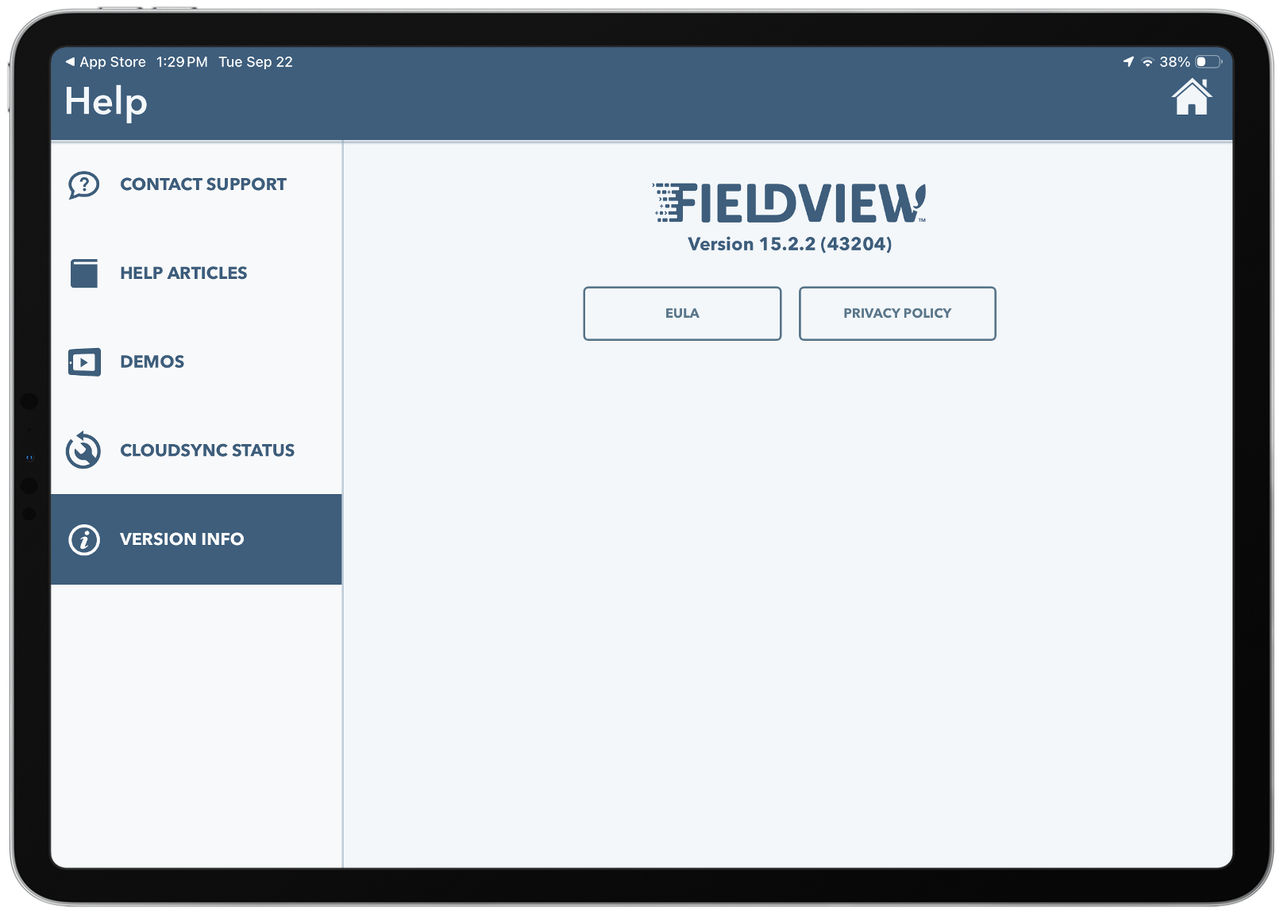
Learn how to check which version of FieldView Cab App you have installed on your device. This page also has links to the License Agreement and Privacy Policy.